
[intro] The EKM Partner API makes use of OAuth2 and OpenID for authentication of incoming requests. This guide explains how to authenticate an application using our default flow (authorisation code). [/intro]
For EKM Merchants using the API Feature
If you are using the API Feature from the back end of your EKM online shop, you can take the token provided to you by the EKM API feature and add it to the Authorisation header of all your requests, prefixed with the word Bearer. For example:
| Header Name | Header Value |
| Authorization | Bearerabc1234 |
The rest of this guide is only relevant to EKM Partners and developers and can be safely ignored by merchants.
Authorization Code Flow
The authorization code flow is designed for server-side communication where the client secret can be kept secure. If you are building an application that needs to make an authorization request from the user’s machine, then please see the Other Flows section of this guide. There are 3 stages to the authorization code flow:
- Consent
- Access
- Refresh
Consent
The consent stage is where the application must request consent from the merchant to access their data via our API. This is done by directing the merchant’s browser to a URL with the following format:
| GET | https://api.ekm.net/connect/authorize?client_id={client_id}&scope={scopes}&redirect_uri{redirect_uri}&state={state}&prompt=login&response_type=code |
| client_id | Your applications Client Key, which can be found in the Tokens modal on the Partners Applications page. |
| scopes | A space-separated list of scopes. These scopes must be selected in the Required Permissions section of the Partners Applications page for each individual application. Note, the “offline_access” scope should be added to the list of scopes in order to receive refresh tokens. |
| Redirect_uri | The return URL registered with the individual application on the Partners Applications page. This should not be URL encoded. |
| state | A unique identifier supplied by the authenticating application which will be passed back via the return_uri. |
The client_id and redirect_uri (consent URL) are available within the Partners Application details page an example of which is shown below: 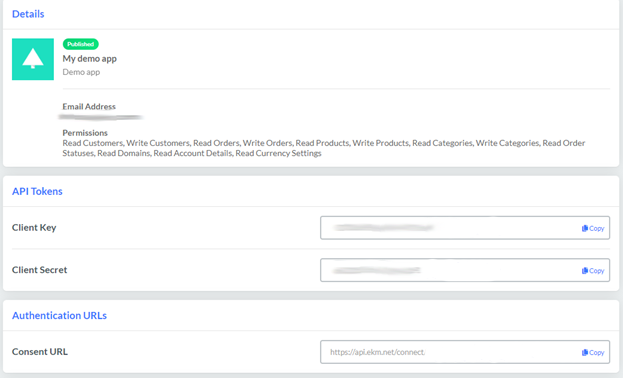
Upon sending the user to this URL, they will be taken through the EKM login system and shown a prompt asking them to accept or deny the requested scopes for this application: 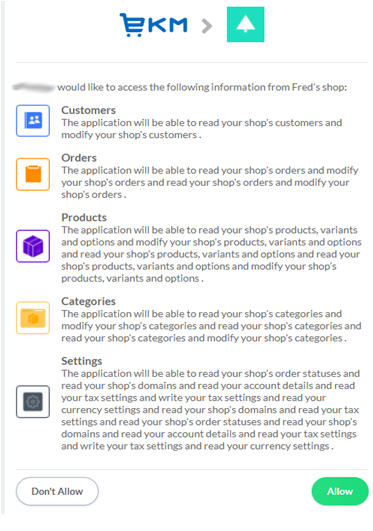 If they choose to deny consent, the user will be returned to the redirect_uri with information to indicate that they denied the request.
If they choose to allow consent, the user will be returned to the redirect_uri with an authorization code via the code query parameter. This code will be used in the next stage of the flow.
| GET | {redirect_uri}?code={authorization_code} &state={state} |
| redirect_uri | The Return URL registered with the individual application on the partners applications page. |
| authorization_code | An authorization code that is used in the next stage of the flow. |
| state | The unique identifier that was passed across in the initial redirect. |
Access
A POST request must be made in the following format within a five-minute period:
POST application/x-www-form-urlencoded | https://api.ekm.net/connect/token |
Body Please ensure all parameters are on one line | client_id={client_id}&client_secret={client_secret}&code={authorization_code}&grant_type=authorization_code&redirect_uri={redirect_uri} |
| client_id | Your applications Client Key, which can be found in the Tokens modal on the partners applications page. |
| client_secret | Your applications Client Secret, which can be found in the Tokens modal on the partners applications page. |
| authorization_code | The authorization code that was received in the previous step of the flow. |
| redirect_uri | The Return URL registered with the individual application on the partners applications page. This should not be URL encoded. |
Please note, if you are using Postman’s ‘Bulk Edit’ feature, the syntax they use is different from the syntax of the actual request.
Please note that the parameters are sent on the body. If these are sent as URL parameters, you will receive an error. You should receive a response in the following format:
| POST | { “access_token”: “{access_token}”, “expires_in”: “{expires_in}”, “token_type”: “{token_type}”, “refresh_token”: “{refresh_token}” } |
| access_token | This is the token that you need to pass to the API when making requests to the documented endpoints. |
| expires_in | The length of time before this access token expires. |
| token_type | The type of token. |
| refresh_token | A refresh token that can be used to request a new access token once it has expired. Please note, if you didn’t send an “offline_access” scope in the Consent stage, you will not receive a refresh token. |
You can now make requests to the documented API endpoints by adding an Authorization header to your requests with a value of “Bearer {access_token}”. This access token is valid for 1 hour.
Refresh
After an hour your access token will expire, forcing you to request a new one. This is achieved by including the refresh token in a POST request in the following format:
POST application/x-www-form-urlencoded | https://api.ekm.net/connect/token |
| Body Please ensure all parameters are on one line | client_id={client_id}&client_secret={client_secret}&grant_type=refresh_token&refresh_token={refresh_token}&scope={scopes} |
| client_id | Your applications Client Key, which can be found in the Tokens modal on the partners applications page. |
| client_secret | Your applications Client Secret, which can be found in the Tokens modal on the partners applications page. |
| refresh_token | The refresh token that you were given when receiving the access token. It’s important to note that refresh tokens are single use. If you attempt to use them more than once you will receive an error and you will need to re-authorize your app. I.e. Go back to step 1 in this guide. It should also be noted that these refresh tokens expire after 15 days. If the refresh token expires you will need to re-authorize your app. |
| scopes | A space-separated list of scopes. These scopes must be selected in the Required Permissions section of the partners applications page for each individual application. |
You should receive a response in the following format:
| POST | { “access_token”: “{access_token}”, “expires_in”: “{expires_in}”, “token_type”: “{token_type}”, “refresh_token”: “{refresh_token}” } |
| access_token | This is the token that you need to pass to the API when making requests to the documented endpoints. |
| expires_in | The length of time before this access token expires. |
| token_type | The type of token. |
| refresh_token | A refresh token that can be used to request a new access token if the access token has expired. It’s important to note that refresh tokens are single use. If you attempt to use them more than once you will receive an error and you will need to re-authorize your app. I.e. Go back to step 1 in this guide. It should also be noted that these refresh tokens expire after 15 days. If the refresh token expires you will need to re-authorize your app. |
Other Flows
The flow described above is not suitable if you are building a client side application such as a desktop app or a JavaScript client. Although the OAuth spec describes other flows, they are not part of our current offering. To use the flow described above in these situations, we recommend using a web server as a proxy for authenticating API calls. If you find any of the above doesn’t work for you, please contact us using this form.
[contact]If you need our help with your EKM online shop, contact the Customer Support Team, who can point you in the right direction. Our opening hours are 9 am - 5.30 pm Monday to Friday, for telephone calls, live chats, and emails. Outside of these hours, you can leave a message for us in the live chat window or email support@ekm.com, and we will answer as soon as possible. If you'd like to suggest a feature or an upgrade on any of the EKM platforms, please let us know on the EKM Suggestions Board. [/contact]