
[intro]In this guide, you’ll learn how to adjust stock levels within the Product & Category Manager on your EKM online shop. [/intro]
1. From the Dashboard, click Products on the left-hand side: 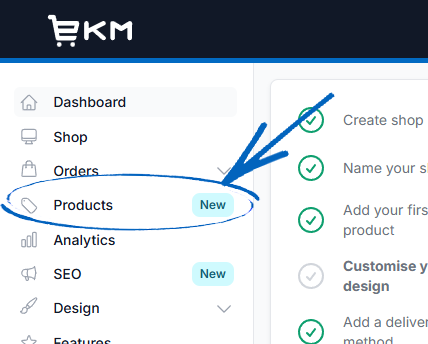
2. Click the relevant category on the Category tree on the left-hand side: 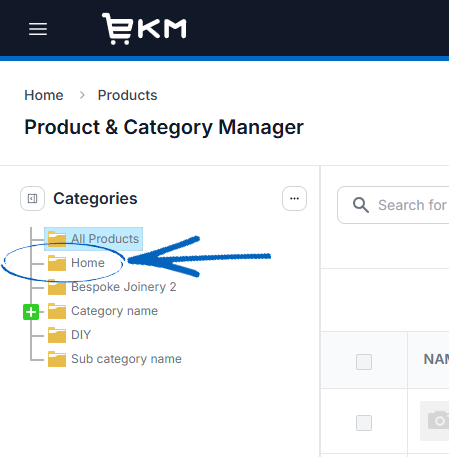
3. You’ll then see a list of all the products within your chosen category. Now you need to make sure that the Stock column is visible: 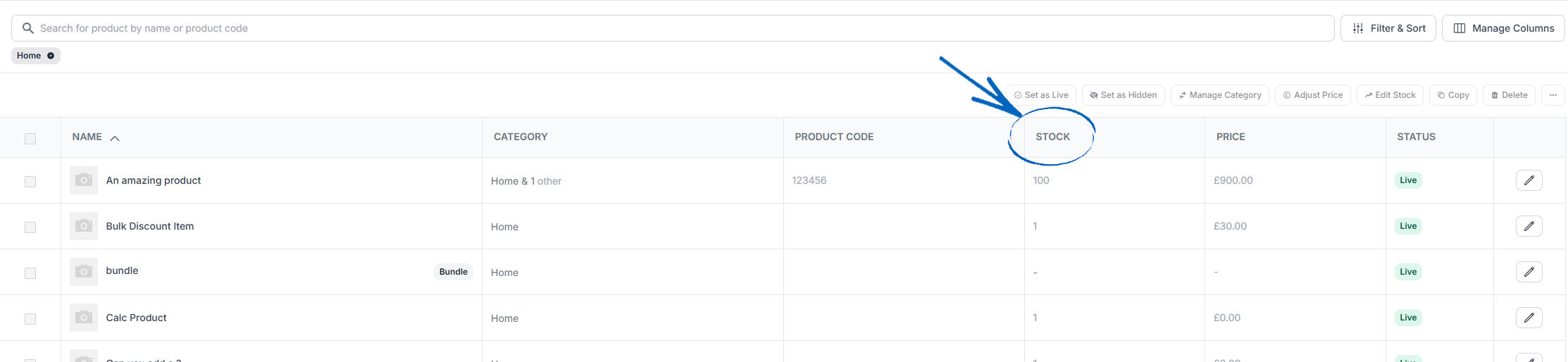
[remember] If the Stock column is not visible, click Manage Columns in the top right-hand corner and on the modal that appears, tick the box for Stock and then click the green Apply button. [/remember]
4. To amend the stock levels of each product, click within the Stock column to type in the new amounts. You can either type in the amount directly, or use the up and down arrows to increase the number: 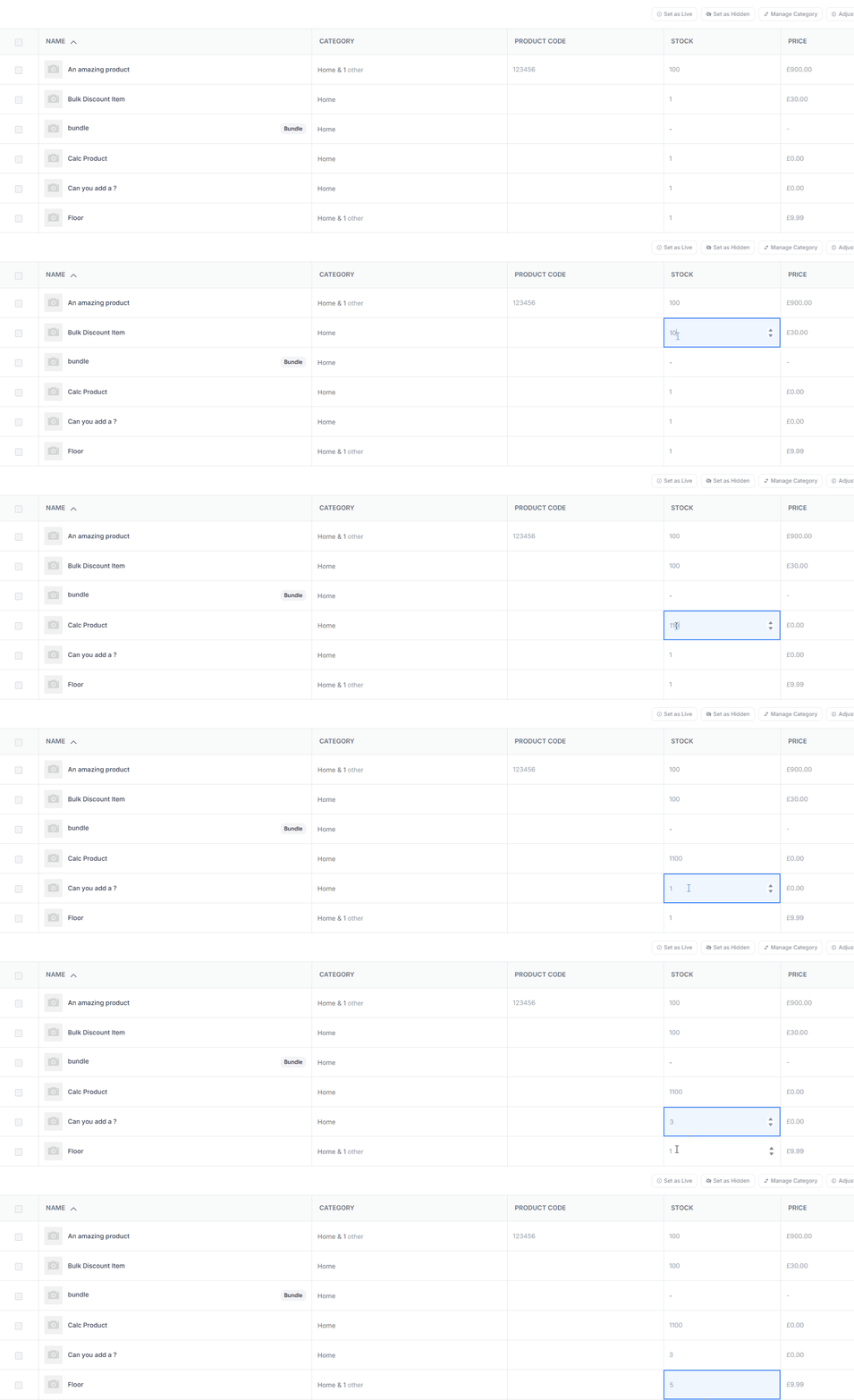
5. To save the changes, click the green Save button in the top right-hand corner of the page: 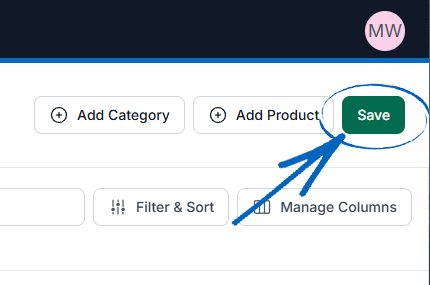
[remember] If you have a lot of items to amend all at once, you may be best using the Import/Export System feature to update your products using spreadsheets. [/remember]
[more]
- Product & Category Manager
- How to Adjust Prices
- How to Create a Product
- How to Create Categories & Subcategories
- How to Delete Products
[/more]
[contact]If you need our help with your EKM online shop, contact the Customer Support Team, who can point you in the right direction. Our opening hours are 9 am - 5.30 pm Monday to Friday, for telephone calls, live chats, and emails. Outside of these hours, you can leave a message for us in the live chat window or email support@ekm.com, and we will answer as soon as possible. If you'd like to suggest a feature or an upgrade on any of the EKM platforms, please let us know on the EKM Suggestions Board. [/contact]