
[intro] The Inventory Manager is now the Product & Category Manager, replacing the previous separate sections for Products, Categories and Bulk Edit in the legacy Inventory Manager feature. Everything can now be managed from a single, streamlined view under the Products tab on your EKM online shop dashboard. [/intro]
[summary]
- How to View a Category
- How to Search for Specific Products
- Viewing Products & Categories
- How to Edit Products
[/summary]
Built for clarity and control, the new system is optimised for performance, stability and improved speed compared to the legacy system, to make day-to-day catalogue management faster and more reliable.
Locating the Product & Category Manager
1. On the Dashboard, you’ll see Products in the left-hand side menu. Click it: 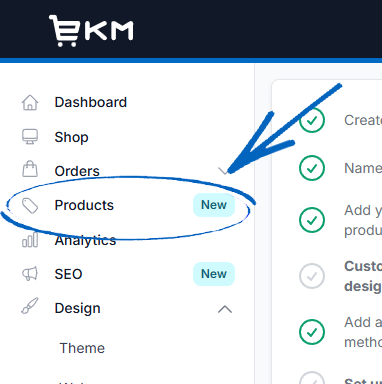
2. You’ll then see this modal appear. Click Next: 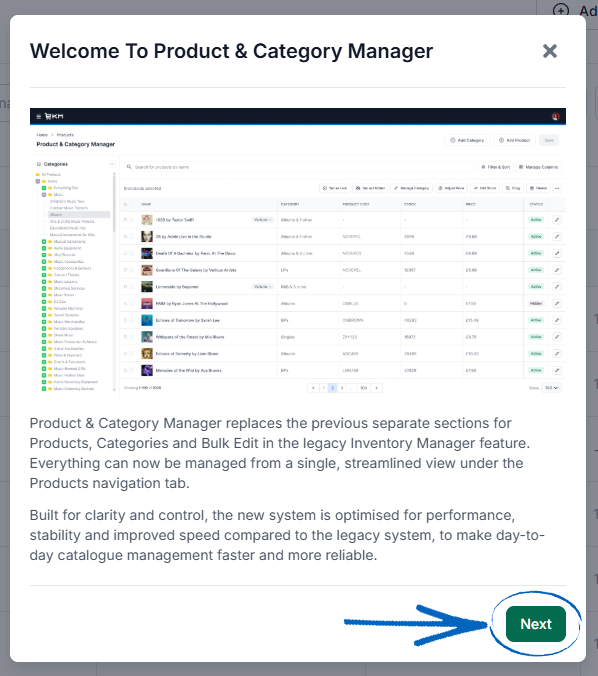
3. Now you need to click Get Started: 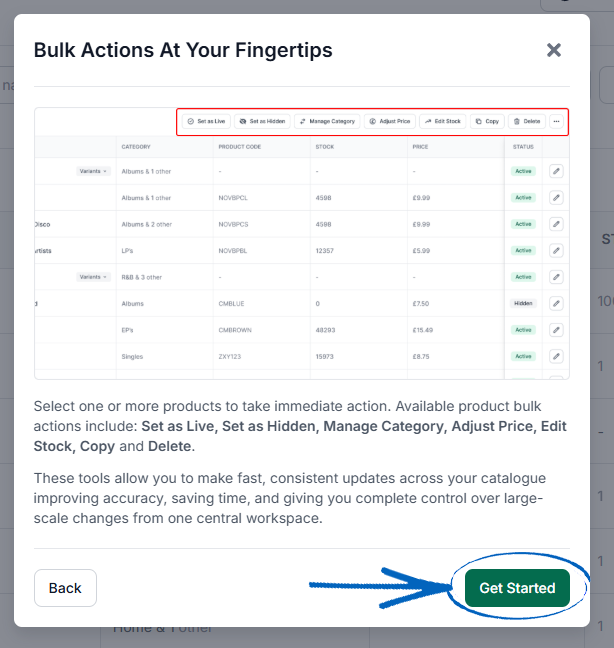
4. You’ll then see the full Product & Category Manager: 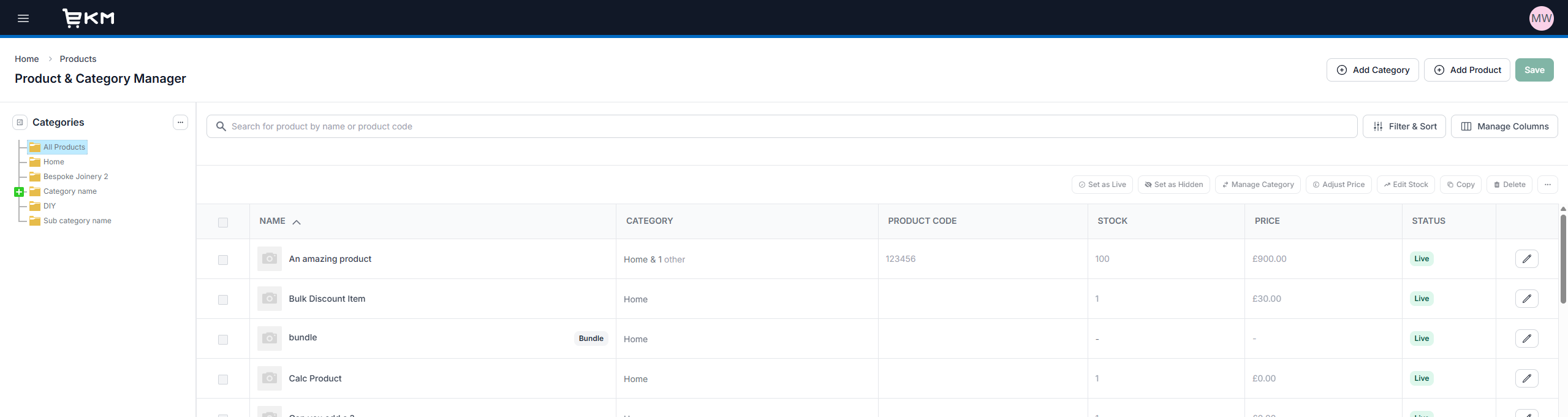
How to View a Category
5. On the left-hand side, you’ll see the Category Tree, which is a depiction of all the Categories and Subcategories on your EKM online shop. Each ‘folder and box’ icon represents a Category. If there’s a green cross next to a Category, it means that there are existing Products within that Category - simply click the green cross to see them. When you have located the Category you want to view, click its title to list all the products within it: 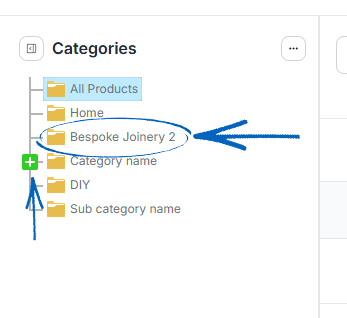
6. Alternatively, if you’re using a smaller browser window, you can click the Category button in the top left-hand corner to see the Category Tree. Simply click the name of the Category you would like to see the contents of, and then click the green Apply button: 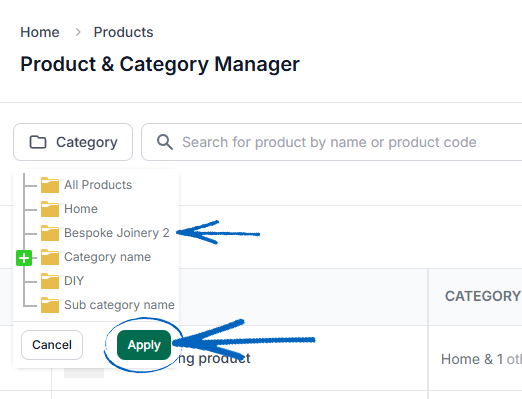
7. Using a larger browser window, highlight a category and then click the button with the three dots on the top right-hand corner of the Category Tree: 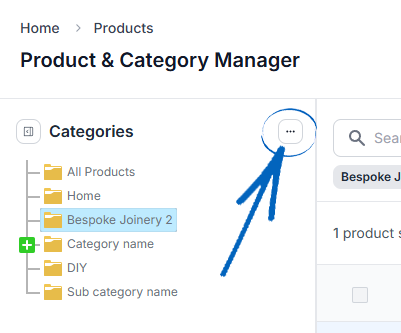
8. This will reveal some options for editing the category within the Category Tree. You can set the select category as Hidden, Edit that category by opening the Add/Edit Category window, reorder the products within the Category or delete the category: 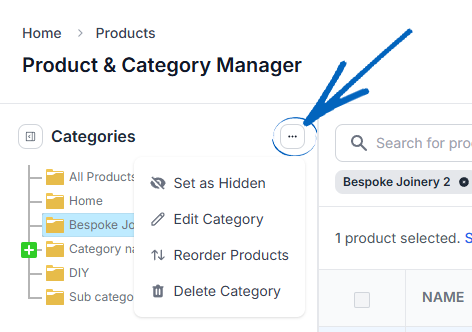
9. To minimise the Category Tree, click the button in the top left-hand corner: 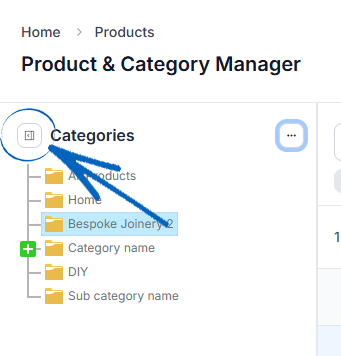
How to Search for Specific Products
10. Across the top of the page, you’ll see a search field. You can use this to search for individual products according to their Product Name or Product Code: 
11. On the right-hand side of the search bar, you’ll see the Filter & Sort button: 
12. Clicking the Filter& Sort button will open this modal, where you can use the filters to search for specific products: 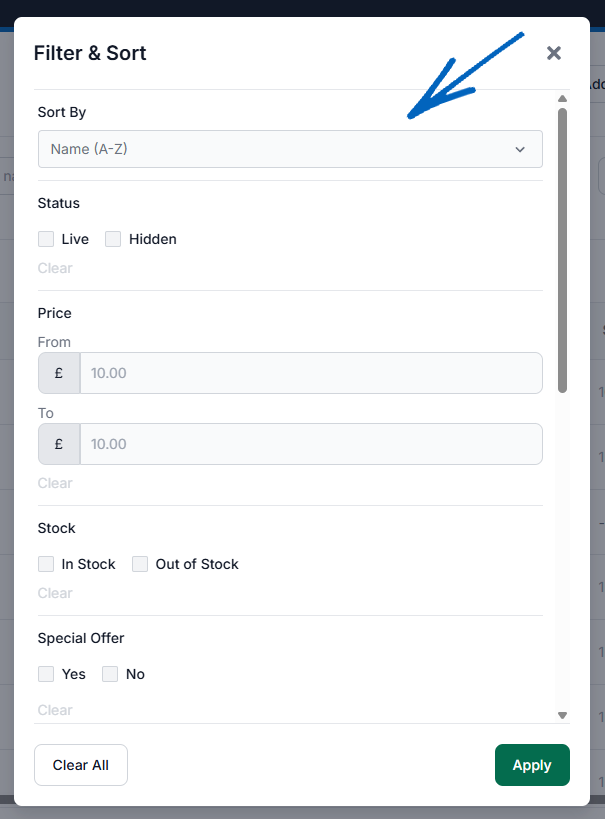
13. You can filter your products down by:
Sort By:
- Name – A-Z or Z-A
- Category – A-Z or Z-A
- Product Code – A-Z or Z-A
- Stock – Low to High, or High to Low
- Price – Low to High, or High to Low
- Status – A-Z or Z-A
Status:
- Live or Hidden
Price:
- To and From
Stock:
- In Stock or Out of Stock
Special Offer/Featured Product:
- Yes or No
Product Code
Bulk Discount:
- Yes or No
Has Variants:
- Yes or No
Brand
Custom Attribute
[remember]If you have not already installed it, the Product Attributes feature is required to add attributes such as Brand, Product Code and custom attributes like Size or Colour to your products. [/remember]
14. When you have finished selecting your filters, click the green Apply button in the bottom right-hand corner: 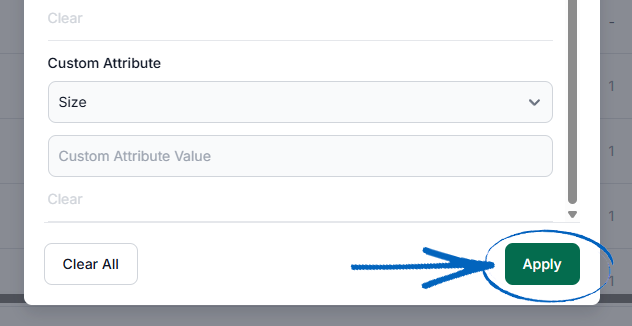
Viewing Products & Categories
15. Return to the main page and click Manage Columns in the top right-hand corner: 
16. In the modal that appears, you can use the tick boxes to select what information you would like displayed for each of your products within the Product & Category Manager. Simply select the relevant boxes and click the green Apply button in the bottom right-hand corner: 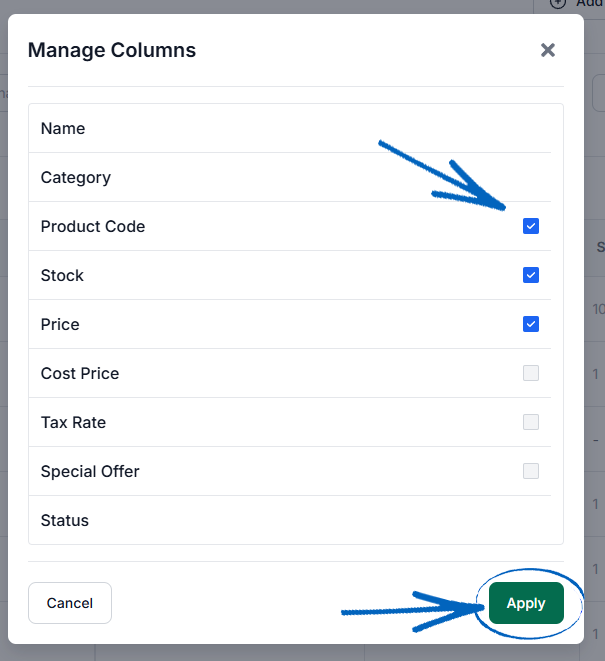
How to Edit Products
17. Looking at the main table of the Product & Category Manager, you can access the Add/Edit Product window for any product by clicking the pencil icon on the far right-hand side. Alternatively, you can edit one or more products at once by ticking the boxes for each on the left-hand side: 
18. On a smaller browser window, when you’ve ticked the box for one or more products, you’ll see the Product Actions button appear on the right-hand side: 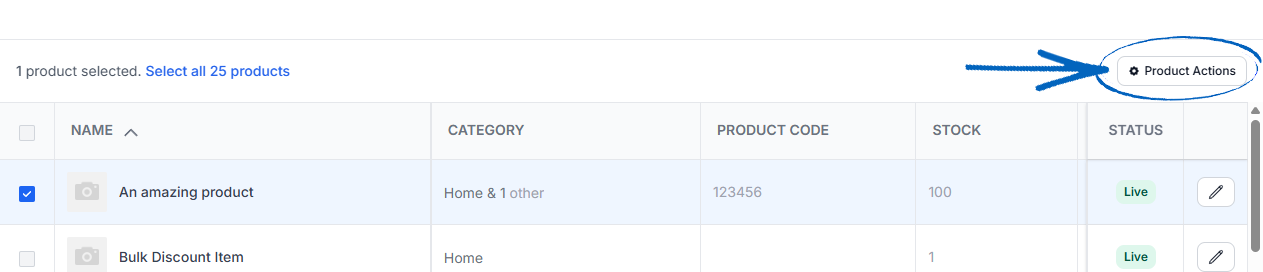
19. On a larger browser window, when you’ve ticked the box for one or more products, you’ll see all the product action buttons appear on the right-hand side: 
[remember]
The product actions that you can use here are:
Set as Live – Remove the product from being hidden and visible on the front end of your EKM online shop.
Set as Hidden – Remove the product from public view and hide it from the front end of your EKM online shop.
Add Products to Category - Move selected products to a different Category as their Additional Category.
Move Products - Add selected products to a different Category as their main Category.
Adjust Price - Adjust the price of one or more products.
Edit Stock - Amend the stock amount of one or more products.
Copy - Copy a product.
Delete - Delete one or more products.
Add to Special Offer (Featured Product) - Make specific products display as Featured Products.
Remove from Special Offer (Featured Product) - Remove specific products from being Featured Products.
[/remember]
[more]
The following guides can take you through the steps required to perform more specific tasks within the Product & Category Manager:
- How to Adjust Prices
- How to Adjust Stock Levels
- How to Create a Product
- How to Create Categories & Subcategories
[/more]
[contact]If you need our help with your EKM online shop, contact the Customer Support Team, who can point you in the right direction. Our opening hours are 9 am - 5.30 pm Monday to Friday, for telephone calls, live chats, and emails. Outside of these hours, you can leave a message for us in the live chat window or email support@ekm.com, and we will answer as soon as possible. If you'd like to suggest a feature or an upgrade on any of the EKM platforms, please let us know on the EKM Suggestions Board. [/contact]