
[intro]In this guide, you’ll integrate the EKM SEO platform with your EKM online shop. [/intro]
[caution]Before you begin, you need to have set up a Google Search Console account, GA4 (Google Analytics) and Google Business Profile, and linked these to your EKM online shop. [/caution]
1. From the dashboard, click SEO on the left-hand menu: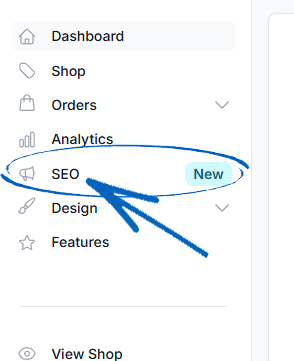
2. You’ll then be redirected to this page. Click Buy Now on the right-hand side: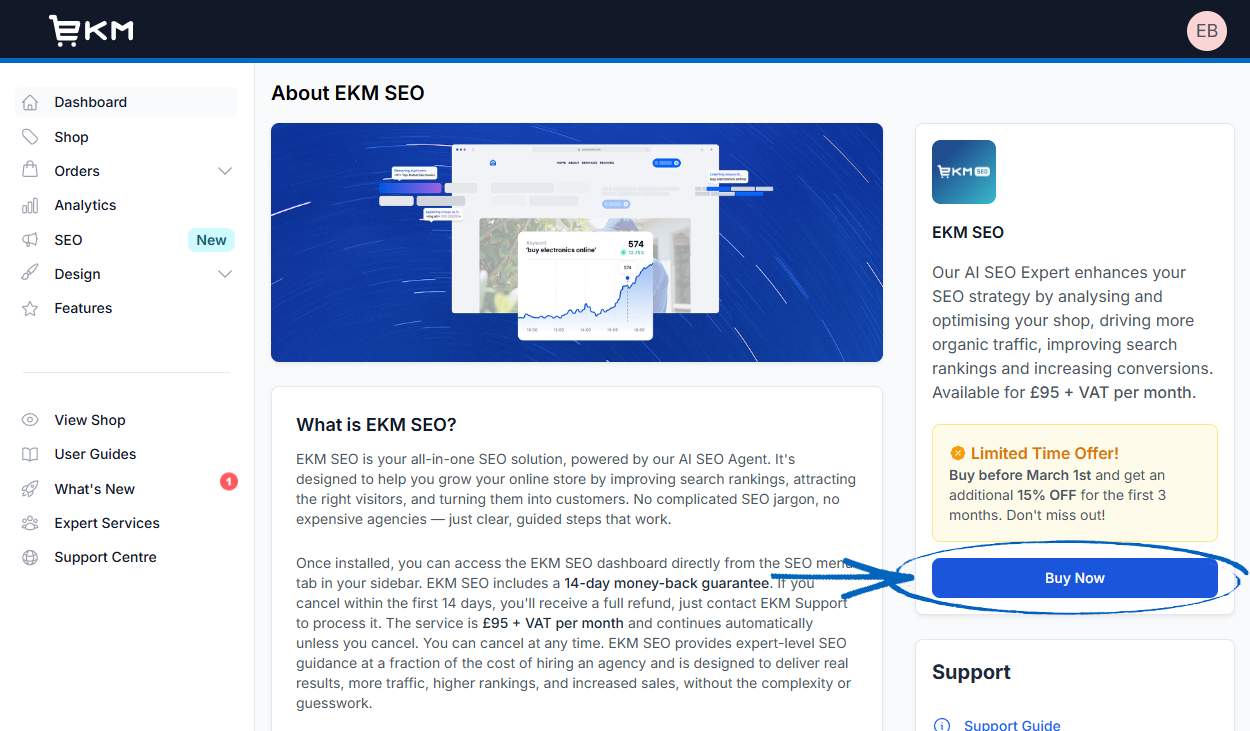
3. You’ll then see this modal appear. Click the green button: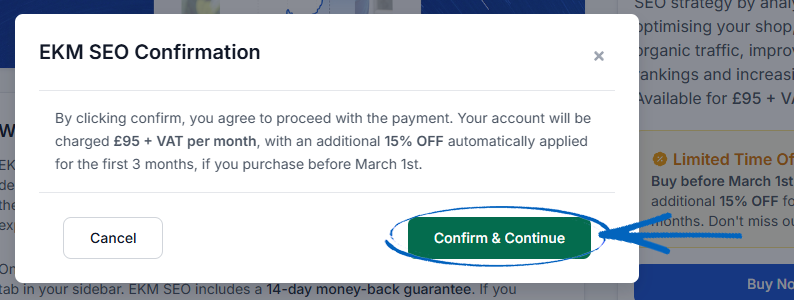
4. You’ll then see the blue button on the right-hand side. Click this to continue onboarding: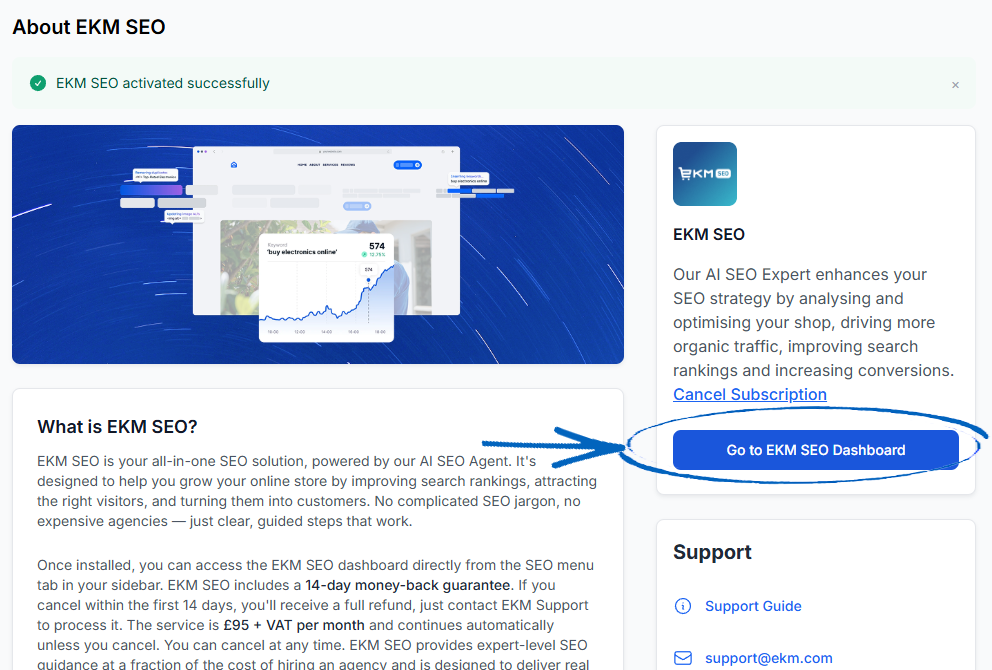
5. Click Let’s Start in the bottom right-hand corner: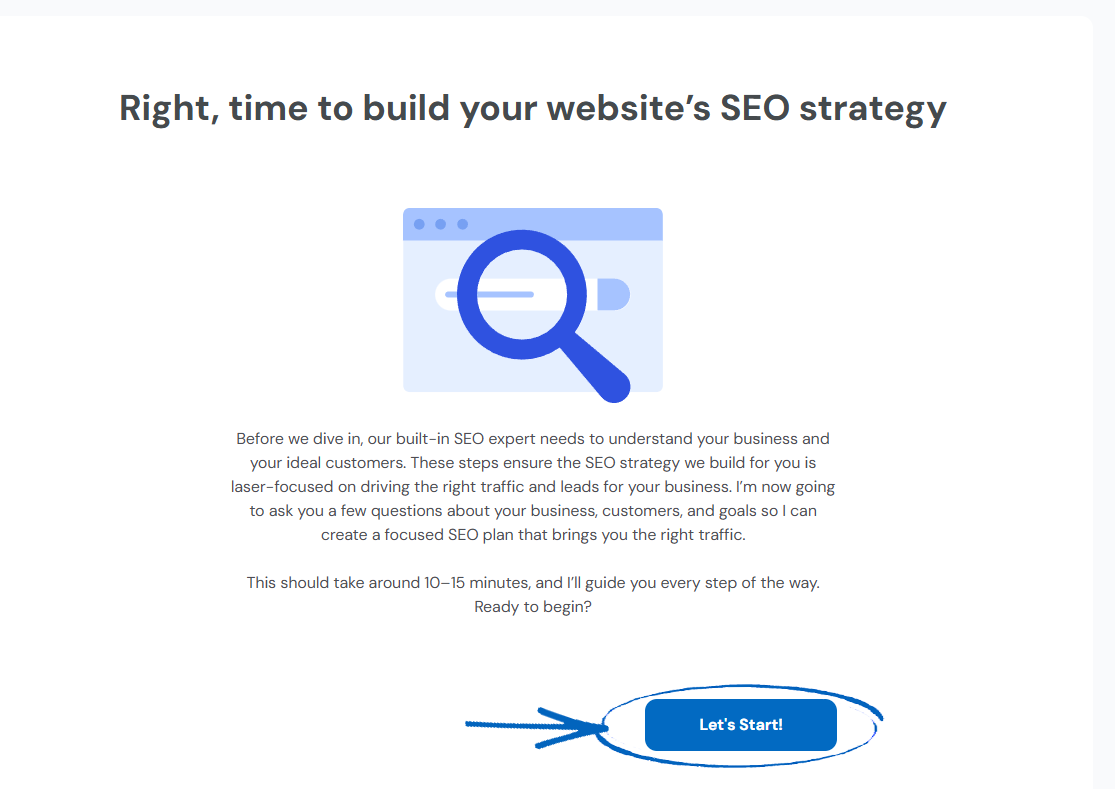
6. Click the most relevant button on the right-hand side, and then click Continue in the bottom right-hand corner: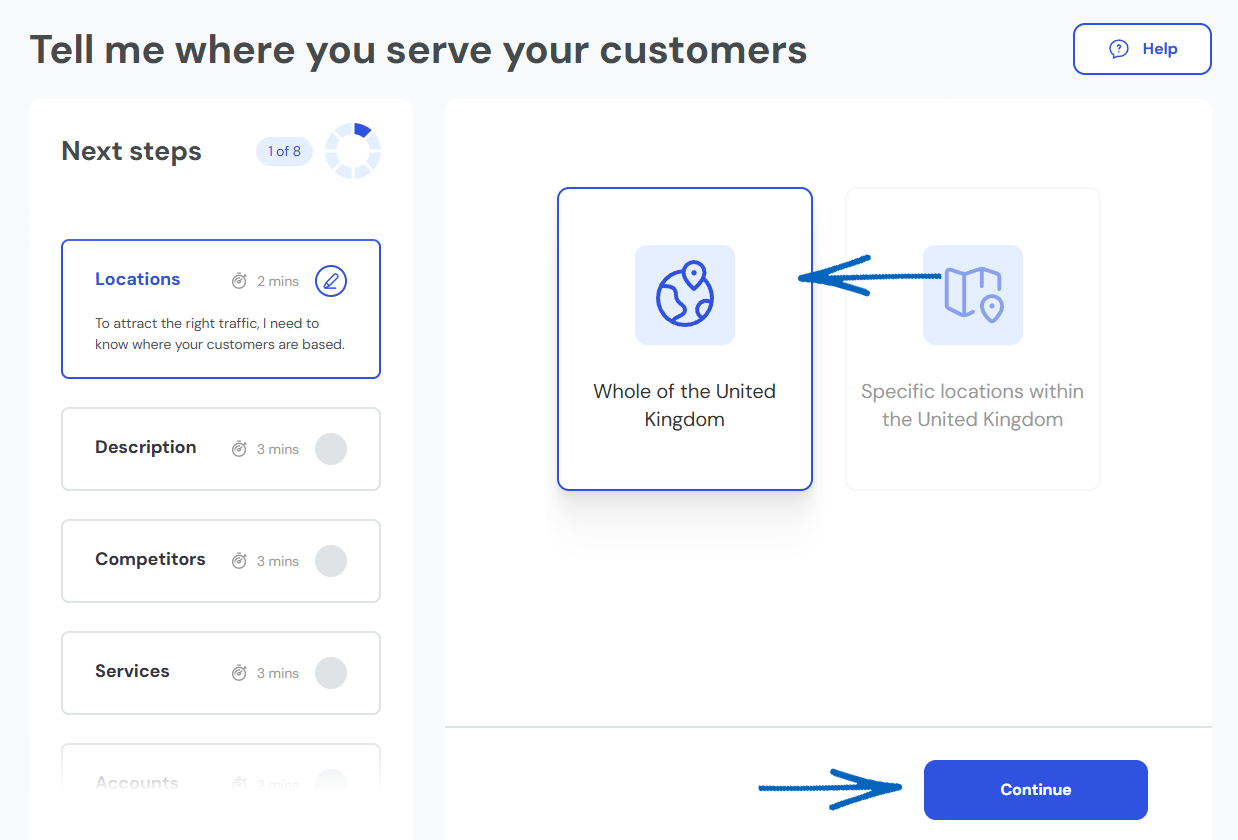
[tips]If you’re not sure which button to press in for the Locations section of onboarding, the answer depends on your business. If you sell online to customers all over the world, click ‘Whole of the United Kingdom’. If your business includes physical premises that customers can visit, as well as being able to shop online, opt for ‘Specific Locations’ instead. This section is related to local SEO which is focused on your immediate location. There are other sections of your EKM SEO account that are configured at a later point to focus on international SEO strategies. [/tips]
7. You’ll then see this modal. Click the ‘Yes’ button if you’re happy to proceed: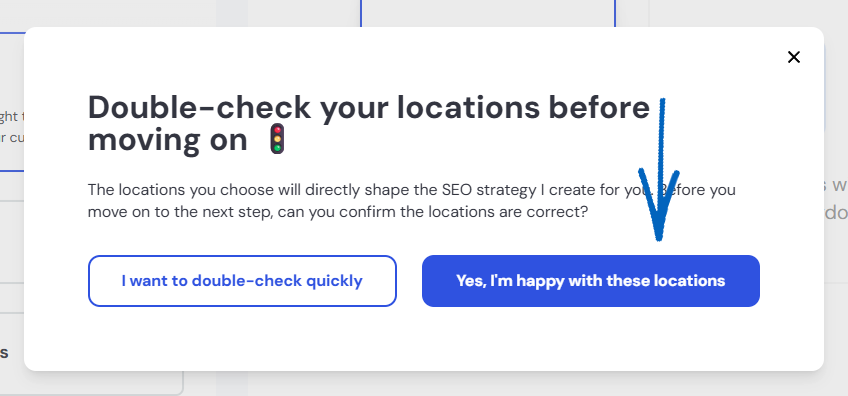
During onboarding, your business description plays a key role in shaping your SEO strategy. A detailed and well-written description helps the platform to:
- Understand what makes your business unique
- Identify your key products and services
- Generate the most relevant keywords for your SEO strategy
A strong business description helps tailor your SEO strategy to your business, ensuring the best possible results. Make sure that you:
- Are detailed and comprehensive – cover all your key products, services, and offerings. Avoid short, generic descriptions - provide a full picture of what your business does.
- Meet the minimum length – Your description must be at least 400 characters long. This ensures there's enough detail to build an effective SEO strategy.
- Stay relevant – Make sure your description accurately represents everything your business offers, so the strategy aligns with your goals.
8. Now you need to add a description for your EKM online shop into the field provided, before clicking the blue Continue button in the bottom right-hand corner: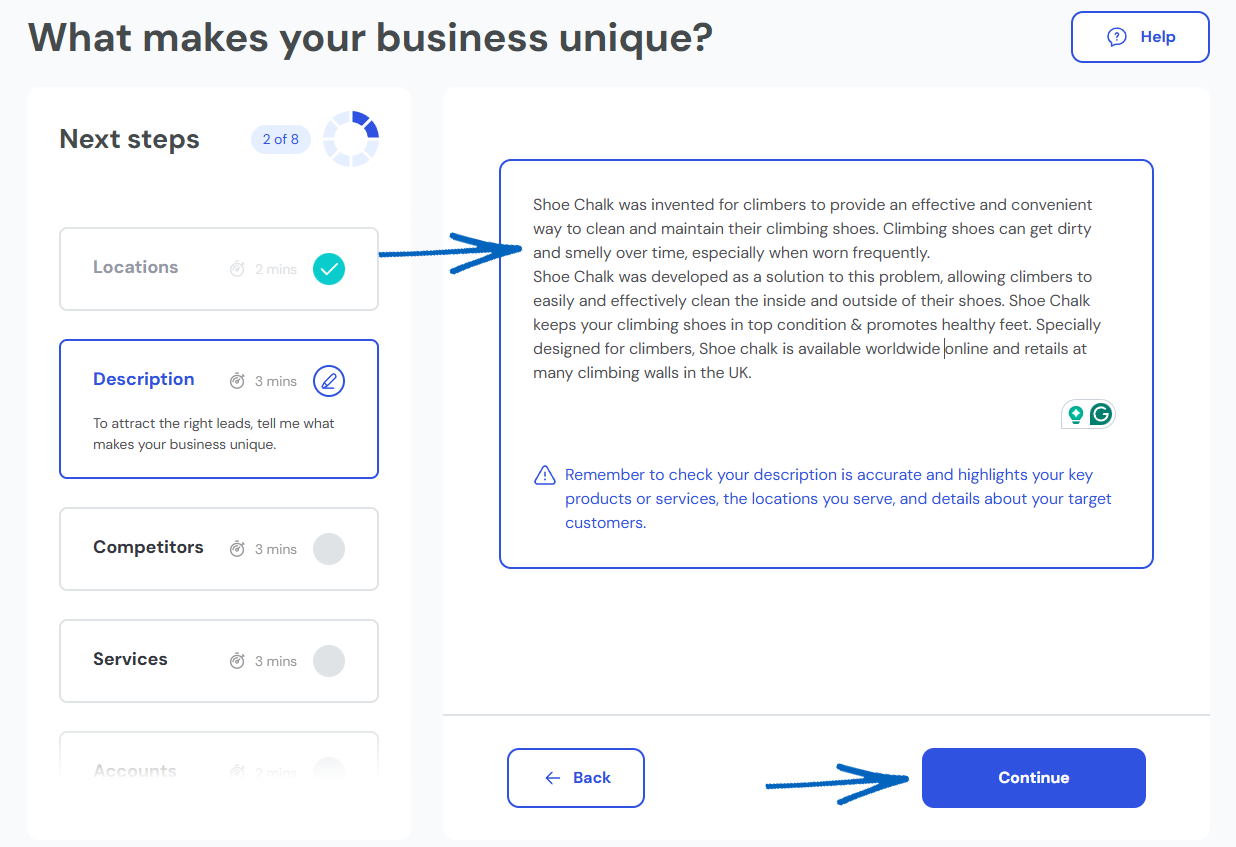
[tips]Log into your EKM online shop using a separate browser tab and copy the text from your About Us Webpage to paste into this area, before fleshing it out to ensure it reaches the 400-character minimum for the Description field. [/tips]
During onboarding, you'll be asked to select up to 5 competitors – but you can add more later. EKM SEO may suggest competitors based on overlapping keywords, but it’s important to choose businesses that truly match yours. Here’s how to do it:
- Look for like-for-like competitors – choose ecommerce websites that offer similar products or services in the same or nearby locations.
- Check the suggested list – search, compare, and select the suggested ecommerce websites/businesses that offer similar products or services in a relevant location.
- Add competitors manually – if a competitor isn’t listed, simply type or paste their URL into the search bar and click Add.
[tips]Do not add the URLs for ecommerce marketplaces to your competitor list, such as Etsy, eBay or Amazon. Your competitors should be ecommerce websites, and not online marketplaces. [/tips]
9. You can either select competitors from the list by ticking the relevant boxes, or alternatively by adding their URL into the field provided, before clicking the blue Add button on the right-hand side: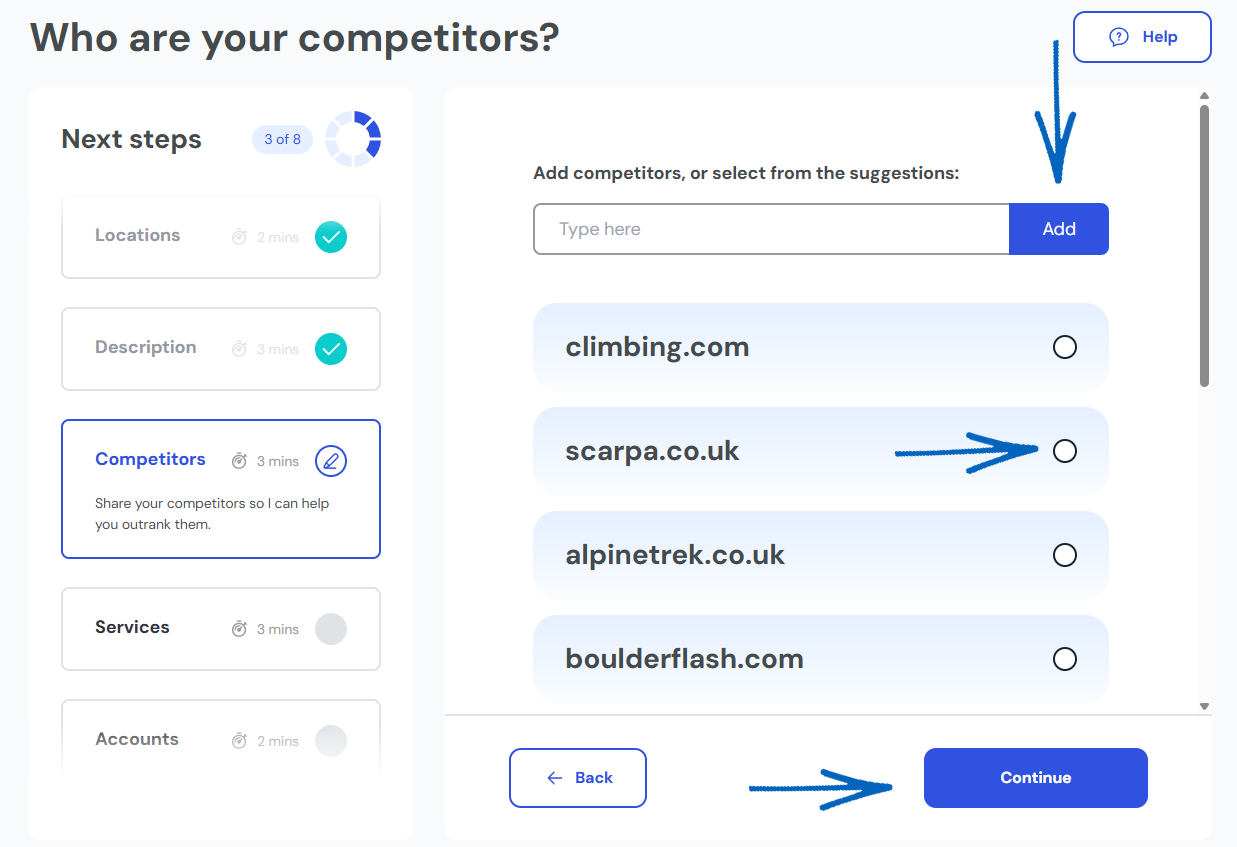
Selecting your competitors helps to improve your keyword strategy by identifying additional keyword opportunities based on what similar businesses are ranking for. EKM SEO doesn’t just copy their keywords; the platform filters out irrelevant terms, so you’ll only get keyword suggestions that truly fit your business. By analysing your competitors, we help you stay competitive and uncover valuable opportunities to boost your SEO strategy.
10. Now you need to drag and drop the relevant elements from the left to the right, or if they all apply to your EKM online shop and its products, click the Add All button on the top left-hand side. You can also add products and services manually by using the field on the top right-hand side and clicking Add for each: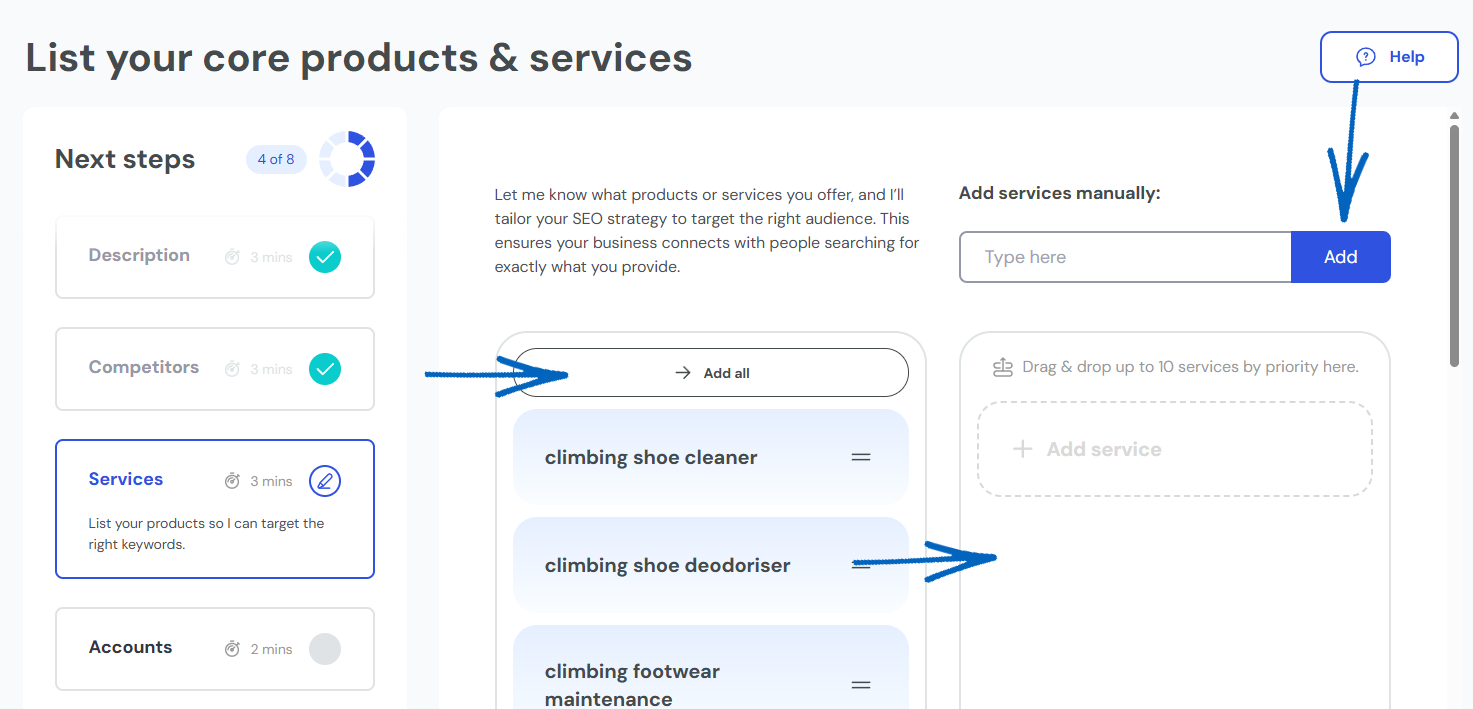
[tips]Remember – when adding products and services manually, be sure to double-check your spelling! [/tips]
During onboarding, you can add up to 10 key products and services that best represent what your business offers. To get the best results, be as specific as possible and only select relevant options.
- Choose from the suggested list – Select products/services that match what you offer by dragging them to the right.
- Add services/products manually – If something is missing, type it into the bar at the top, click Add.
- If you haven’t already selected 10 products/services, your manually added service/product will be automatically added to your list. If you’ve already reached the 10 product/service limit, the new product/service will appear in the suggested list on the left, you’ll need to drag this to the right and adjust your selections to include it.
- Prioritise your most important products and services by placing them at the top of your list. This helps ensure your SEO strategy focuses on what matters most.
11. When you have added your ten most popular products and services, click the Continue button in the bottom right-hand corner: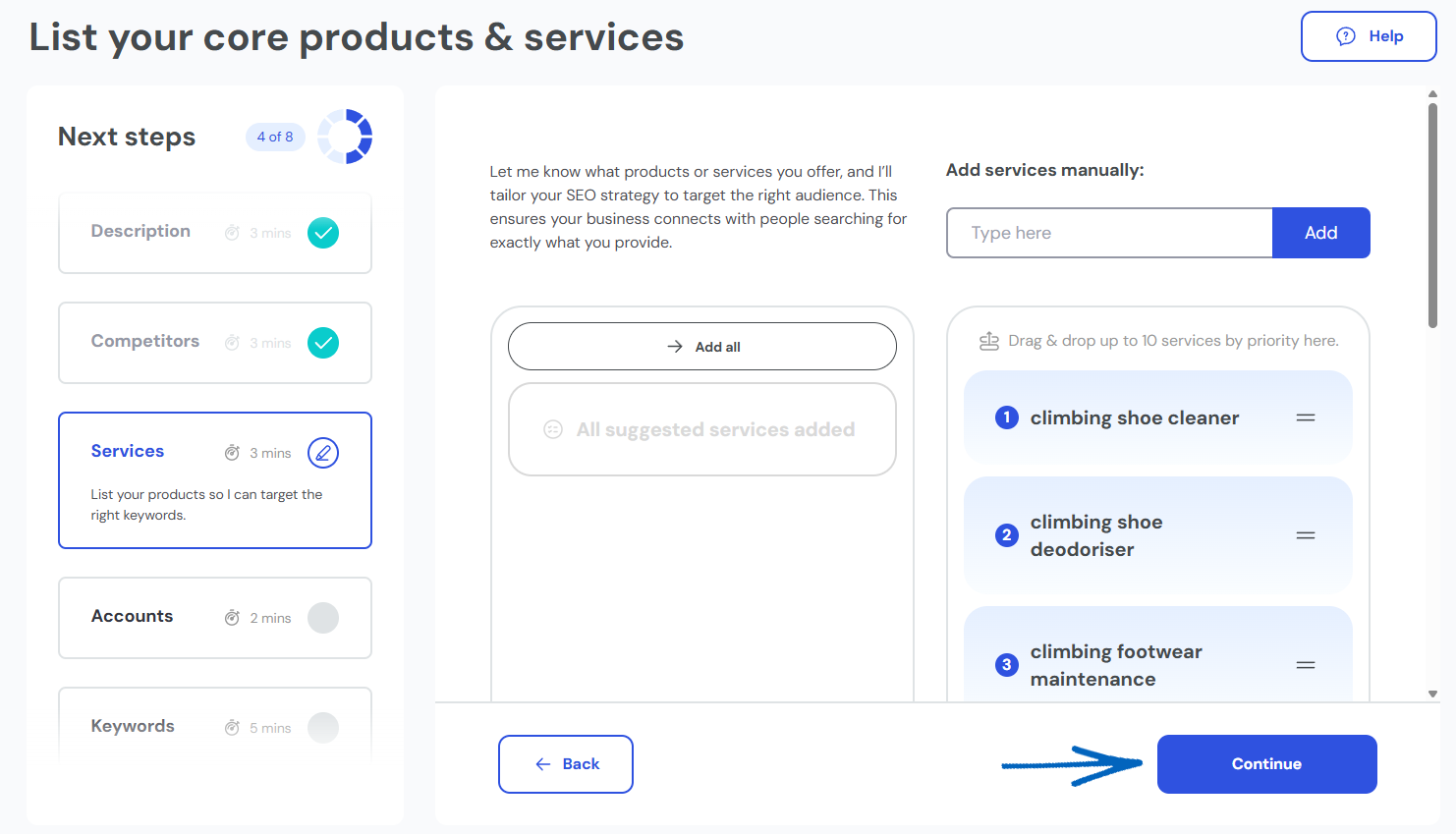
[remember]
During onboarding, your selected products and services help shape your SEO strategy in two ways:
- Keyword generation – The platform creates keyword suggestions based on your selections, including variations that incorporate locations to improve local SEO.
- Keyword assignment – Your products and services help ensure that keywords are assigned to the most relevant pages, making sure search engines focus on the right areas of your EKM online shop.
The more comprehensive your selections, the better the platform can tailor your SEO strategy for maximum impact. [/remember]
12. You’ll then see this modal. Click the blue button to continue: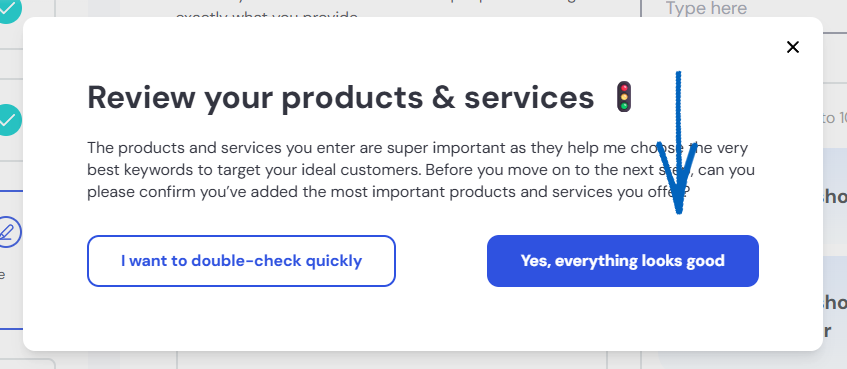
13. Now you need to connect your Google accounts. Click the Connect button and follow the prompts to connect: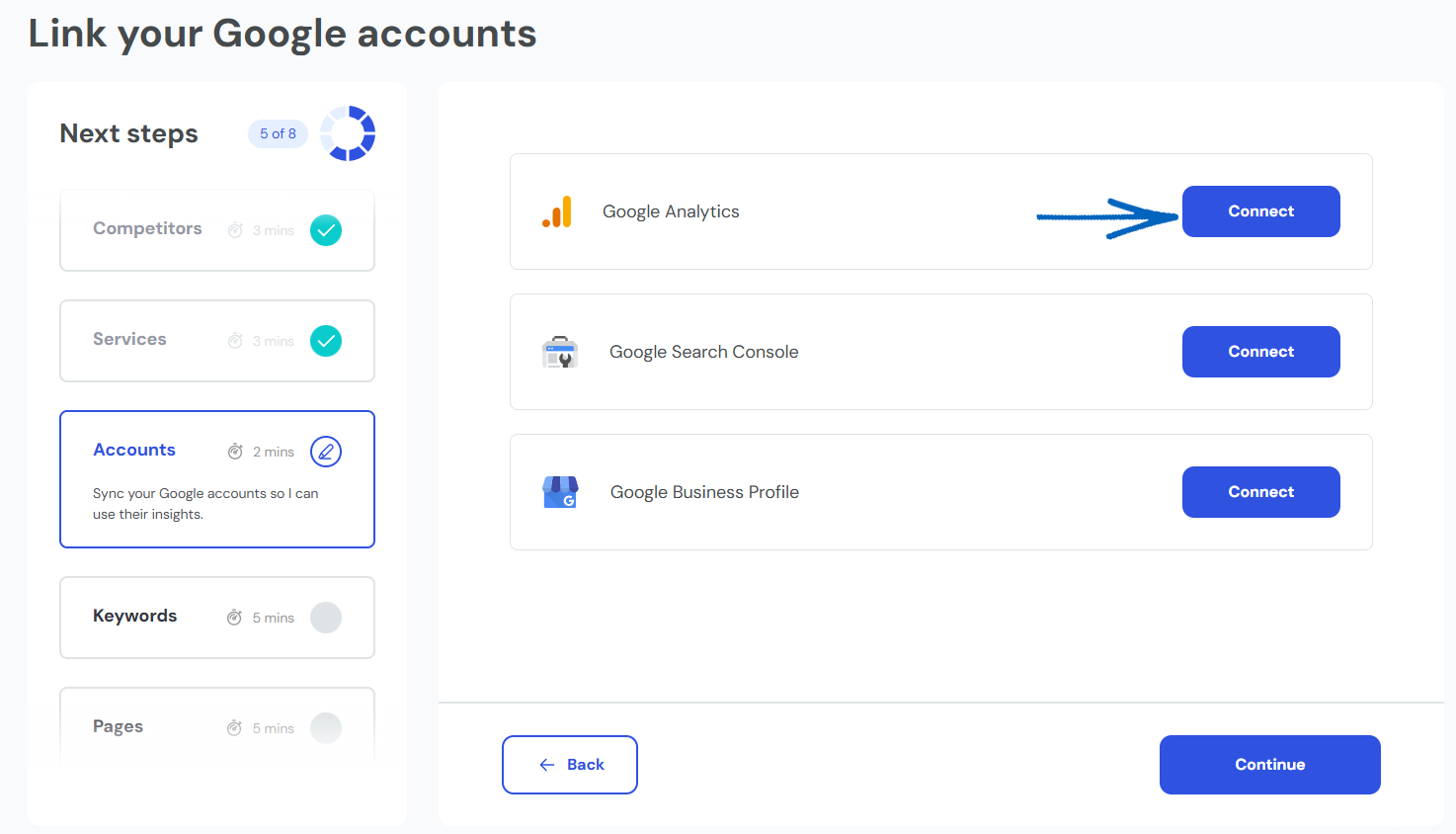
Connecting Google Analytics helps you track your SEO performance directly within the platform.
- Monitor your traffic – see if more visitors are finding your site through SEO.
- View key insights – track organic traffic and user engagement to measure progress.
- Keep everything in one place – easily access your SEO data without switching between tools.
Connecting Google Search Console helps you track your SEO performance and ensures the platform can provide actionable steps to improve your rankings.
- Monitor your SEO progress – see how your EKM online shop performs in search results and track keyword rankings.
- Identify issues and take action – the platform will highlight any SEO issues and provide clear steps for you to fix them.
Connecting your Google Business Profile helps boost your local SEO, making your business more visible on Google Search and Google Maps.
- Increase your local visibility – appear in local search results when customers are looking for businesses like yours.
- Manage and respond to reviews – stay on top of customer feedback and build trust with potential clients.
- Optimise and track performance – update your profile, monitor insights, and manage key details - all from one place.
14. When you have finished adding your Google accounts, click the blue Continue button in the bottom right-hand corner: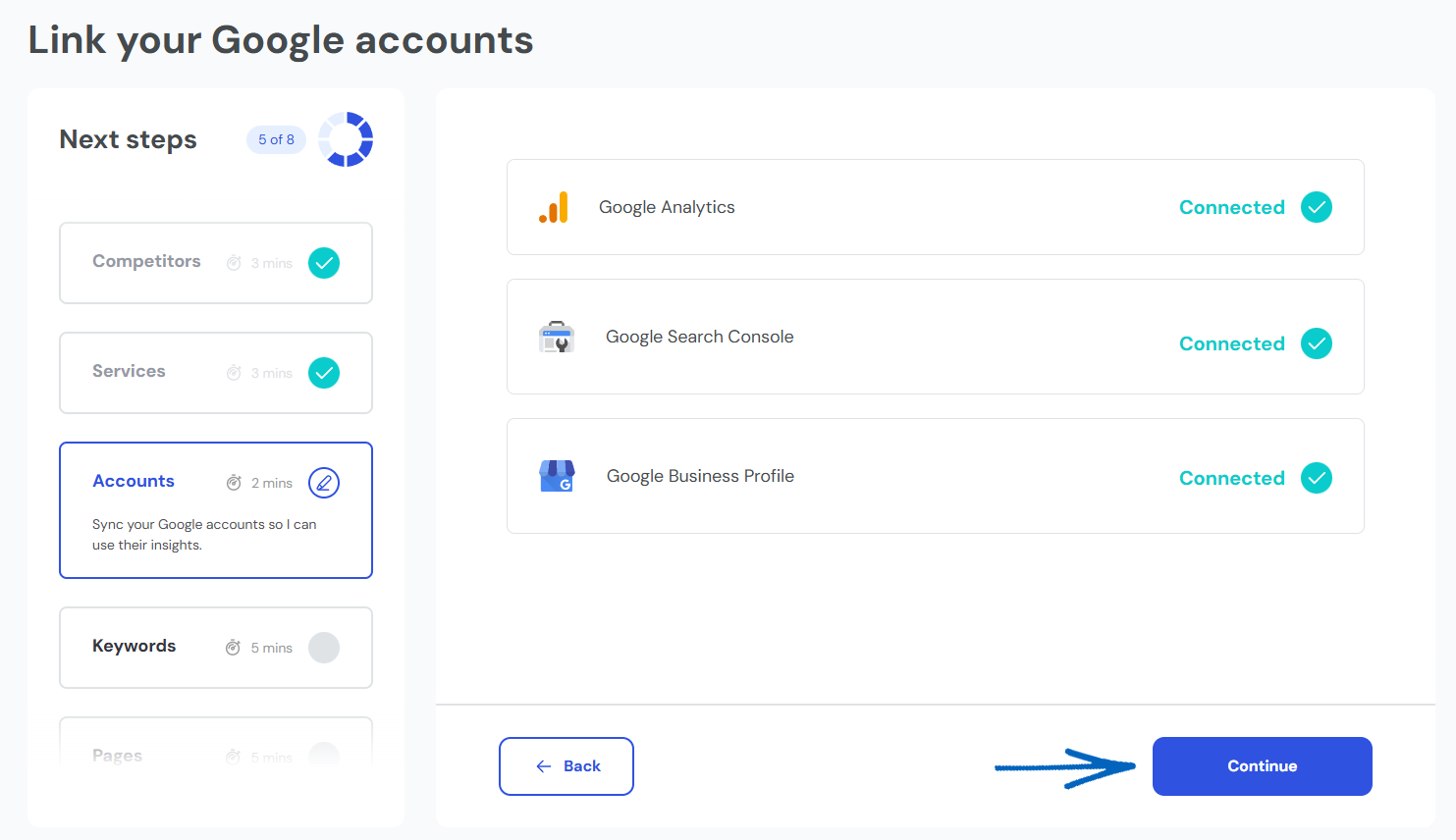
15. At this point in the onboarding process, the EKM SEO platform will generate keywords based on the information you’ve provided so far about your products and your EKM online shop. This can take a few minutes up to an hour, depending on the size of your EKM online shop: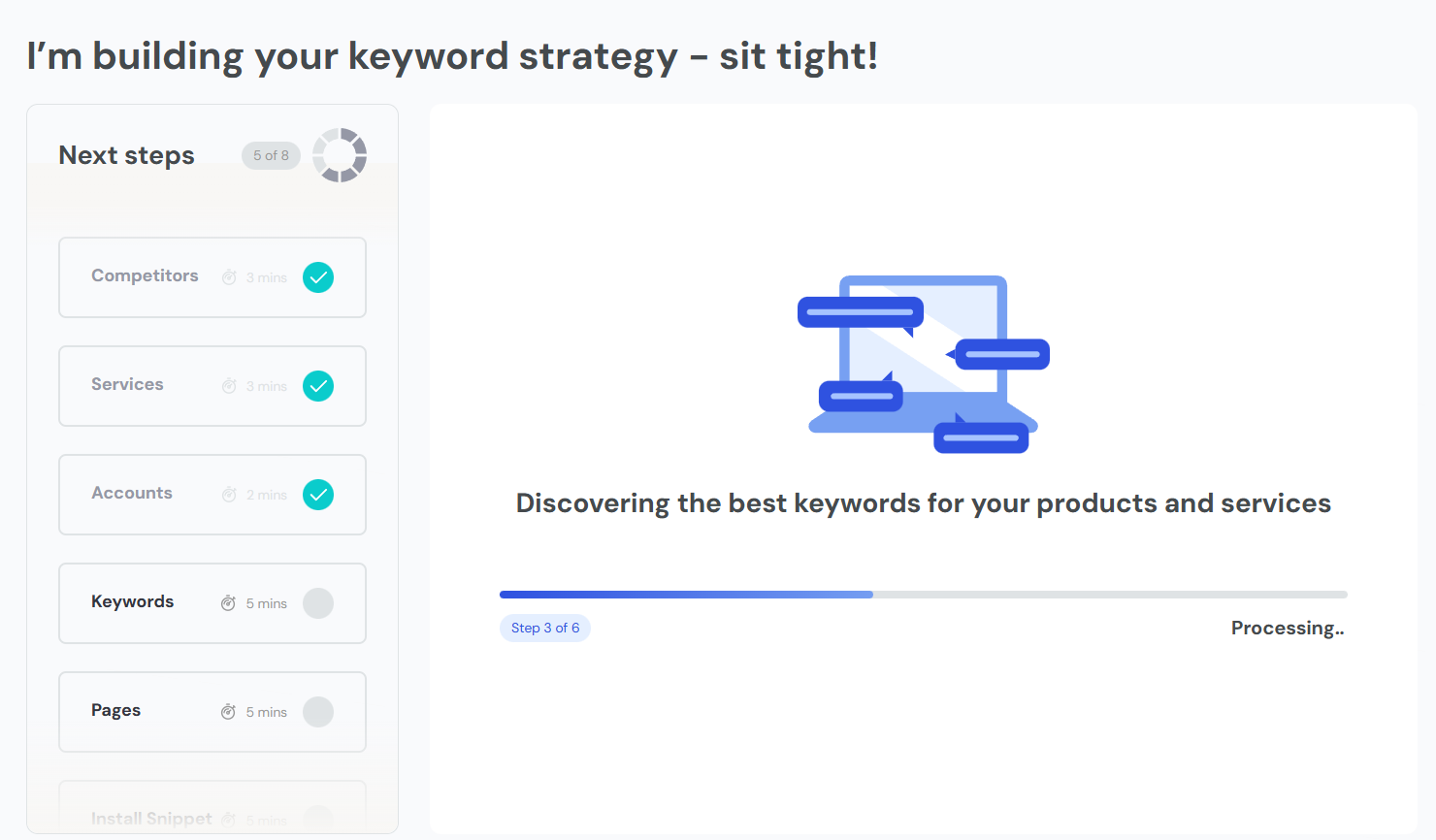
16. When your keywords have been generated, you’ll see a summary. Click the blue Continue button on the right-hand side: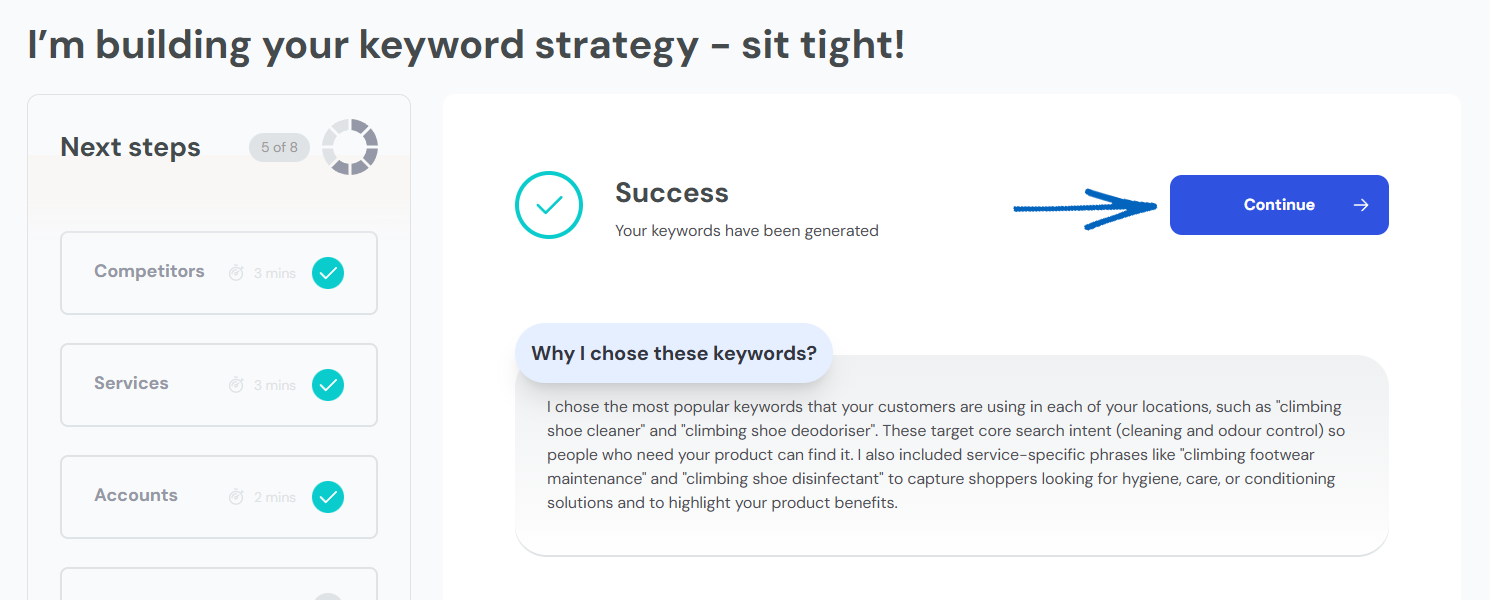
[remember] During onboarding, keyword assignment usually takes 5-7 minutes, but in some cases, it may take a bit longer. [/remember]
On this page, you’ll then see a long list of keywords that have been generated. During onboarding, EKM SEO will find the best keywords for your business by analysing what people are searching for and matching them to your products, services, and locations. It will then refine and filter thousands of options to ensure you get the most relevant and effective keywords for improving your search rankings. This process helps you attract the right customers and get the best results from your SEO efforts.
Take time to review your keyword list. Go through the list and untick any keywords that don’t fit your business. Focus on keyword relevance:
- Does it match your products and services? Keywords should clearly reflect what your business offers.
- Is it aligned with your EKM online shop content? Keywords should be relevant to the information on your site.
- Does it match what your target audience is searching for? Keywords should align with customer intent to drive the right traffic.
17. Scroll down the list and check that all are applicable – if there are any which are not, simply un-tick the relevant box. When you are done, click the blue Continue button on the right-hand side: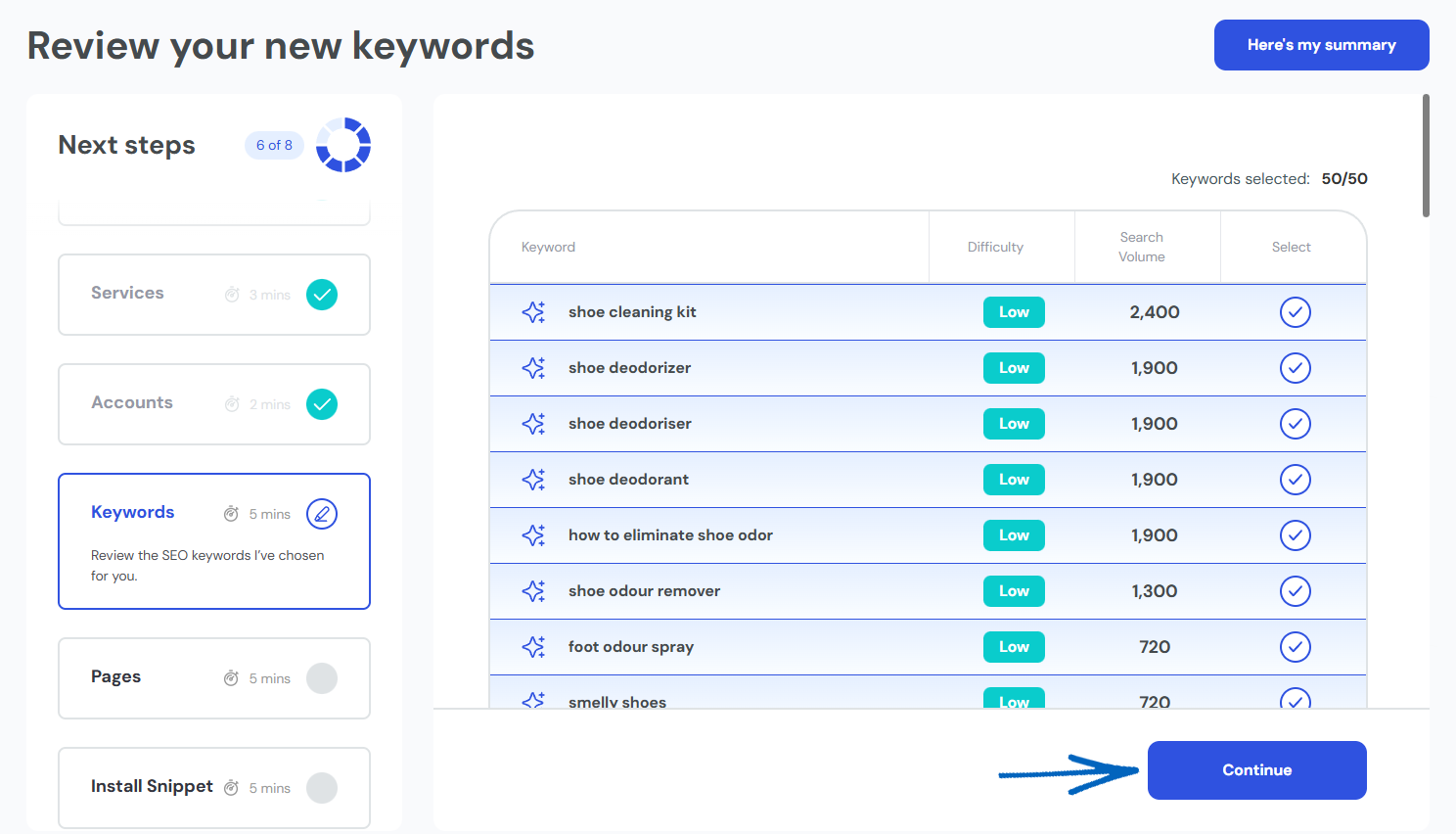
18. Once your keywords are selected during onboarding, they are analysed and assigned to the most relevant and ranking pages on your EKM online shop. Some keywords are assigned to pages for optimisation. Others are tracked but not directly assigned, helping to monitor performance.
Assigned keywords will then trigger SEO actions within the platform, guiding Seb AI on what keywords go optimise your webpages for. This process helps improve your search rankings and drive more traffic to your EKM online shop over time. You’ll then see this notification: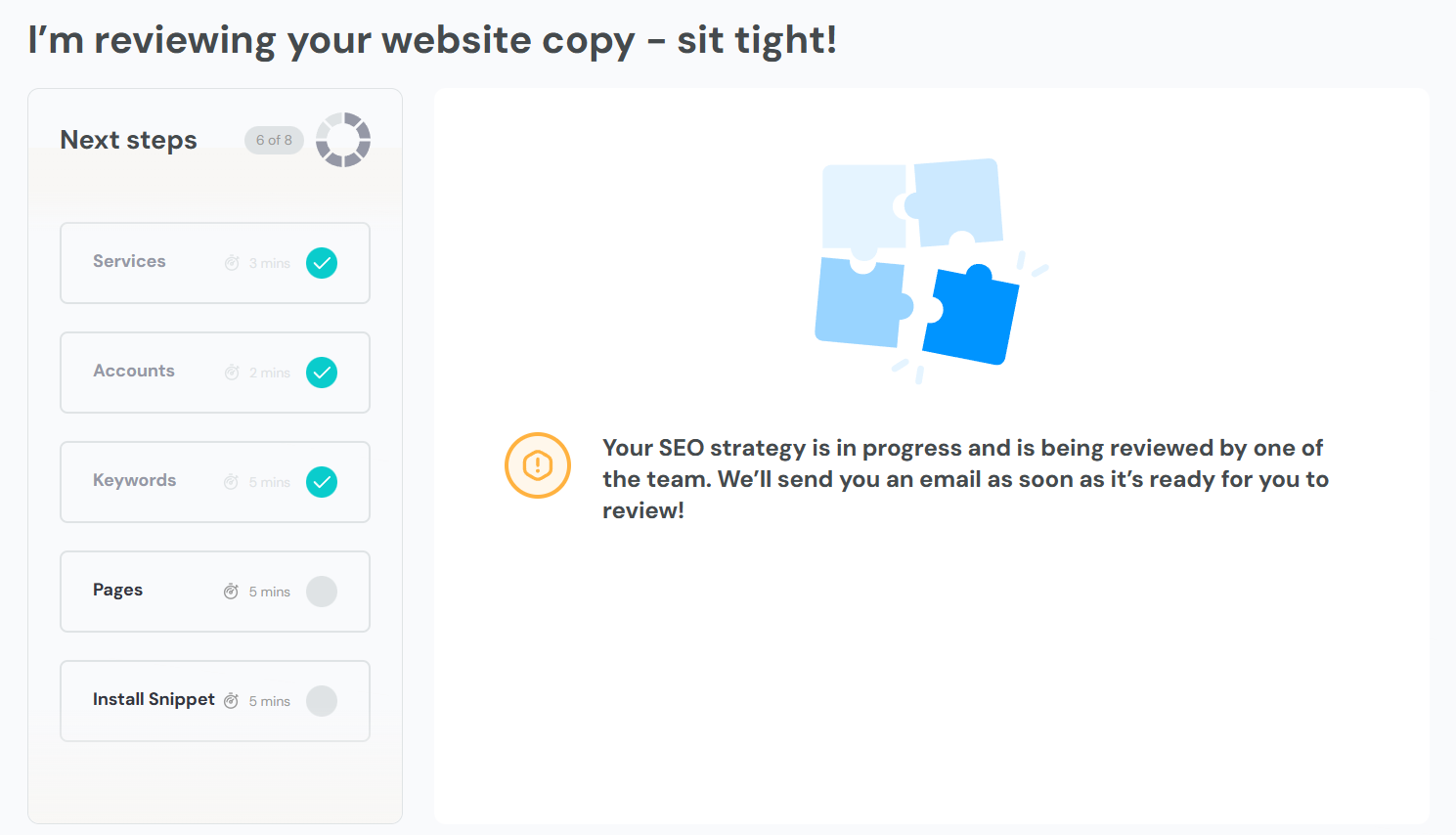
20. When the platform has finished processing your content, you’ll see a summary. Click the blue Continue button on the top left-hand side: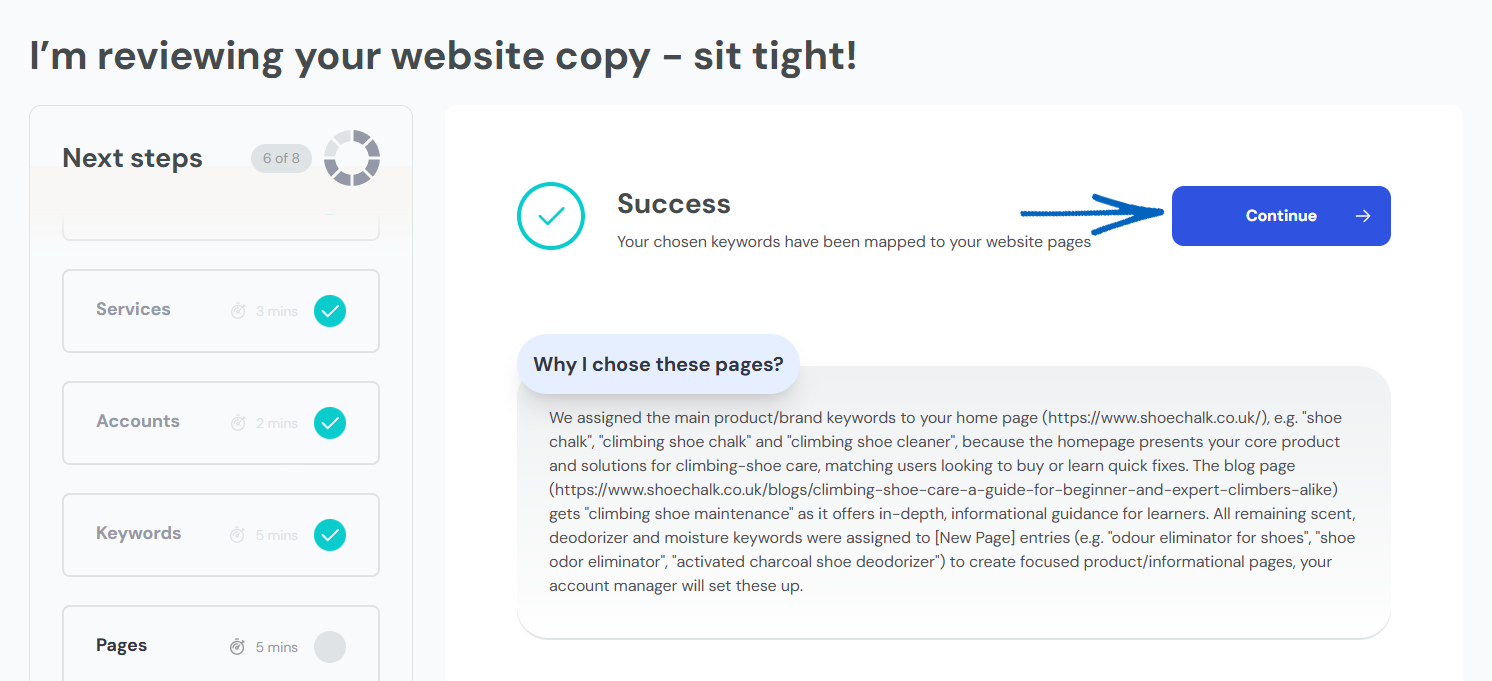
21. You’ll then see a list of pages with assigned keywords. If you wish to remove any of the assigned keywords, click the blue Edit button in the top right-hand corner. Alternatively, click the blue Continue button: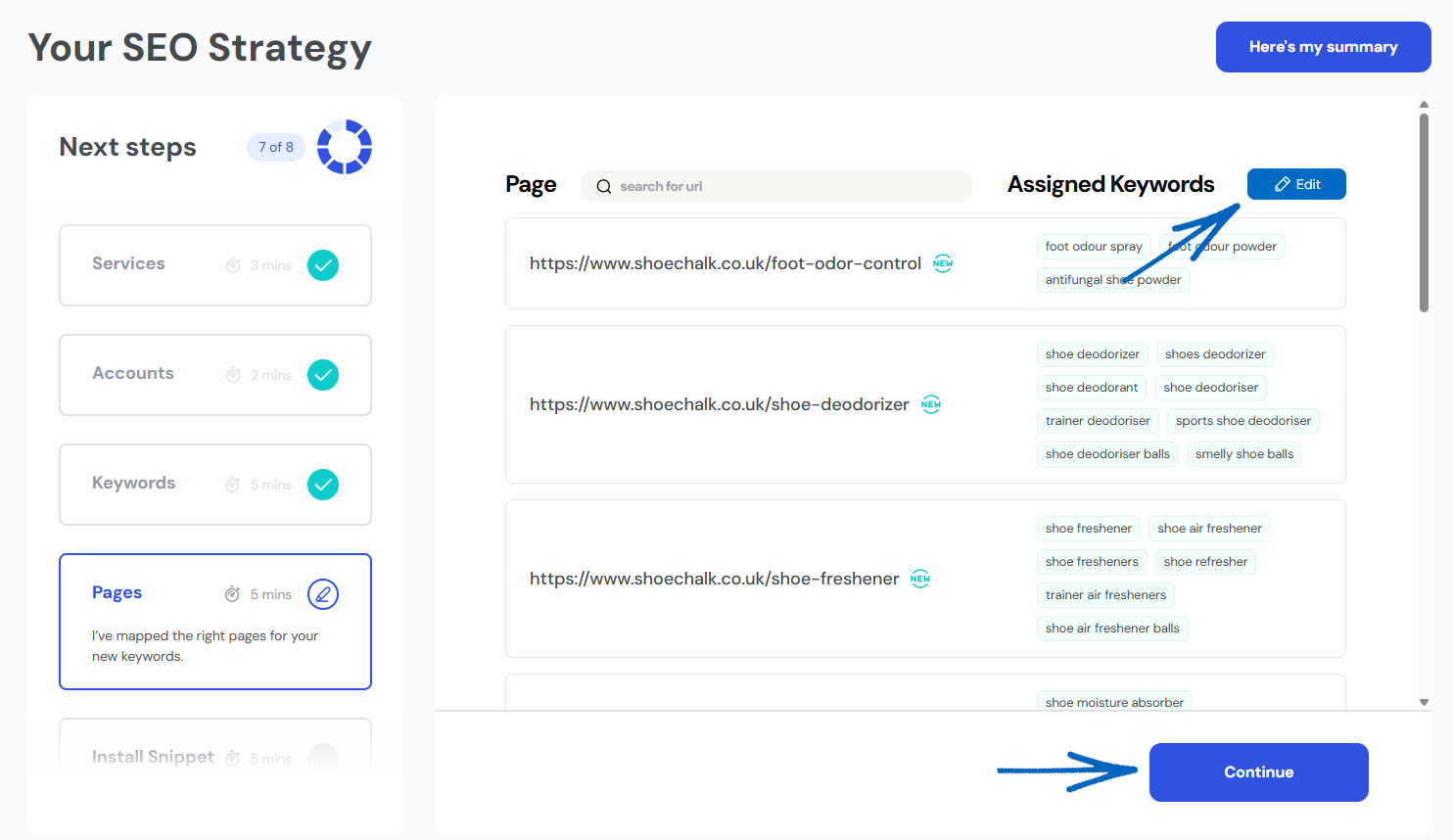
22. You’ll then see this modal. Click the blue button to continue: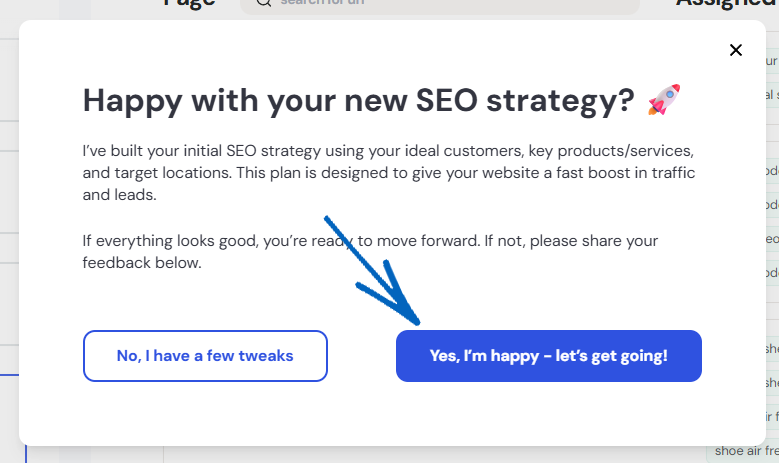
23. Your next step is to add the code snippet to your EKM online shop. Click the blue button to begin: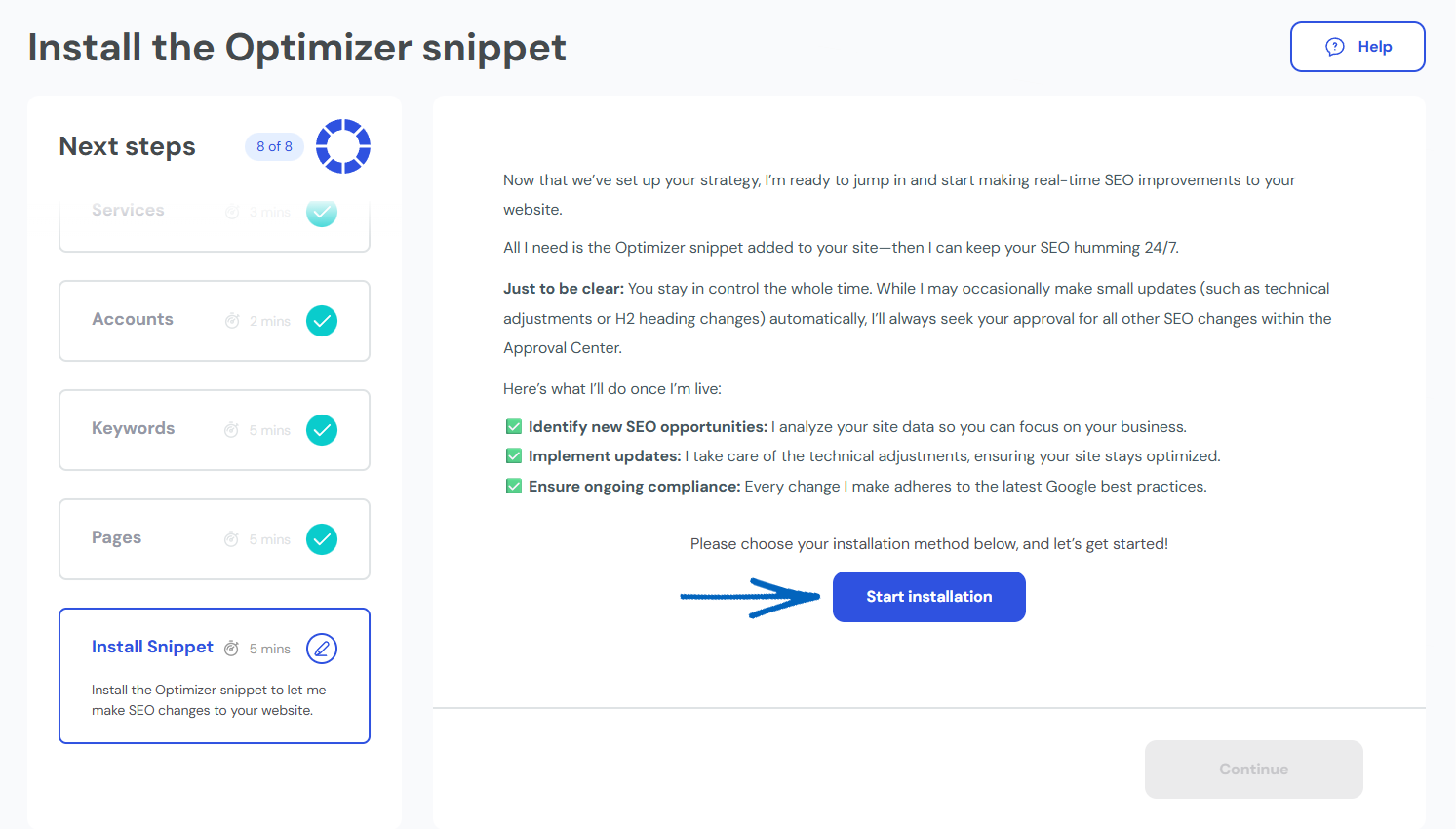
24. Open a separate browser tab, and log into your EKM online shop, before clicking Design on the left-hand side menu: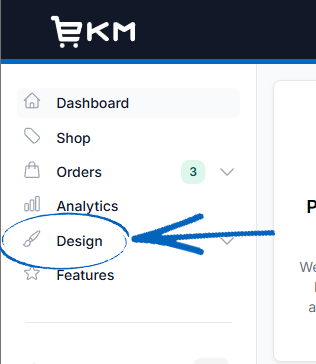
25. Click More Actions/Edit button in the bottom left-hand corner, and then select Inject Custom Code on the drop-down menu: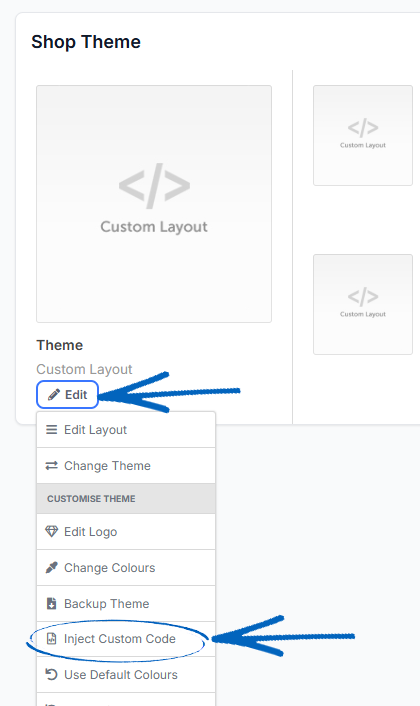
26. Return to the browser tab displaying EKM SEO, and click the copy symbol on the far right-hand side: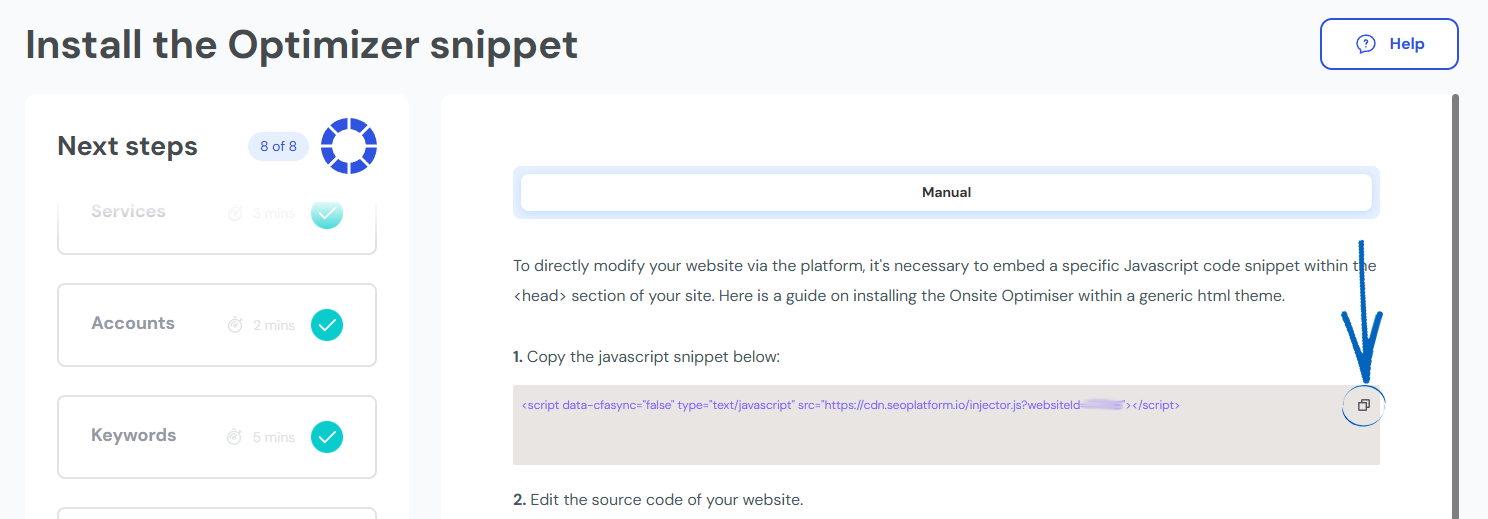
27. Return to the browser tab displaying your EKM online shop, and paste this code into the HTML Head Code field:
28. Then you need to click Save in the bottom right-hand corner: 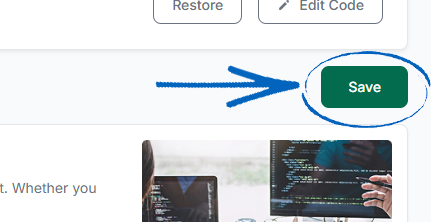
29. Return to the browser tab displaying EKM SEO, and click Verify Installation: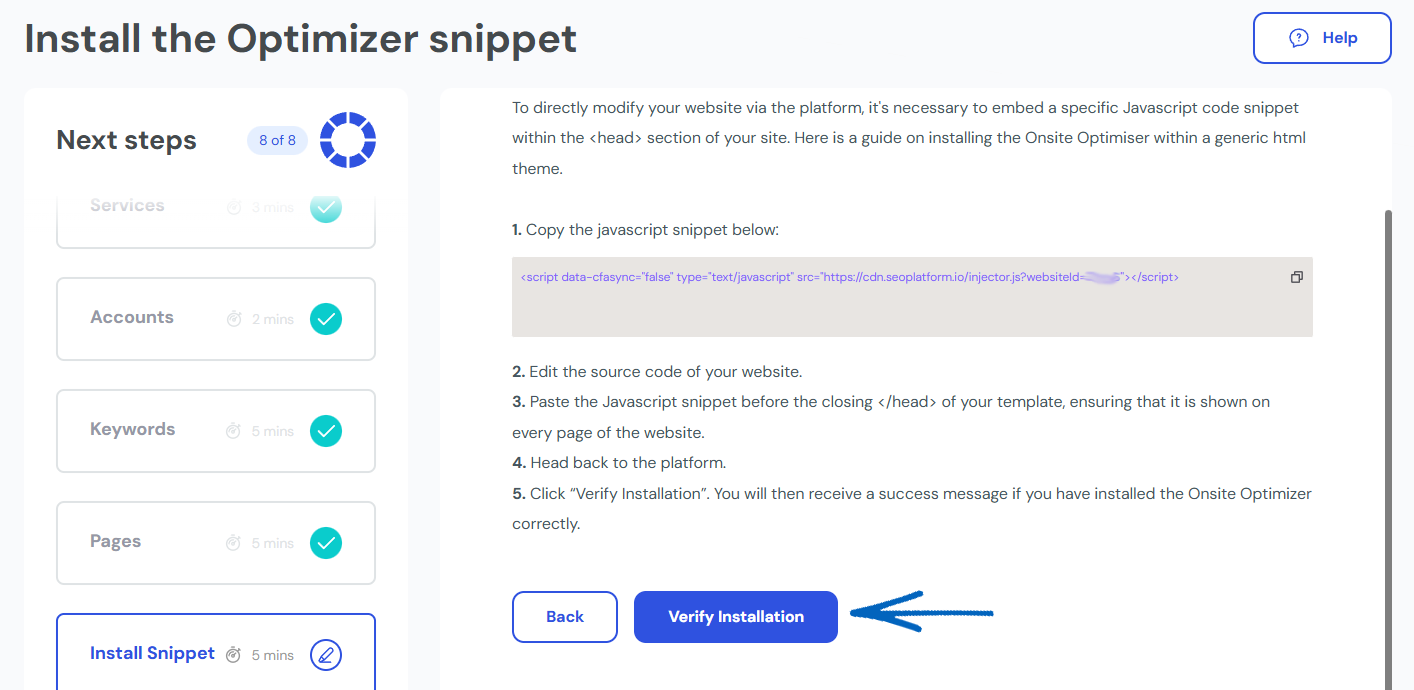
30. You’ll then see a green success message. Click Continue in the bottom right-hand corner: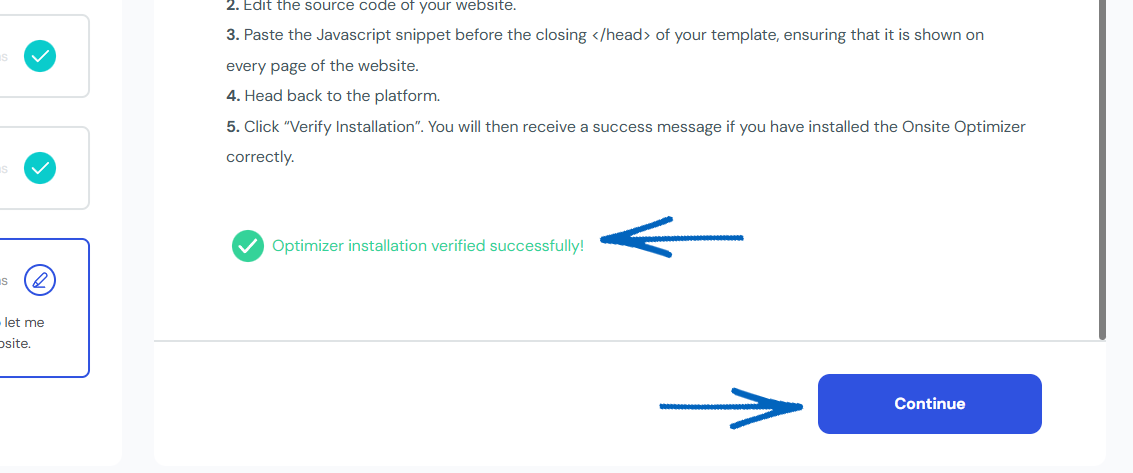
31. You’ll then see the EKM SEO dashboard: 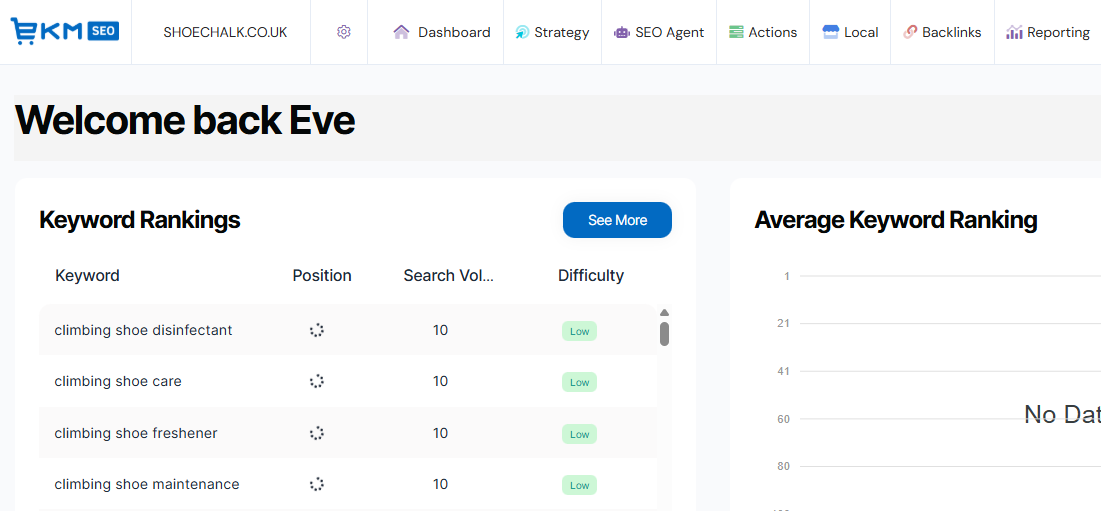
[more]
[/more]
[contact]If you need our help with your EKM online shop, contact the Customer Support Team, who can point you in the right direction. Our opening hours are 9 am - 5.30 pm Monday to Friday, for telephone calls, live chats, and emails. Outside of these hours, you can leave a message for us in the live chat window or email support@ekm.com, and we will answer as soon as possible. If you'd like to suggest a feature or an upgrade on any of the EKM platforms, please let us know on the EKM Suggestions Board. [/contact]