
[intro] Using the Keyword Sitemap area, you can map individual keywords to specific product pages, category pages, webpages and existing blog posts on your EKM online shop to improve the visibility of your content in search engine results. [/intro]
[summary]
- How to Map Keywords to Pages
- Removing Unwanted Keywords
- Managing Assigned Keywords
- Adding your own Keywords
- Adding a Page
- Saving your Changes
[/summary]
Keyword mapping is a simple but powerful way to organise your website content around the keywords people are searching for. It helps you decide which keywords belong on which pages and highlights where new pages might be needed. If you’re new to SEO, don’t worry. Keyword mapping doesn’t need to be complicated, and once you understand the basics, it can make a huge difference to how your site performs in search results.
Locating the Page
From the dashboard, click the Strategy tab, and select Keyword Sitemap from the drop-down menu:
What Is Keyword Mapping?
Keyword mapping is the process of matching keywords to specific pages on your website. This means:
- Assigning the most relevant keyword or topic to each existing page
- Identifying keywords that don’t currently have a page and planning new content for them
The goal is to make sure every page has a clear purpose and topic - something both users and search engines appreciate.
Why Is Keyword Mapping Important?
Keyword mapping brings several SEO benefits that make managing and growing your website much easier:
- Creates a logical structure - By giving each page its own main topic, your EKM online shop becomes more organised and easier to navigate. Visitors can quickly find what they’re looking for, and search engines can better understand how your content fits together.
- Helps you spot keyword gaps & opportunities - Once your keywords are mapped out, it’s much easier to see what content is missing. These gaps often turn into great opportunities for new pages that can attract more visitors to your EKM online shop.
- Prevents keyword overlap - Without a keyword map, it’s easy to accidentally create multiple pages targeting the same keyword. Keyword mapping helps you spot overlaps early, so your pages don’t end up competing with each other in search engine results.
- Improves internal linking - When each page has a clear topic, linking between related content becomes much more natural. This is especially helpful for building a structure where broader topics link to more detailed subtopics - and vice versa.
- Makes content planning easier - Keyword mapping naturally creates a content plan. Once existing pages are mapped, any remaining keyword groups show you exactly what content to create next, helping you plan weeks or even months ahead.
- Simplifies tracking & reporting - With a keyword map in place, you can easily track rankings, update content over time, and monitor performance in tools like GA4 (Google Analytics). This makes SEO progress much easier to manage and measure.
How to Avoid Keyword Cannibalisation
Keyword cannibalisation happens when multiple pages target the same or very similar keywords. This can confuse search engines and reduce your chances of ranking well.
To avoid this:
- Stick to the one page, one main topic rule
- Make sure each page has a clear and unique focus
Keyword mapping might seem like an extra step, but it makes SEO clearer, more organised, and far easier to manage - especially as your EKM online shop grows.
How to Map Keywords to Pages
1. On the Keyword Sitemap page, on the left-hand side, you’ll see a list of URLs, and on the right-hand side, suggested keywords for those pages. The pages listed do not necessarily exist on your EKM online shop – these are suggestions EKM SEO has made that incorporate keywords listed on the Keyword Research page: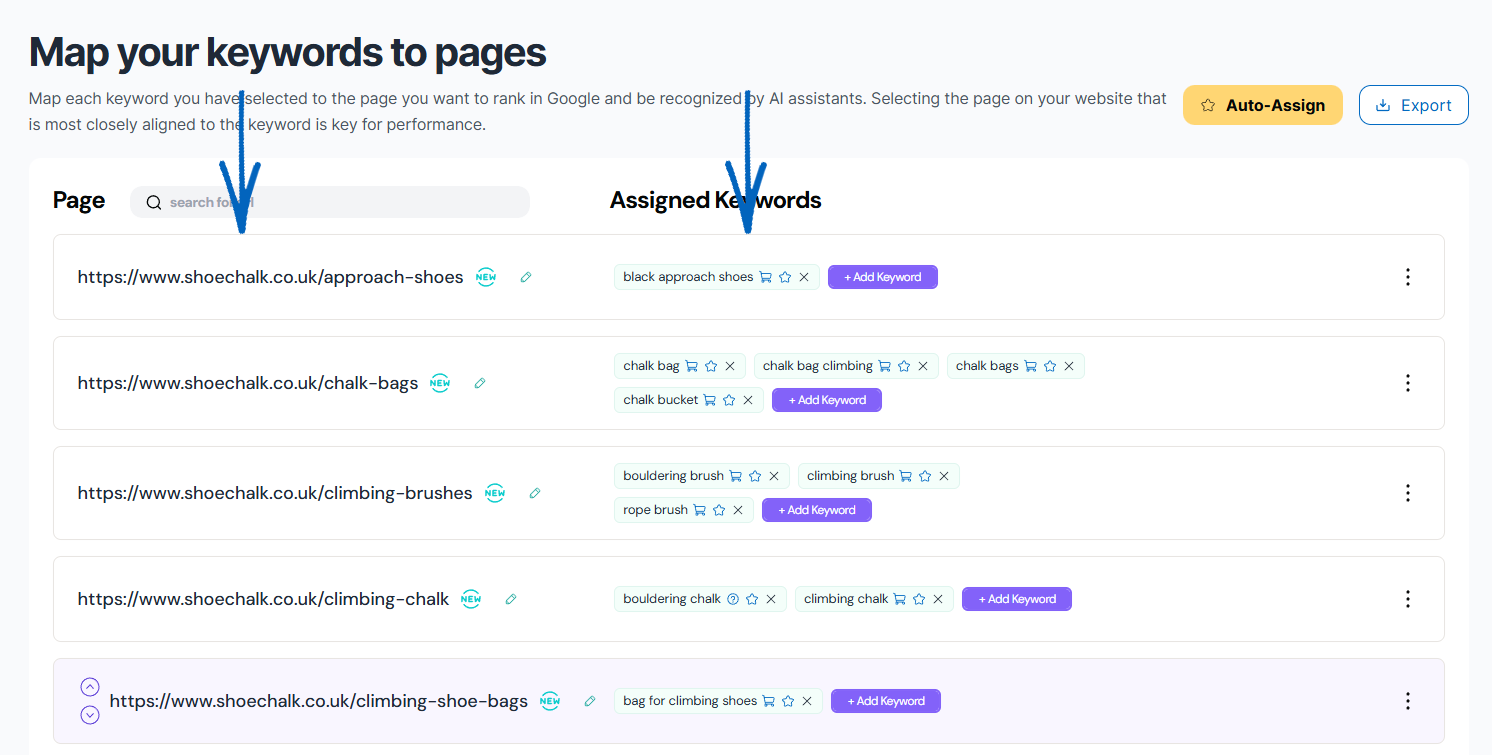
2. If you’re not sure if a URL is a real page on your EKM online shop, you can click it and it will open in a separate browser tab: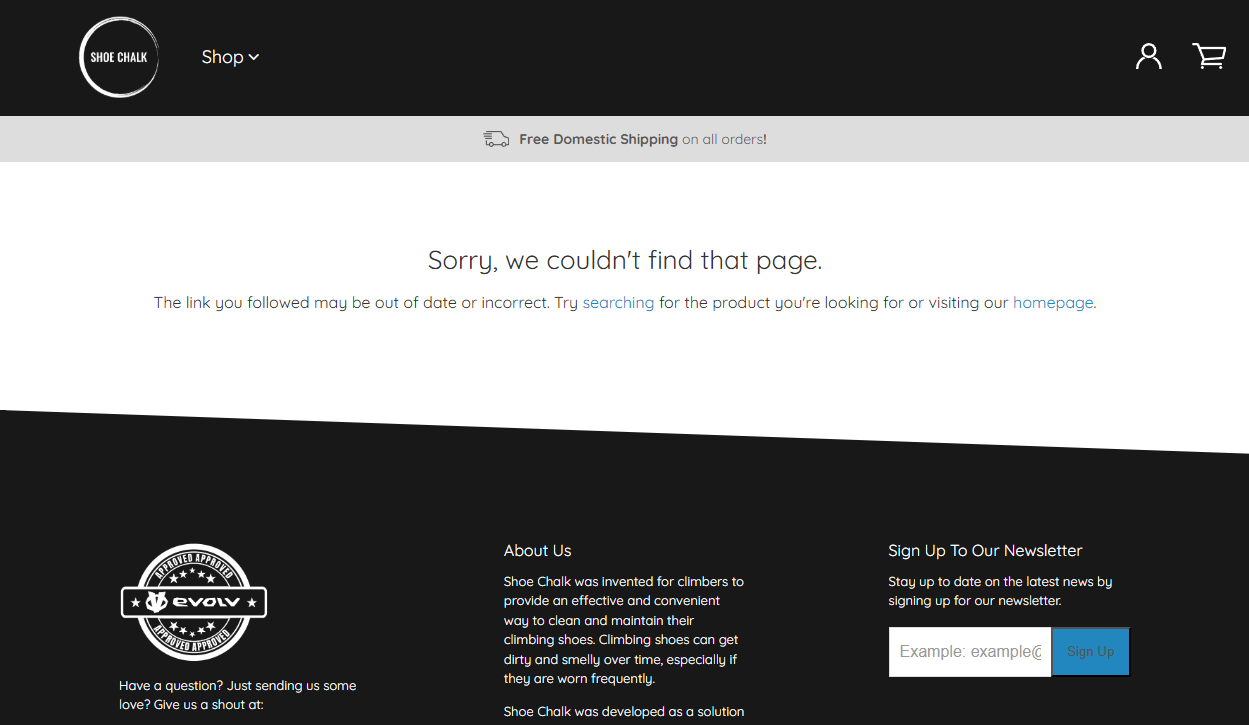
3. If the page displays the standard ‘I’m sorry we couldn’t find that page’ message like the image above, the URL was a suggestion for a new page.
Removing Unwanted Keywords
4. Looking at the suggested URL and keywords, these are not applicable to this EKM online shop as it does not retail footwear. In this case, you would return to the browser tab displaying your EKM SEO account, click the three dots on the far right-hand side and click Delete on the drop-down menu: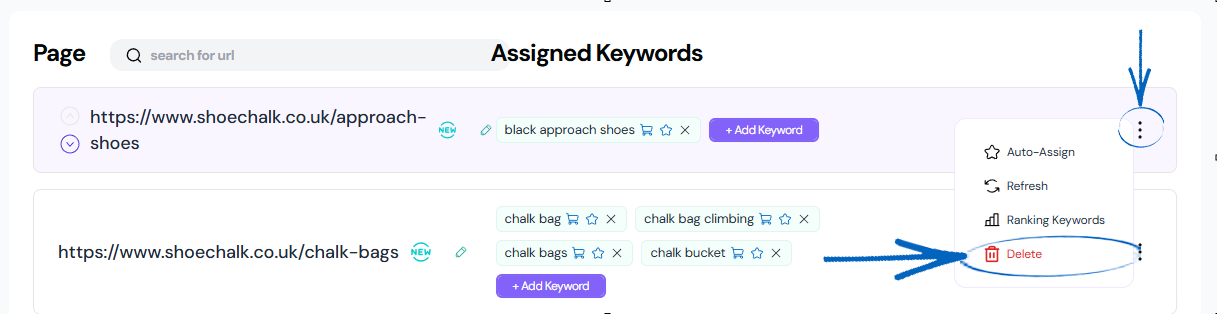
5. You then just need to click Remove on the modal that appears: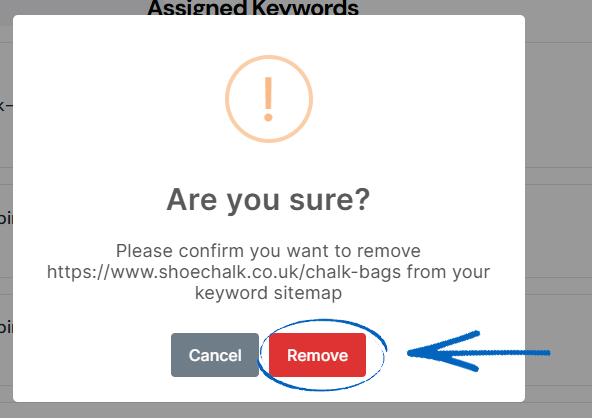
Managing Assigned Keywords
6. However, if the URL that you click linked to an existing page, your next step is to return to the browser tab displaying your Keyword Sitemap and look at the keywords that are associated with that page: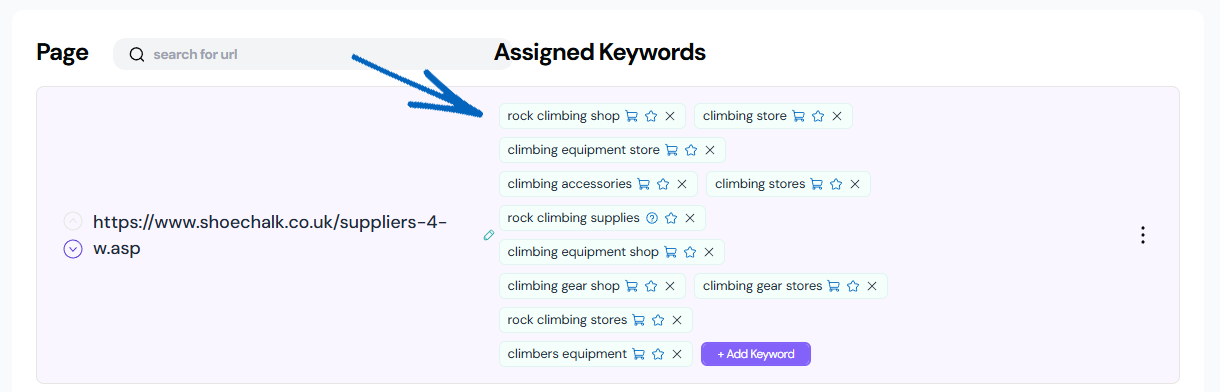
7. In the example above, this Webpage on this EKM online shop lists retailers and distributors for the brand, so some of these keywords are beneficial, yet some are not. To remove the unwanted keywords, click the X on each: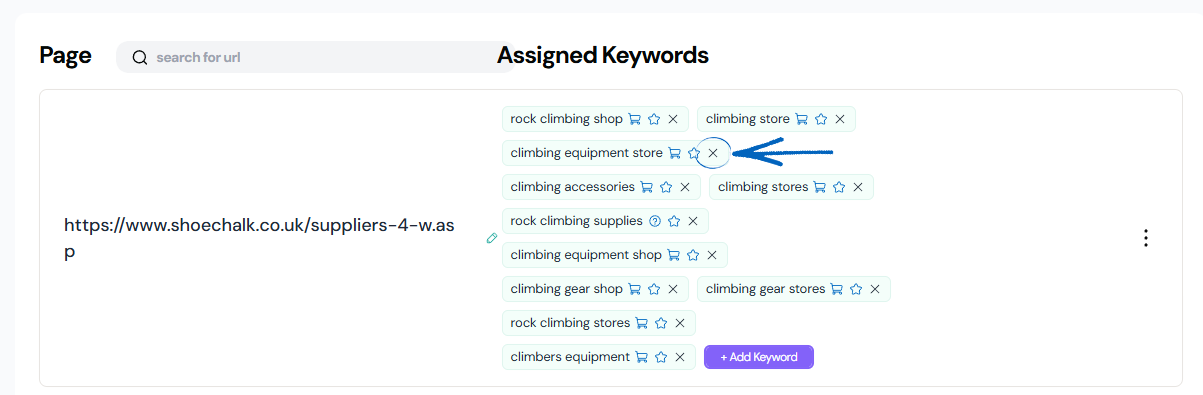
8. You’ll then see a modal appear. Click Remove: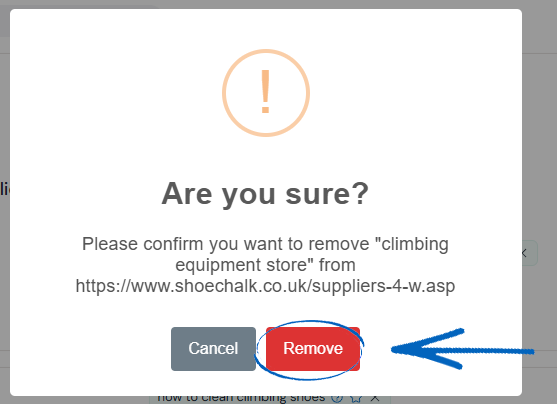
9. You’ll also notice symbols listed against each of the keywords. You can hover over these with your cursor to see the keyword’s intent, difficulty and search volume: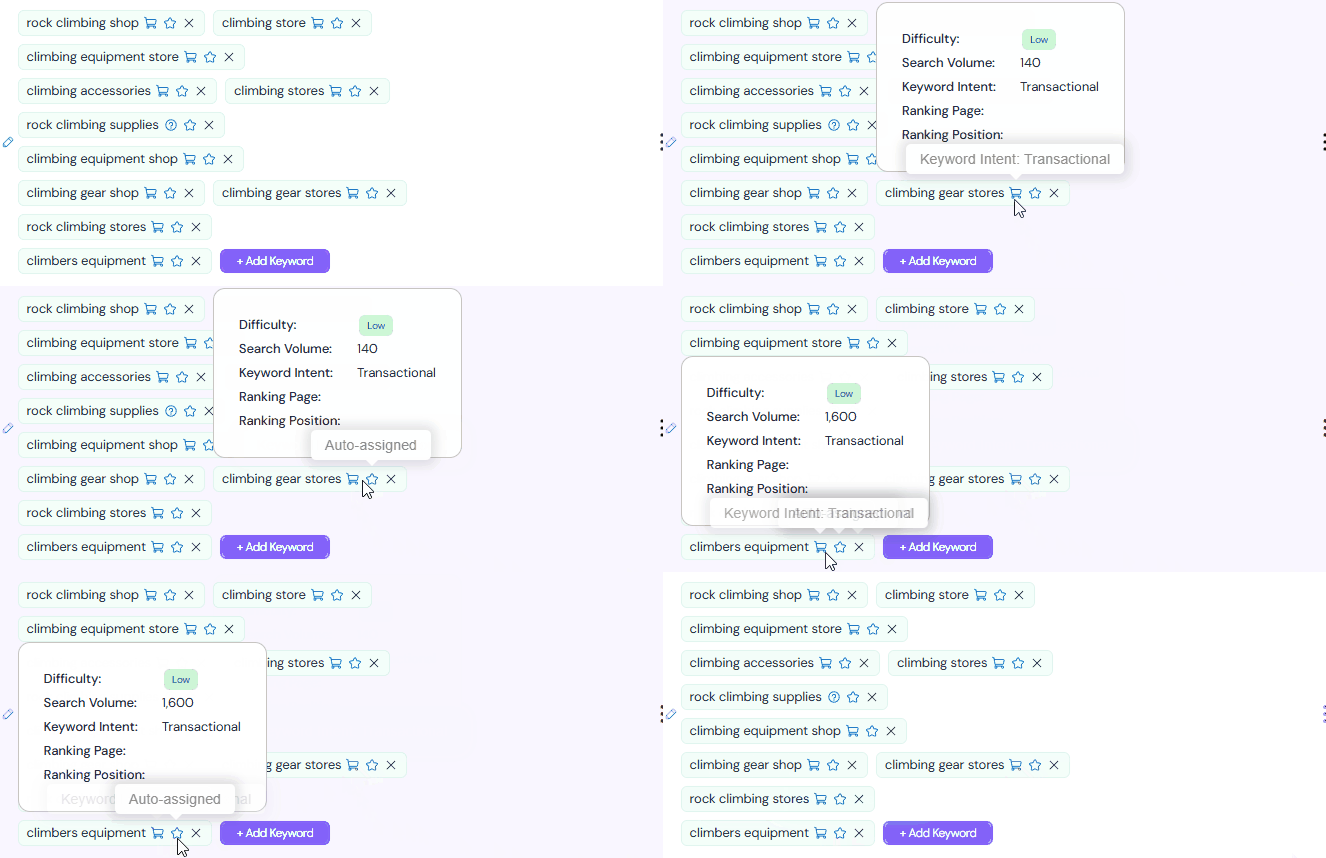
Adding your own Keywords
10. You can also add your own keywords to specific pages by clicking the Add keyword button: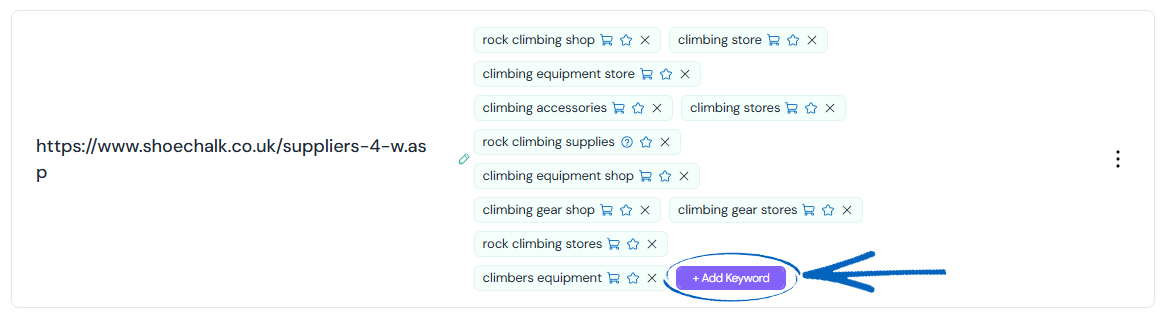
11. You’ll then see this modal. You can click any of the keywords on the list to assign them to that specific URL: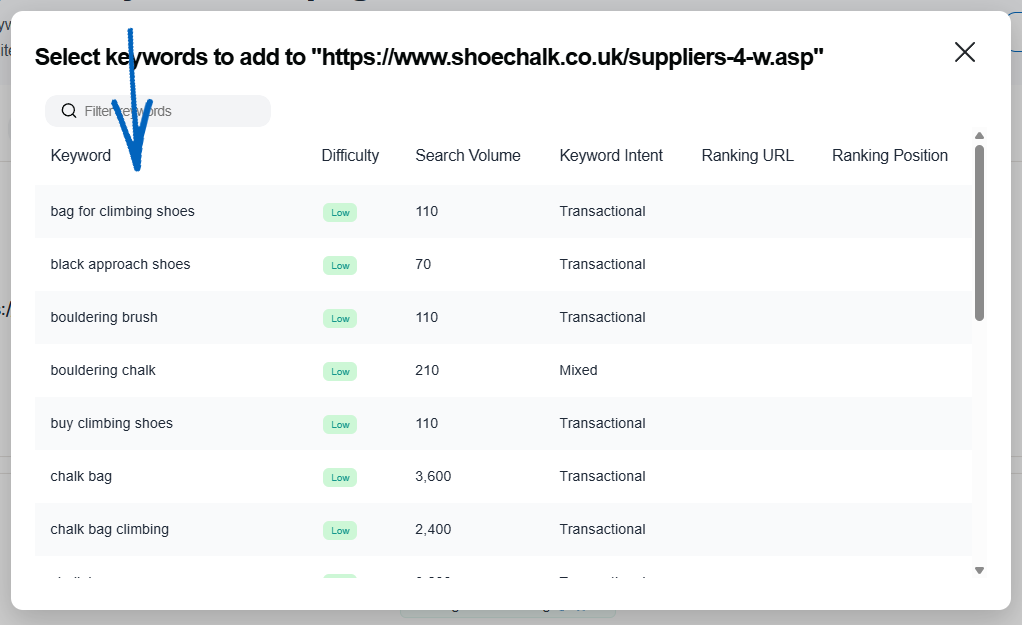
12. When you have finished selecting your keywords, click the Add button in the bottom right-hand corner: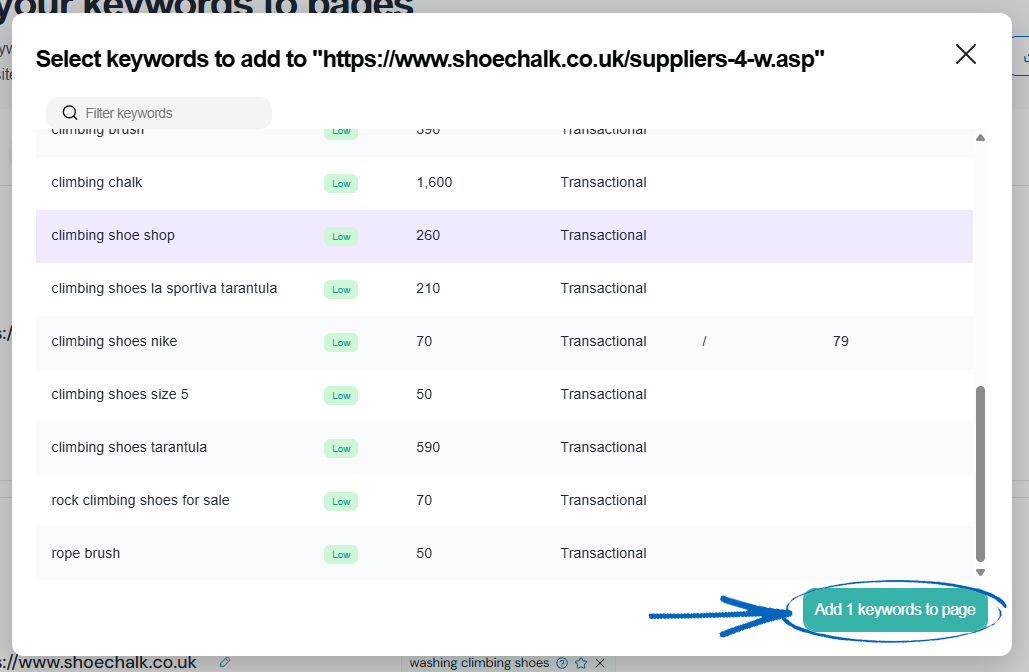
[tips]Use Keyword Research to add completely new keywords to your SEO strategy, which you can then assign to specific URLs using your Keyword Sitemap. [/tips]
Adding a Page
13. To add an additional page to your keyword sitemap, click the Add Page button: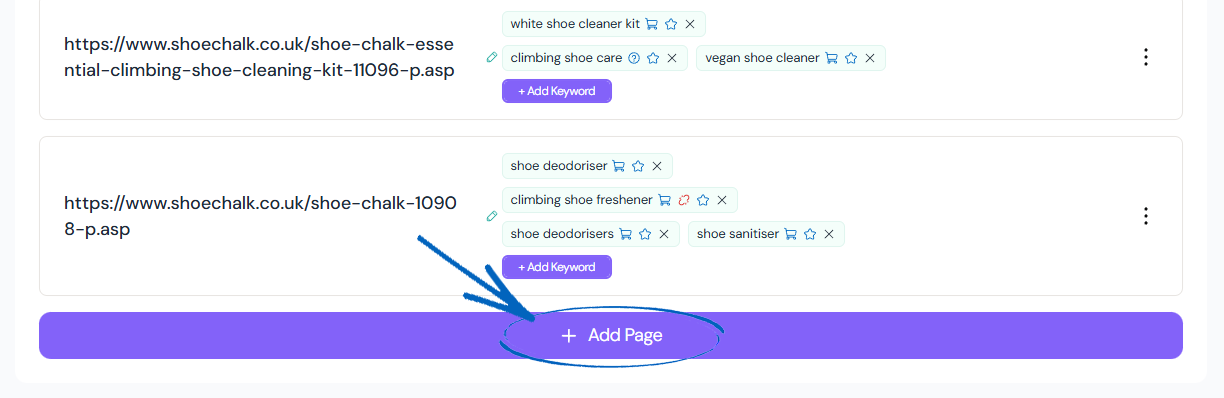
14. You’ll then see this modal appear. You can use the drop-down field at the top to select from the list of pages on your EKM online shop, or if you have the URL of a specific page already, add this to the field below. You can also add the URL of a page you have not finished creating yet – be sure to tick the box so EKM AI can create tasks for you based on that new content: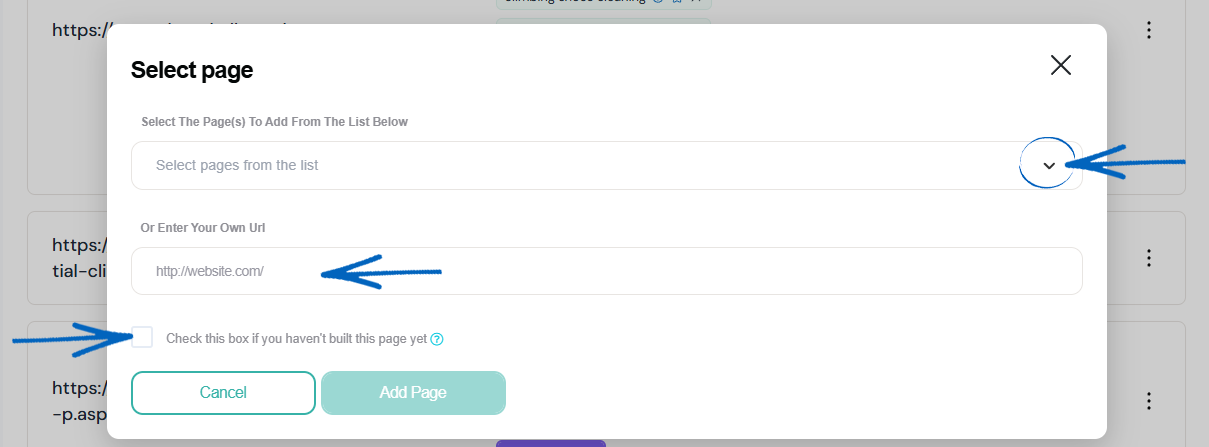
15. When you have finished adding your URL, click Add Page: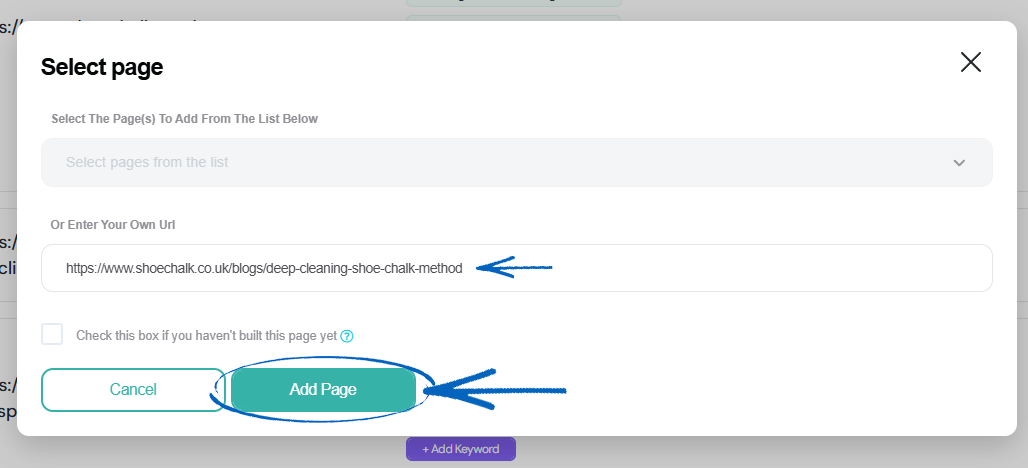
16. You’ll then see your URL on the list, and can click Add Keyword to assign specific keywords to that page: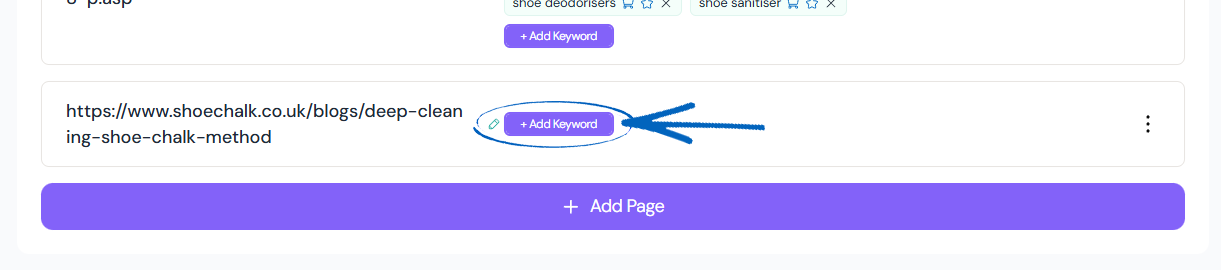
[tips]Use Keyword Research to add completely new keywords to your SEO strategy, which you can then assign to specific URLs using your Keyword Sitemap. [/tips]
Saving your Changes
17. When you have finished amending your keyword sitemap, scroll to the bottom of the page and click Save Sitemap in the bottom right-hand corner: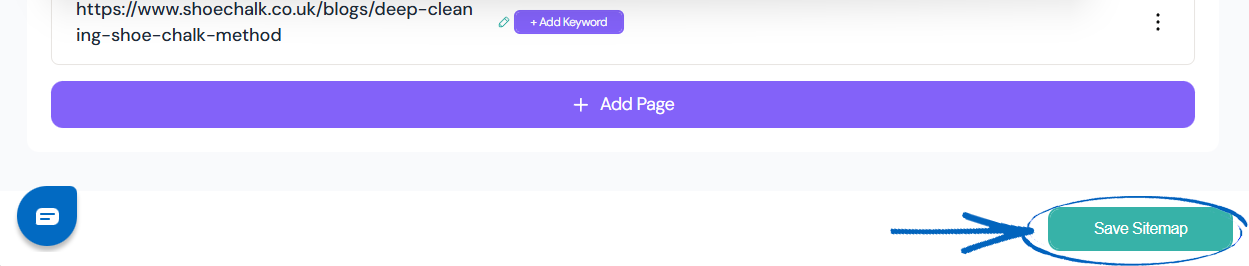
18. You’ll then see this modal: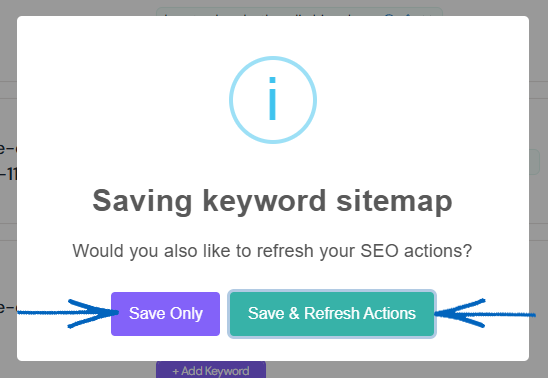
19. Choose from Save Only (if you have not worked through the keywords for each URL and wish to return to this page and work on it later) or Save & Refresh Actions to save all of your changes and create a new list of URLs to work through.
[remember]Revisit your keyword map every 6 -12 months to refresh content, add new information, and stay aligned with changing trends and search behaviour.[/remember]
[more]
[/more]
[contact]If you need our help with your EKM online shop, contact the Customer Support Team, who can point you in the right direction. Our opening hours are 9 am - 5.30 pm Monday to Friday, for telephone calls, live chats, and emails. Outside of these hours, you can leave a message for us in the live chat window or email support@ekm.com, and we will answer as soon as possible. If you'd like to suggest a feature or an upgrade on any of the EKM platforms, please let us know on the EKM Suggestions Board. [/contact]