
[intro]On the Keyword Research page, you can add and amend the keywords currently associated with your EKM online shop to streamline your SEO strategy for the best possible results. [/intro]
[summary]
[/summary]
Locating the Page
1. From the dashboard, click the Strategy tab, and select Keyword Research from the drop-down menu: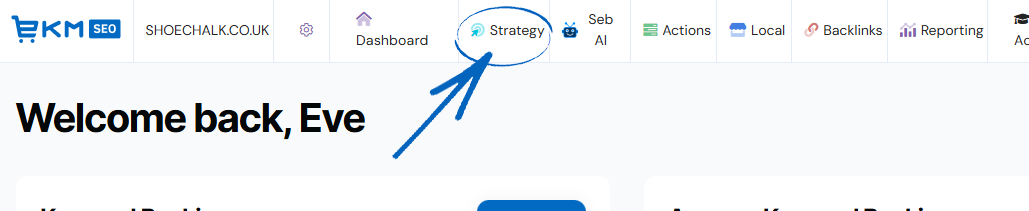
2. You’ll then see the Keyword Research page: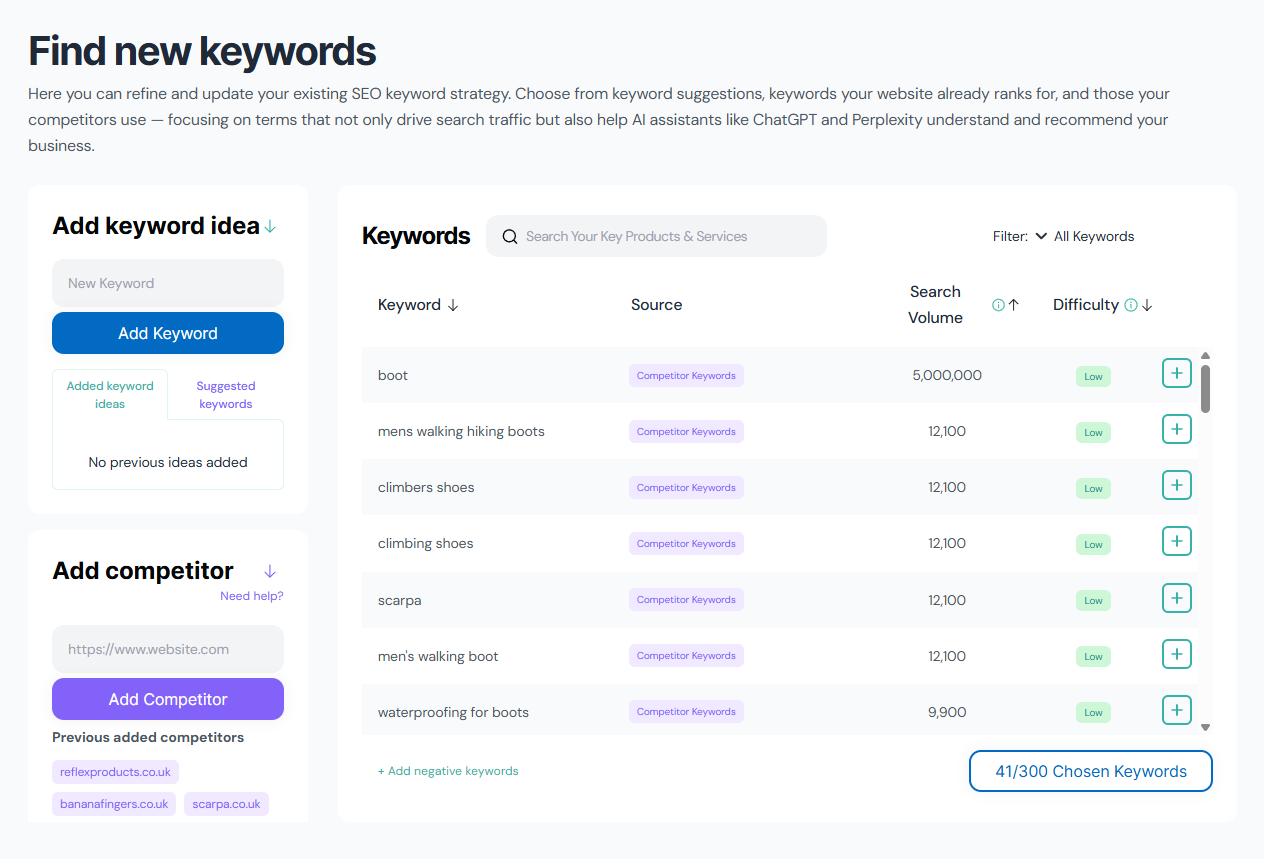
Here you can refine and update your existing SEO keyword strategy. Choose from keyword suggestions, keywords your EKM online shop already ranks for, and those your competitors use - focusing on terms that not only drive search traffic, but also help AI assistants like ChatGPT and Perplexity understand your business and recommend it.
Adding Keywords
1. On the left-hand side of the page, you’ll see the Add Keyword Idea element. Here, you can add new keywords to the field provided before clicking the Add Keyword button: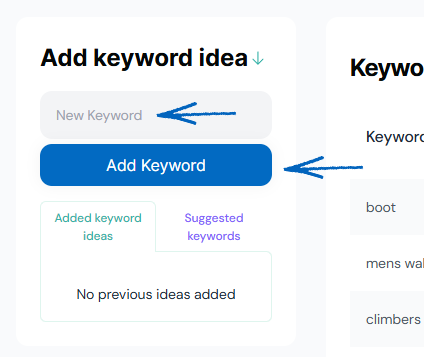
2. You’ll then see the new keyword added to the Added Keyword Ideas tab, and the main Keywords table will update to display the keyword you just added and any related keywords you may also want to add. 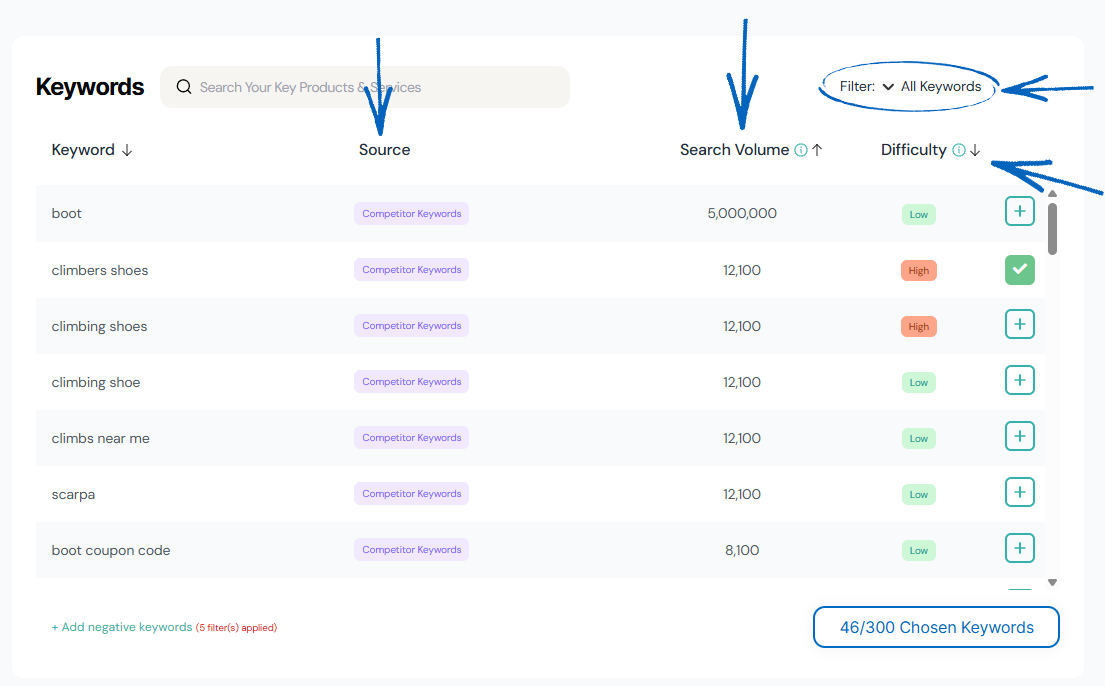 Source – This tells you where the keyword originated. This could be Keyword Ideas (where you have added the keyword manually), Competitor Keywords (a competitor is also ranking for that keyword), Ranked Keywords (a keyword that your EKM online shop already ranks for) or AI Generated (a keyword that the EKM SEO AI has identified).
Search Volume – The measure of the average number of searches that are performed through Google per month for that keyword.
Difficulty – A metric indicating how difficult it is to rank in the top 10 search results for a keyword. Try to pick keywords with a lower difficulty value where possible, as it will be easier to rank in Google search results for less competitive keywords that really help target your specific product niche.
[tips] You can use the Filter in the top right-hand corner of the Keywords table to view specific groups. Choose between All Keywords, Keyword Ideas, Ranked Keywords, Competitor Keywords and Blog Ideas. [/tips]
3. To add a keyword, click the green plus symbol on the far right-hand side: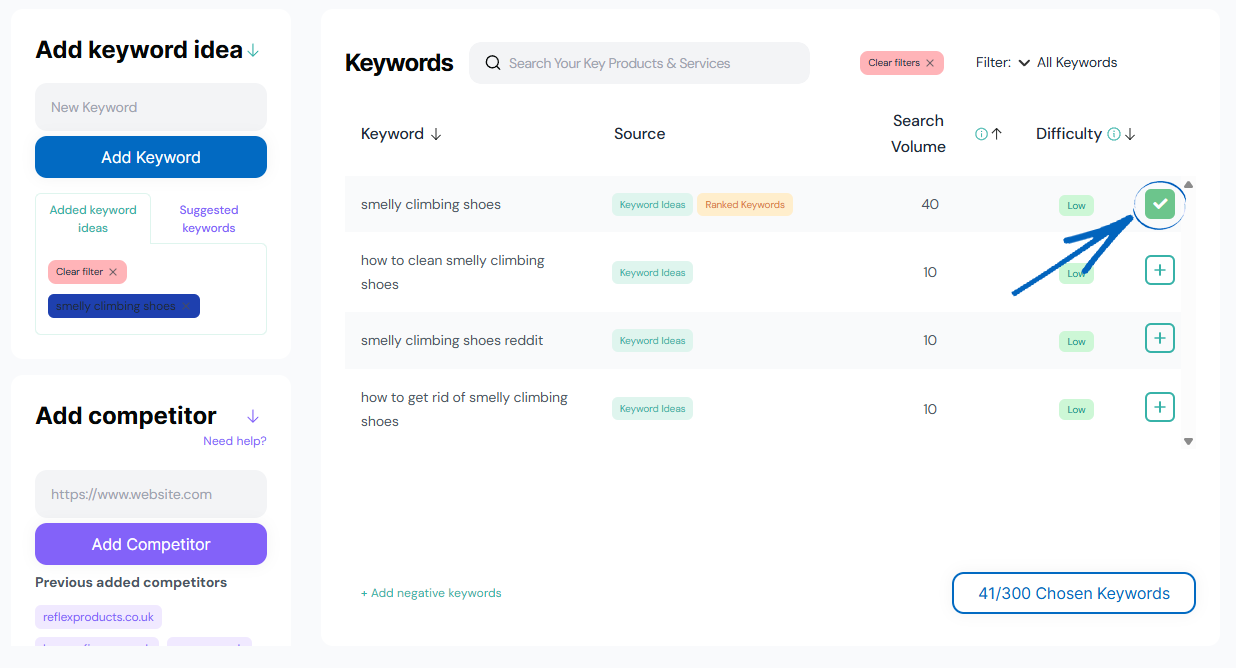
4. When you have added your keywords, click Save Keywords in the bottom right-hand corner: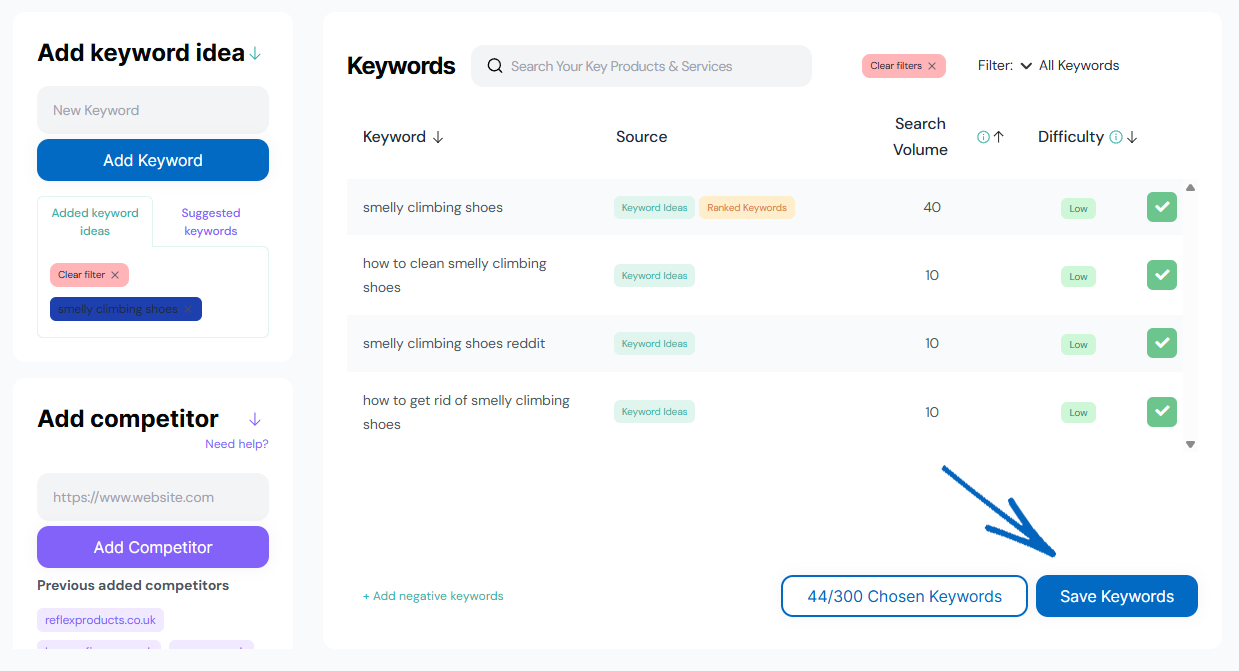
5. Repeat this process with any other keywords you wish to add to your SEO strategy. You can add a maximum of 300 to this area.
Adding Negative Keywords
If you’ve used Google Ads previously, you’ll already know about negative keywords. However, if this term is new to you, a negative keyword is used to prevent your EKM online shop from displaying in search results where the user is looking for something unrelated to your brand and products. For example, the EKM online shop featured in this guide sells cleaning products for climbing shoes. Therefore, ‘how to clean climbing shoes’ is an ideal long-tailed keyword for the brand, whilst ‘harnesses for climbing’ is a negative keyword, as users looking for this on Google are not looking for solutions for cleaning their climbing shoes.
By the same token, if your EKM online shop sells high-end luxury products, negative keywords here could be terms that use the words ‘cheap’, ‘discount’ or ‘free’, as your target market probably won’t include shoppers looking for heavily reduced bargain items.
1. To add negative keywords to your strategy, first review some of the keyword suggestions in the list. Scroll down and take note of some of the keywords that include the same individual words. In this example, ‘boot’ appears often, but this keyword is not related to the products on this EKM online shop: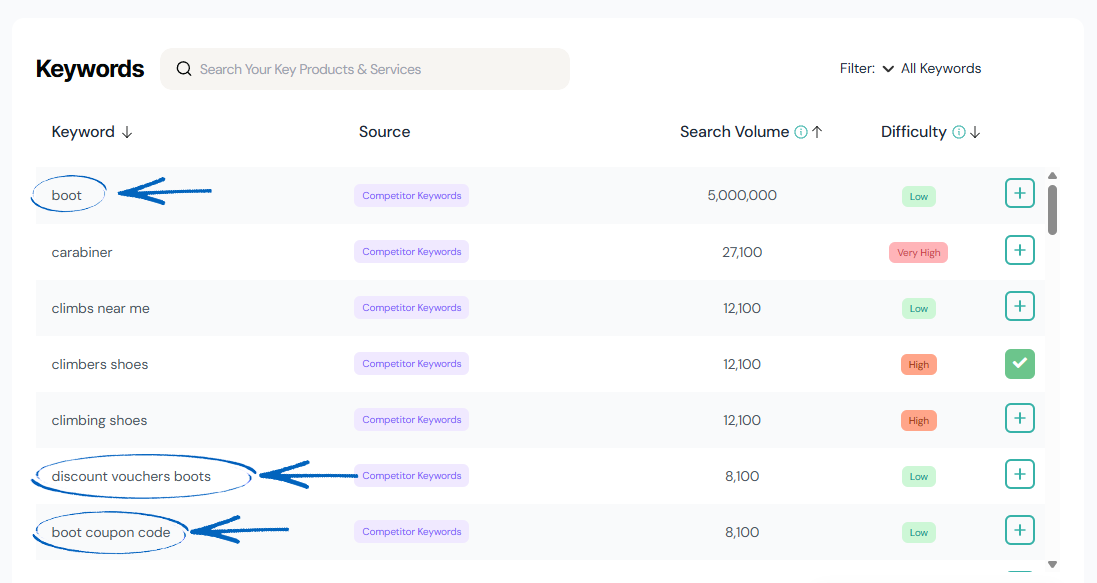
2. When you have noted these keywords down, scroll to the bottom of the page and click the link in the middle: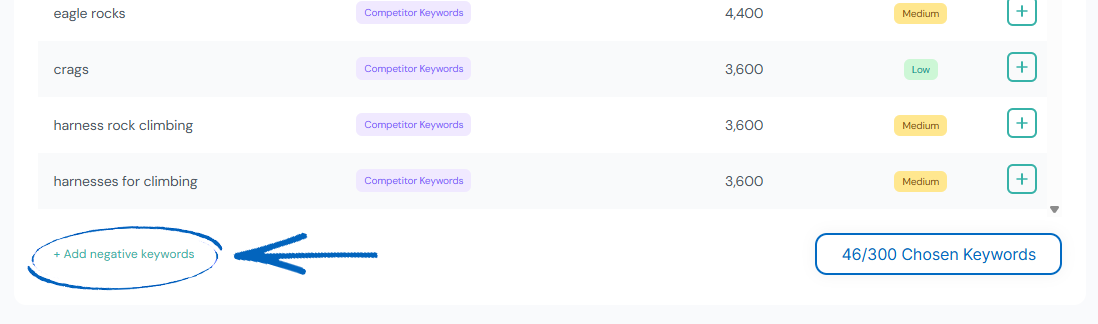
3. In the modal that appears, you can use the Operator drop-down menu to select from:
Equals = The exact keyword: ‘harnesses for climbing’.
Contains = Includes ‘harnesses for climbing’ and potentially some other words too.
Starts With = The keyword begins with ‘harnesses for climbing’.
Ends With = The keyword ends with 'harnesses for climbing’. 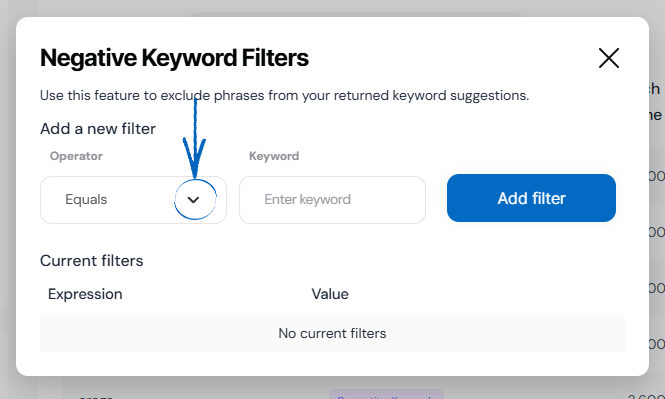
4. When you have selected the right operator, add the keyword into the field provided and click the blue Add Filter button: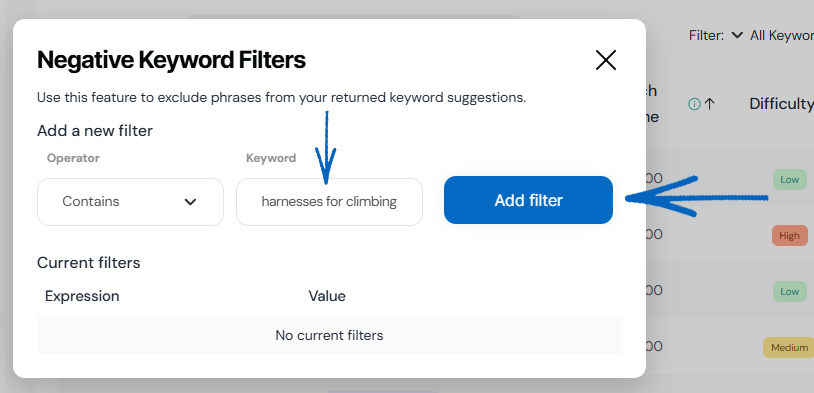
5. You’ll then see the negative keyword listed at the bottom of the modal: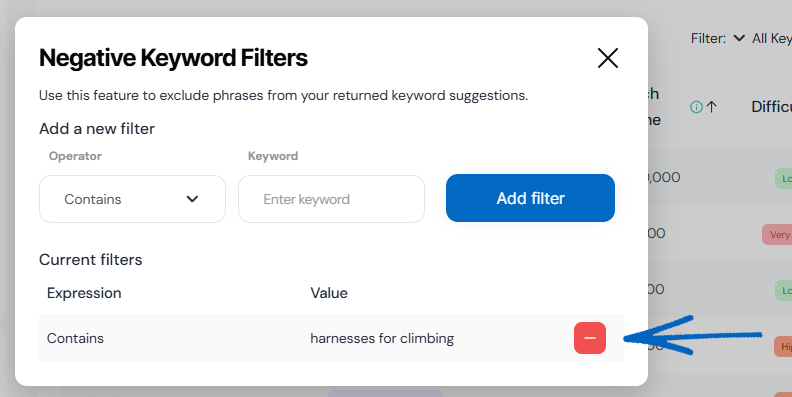
Adding Competitors
1. Scroll down to the Add Competitor element on the bottom left-hand side. There, you can add the domain name of a competitor into the field provided, before clicking the purple button: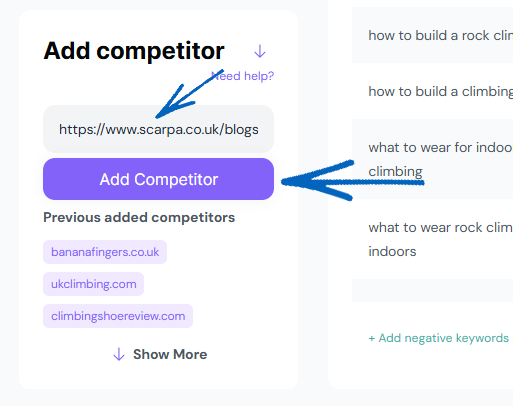
2. You can add up to five competitors here and, as a result, will be able to see the keywords they use on their own websites. You can then filter through those keywords and select the most applicable to your EKM online shop to use in your own SEO strategy.
[more]
[/more]
[contact]If you need our help with your EKM online shop, contact the Customer Support Team, who can point you in the right direction. Our opening hours are 9 am - 5.30 pm Monday to Friday, for telephone calls, live chats, and emails. Outside of these hours, you can leave a message for us in the live chat window or email support@ekm.com, and we will answer as soon as possible. If you'd like to suggest a feature or an upgrade on any of the EKM platforms, please let us know on the EKM Suggestions Board. [/contact]