
[intro]Use this part of your EKM SEO account to create, schedule and publish posts to your Google Business Profile. Posts can be used to advertise offers, promote events and let potential customers know what’s new about your business. [/intro]
[caution] Before you begin this guide, you must ensure that you have linked your Google Business Profile to your EKM SEO account. [/caution]
Google Business Profile posts are short updates that appear on your Google listing - in Google Search and Google Maps. They can include:
- News or updates
- Promotions or special offers
- Event announcements
- New products or services
- Helpful tips for customers
Regularly posting on your Google Business Profile not only keeps your business active but also provides several significant advantages, such as:
Improved Visibility in Local Searches
Keeping your GBP active and engaging sends positive signals to Google, indicating that your business is relevant and trustworthy. This improves your visibility in local search results, making it easier for potential customers to find you.
Increased Customer Engagement
Regular posts keep your profile fresh and informative, encouraging more clicks and interactions from users who come across your profile. This engagement can translate to higher customer interest and direct inquiries.
Enhanced Foot Traffic and Enquiries
For businesses with physical locations, consistent updates can draw more foot traffic. For service-oriented companies, it can increase inquiries from users searching for services like yours in their area.
Supports Your SEO Goals
An active Google Business Profile complements other SEO strategies by improving how Google perceives your business. When combined with efforts like keyword optimization and backlink building, a regularly updated profile adds substantial value to your online presence.
How Posts Integrate into a Broader SEO Strategy
Posting on your Google Business Profile works best when part of a comprehensive SEO strategy. While Google Business Profile updates can boost local visibility, they perform even better when paired with optimised website content and strong backlink profiles. Regular posts make it easier for customers to interact with your business online while helping you maintain a competitive edge in local search results.
Best Practices for Posting on Your Google Business Profile
- Timely and Relevant Updates: Post content related to seasonal trends, industry news, or promotions your business is running.
- Consistency is Key! Aim to post regularly - whether that’s weekly or monthly - to maintain an active and updated profile.
- Visual Content: Include quality images or videos to catch users’ attention and make posts more engaging.
- Clear Calls-to-Action (CTAs): Encourage users to take specific actions, like visiting your EKM online shop or if applicable, your physical premises.
Locating the Page
1. From the dashboard, click Local and then select Posts from the drop-down menu:
2. You’ll then see this page. A summary of posts that are currently live on your Google Business Profile will be displayed at the bottom of the page. Above that will be any scheduled posts, and the three buttons above this will take you through the process of creating one of the three different kinds of posts: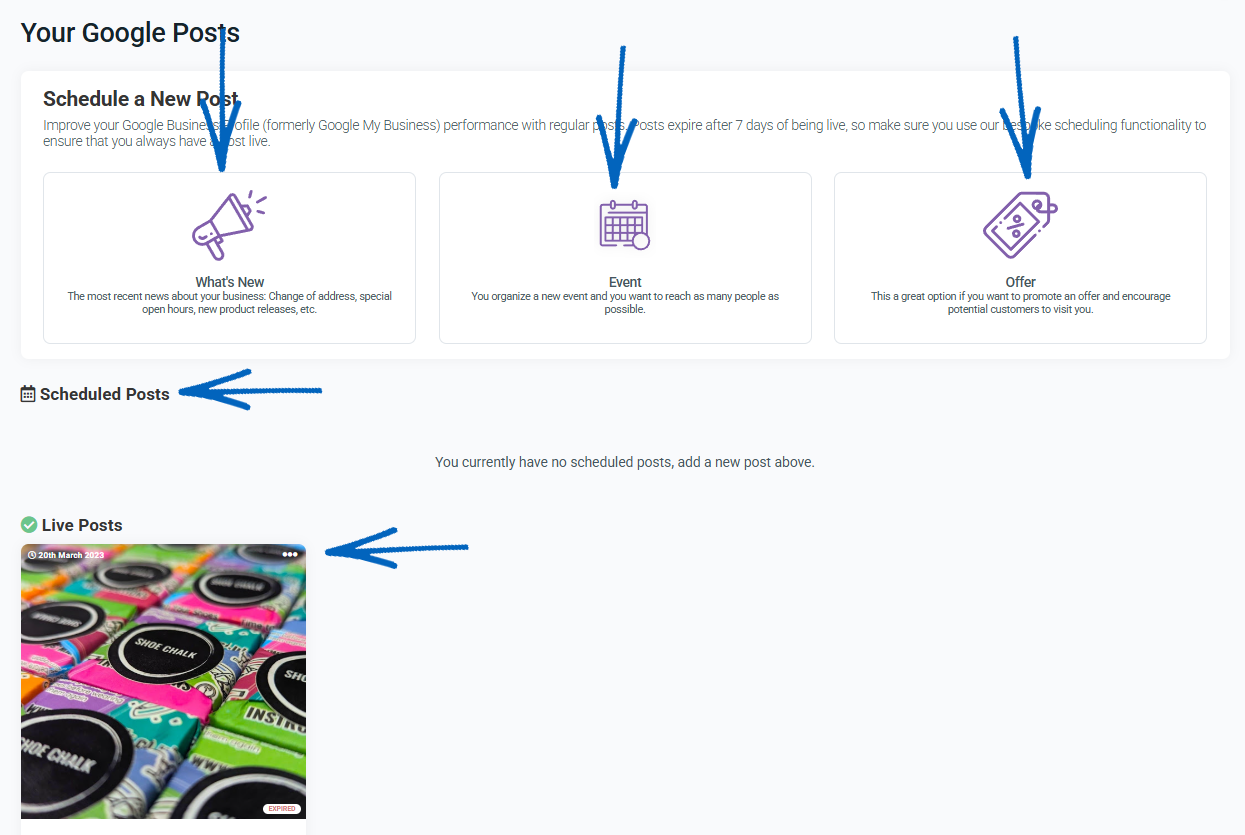
You can create 3 different types of listings:
- Update - The most recent news about your business, such as a change of address, special open hours, new product releases, etc.
- Event - You organise a new event, and you want to reach as many people as possible.
- Offer - This is a great option if you want to promote an offer and encourage potential customers to visit you.
[remember] Any listings created expire from Google Business Profile within 7 days of being posted. [/remember]
3. To create a new post, click one of the buttons at the top of the page: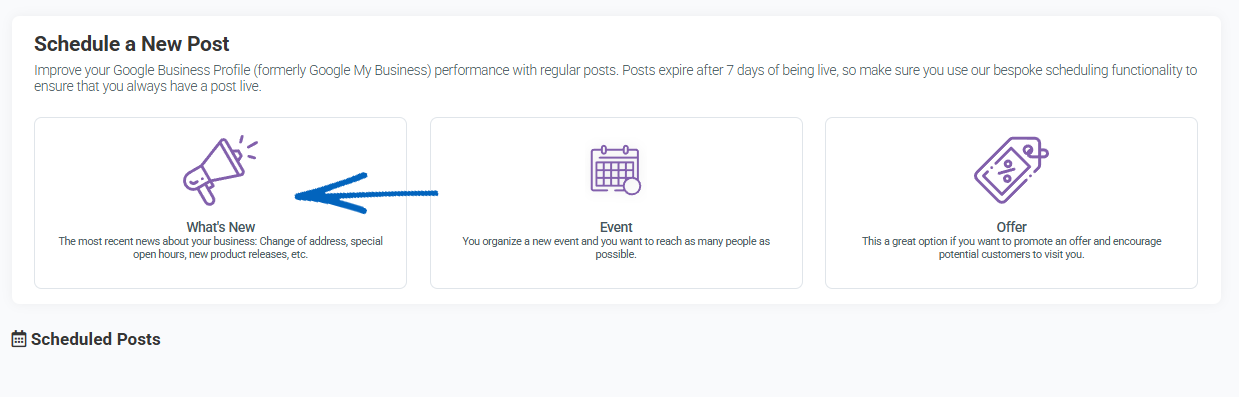
4. Now you need to complete the fields and upload your image. Click in the photo area: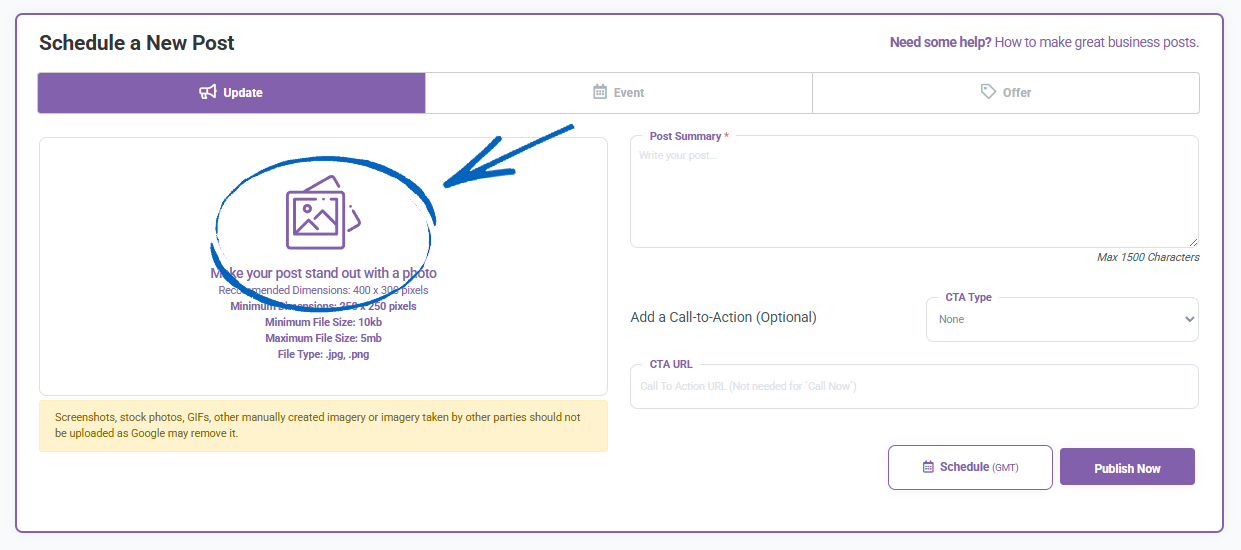
[tips]Ideally, you need to ensure that each of your posts contains an image. These images need to be cropped to the right size and in JPG or PNG format. The recommended dimensions are 400 pixels wide by 300 pixels high, with a maximum file size of 5mb. Try not to include small details – such as text – on these images to ensure that they are easily displayed by users on lots of different-sized browsers and screens. [/tips]
5. In the File Explorer window that appears, locate your image on your computer and select it before clicking the Open button:
You’ll then see your image. Complete the following fields:
- Post Summary – here is where you add the text for your post. Make sure it is clear and concise, and double-check it for spelling mistakes and any grammatical errors.
- CTA Type – Here, you can select a Call To Action (CTA) Type. Choose from None, Book, Order Online, Buy, Learn More, Sign Up and Call Now. Select the most appropriate for your post.
- CTA URL – If your CTA has a dedicated page on your EKM online shop, such as a Product Page for an item that you’re promoting, or a Webpage explaining details about an event, you need to paste the URL into this field.
6. When you have completed your fields, you can choose to click either Schedule (to publish the post at a later date) or Publish Now: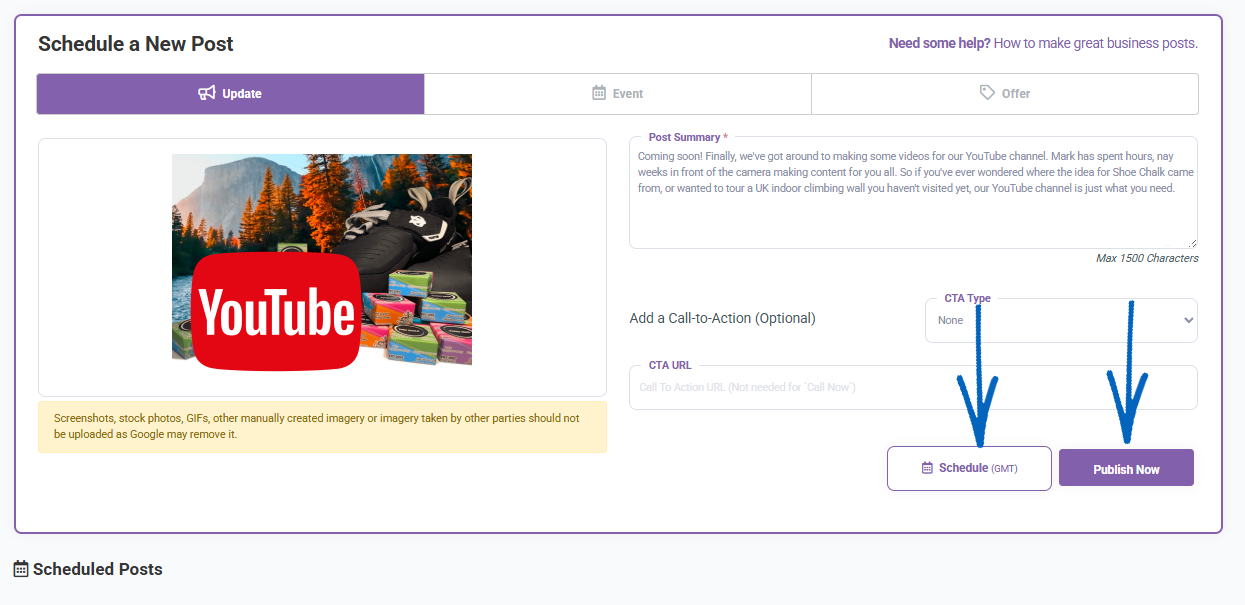
7. If you click Schedule, you’ll see a calendar drop-down which you can use to designate the date and time that Seb AI will publish the post to your Google Business Profile. When you have added your date, click Schedule again: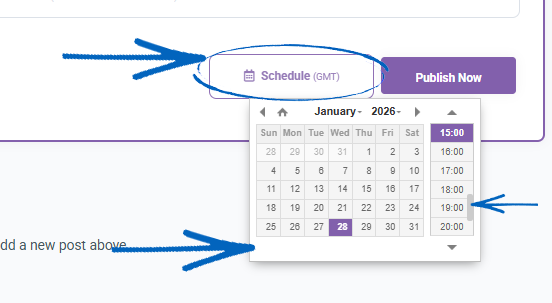
[more]
[/more]
[contact]If you need our help with your EKM online shop, contact the Customer Support Team, who can point you in the right direction. Our opening hours are 9 am - 5.30 pm Monday to Friday, for telephone calls, live chats, and emails. Outside of these hours, you can leave a message for us in the live chat window or email support@ekm.com, and we will answer as soon as possible. If you'd like to suggest a feature or an upgrade on any of the EKM platforms, please let us know on the EKM Suggestions Board. [/contact]