
[intro]Out of all the different pages within EKM SEO, this is the page you’ll probably refer to the most! Your Actions lists tasks that you need to complete to improve your SEO, and you’ll need to visit this page regularly to work through your tasks and make sure you hit your goals. [/intro]
[summary]
- How to Force a Recrawl/Refresh of your Actions
- How do I export my Tasks onto a spreadsheet?
- How to Hide Actions
- How to see Hidden Actions and Unhide an Action
- How to Change the Number of Hours you want to spend on your SEO
- Frequently Asked Questions
[/summary]
During the onboarding process, you will determine an amount of time each month that you will allocate to working on the SEO for your EKM online shop. The Your Actions page lists all of the tasks you need to complete within that given time period. You can adjust this time period to increase or decrease the amount of time later in this guide.
Locating the Page
1. From the Dashboard, click the Actions tab in the top middle and select Your Actions from the drop-down menu: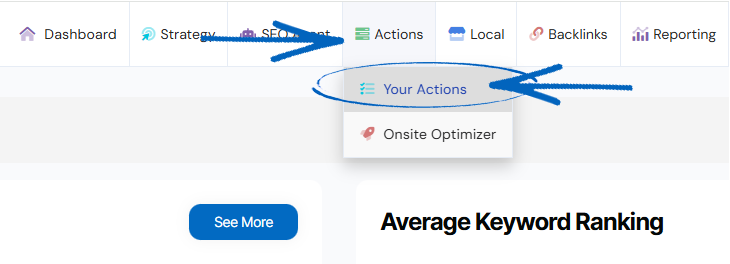
2. You’ll then see this modal. Use the drop-down options here to assign yourself a few hours that you can dedicate to working on the SEO of your EKM online shop each month: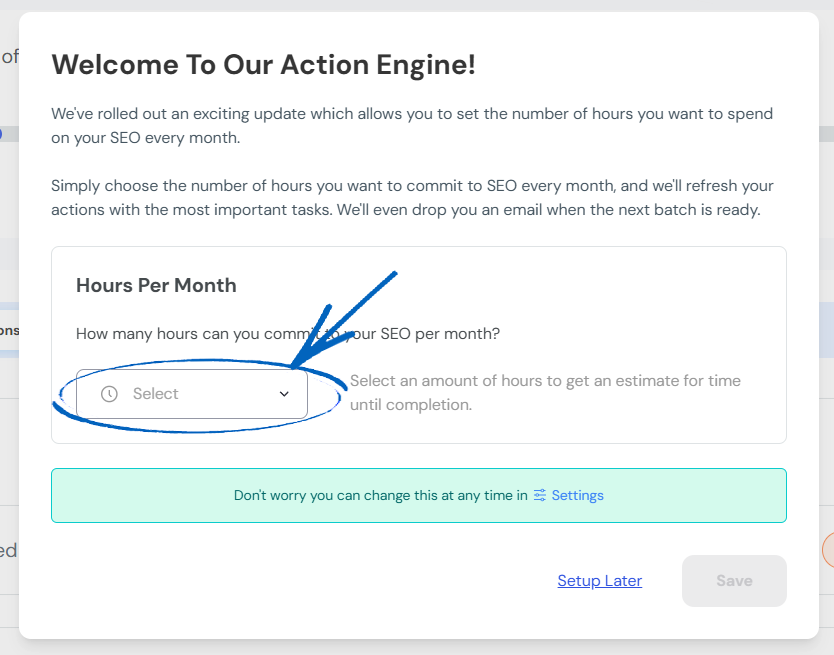
3. When you have selected an option, click the Save button in the bottom right-hand corner: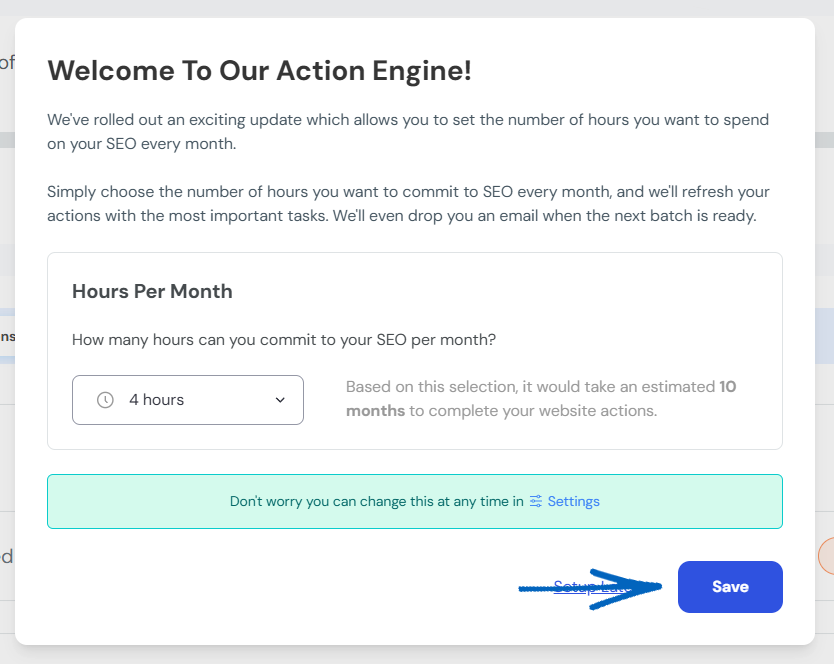
4. You’ll then see this page. The progress bar at the top measures how much time you have invested in the SEO of your EKM online shop so far. Scroll further down, and you’ll see a list of actions that you need to complete. There are a couple of different ways to view your actions. The way that you view your actions may simply depend on how you like to work and what system works best for you.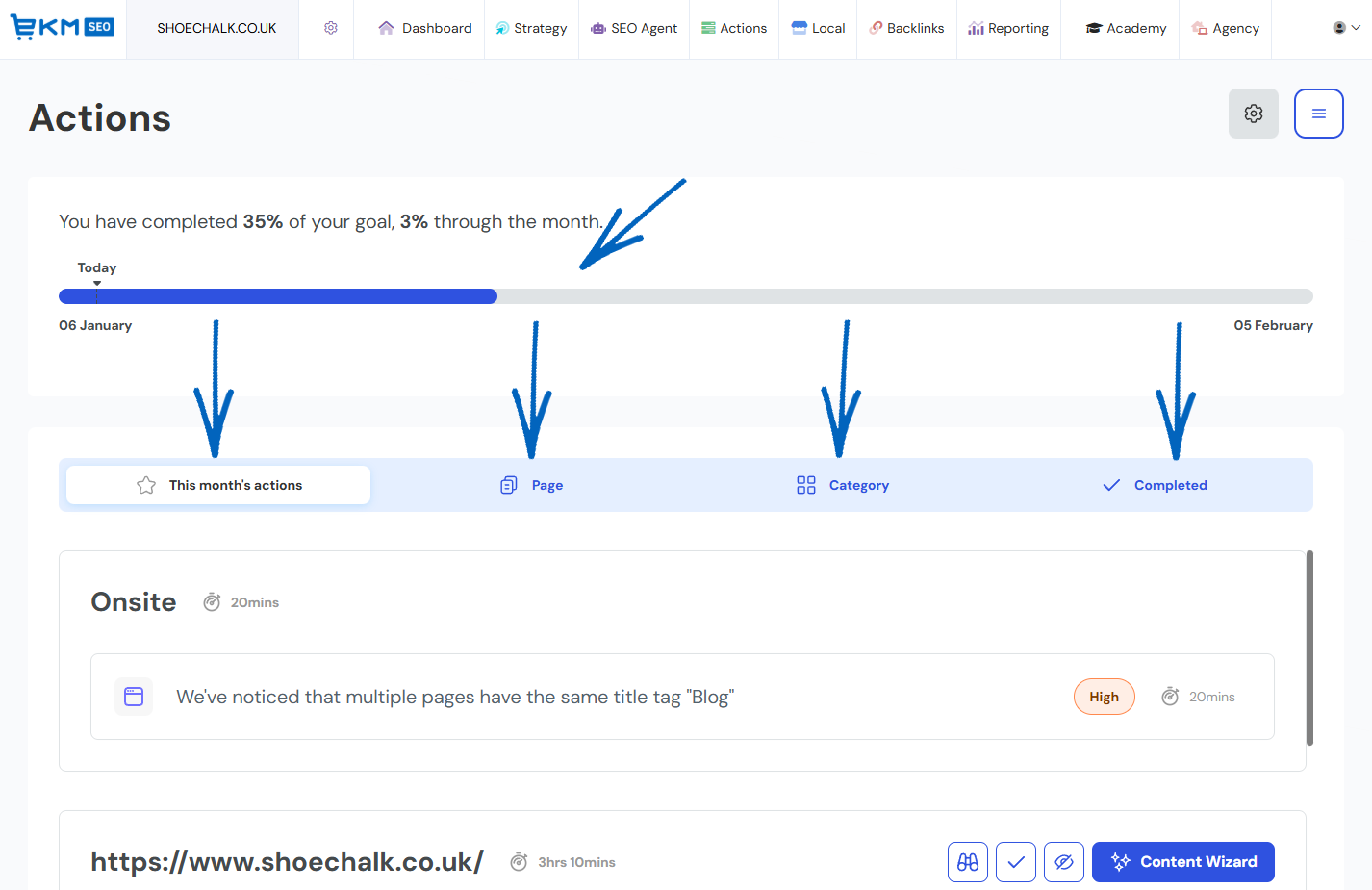
[tips]
What does the colour code against each task mean?
When you navigate to your SEO action list, you will see that the actions are ordered by priority level:
- High priority is shown in orange colour
- Medium priority is shown in purple colour
- Low priority is shown in green colour
These are based upon which actions are going to generate you the best return for your efforts in the shortest time possible from an SEO point of view.
[/tips]
This Month's Actions - When you first click into the ‘Action’ section of the platform, you will view this month's actions. This means that you will see several actions that we suggest you complete this month. You won't see all the Actions you have on the platform here. You'll see a condensed amount. These actions should take you as many hours to complete as you've said you can commit to SEO per month.
Page - This means you will see a URL for a specific page, with the actions that need to be completed underneath. When viewing by Page, you won't see all the Actions you have on the platform. You'll see a condensed amount, as before. These actions should take you as many hours to complete as you've said you can commit to SEO per month.
Category - When you select the Category view, you will be given an overview of every type of action in the platform. Here, you will be able to choose between these different types of actions. For example, onsite actions, content actions, keyword actions and backlink actions. When you click Category, you will also be able to see every single action you have; you won’t be limited to the number of hours you set in settings.
[tips] If you complete over 50 hours of actions during the month and want to work on even more, click Category. [/tips]
5. When you have time to dedicate to improving the SEO of your EKM online shop, click one of the tasks on your list: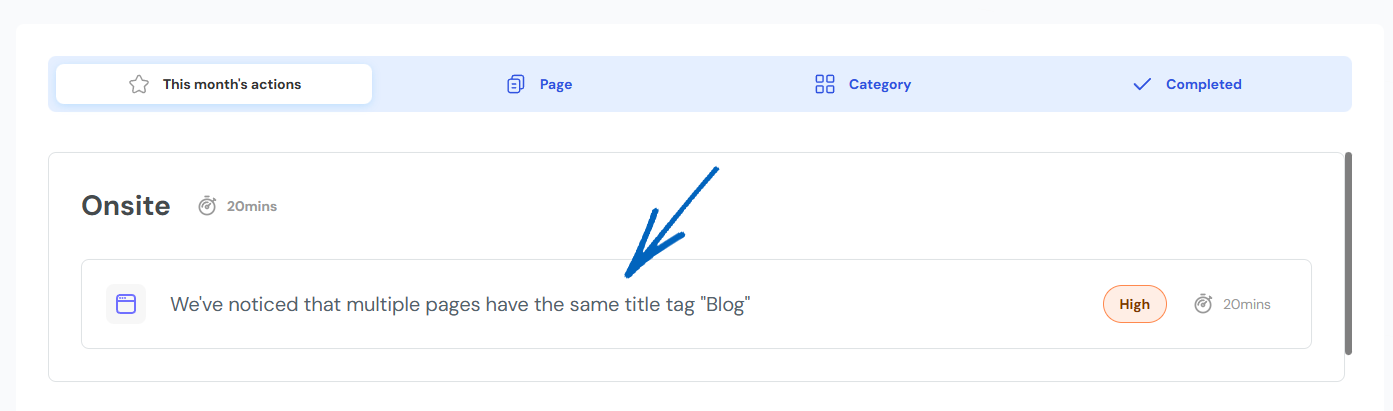
[tips]You’ll notice on the far right-hand side of each task is an estimated completion time, to help you manage your time effectively:
[/tips]
6. When you click a task, it will display more information about the task itself. In this case, SEO AI has identified that multiple pages on this EKM online shop have the same title tag. You can click each of the buttons at the top of the summary to reveal more information about this issue and why it is important that it is resolved: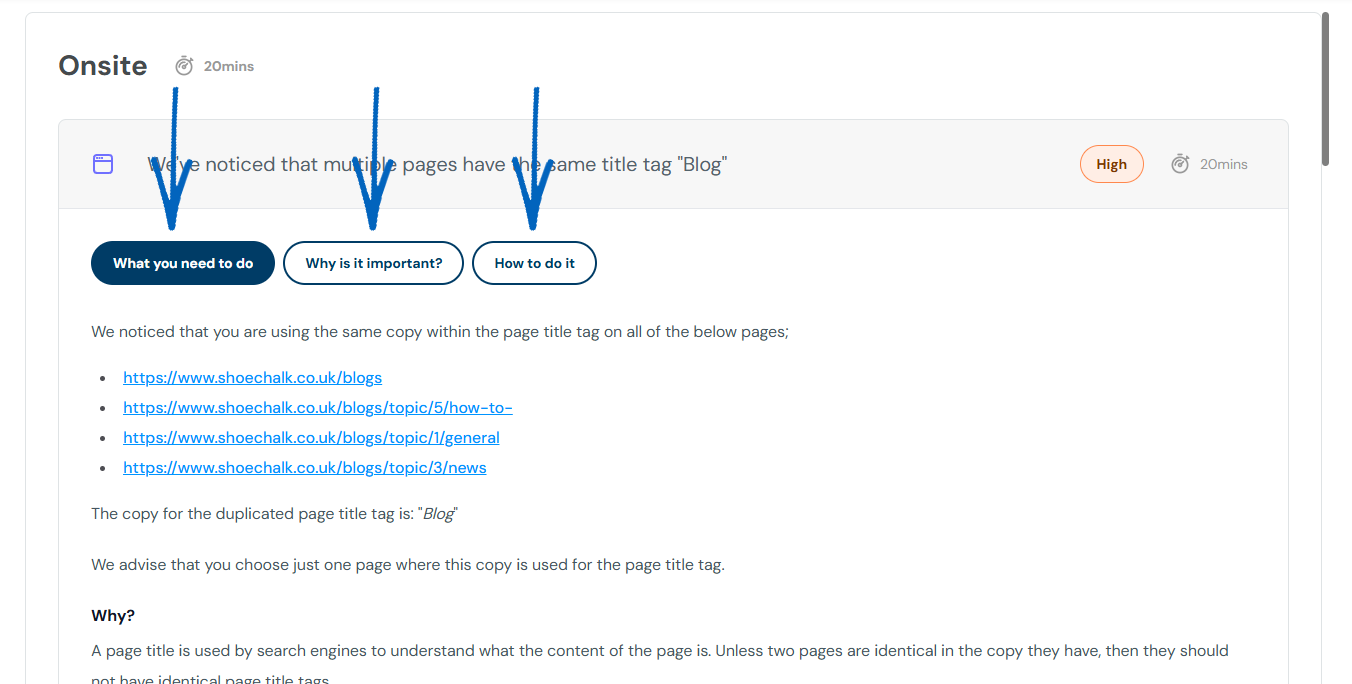
7. In this case, this EKM online shop is using the EKM Blogs feature, so this behaviour is to be expected; the tag ‘blogs’ appears in the URL for each individual blog post, which is why the task has been flagged for your attention.
However, as each of the blog post URLs is otherwise unique, this is not something you need to resolve as it’s not inherently bad for SEO. Context and uniqueness are key in terms of blog post copy, and URL structure is a minor signal. At the other end of the scale, if the blog on your EKM online shop had lots of posts that had the same blog title, this would be an issue, and you would need to amend those post titles to ensure each was unique.
8. In this case, as we’re happy with the current use of the tag ‘blogs’, we can click the Complete Action button in the bottom right-hand corner: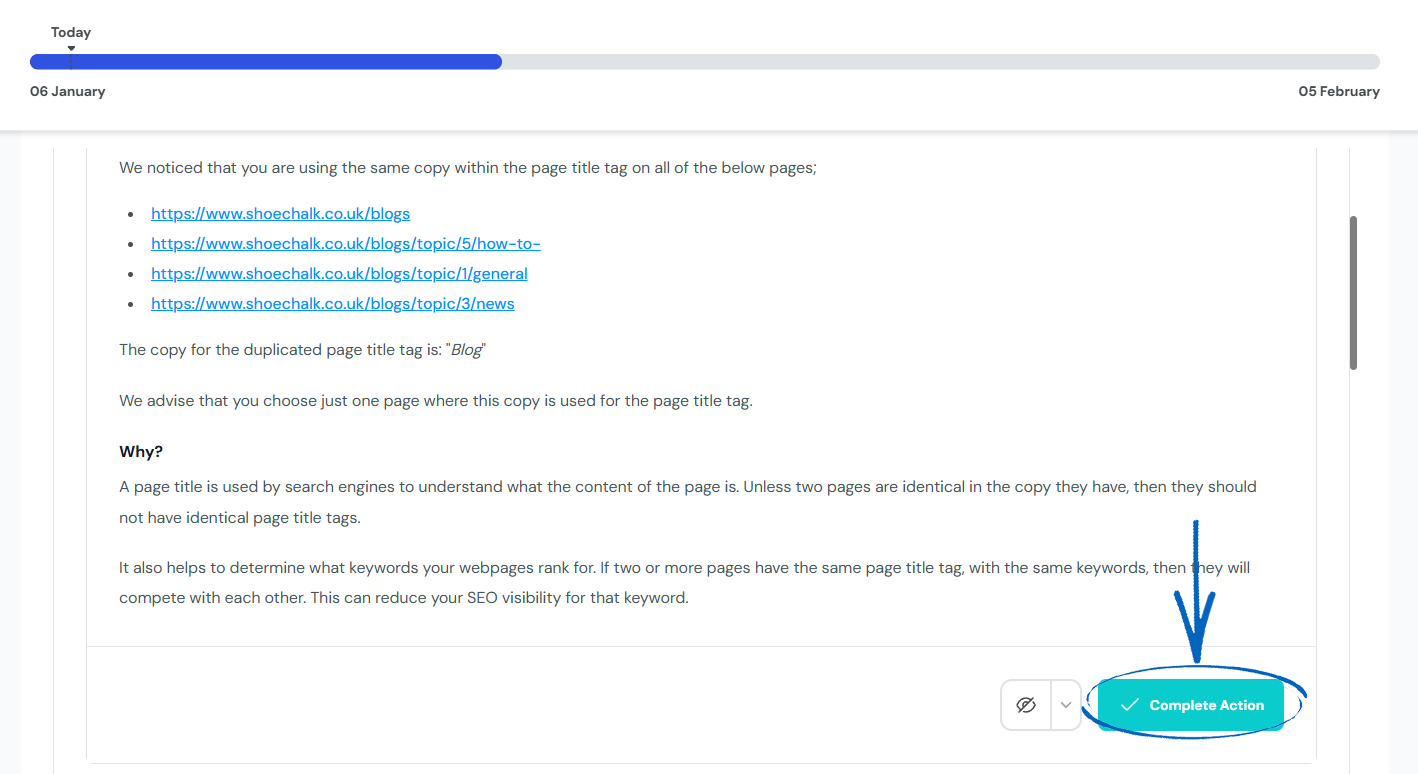
9. When a task has been completed, it will disappear from the list of actions. You can then click on the next task: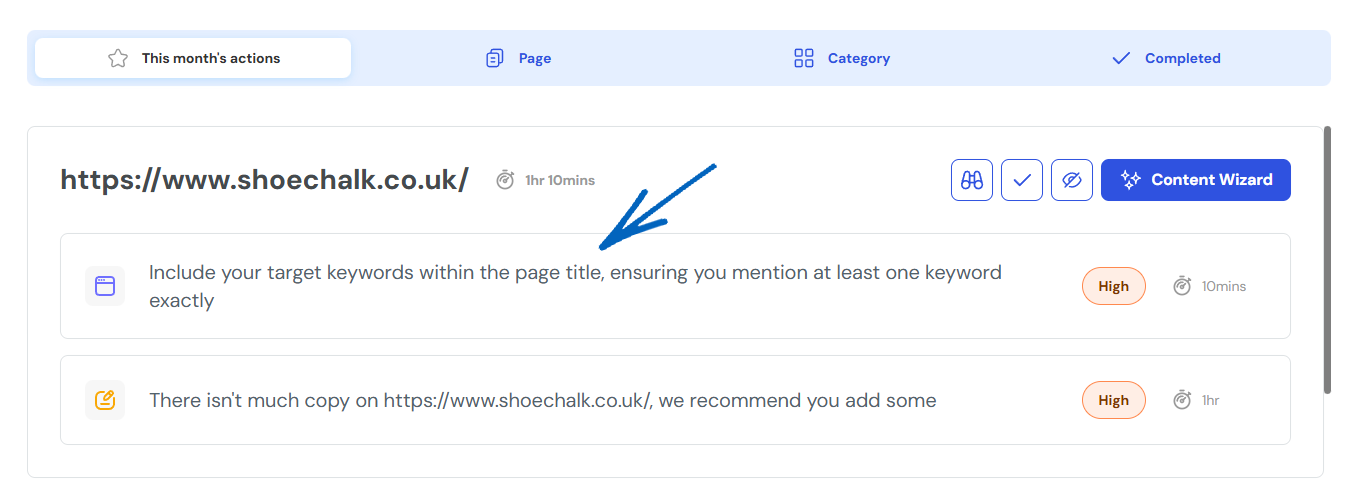
10. In this task, we need to add keywords to our page title: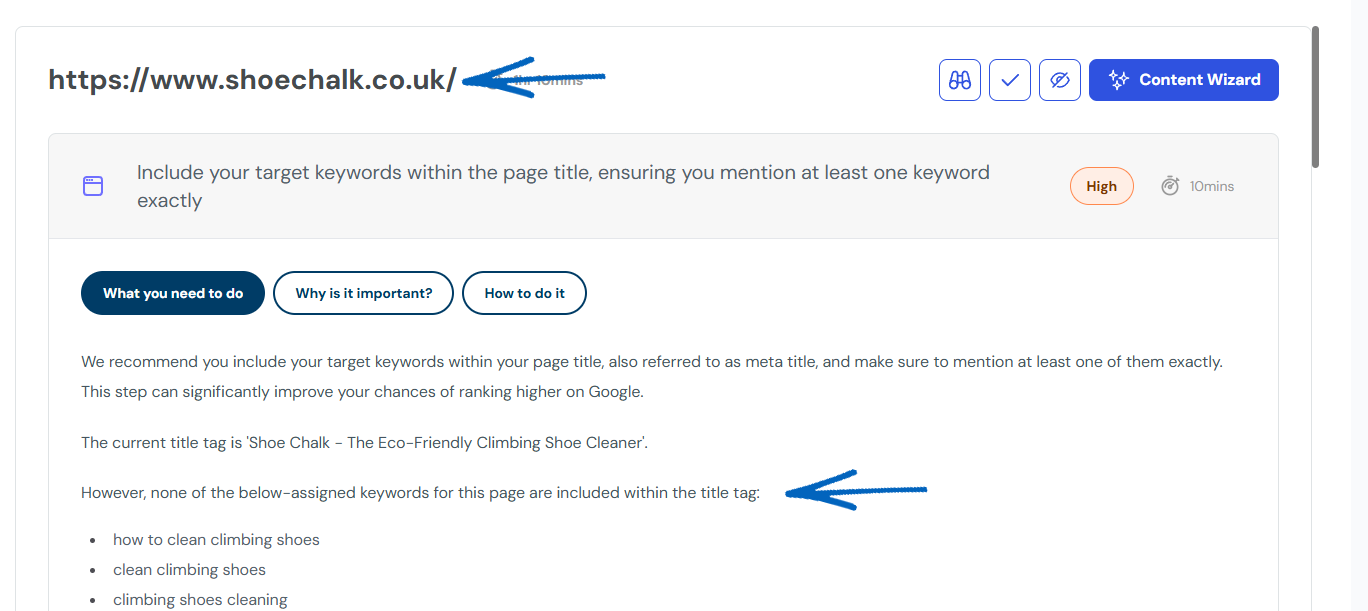
11. As the URL for this task is the homepage of this EKM online shop, we need to log into that EKM online shop on a separate browser tab, navigate to Settings > Shop Details, and then scroll to the very bottom of that page to see the Shop Meta Data, and specifically, the Meta Page Title field: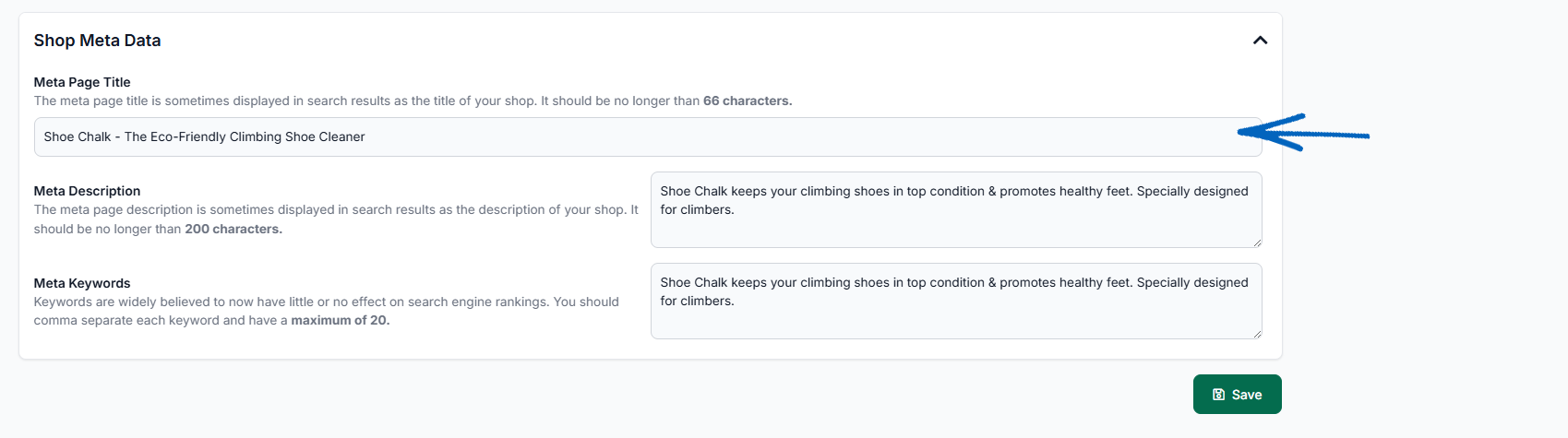
12. Looking at the text in the Meta Page Title field, we need to amend that to include one of the keywords generated by Seb AI. When we have added our keyword, we click to Save our changes: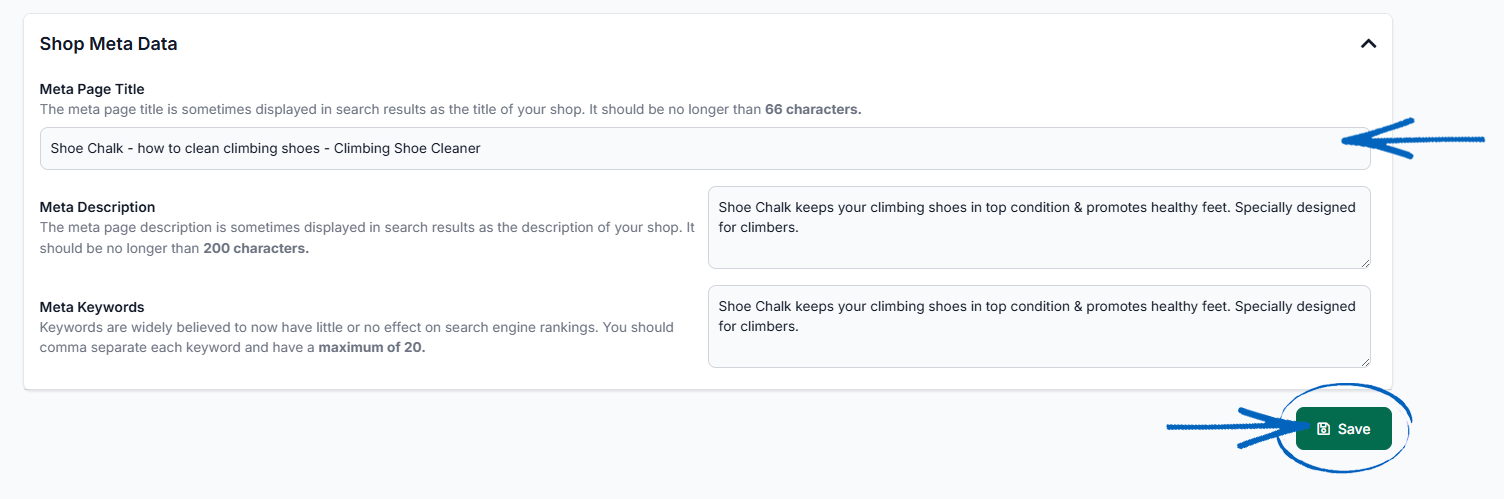
13. Returning to the browser tab displaying EKM SEO, you then just need to click the Complete Action button for that task: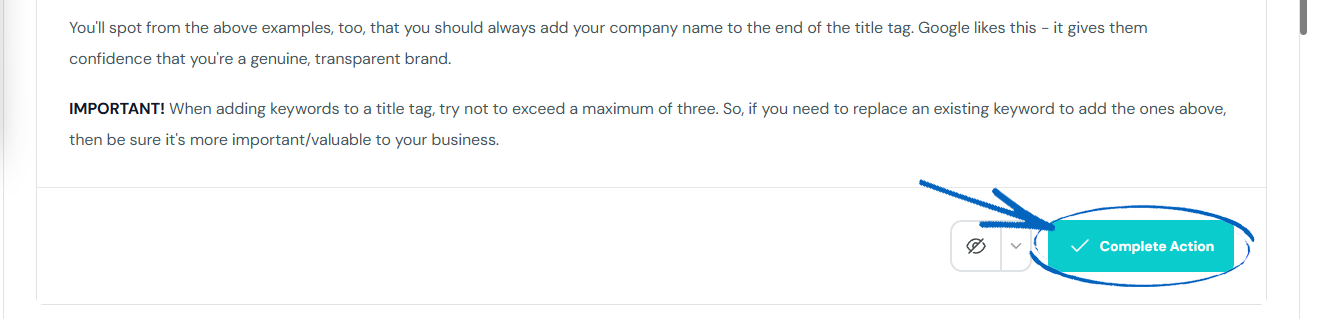
14. Follow this process going forward – when you have time to dedicate to improving the SEO of your EKM online shop, simply return to this page and work through the tasks on the list.
How to Force a Re-crawl/Refresh of your Actions
If you've made significant changes to your website, then you will want the platform to re-crawl your EKM online shop, so the actions are completely up to date.
1. To do this, click the Settings cog in the top right-hand corner of the Actions page:
2. You’ll then see this page. Click Recrawl: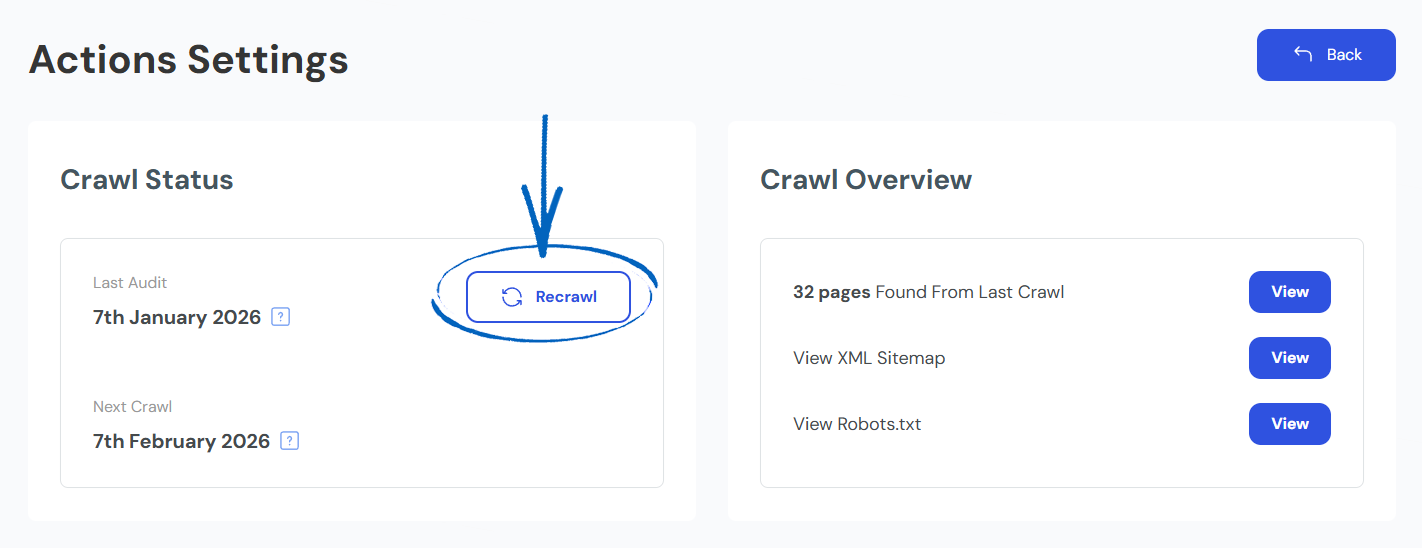
3. Once you have pressed this button, please allow the system 1 hour to update.
How do I Export my Tasks onto a Spreadsheet?
1. Scroll to the top of the Action page, and click the button with the three horizontal lines in the top right-hand corner:
2. Select Export Live CSV from the drop-down menu: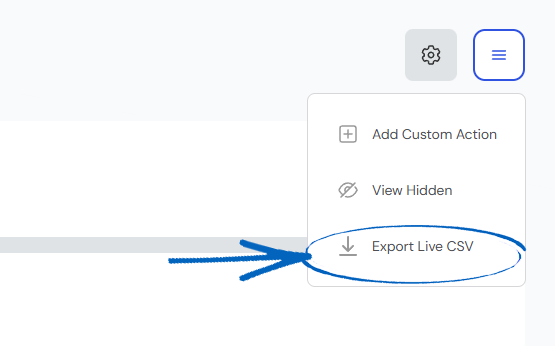
How to Hide Actions
Sometimes, you may want to hide tasks on the list. For example, you might have completed the task, but as your EKM online shop hasn’t been crawled since the changes were made, the action is still visible. Alternatively, you may not have been able to add all the keywords into an area successfully – like in the case of the Meta Page Title field of your EKM online shop which only allows 66 characters or less where it would be impossible to add all recommended keywords to this area. After you have added your keywords, it would then be beneficial to hide this action.
If you choose to hide an action, this will be replaced by another action with similar relevance and a similar amount of time it would take to complete.
[remember] Hiding an action will not affect the progress bar at the top of your Action page. [/remember]
1. To hide an action, click to open it and click the eye icon with a line through it: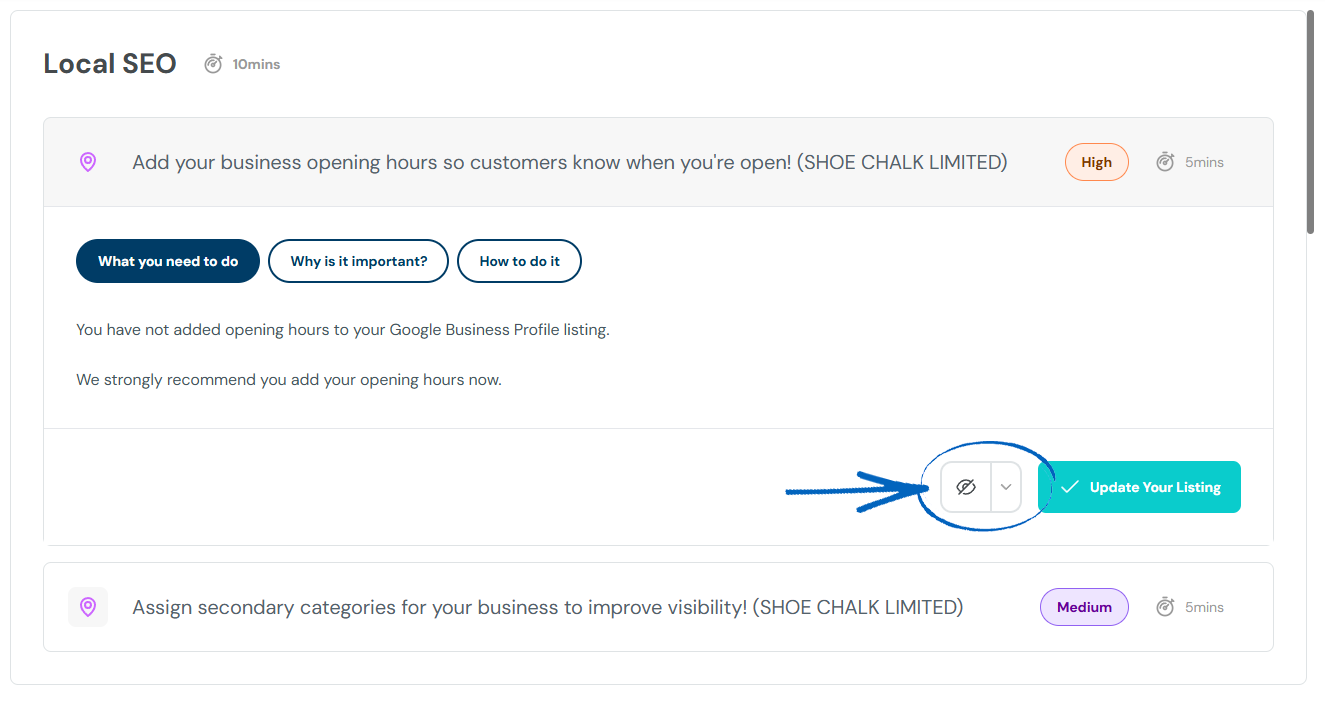
2. From the drop-down options, you can choose whether to hide that individual task or whether to hide all tasks of that type: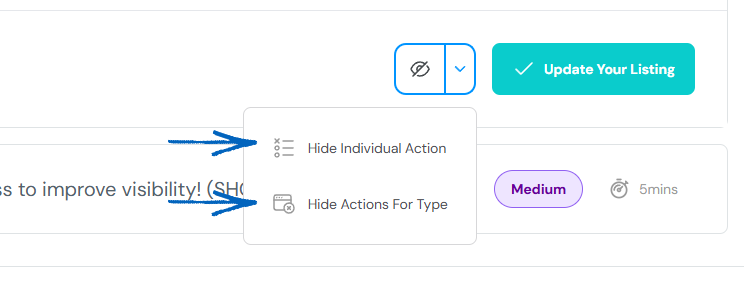
How to see Hidden Actions and Unhide an Action?
1. To see your hidden actions, scroll to the top of the page and click the button with the three horizontal lines:
2. Click View Hidden on the drop-down options: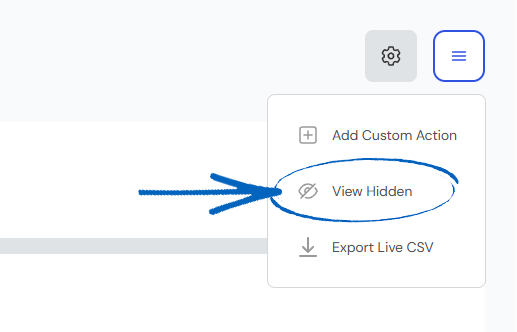
3. You’ll then see the Hidden Actions page, where you can view all the tasks that have been hidden, and click the button on the right-hand side to unhide any you want to make visible again on the Actions page: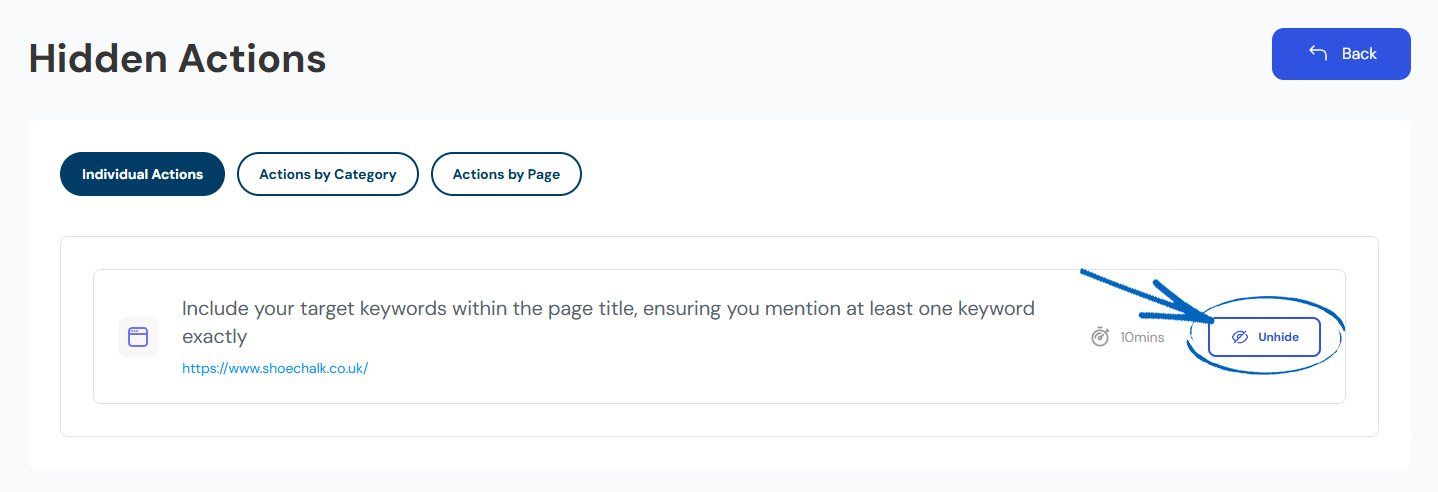
How to Change the Number of Hours you want to spend on your SEO
1. Scroll to the top of the page and click the cog button on the top right-hand side:
2. Scroll down this page to the Hours Per Month element and use the drop-down options on the right-hand side to amend the number of hours:
3. Click Save Changes in the bottom right-hand corner: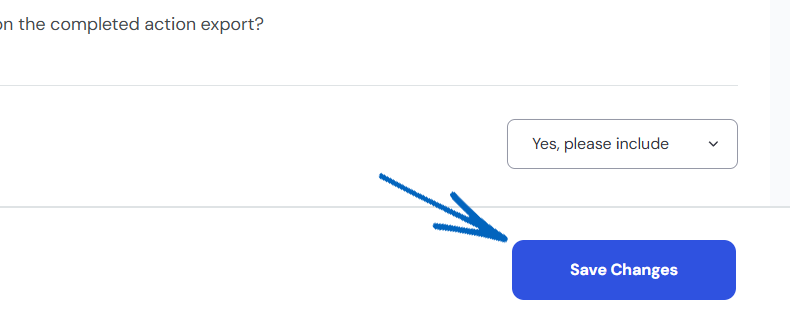
Frequently Asked Questions
How can I change the date my Actions refresh each month?
The date your actions refresh each month is calculated based on when you signed up and cannot be changed.
How often are my SEO actions updated?
Once you complete your strategy within the platform, EKM SEO generates a tailored list of SEO tasks to complete that will implement that strategy. These actions are super important, so we highly recommend you work your way through them, allocating at least 30 minutes to 1 hour a month. EKM SEO regenerate your actions every month, so you may notice that at the beginning of every new month (calculated based on when you signed up) that your actions will increase. This will be due to new issues the SEO AI has spotted, and new actions that will help your SEO (based on the updates Google have made). Therefore, it is important that you constantly recheck your action list!
Why do the same actions sometimes have a different priority level?
You may notice sometimes that the same action has a different priority score depending on which page it needs to be completed on. For example, sometimes you might see that the action ‘adding a h1 to the page’ will be a high priority for some pages, but medium for others. This is because the priority score we give an action to depends on whether the page is one you've added to your keyword sitemap. If you've assigned keywords to a page on your sitemap, then all the actions for that page get a higher priority. That will mean an action like ‘adding a h1 to the page’ will go from medium to high priority.
Why does the same action reappear?
Several of the SEO actions the platform supplies for you require a specific action that you need to take on your EKM online shop. For example, we may ask that you add a keyword to the page title of one of your pages. Or that you increase its length to over XX characters long. When you complete that task, and that change is reviewed, it may be that the fix hasn't been implemented correctly. For example, the keyword might not have been added correctly (maybe it's been misspelt), and so the recommendation engine has picked up on this and returned the same action for you to work on again.
Why does the total number of actions not match the number shown?
When the platform generates your tailored list of SEO actions, you won't see the full number of actions that you have. Instead, you'll only see a smaller section. To see all the actions that you have, you need to click on Category. From here, you'll be shown all the different types of actions you have - for example, onsite actions and keyword actions. Underneath, you'll see the full list of every action you have.
The reason that the platform does not display all the actions on the main page is simply to prevent users from feeling overwhelmed. The tasks will all be split between different priorities, so a vast amount will be lower-priority actions.
Instead, the platform will only display a maximum of 5 of the same actions at any time. Once you complete an action, a queued action of the same type will pop into the list.
[more]
[/more]
[contact]If you need our help with your EKM online shop, contact the Customer Support Team, who can point you in the right direction. Our opening hours are 9 am - 5.30 pm Monday to Friday, for telephone calls, live chats, and emails. Outside of these hours, you can leave a message for us in the live chat window or email support@ekm.com, and we will answer as soon as possible. If you'd like to suggest a feature or an upgrade on any of the EKM platforms, please let us know on the EKM Suggestions Board. [/contact]