
[intro] The Approval Centre is where you review and approve the changes that Seb AI suggests for your SEO. This guide will show you how to amend and approve suggestions for content on your EKM online shop. [/intro]
[summary]
- Blog Strategy
- Blog Posts
- Page Headings
- Website Copy
- Meta Description
- Page Title
- Settings
- Frequently Asked Questions
[/summary]
Within your first few weeks, you’ll be introduced to this section. Within the Approval Centre, you’ll see:
- A 6-month blog strategy with 6 blog topic ideas. Once you approve a topic, Seb AI will create the blog that month.
- A Tone of Voice Playbook, which sets the style Seb AI will use when writing for your business.
- New Page Titles, Meta Descriptions, Website Copy & H1 headings to improve your pages.
- Your first monthly Blog Post based on the approved strategy.
The following week, if you’ve connected your Google Business Profile, you’ll also see:
- Google Business Profile Posts
- Customer Reviews
- Business Description updates
After the first month, you’ll regularly approve blog posts, website copy, and Google Business Profile updates, following the proven 4-week cycle.
Locating the Page
1. From the dashboard, click Seb AI, and then click Approval Centre from the drop-down menu: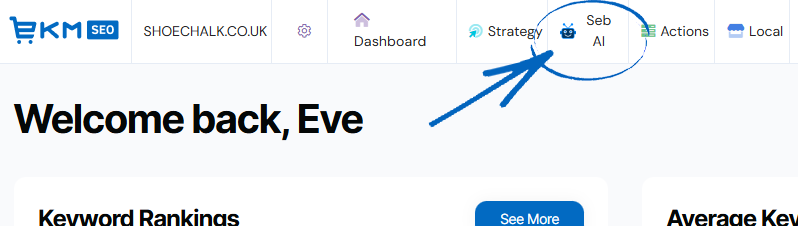
2. You’ll then see this page, which uses tabs to sort the different approvals into lists: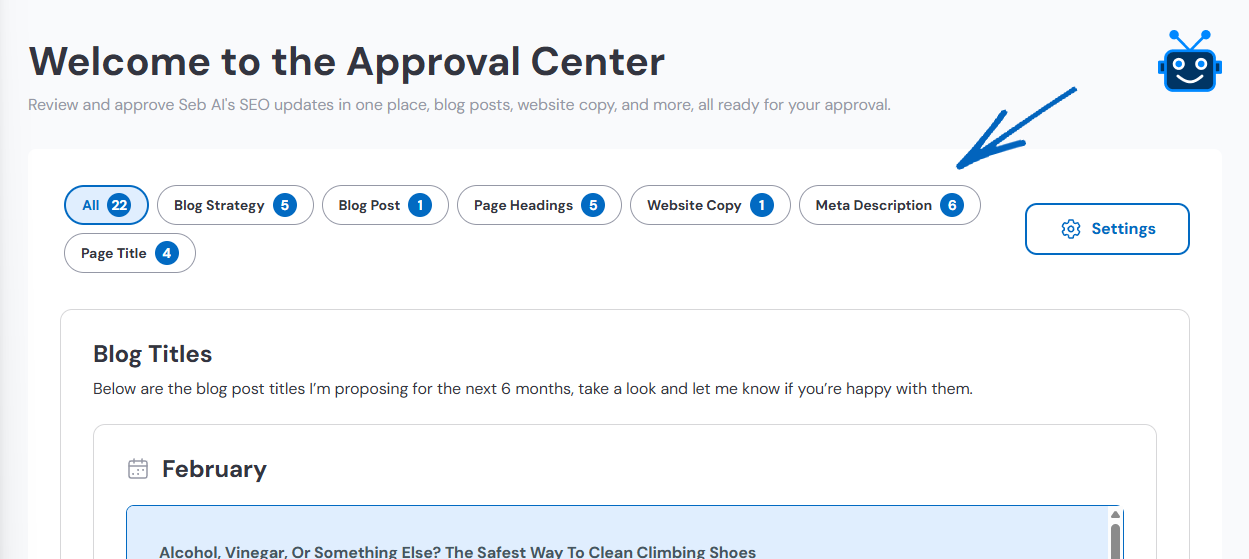
Blog Strategy
3. Click Blog Strategy:
4. On this page, you’ll see a list of Blog Titles that Seb AI is proposing for your blog. Each title will be sorted into a month, and on the bottom left-hand side of each, you’ll see a notification for auto-approval and when this will occur if you have not actioned it beforehand. You’ll also see two buttons in the bottom right-hand corner. Click Give Feedback if you are not happy with the suggestion and wish to amend it in some way, or click Approve. If you click Approve, copy the text to your Notepad file so you can create a blog post based on the suggested Blog Title: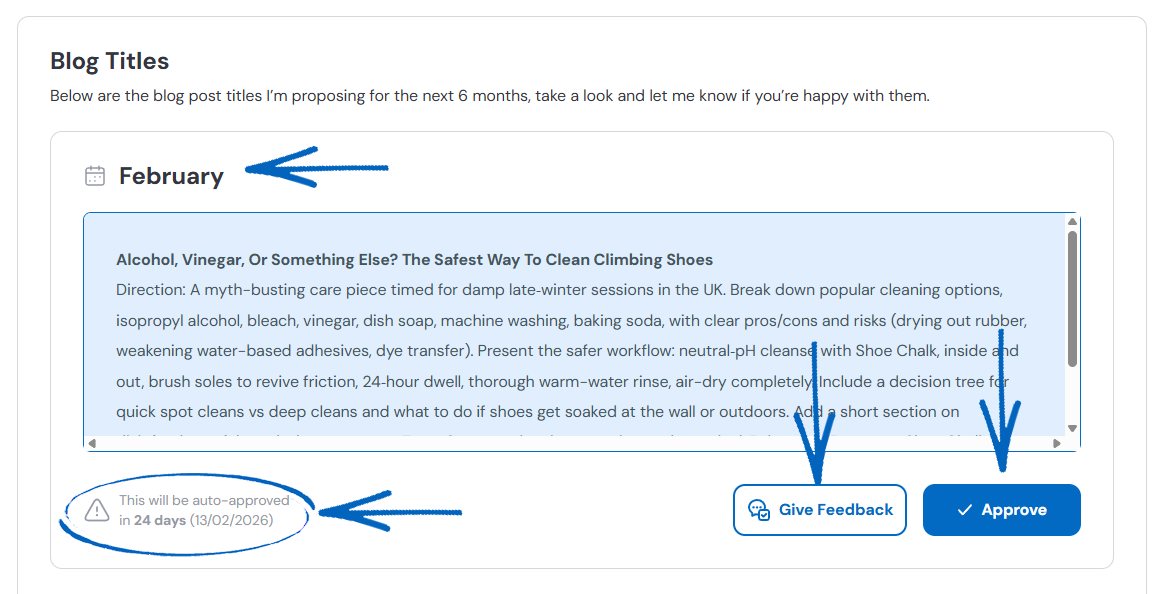
[remember]Seb AI cannot publish to your EKM online shop blog independently. You will need to copy and paste content from the EKM SEO platform onto a Notepad .txt file (or TextEditor, if you’re using a Mac) to add this text to your EKM online shop blog in a separate browser window. [/remember]
5. When you click Approve, you’ll see this modal. Click Continue: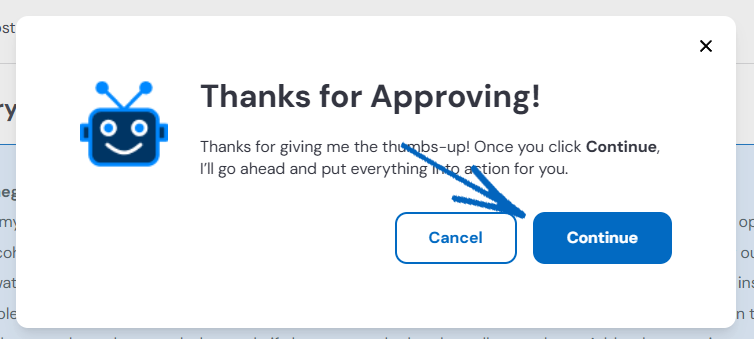
6. Repeat this process with the rest of your Blog title suggestions, so you can be a month or two ahead of yourself.
Blog Posts
7. Click Blog Posts:
8. On this page, you’ll see a list of blog posts that Seb AI has generated for you. Each post will be sorted into a month, keywords included in the post copy are highlighted above, and on the bottom left-hand side, you’ll see a notification for auto-approval and when this will occur if you have not actioned it beforehand.
Read through the suggested blog post and ensure that it is appropriate for your brand. You’ll also see two buttons in the bottom right-hand corner. Click Give Feedback if you are not happy with the blog post and wish to amend it in some way, or click Approve. If you click Approve, copy the text to your Notepad file so you can create a blog post based on the suggested content: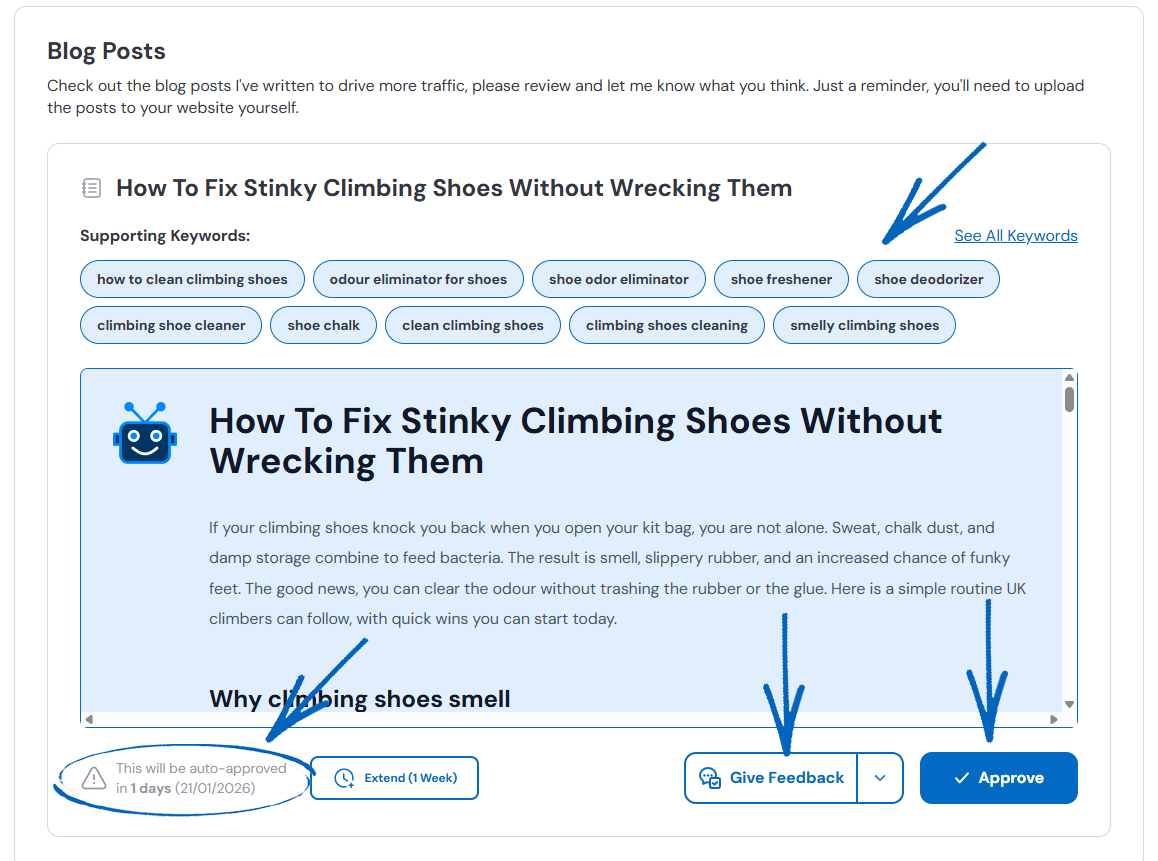
[remember] Seb AI cannot publish to your EKM online shop blog independently. You will need to copy and paste content from the EKM SEO platform onto a Notepad .txt file (or TextEditor, if you’re using a Mac) to add this text to your EKM online shop blog in a separate browser window. [/remember]
9. When you click Approve, you’ll see this modal. Click Continue: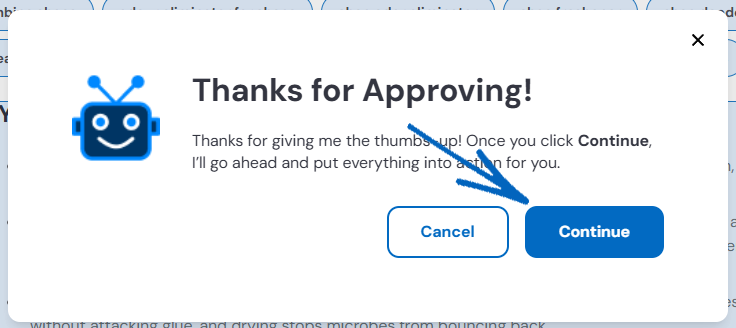
10. With your Notepad file of suggested blog strategies and blog posts, you can then populate your EKM online shop blog with content that can be scheduled to be published on a regular basis.
Page Headings
11. Click Page Headings:
12. On this page, you’ll see a list of Page Headings that Seb AI has suggested. On the bottom left-hand side of each post, you’ll see a notification for auto-approval and when this will occur if you have not actioned it beforehand: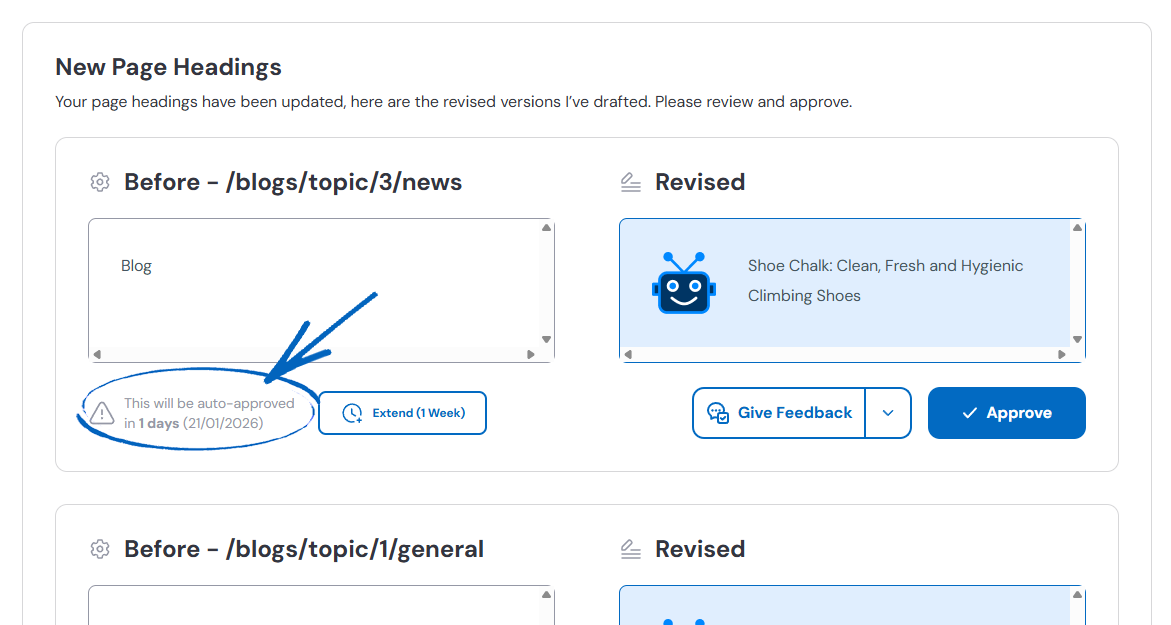
[caution]It is currently not possible to amend the page headings of the topics in the EKM Blogs feature, so for now, you can click Approve and won’t need to take any further action. You can, however, amend the settings of the Approval Centre to prevent these suggestions from appearing; the instructions for this are later in this guide. [/caution]
[remember] If the blog on your EKM online shop is hosted by a third party and doesn’t use the EKM Blogs feature, you will need to amend the page headings on that platform independently. [/remember]
13. You’ll also see two buttons in the bottom right-hand corner. Click Give Feedback if you are not happy with the page heading and wish to amend it in some way, or click Approve. If you click Approve, copy the text to your Notepad file so you can amend the page headings based on the suggestions: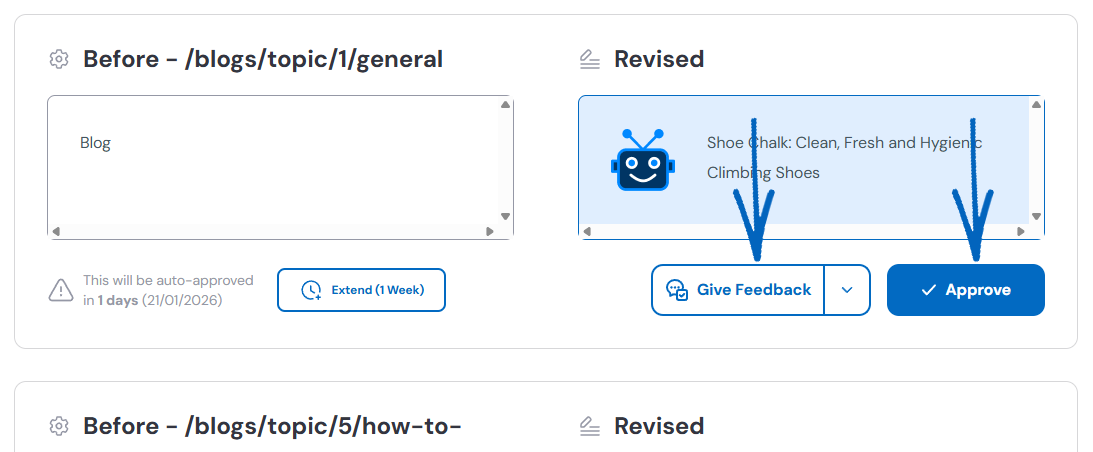
Website Copy
14. Click Website Copy:
15. This page displays copy that Seb AI has generated for your EKM online shop. This should ideally be placed on the homepage, but can also be used on a specific webpage.
You’ll see two buttons in the bottom right-hand corner. Click Give Feedback if you are not happy with the text and wish to amend it in some way, or click Approve. If you click Approve, copy the text to your Notepad file so you can amend the text on your EKM online shop based on the suggestion: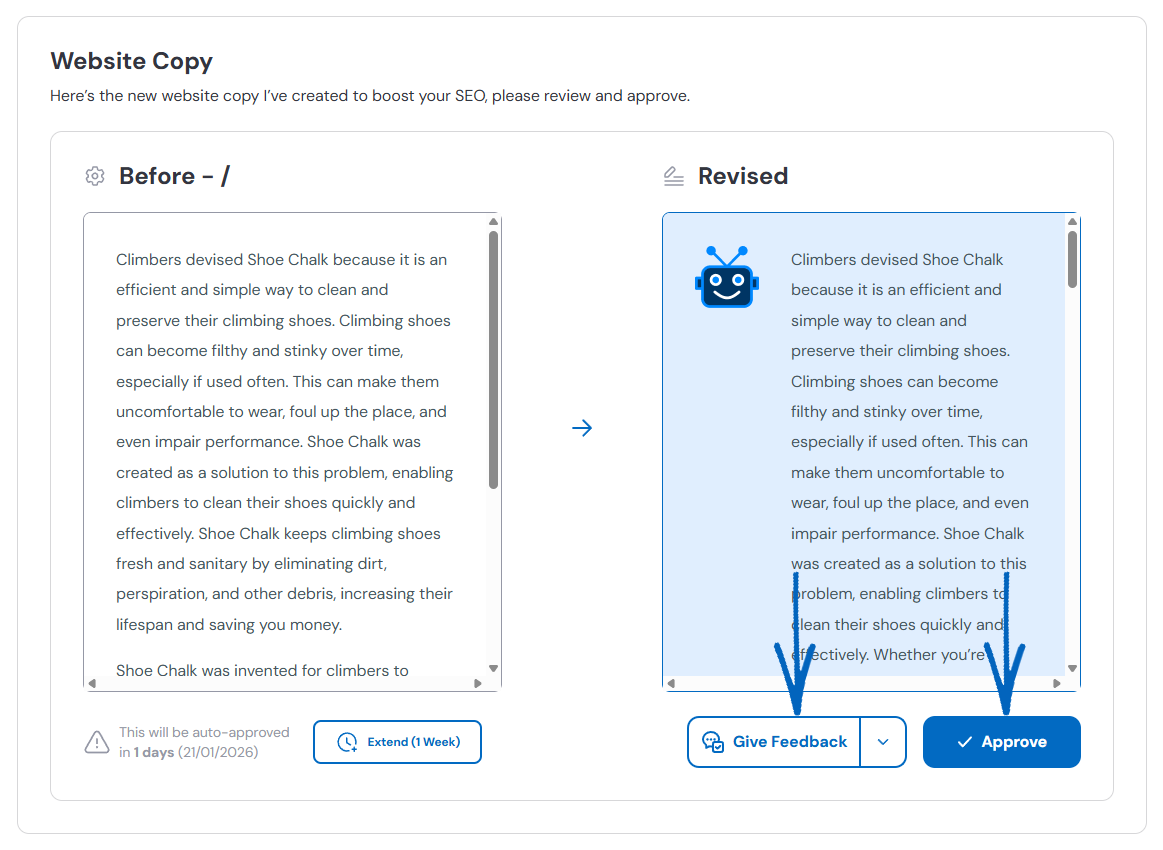
Meta Description
16. Click Meta Description:
17. On this page, you’ll see a list of meta descriptions that Seb AI has suggested. On the bottom left-hand side of each suggestion, you’ll see a notification for auto-approval and when this will occur if you have not actioned it beforehand: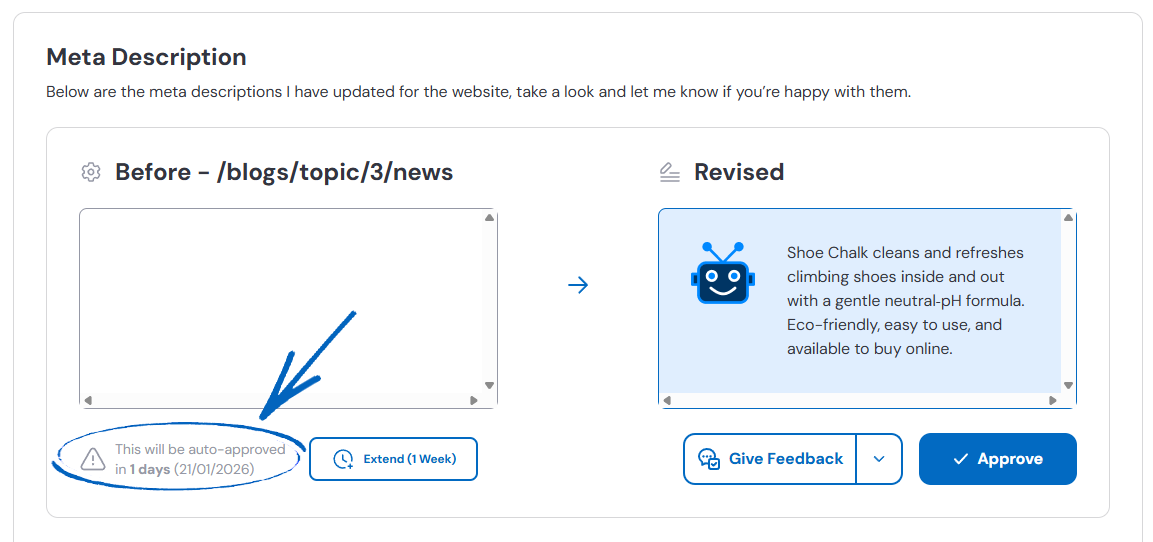
[caution]It is currently not possible to amend the meta descriptions of the topics in the EKM Blogs feature, so for now, you can click Approve and won’t need to take any further action. You can, however, amend the settings of the Approval Centre to prevent these suggestions from appearing; the instructions for this are later in this guide. [/caution]
[remember] If the blog on your EKM online shop is hosted by a third party and doesn’t use the EKM Blogs feature, you will need to amend the meta descriptions on that platform independently. [/remember]
18. You’ll also see two buttons in the bottom right-hand corner. Click Give Feedback if you are not happy with the meta descriptions and wish to amend them in some way, or click Approve. If you click Approve, copy the text to your Notepad file so you can amend the meta descriptions based on the suggestions: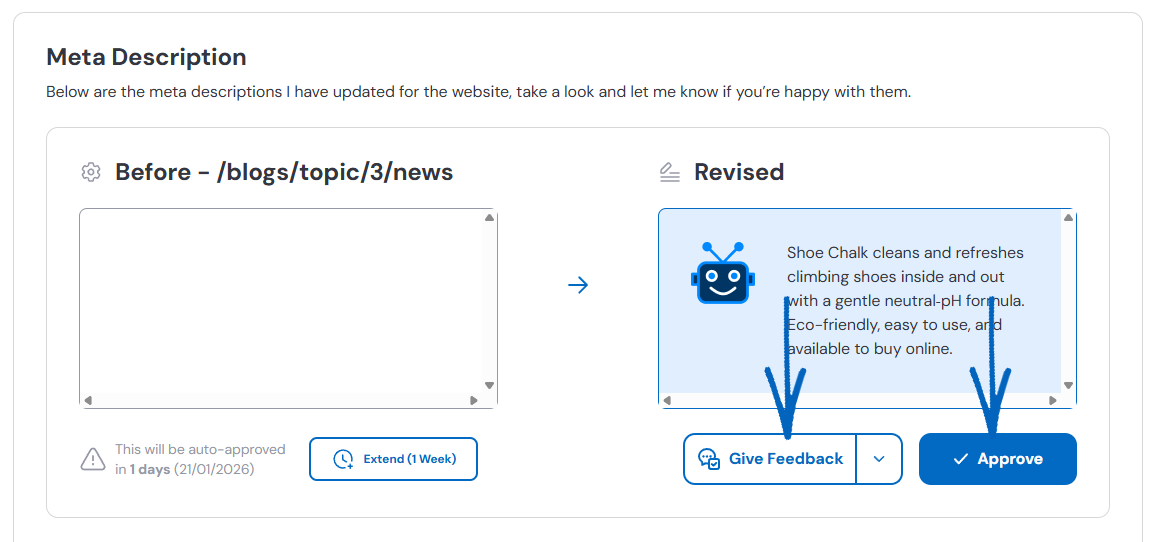
Page Title
19. Click Page Title:
20. On this page, you’ll see a list of page titles that Seb AI has suggested. On the bottom left-hand side of each suggestion, you’ll see a notification for auto-approval and when this will occur if you have not actioned it beforehand: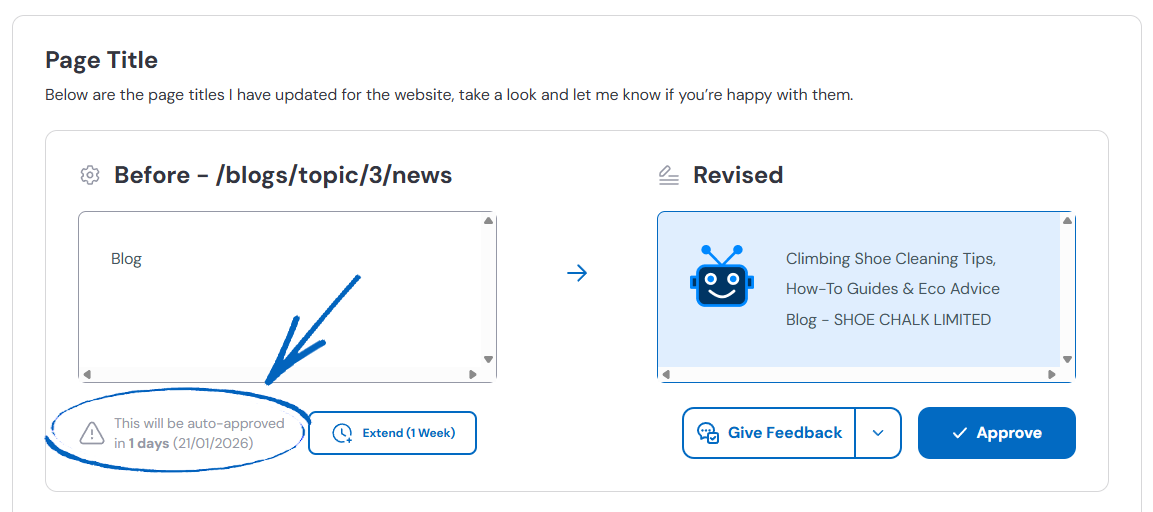
[caution]It is currently not possible to amend the page titles of the topics in the EKM Blogs feature, so for now, you can click Approve and won’t need to take any further action. You can, however, amend the settings of the Approval Centre to prevent these suggestions from appearing; the instructions for this are later in this guide. [/caution]
[remember]If the blog on your EKM online shop is hosted by a third party and doesn’t use the EKM Blogs feature, you will need to amend the page titles on that platform independently. [/remember]
21. You’ll also see two buttons in the bottom right-hand corner. Click Give Feedback if you are not happy with the page titles and wish to amend them in some way, or click Approve. If you click Approve, copy the text to your Notepad file so you can amend the page titles based on the suggestions: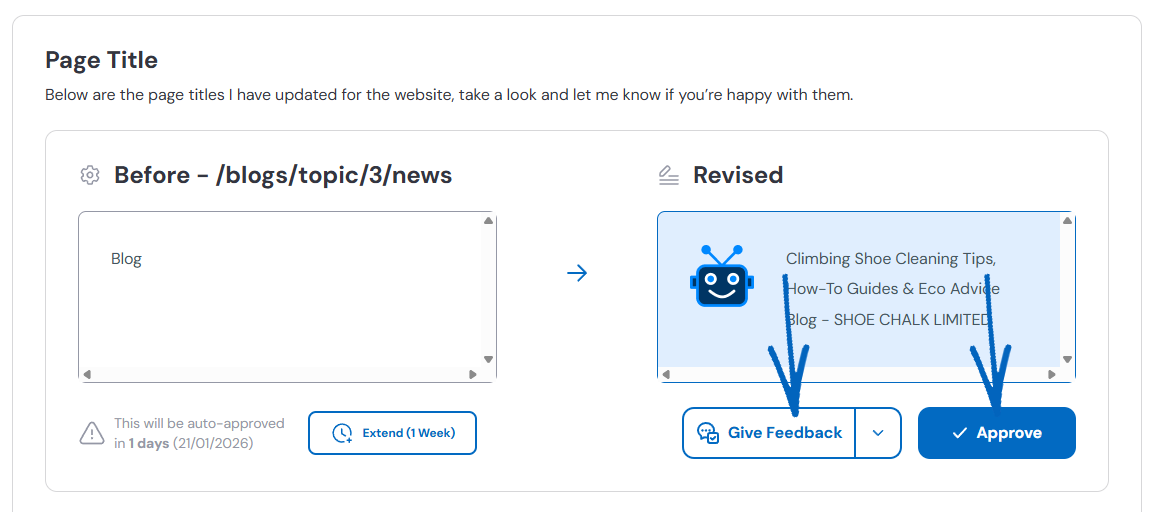
Settings
22. Click the settings cog in the top right-hand corner of the page:
23. At the top of the page, you’ll see an element for your Default Approval Time with a drop-down menu, where you can amend the periods between suggestions being approved by you as opposed to automatically approved by Seb AI. The approval time setting controls how long new items stay available for review in your Approval Centre before they expire or automatically move forward. Use it to keep work flowing and avoid bottlenecks.
The default approval time applies to new items created after you set or change it. It sets a standard review window, so your team knows when action is due: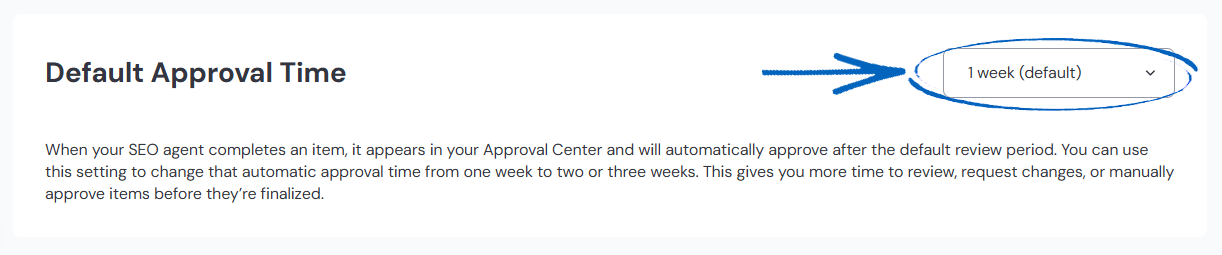
[remember]
If you decide to amend the Default Approval Time, remember that:
- Newly created items follow your current default approval time.
- Existing items (already in the Approval Centre before you changed the default) keep the timing they originally received.
[/remember]
Managing Approval Times in Seb AI
The approval time setting controls how long new items stay available for review in your Approval Centre before they expire or automatically move forward. Use it to keep work flowing and avoid bottlenecks.
What the default approval time does
The default approval time applies to new items created after you set or change it. It sets a standard review window so your team knows when action is due.
How to see which items are affected
- Newly created items follow your current default approval time.
- Existing items (already in the Approval Centre before you changed the default) keep the timing they originally received.
24. Scroll further down the page, and you’ll see a list of switches. These can be used to manage what Seb AI can suggest to you and whether you wish for approval to be given: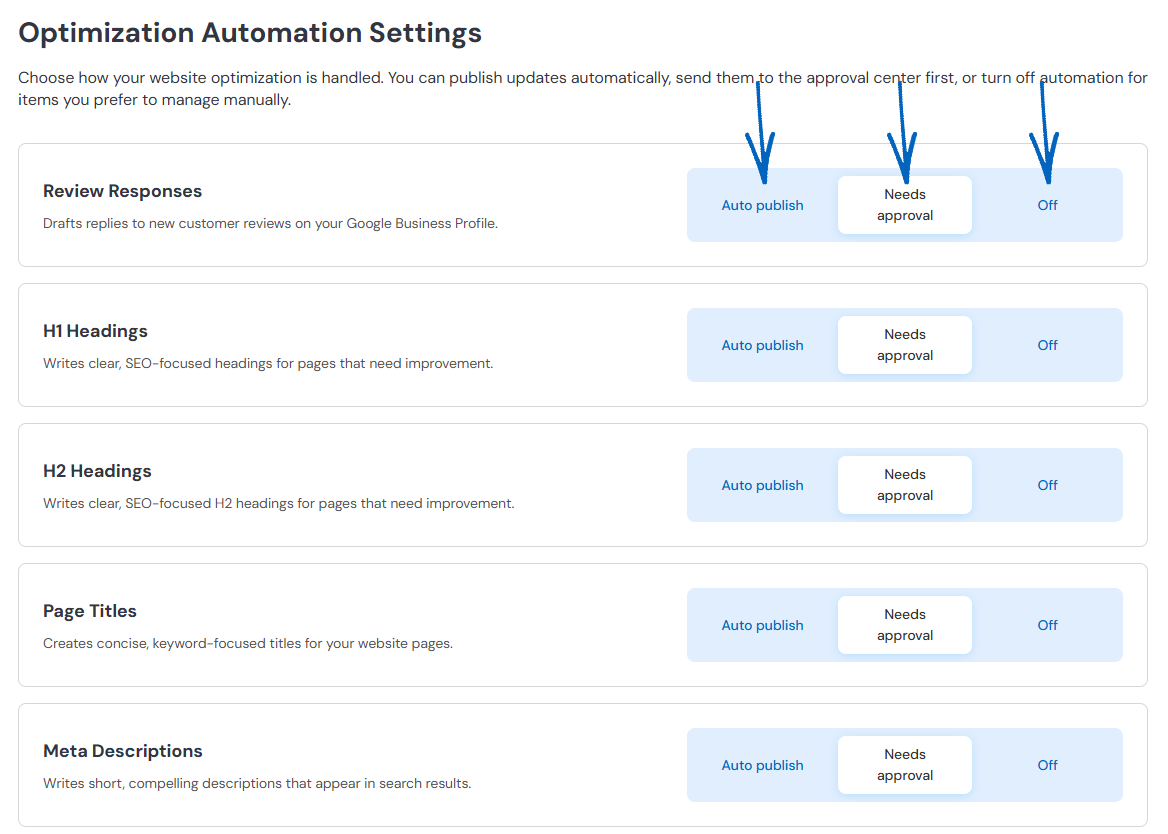
[tips]At this point, it's a good idea to turn off Page Titles. This will prevent suggestions involving your EKM Blog. This will not affect your Webpages, Category or Products pages, as the page titles for these are automatically generated according to their content. [/tips]
25. To return to the main Approval Centre page, scroll to the top and click the Back button on the top right-hand side:
Frequently Asked Questions
When will I start to see actions in my Approval Centre?
You’ll start seeing actions in your Approval Centre on day 4 (that’s 4 working days after you join the EKM SEO platform). This gives Seb AI time to build your SEO strategy, and then our team checks everything before recommendations are sent your way. Once something is ready for your review, Seb AI will send you an email to let you know it’s been added to your Approval Centre. Keep an eye on your inbox!
What changes are made but do not appear in the Approval Centre?
Seb AI may make certain changes that do not require your approval, so they won't appear in the Approval Centre. These changes include:
- Alt Text Descriptions
- Google Business Profile optimisations, such as:
- Updating the website URL
- Setting the primary category (if not already set)
- Adding secondary categories
How can I prevent suggestions for EKM Blogs appearing for New Page Headings, Page Titles and Meta Descriptions?
Click the settings cog on the top right-hand corner of the page, and within the Optimisation Automation Settings, you need to amend the switches for Page Titles and Meta Descriptions to Off. Please note that by default, meta descriptions, page headings and page titles for product and category pages on your EKM online shop are automatically generated, so will not usually be highlighted by Seb AI.
Why do some items ignore the Default Approval Time setting?
Some items may have their own timing - for example, if they were created before you changed the default or edited them individually. In these cases, the item retains its specific approval window.
Why is the maximum approval window three weeks?
To maintain momentum and keep your queue healthy, the maximum approval window is limited to 21 days. This helps ensure work is reviewed and published promptly.
If I change the default, do existing items update?
No. Changing your default approval time only affects new items. Items that were already in the Approval Centre keep their original timing.
I’m not sure about my blog strategy. Can I get help or make a change?
Yes, absolutely! If you’re unsure about your blog strategy, just click Give Feedback and leave your feedback within the Approval Centre. Seb AI will try to improve the strategy based on what you say.
Why have I received an error when giving feedback?
If you clicked Give Feedback, added your comments and clicked Continue in the Approval Centre and saw an error, it’s usually because there wasn’t enough detail in your message. Seb AI needs specific feedback to improve, not just comments like ‘I’m not happy’ or ‘this isn’t good’. Try to explain what you didn’t like or how you want it changed.
[more]
[/more]
[contact]If you need our help with your EKM online shop, contact the Customer Support Team, who can point you in the right direction. Our opening hours are 9 am - 5.30 pm Monday to Friday, for telephone calls, live chats, and emails. Outside of these hours, you can leave a message for us in the live chat window or email support@ekm.com, and we will answer as soon as possible. If you'd like to suggest a feature or an upgrade on any of the EKM platforms, please let us know on the EKM Suggestions Board. [/contact]