
[intro] Use the Listing Manager to get a consolidated view of updates made by Seb AI. These tools ensure you have comprehensive visibility over all updates made to your Google Business Profile. [/intro]
Seb AI helps improve your local SEO by making updates to your Google Business Profile.
These updates include:
- Business Name
- Business Phone
- Business Address
- Website URL
- Categories
- Opening Times
- Description
All changes are recorded in the Changelog, so you can easily see what’s been updated.
1. From the dashboard, click Local and then select Listing Manager from the drop-down menu:
2. On this page, you’ll see a summary of your existing Google Business Profile. Listed on this page are all your details taken from that profile, with any issues highlighted. In this case, the Google Business Profile is missing a Profile Picture and Cover Picture. Click Profile Picture: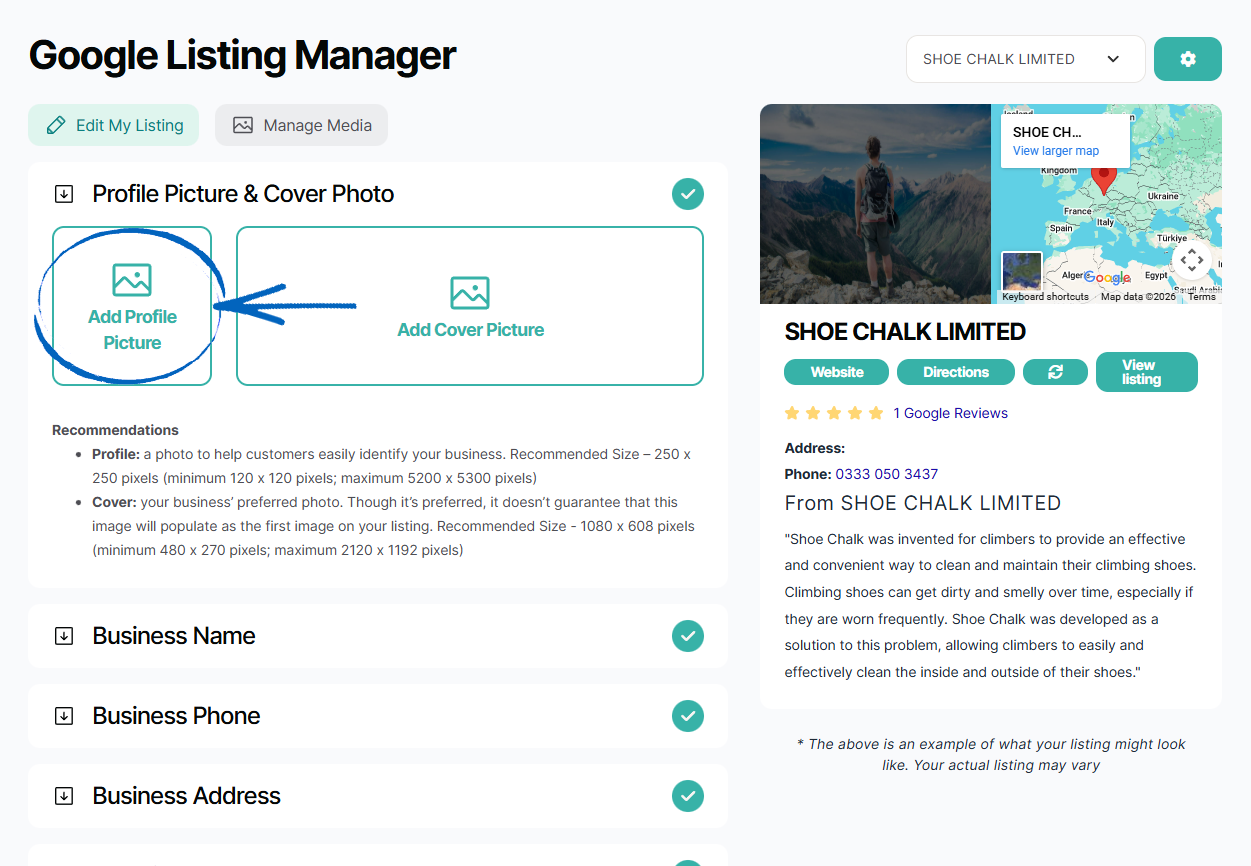
3. You’ll then see this modal appear. Drag and drop the image from your computer, ensuring that the image is correctly sized using the dimensions listed: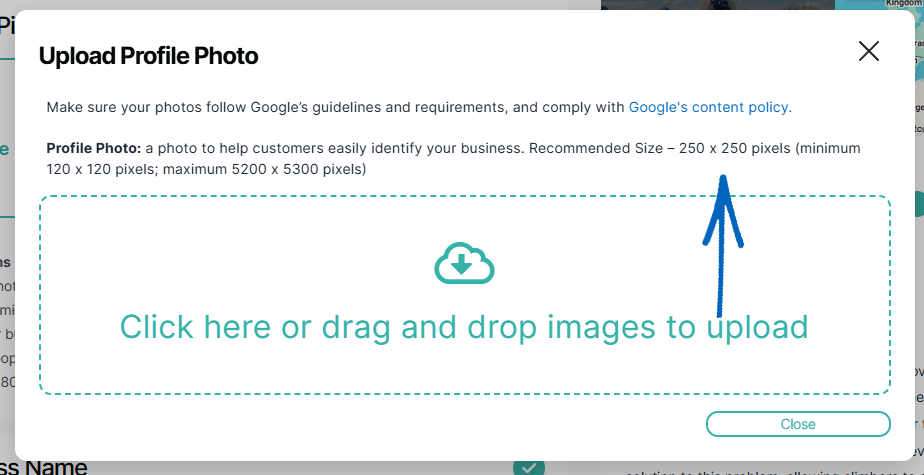
4. When you have added your image to the modal, click the green Upload button in the bottom right-hand corner: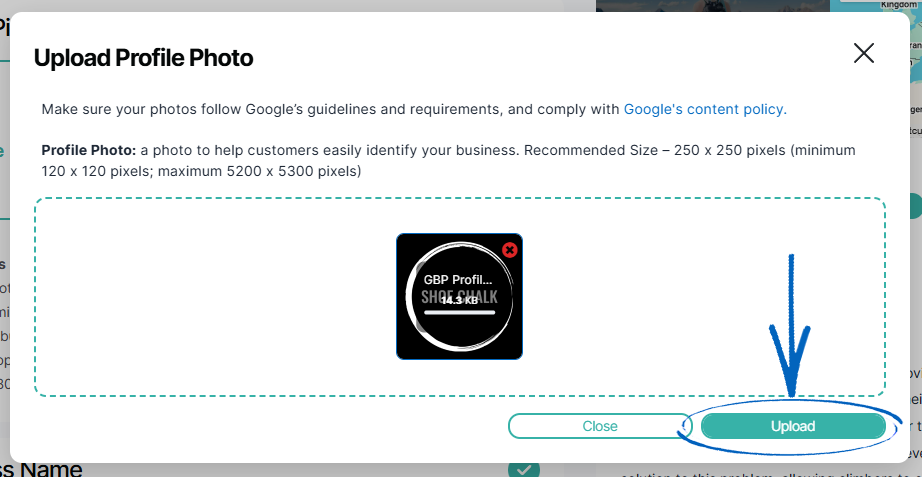
5. You’ll then see a notification in the top right-hand corner, advising that the file has updated successfully. Click the Close button: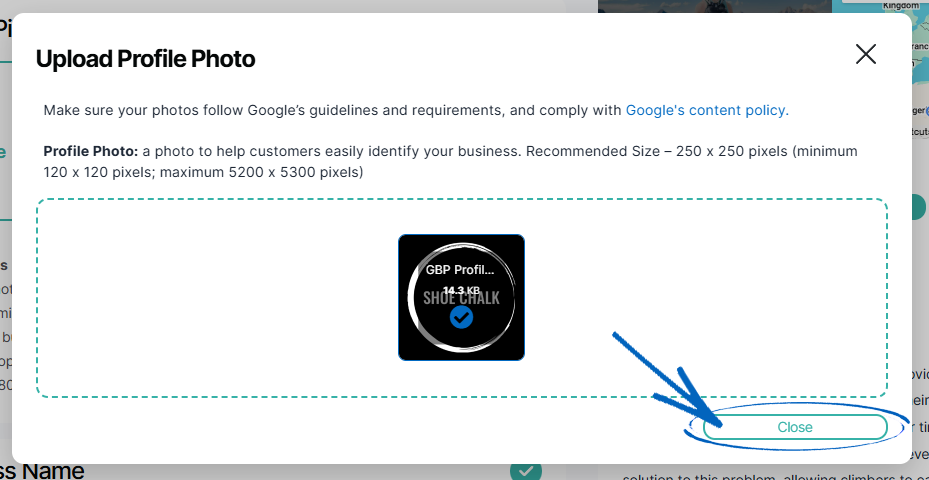
6. Repeat the same process with the Cover Picture: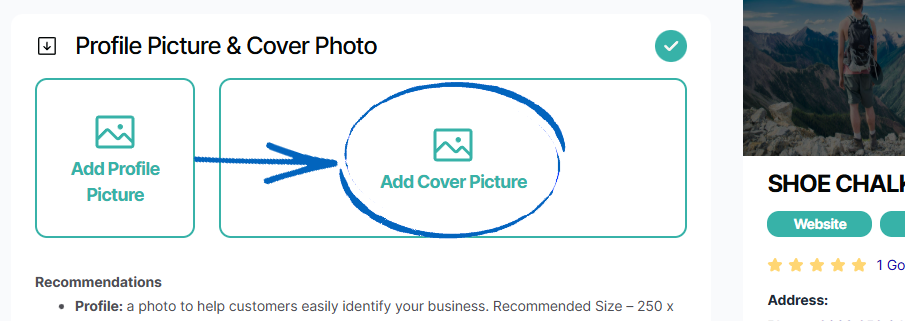
7. If you refresh the page, you’ll then see your Profile Picture and Cover Picture: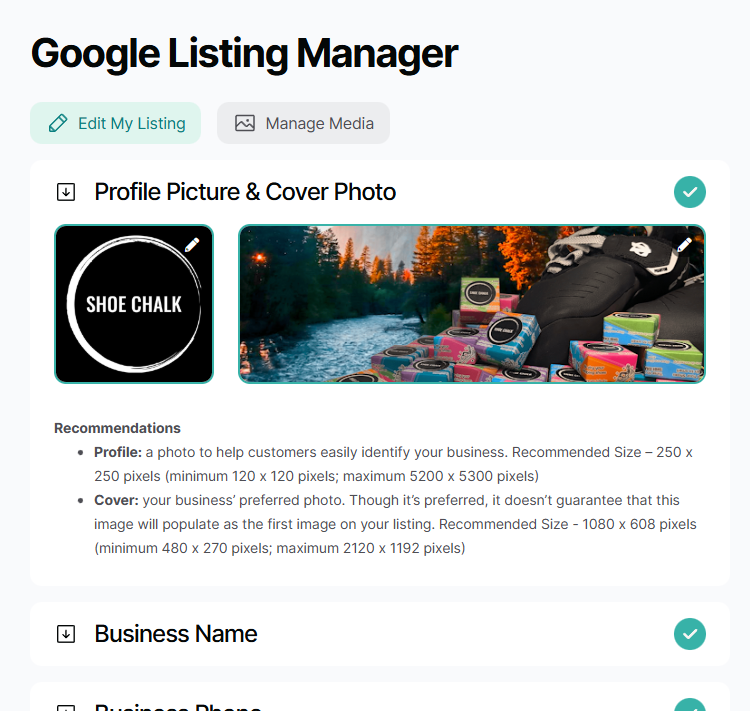
[remember]Seb AI reviews and can suggest a business description for your Google Business Profile. If you approve it, it will be added to your profile straight away. If you don’t approve it, you’ll be asked to write your own, because a business description often needs personal details that AI might not fully capture. You can write a description of up to 750 characters; however, only the first 244 characters display on your Google listing unless the visitor clicks ‘More’.
Think about what you’d want your customers to know most about your business. Pretend they know nothing about you. Use the most important terms that potential customers might be looking for, but do not stuff the description with superfluous keywords. It is not believed that Google uses the description field as a factor in search rankings. However, a well-written description could help convert someone looking at your listing into a customer. Also:
- Don’t use all-caps, emojis, or other ‘gimmicky character use’.
- Do not focus on promotions, prices, or sales. Tell people about your business instead.
- Do not use any URLs.
[/remember]
8. Scroll further down the page, and you’ll see any issues that require your attention indicated with a yellow caution symbol. Click the element: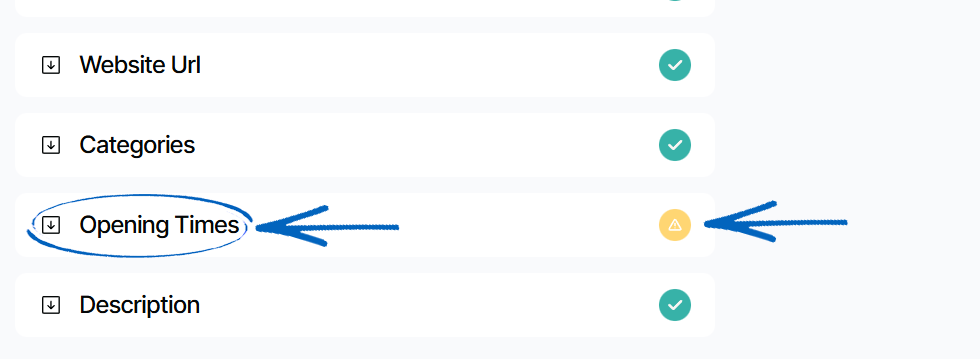
9. Now you need to amend your Opening Times by clicking the individual switches: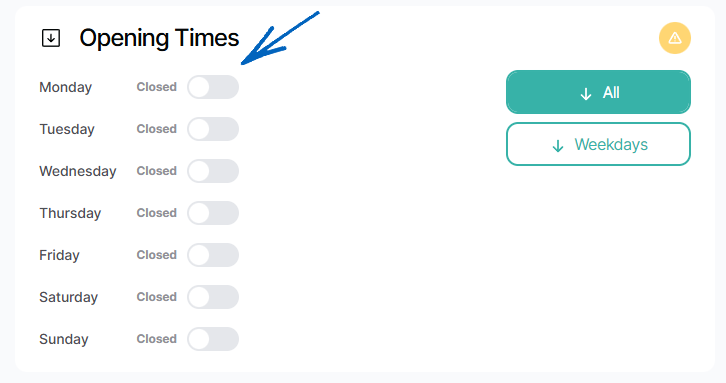
10. When you have amended your Opening Times, click Save Changes in the bottom right-hand corner: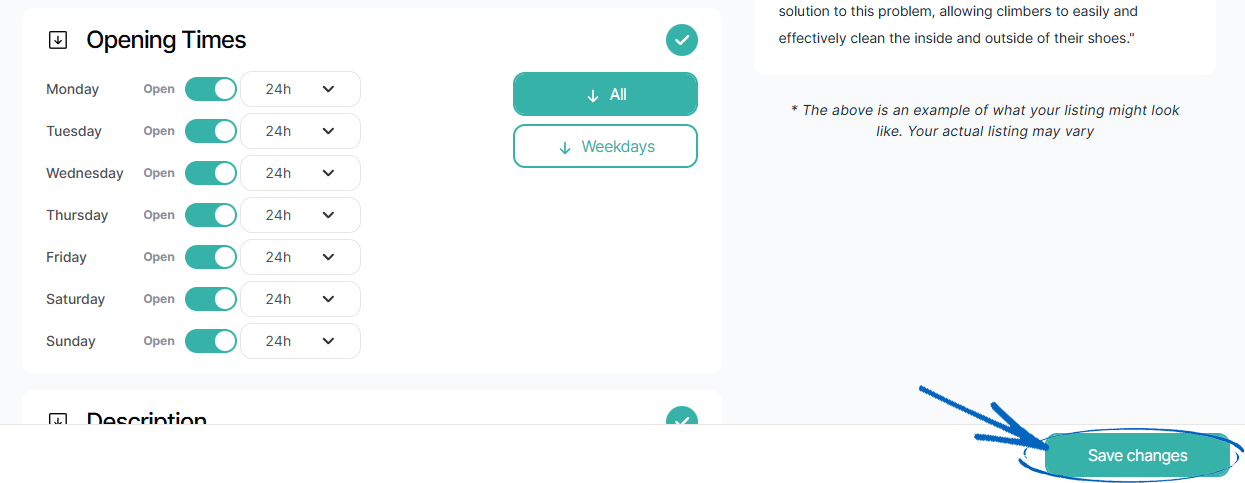
[remember]
When you click Save Changes, it can take up to 10 minutes for the information to be fully synced with your Google Business Profile. Your listing will show one of 3 statuses:
- Listing Synced - This means that the updated listing information has been successfully synced with Google. When you check your Google Business Profile listing, it may say that the changes are pending review.
- Syncing with Google - This means that the updated information has been queued to be sent to Google. This process should take no longer than 5 minutes.
- Error Updating - There was an issue syncing the listing with Google. If this happens, you can try to click "Save Changes" again.
[/remember]
11. Scroll back to the top of the page and click Manage Media: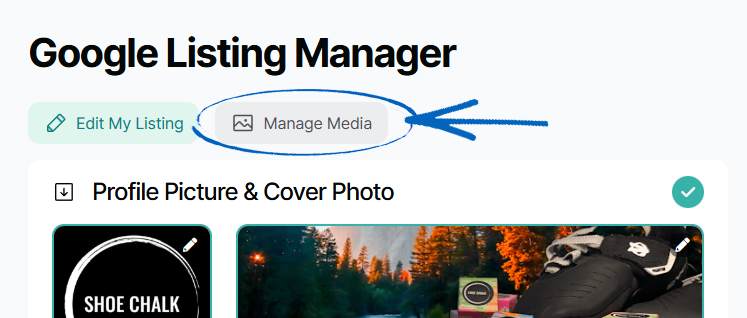
12. This is where you’ll see Profile and Cover Pictures for your Google Business Profile, along with any photos or videos added by customers to their reviews. You can flip between Owner Media and Customer Media to differentiate between the two: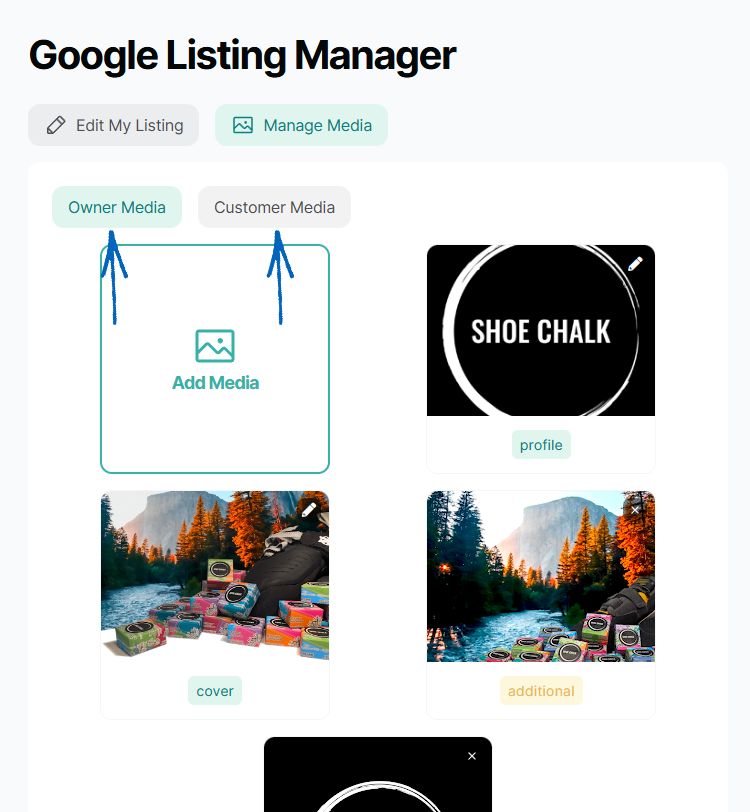
Managing your Locations
1. If your business has more than one physical location, click the cog in the top right-hand corner: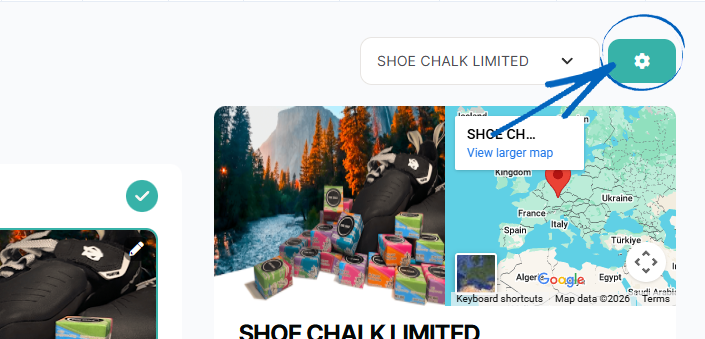
2. On this page, you can add additional physical locations by clicking the green Add Location button in the top right-hand corner: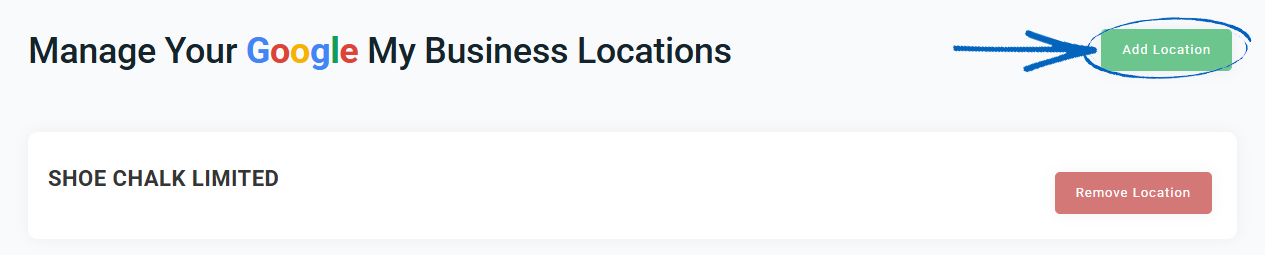
Frequently Asked Questions
Where can I see a list of changes Seb AI has made to my Google Business Profile?
You can see changes listed on the Changelog.
What should I do if my phone number and address are not showing correctly on my Google Business Profile listing?
First, make sure any updates you’ve made to your phone number or address in the Listing Manager have been saved by clicking Save Changes at the bottom of the screen. Also, double-check that your Google Business Profile is verified - unverified profiles can sometimes block changes from going through.
How do I disconnect your Google Business Profile account?
Click on the settings cog in the top right-hand corner of the Listing Manager, and then click on 'Remove Location'. This will then disconnect your Google Business Profile Account from the platform.
[more]
[/more]
[contact]If you need our help with your EKM online shop, contact the Customer Support Team, who can point you in the right direction. Our opening hours are 9 am - 5.30 pm Monday to Friday, for telephone calls, live chats, and emails. Outside of these hours, you can leave a message for us in the live chat window or email support@ekm.com, and we will answer as soon as possible. If you'd like to suggest a feature or an upgrade on any of the EKM platforms, please let us know on the EKM Suggestions Board. [/contact]