
[intro]Using the Onsite Optimiser overlaid onto the front-end of your EKM online shop, any issues and suggestions are highlighted for you in the form of a list of actions that you can work through. [/intro]
[tips]It’s a good idea to have the back end of your EKM online shop opened in a separate browser tab, and either the Notepad app (if you’re a PC user) or TextEditor (if you’re using a Mac) for you to be able to make the recommended changes to your content as you work through the list of actions. [/tips]
1. From the Dashboard, click Actions, and then right-click Onsite Optimiser from the drop-down menu so it opens in a new browser tab: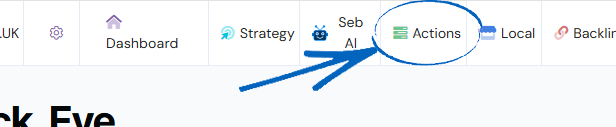
2. Click the blue Launch Now button in the bottom right-hand corner: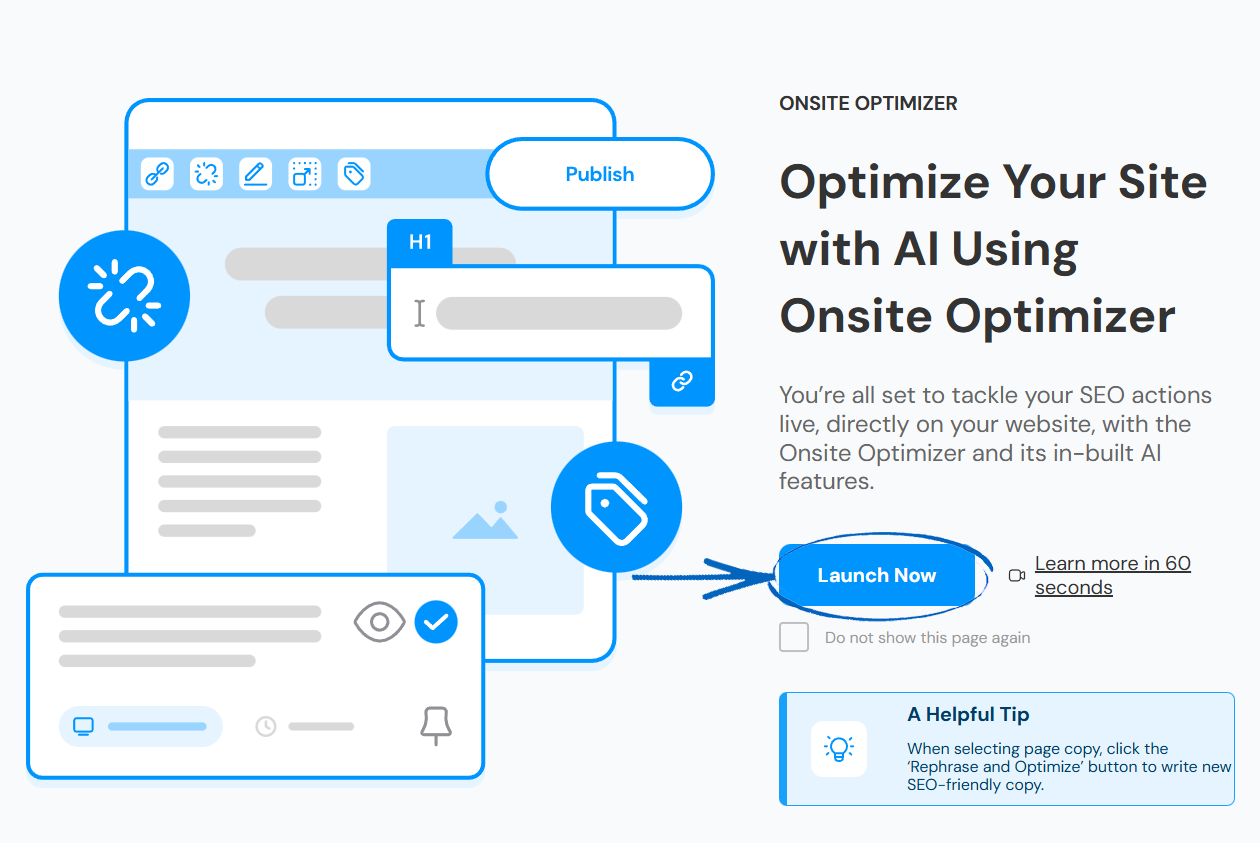
3. You’ll then see this modal. When you have watched the video, click the blue button: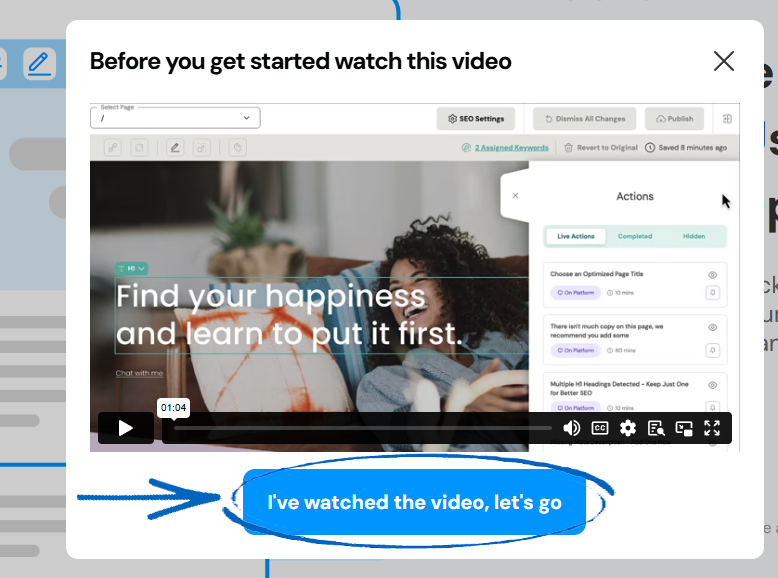
4. You’ll then see the homepage of your EKM online shop with an overlay, displaying all the different settings. In this example, we’ll be looking at content on the homepage of this EKM online shop. However, to look at other pages, you simply need to use the drop-down menu in the top left-hand corner to select the relevant URL from the list. For now, click the X on the right-hand side overlay: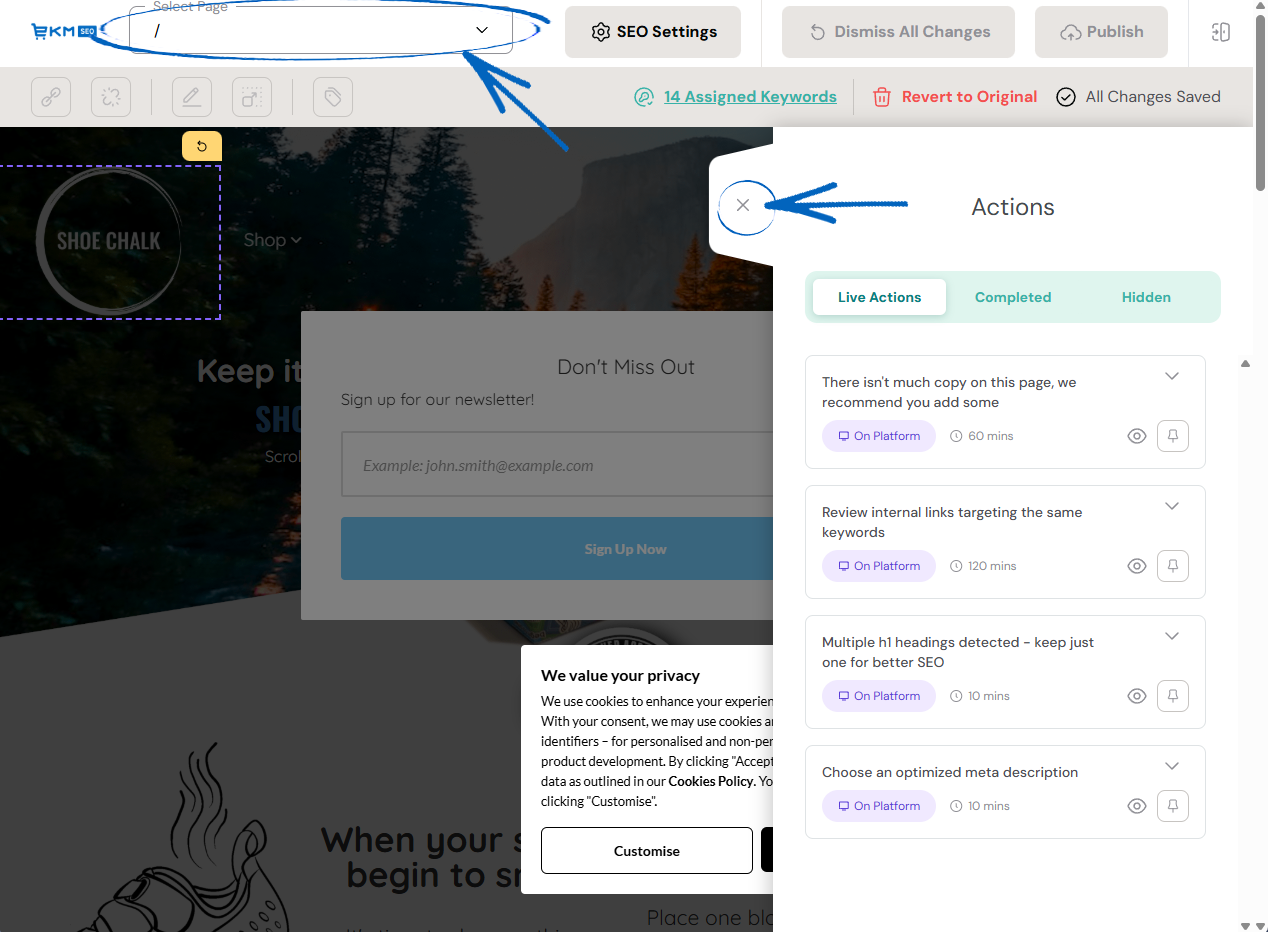
5. At the top of the page, click SEO Settings:
6. In the modal that appears, the EKM SEO platform has suggested some changes. The first is related to the Meta Page Title. Click the down arrow symbol on the right-hand side of the green menu: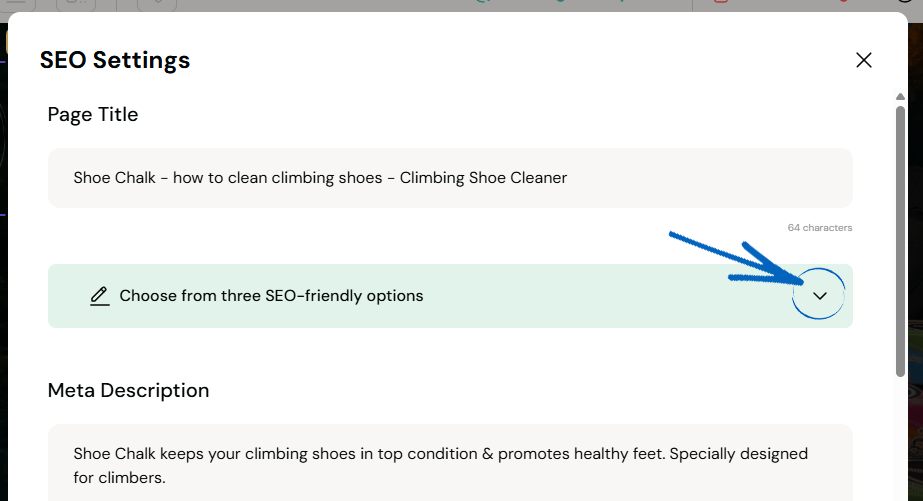
7. You’ll then see a choice of different options you could have instead of your existing Meta Page Title. Click to see the different options, and click select when you have chosen which variation you’d like to use: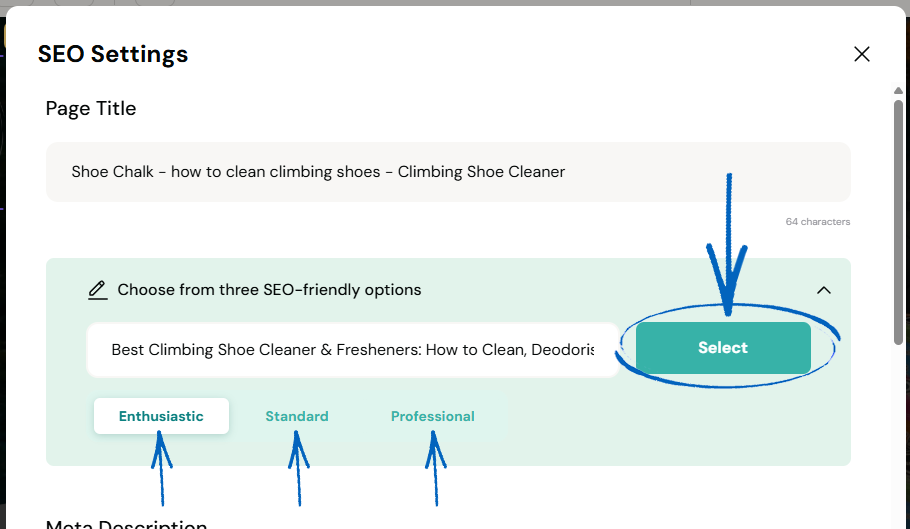
8. The Meta Page Title on your EKM online shop has a maximum limit of 66 characters, so you will need to trim your chosen option to ensure that it fits within this limit by clicking in the field and using the counter in the bottom right-hand corner. When you have finished editing this text, copy it onto a Notepad (.txt file – Mac Users will need to use Text Editor). You will then need to click the browser tab logged into the back end of your EKM online shop and amend the Meta Page title. The guide for that is available here if you need help: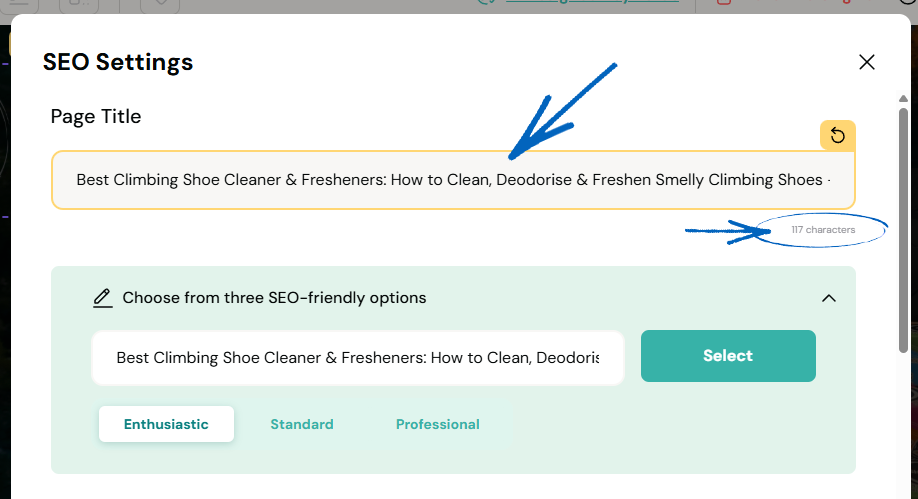
9. If you scroll further down the page, you’ll see the current Meta Description of your EKM online shop with suggestions available below. Again, you need to click on the green bar to select an option: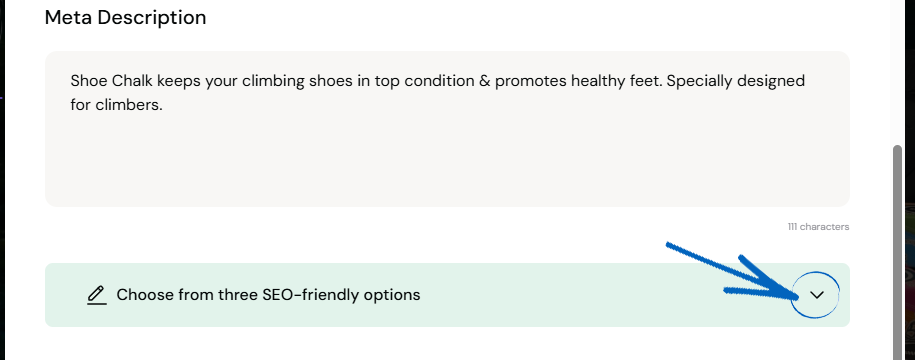
10. You’ll then see a choice of different options you could have instead of your existing Meta Description. Click to see the different options, and click select when you have chosen which variation you’d like to use. When you have finished editing your new Meta Description, you need to copy the text onto your Notepad file and then copy it from there into the relevant field within the Settings of your EKM online shop: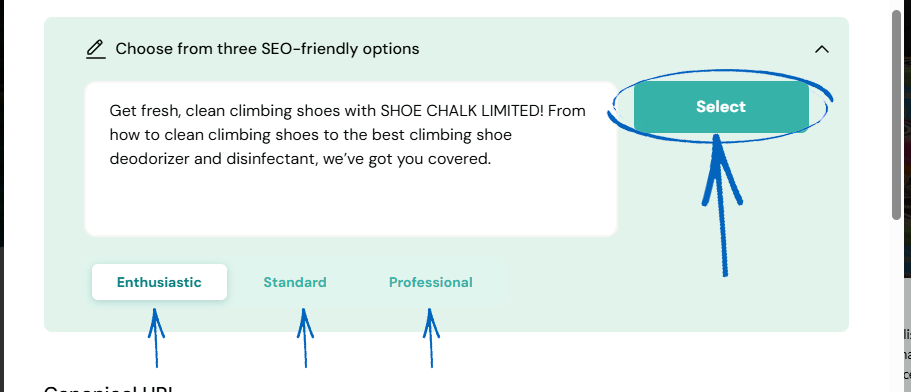
[tips]It is worth double-checking the spelling for some words in case there are any American spellings which don’t pertain to your customer base. You can edit these using the yellow Meta Description field: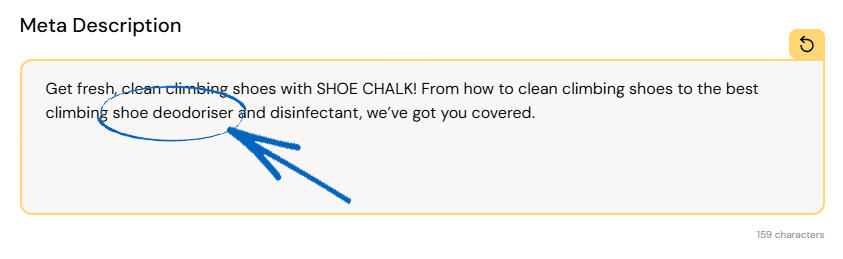
[/tips]
11. Now you need to scroll down and click the green button: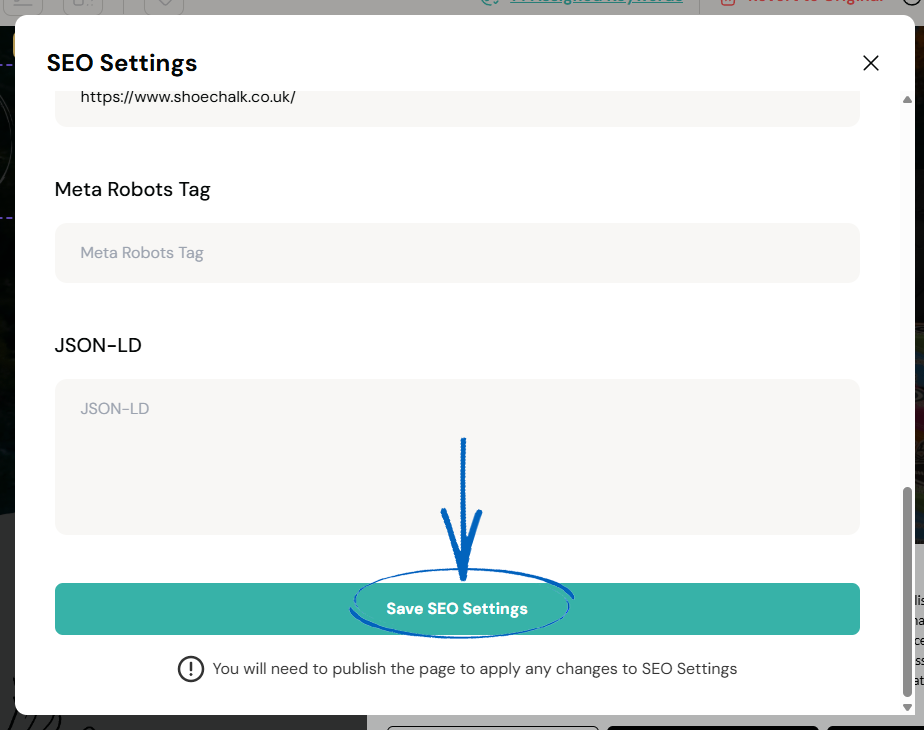
12. Click the menu symbol on the right-hand side of the page to open the menu: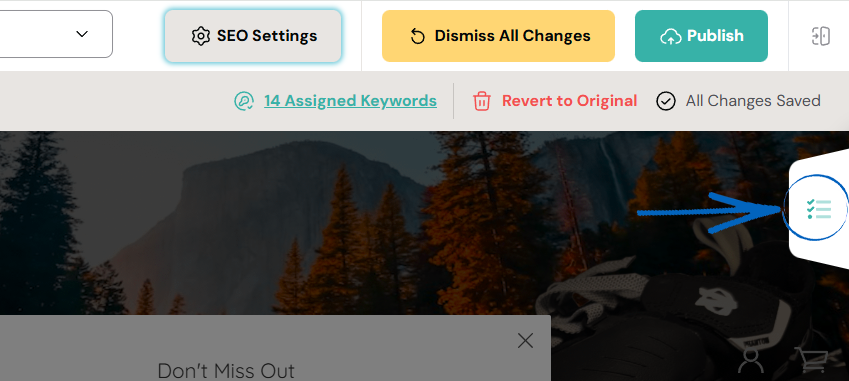
13. You’ll then see a list of Actions that you need to work through. Each action have an estimated amount of time to complete listed next to it and two buttons; click the eye symbol to hide the action to deal with it later (or if you have completed it, hide it from view whilst you work on the next task) and click on the pin symbol to pin that particular action to the top of your list for visibility. To see more information about a specific task, click the down arrow in the top right-hand corner of each task: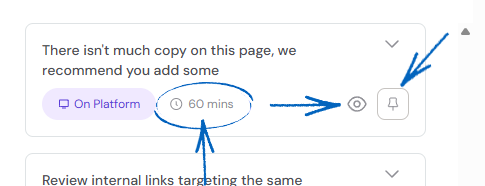
14. This will reveal more information about the task. Use the drop-down menu to learn what you need to do, why this task is important and how this task can be completed. In this case, the task involves increasing the amount of copy on the homepage of this EKM online shop. To complete this action, you would need to open your EKM online shop in a separate browser and add text to the homepage in the usual way. You can pin this task if you intend to complete it later, or if you wish to complete it right away, click the eye symbol to hide it from your list of Actions, before clicking the up arrow to hide it and view your next job: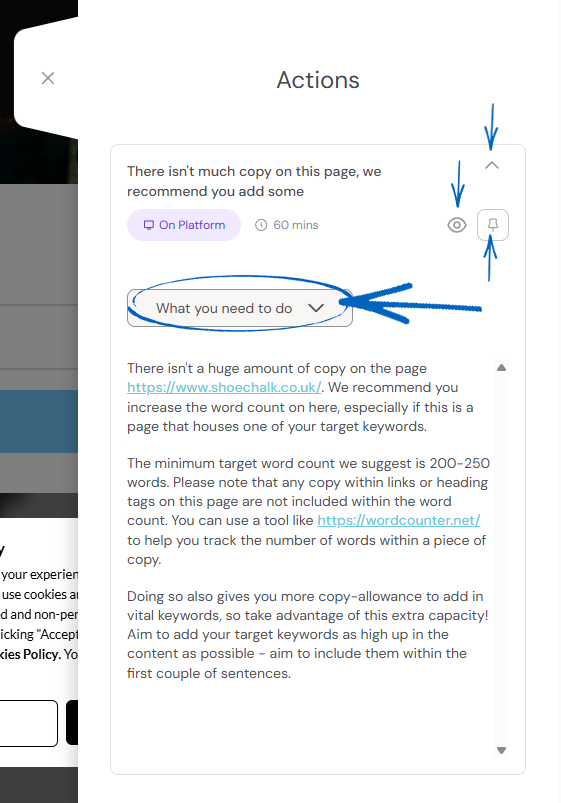
15. Repeat this process with the next task on your list: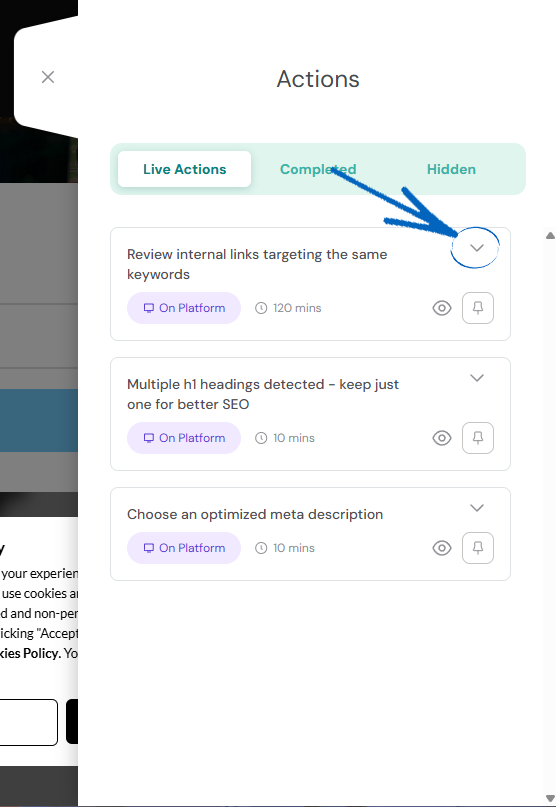
16. Using the three tabs at the top of the Actions list, you can click between Live Actions (the default tab), Completed and Hidden. When you have finished working on your Actions, minimise the Actions menu again by clicking the cross: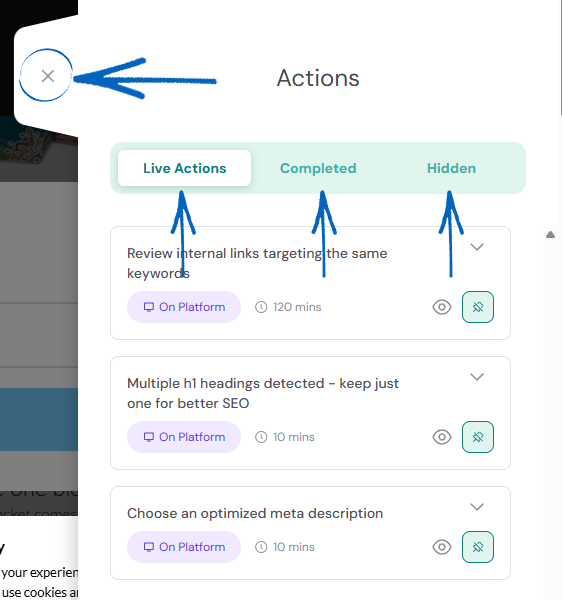
17. Then you need to click Publish in the top right-hand corner: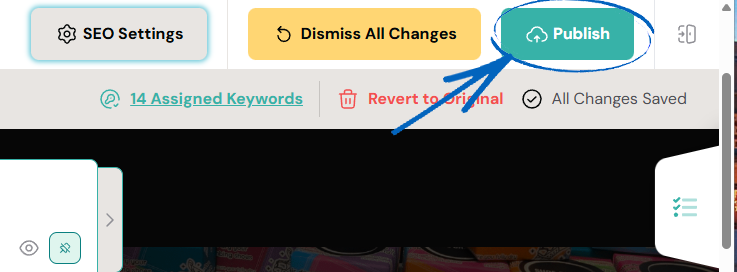
18. You’ll then see this modal appear. Click Continue: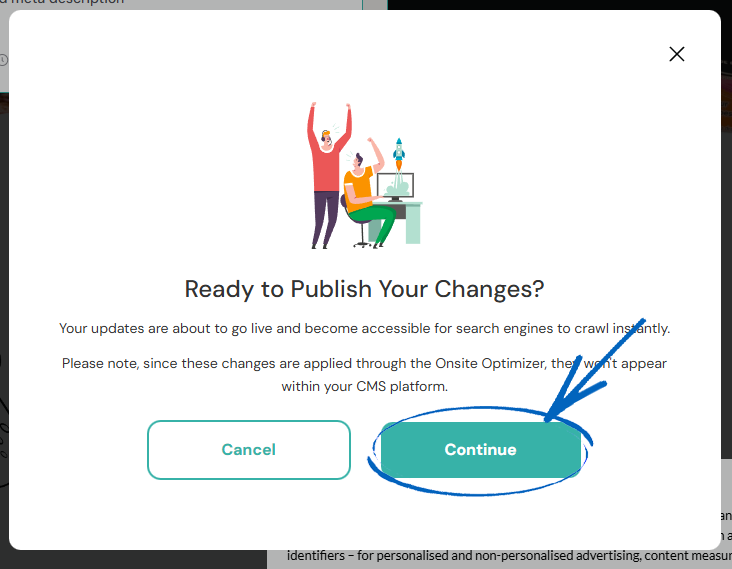
19. Click the exit symbol in the top right-hand corner to exit the overlay or close this browser tab completely and return to your EKM SEO Dashboard: 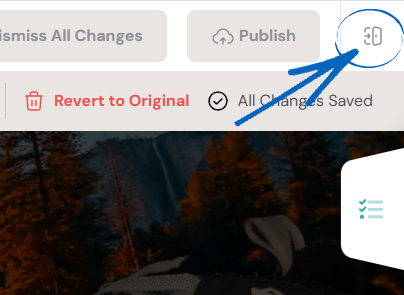
[more]
[/more]
[contact]If you need our help with your EKM online shop, contact the Customer Support Team, who can point you in the right direction. Our opening hours are 9 am - 5.30 pm Monday to Friday, for telephone calls, live chats, and emails. Outside of these hours, you can leave a message for us in the live chat window or email support@ekm.com, and we will answer as soon as possible. If you'd like to suggest a feature or an upgrade on any of the EKM platforms, please let us know on the EKM Suggestions Board. [/contact]