
[intro]In this guide, you’ll learn how to set up a report in GA4 where you can see which URLs have referred to your domain. By following these steps, you can also set up other custom exploration reports that you can use to monitor the traffic on your EKM online shop. [/intro]
In this guide, you'll go through the steps to create a basic referral report for your EKM online shop, so you can learn over time where your traffic is originating from. Using these guidelines, you can use the dimensions and metrics listed at the end of this article to create custom exploration reports for your EKM online shop.
How to exclude unwanted referrals in GA4
To manage how referral traffic is reported in Google Analytics 4 (GA4), you need to exclude unwanted domains, such as your own subdomains or third-party payment processor domains. By excluding these domains, you prevent them from being incorrectly credited with conversions and polluting your traffic acquisition reports. This helps ensure your data accurately reflects how users first discovered your EKM online shop.
1. Click the Admin cog symbol in the bottom left-hand corner: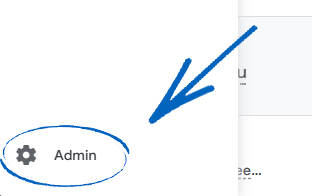
2. In the Data Collection and Modification section, click Data Streams: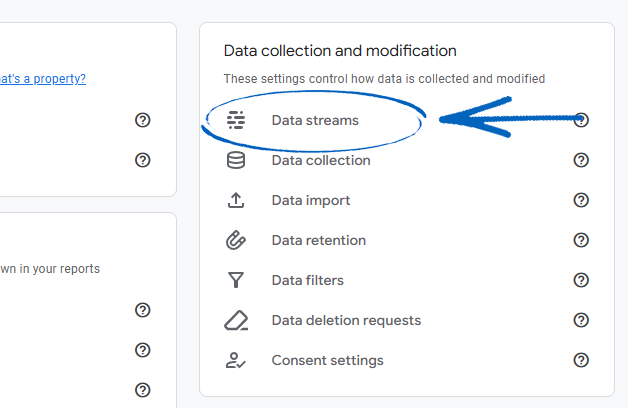
3. Click the data stream for your EKM online shop: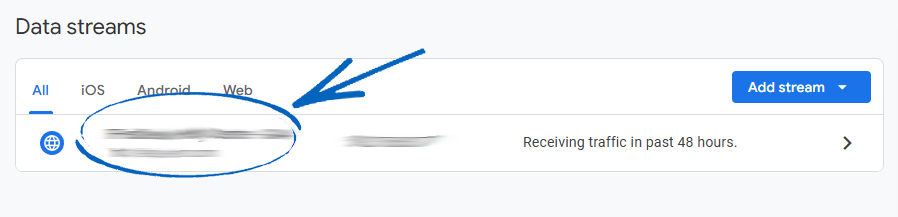
4. Scroll down the side menu that appears, and click Configure Tag Settings:
5. Scroll down again and click List Unwanted Referrals: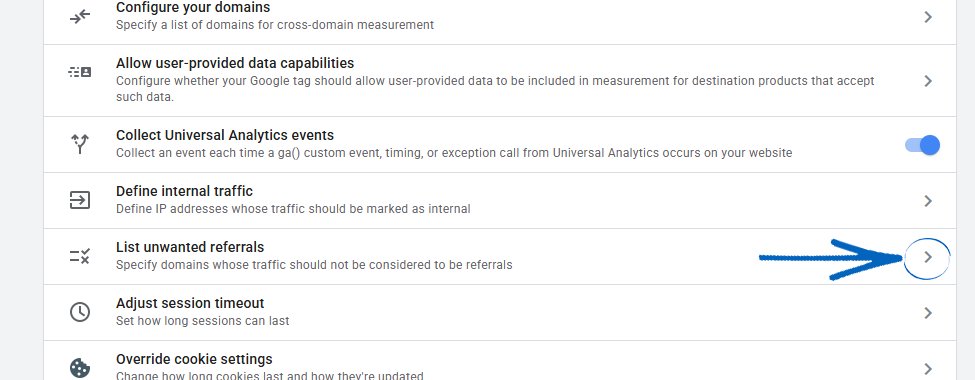
6. On the Match Type drop-down menu, select ‘Referral Domain Contains’ and in the Domain field, add the URL you would like to exclude. Then you need to click Add Condition to add additional URLs: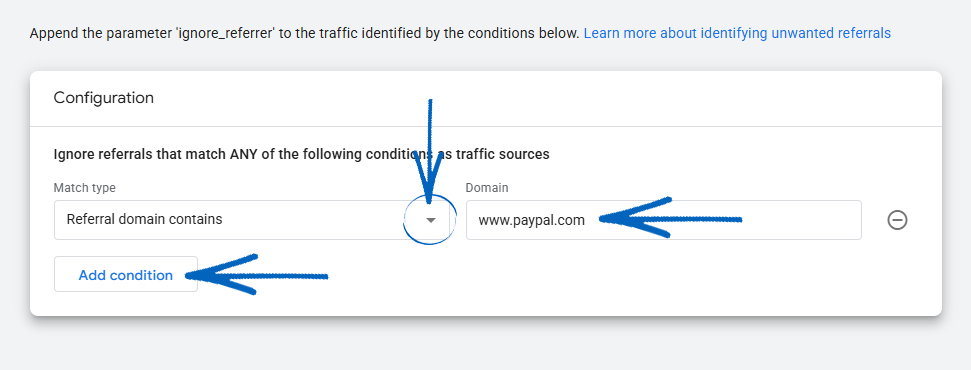
7. You will need to exclude the URLs of external payment gateways - such as Klarna, PayPal and NOCHEX, for example - the referring page of your checkout flow and any URLs related to the back end of your EKM online shop, so they are not wrongly counted as referring URLs. Use this image as an example: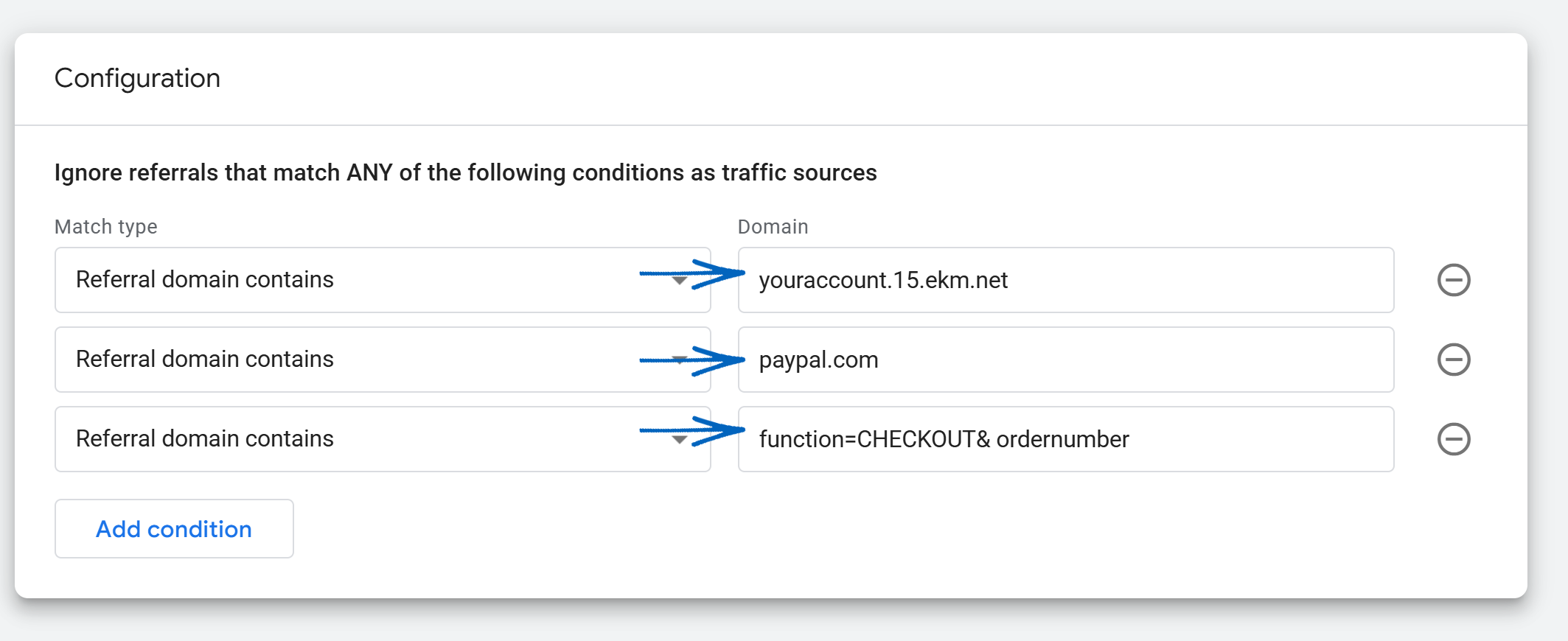
8. Don’t forget to amend the server number in the first URL to that of your own EKM online shop. You can see the server number by looking at the address bar of your browser when you are logged into your account: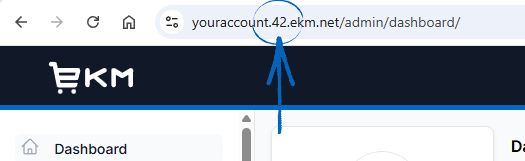
[remember] If you use EKM Pay on your EKM online shop, you don’t need to add this to your unwanted referrals list. [/remember]
9. When you have finished adding URLs, click the Save button in the top right-hand corner: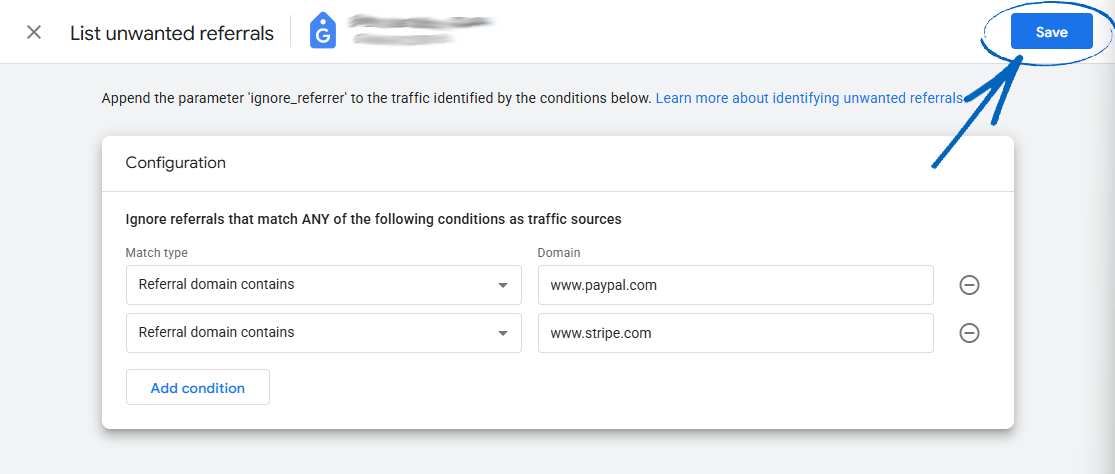
How to report on general Referral Traffic
10. After you have configured your unwanted referrals above, you can view the referral data by clicking Reports on the left-hand side menu: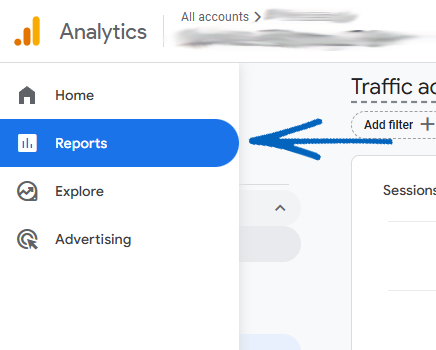
11. On the left-hand side, click Acquisition: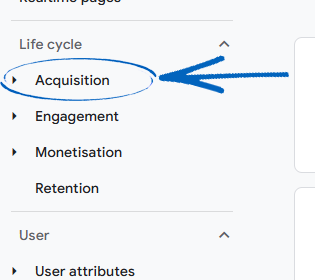
12. Then you need to click Traffic Acquisition: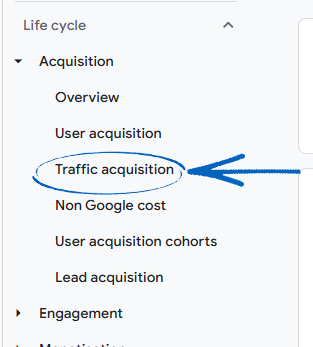
13. This will reveal your Traffic Acquisition. Use the drop-down menu in the top right-hand corner of the graph to amend the time filter. You can use the drop-down menu beneath the graph to select Session Source/Medium to see referring domains: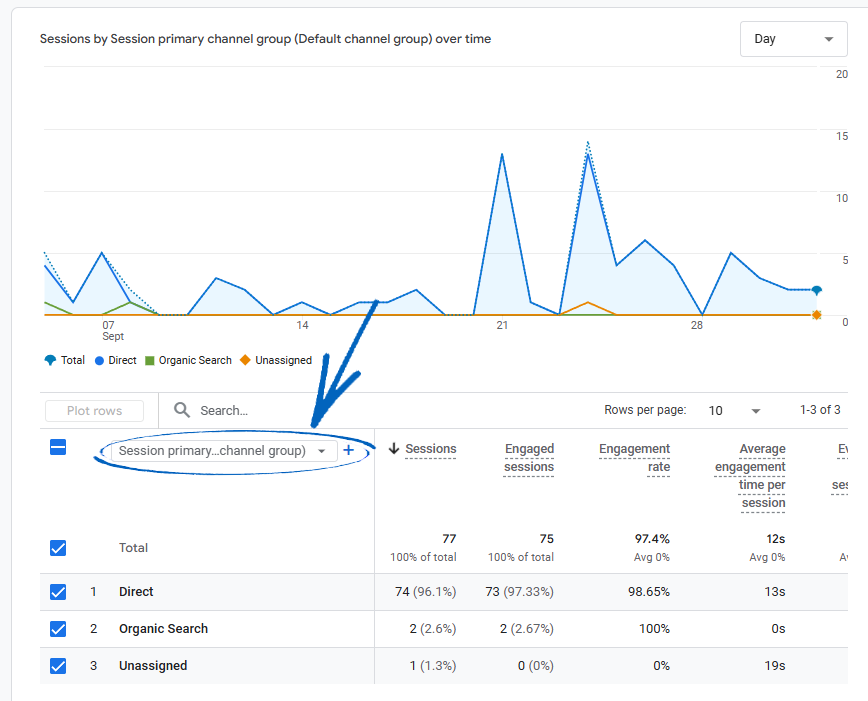
[remember]When viewing your referring domains, you may see (not set) listed, which means not enough data was received for GA4 to supply any further information. 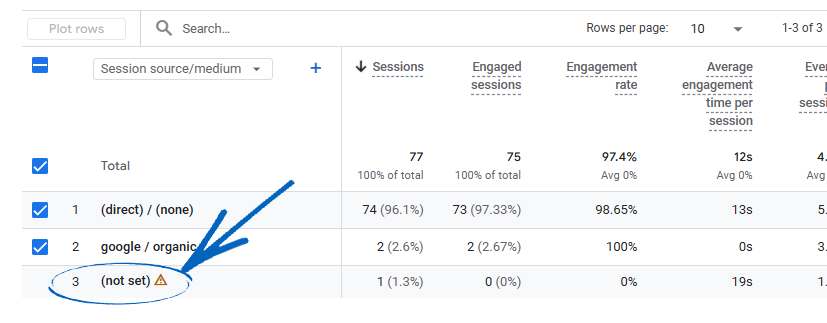
You can read more about (not set) by clicking here. [/remember]
How to see the full referring URL
14. If you want to view the full referring URLs, you need to create a custom Exploration report. You can do this by clicking Explore on the left-hand menu: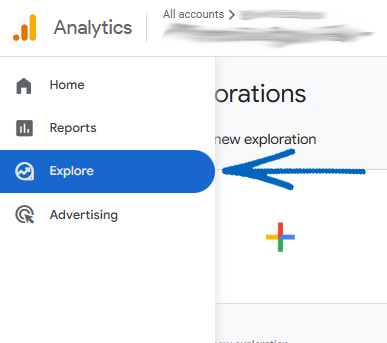
15. Click Blank: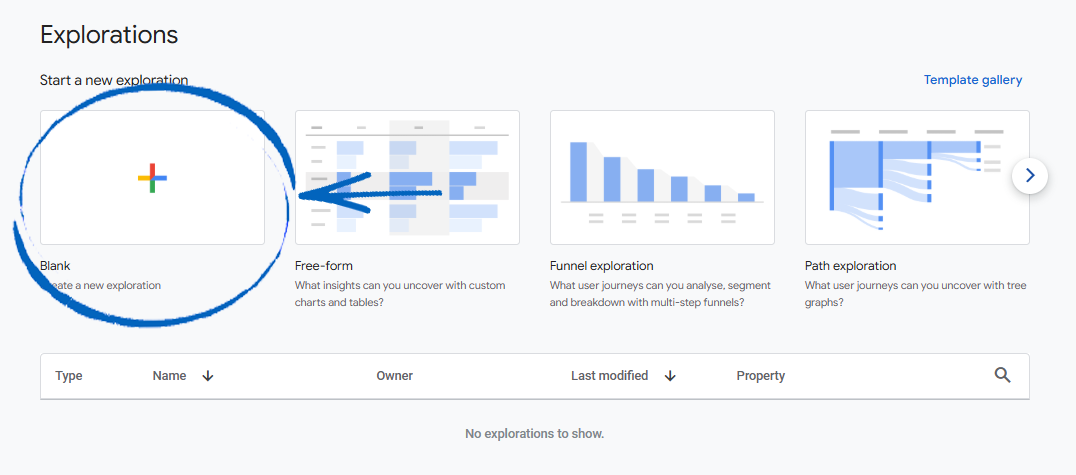
16. Click the Exploration Name to rename this report: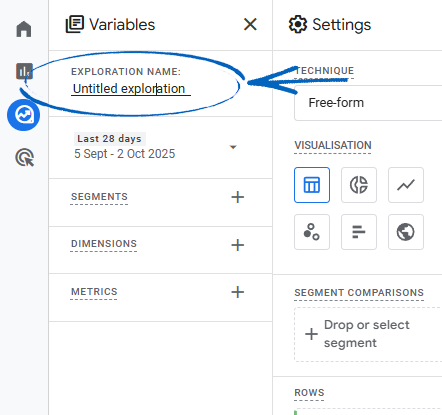
17. Click the cross symbol for Dimensions: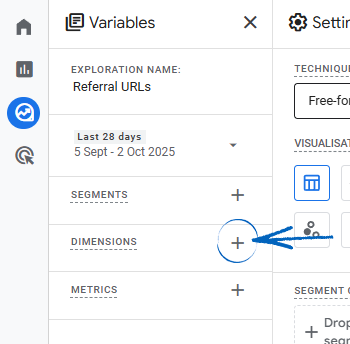
18. On the right-hand side menu, click the down arrow for Page/Screen: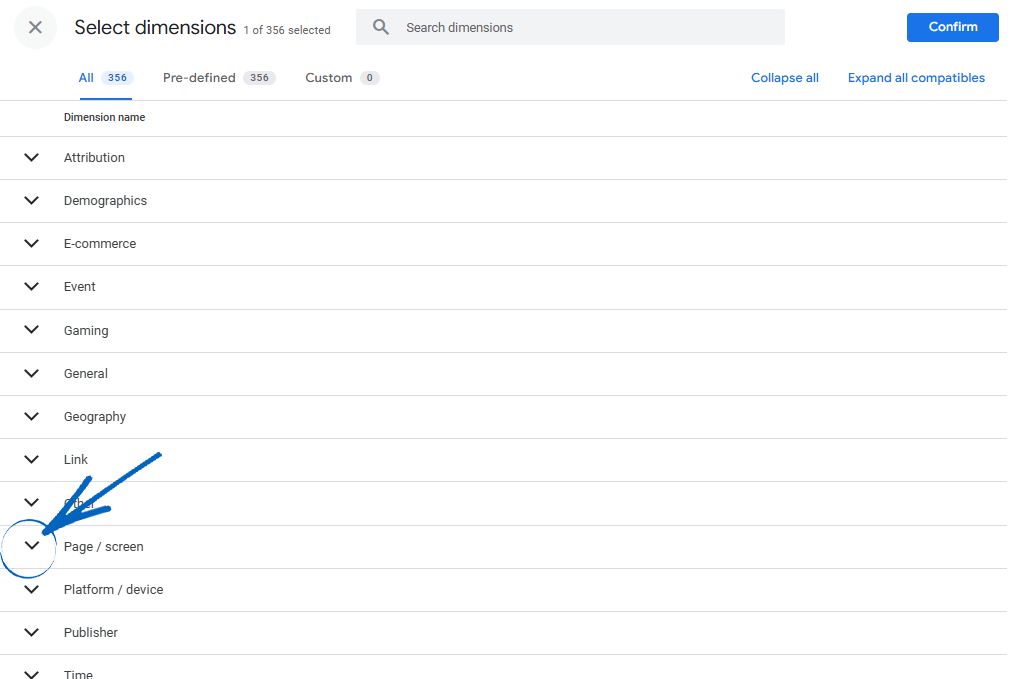
19. Tick the box for Page Referrer and then click the blue Confirm button in the top right-hand corner: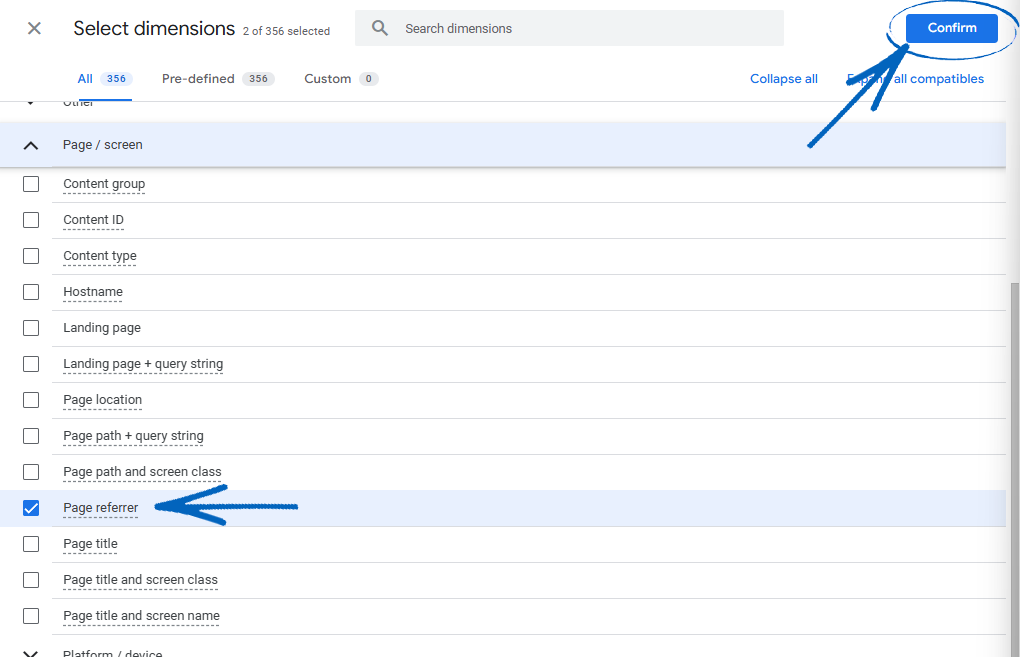
20. Click the cross symbol for Segments on the left-hand side: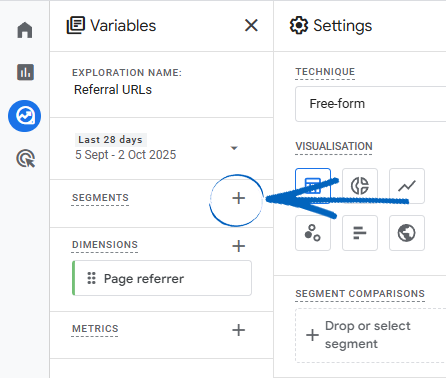
21. On the right-hand side menu that appears, you need to tick the boxes for each of the traffic types you would like to analyse, before clicking the blue Confirm button in the top right-hand corner: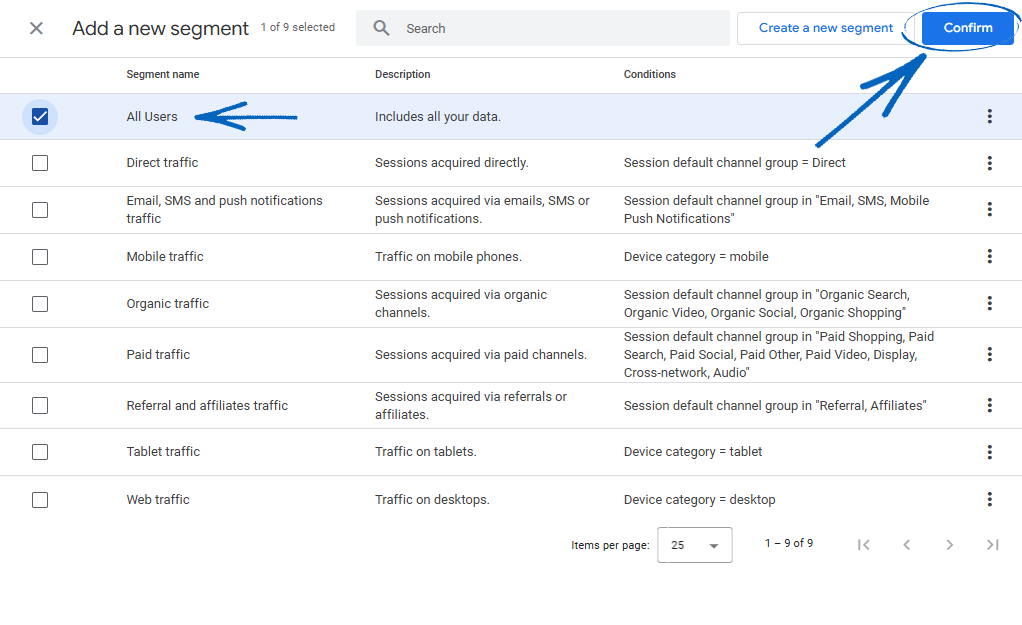
[tips]You can select individual segments; however, you can only apply four segments to a single report at once. For more complex analysis, you may want to create different reports using these methods in the future. [/tips]
22. Now you need to drag and drop your segments and dimensions into the relevant areas: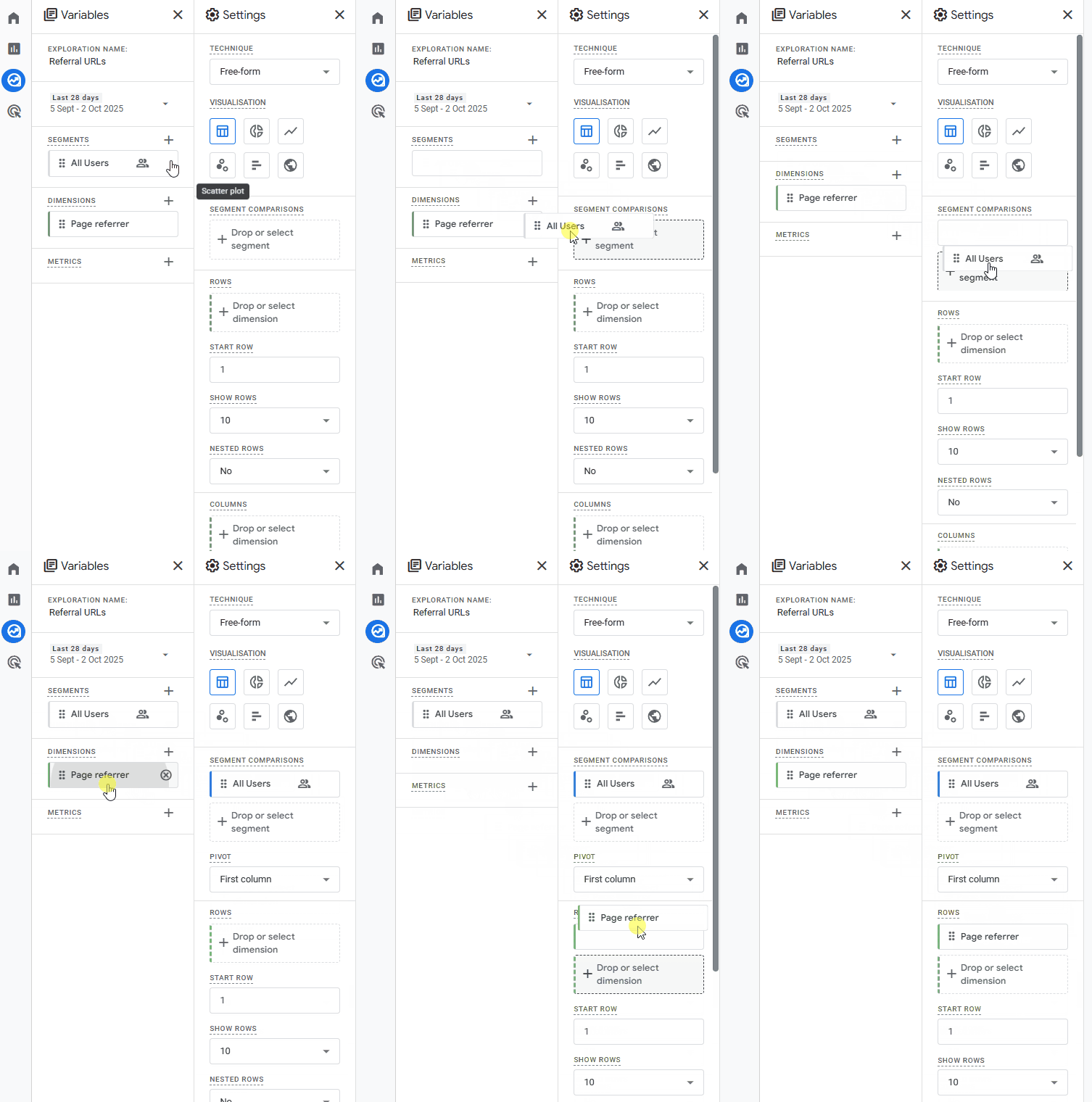
23. Click the cross symbol for Metrics: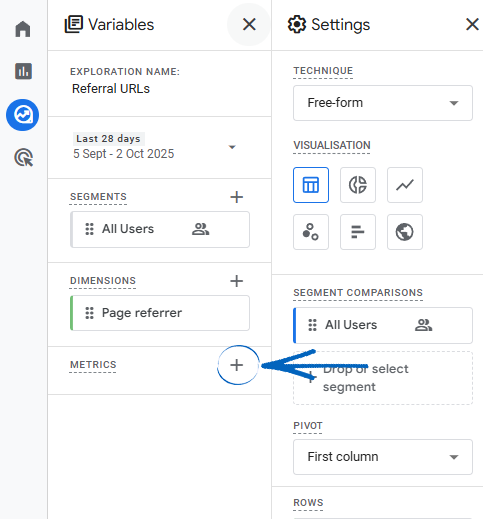
24. On the right-hand menu that appears, click the down arrow for Page/Screen: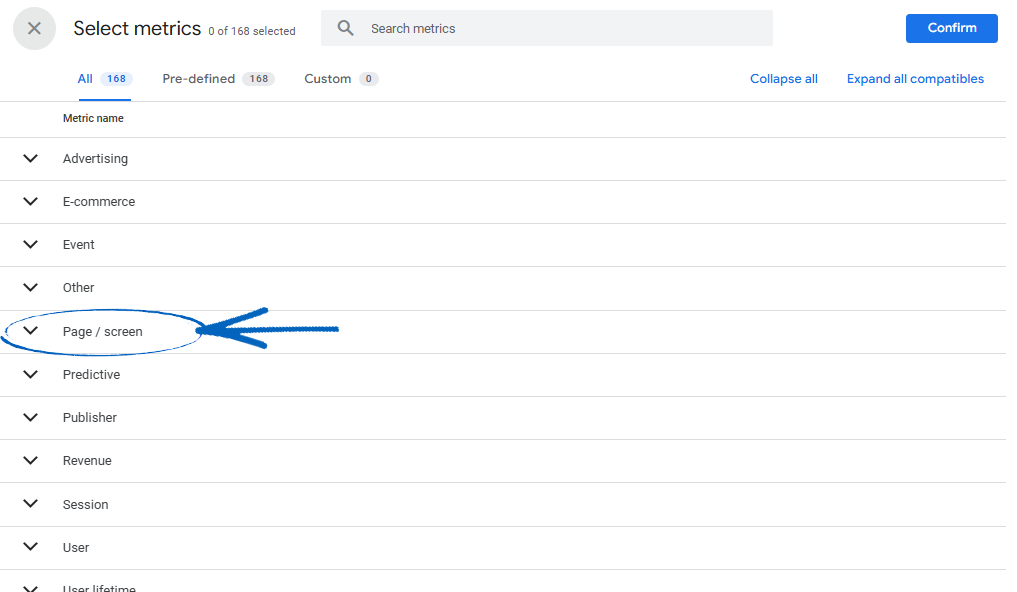
25. Tick the box for Entrances and then click the blue Confirm button in the top right-hand corner: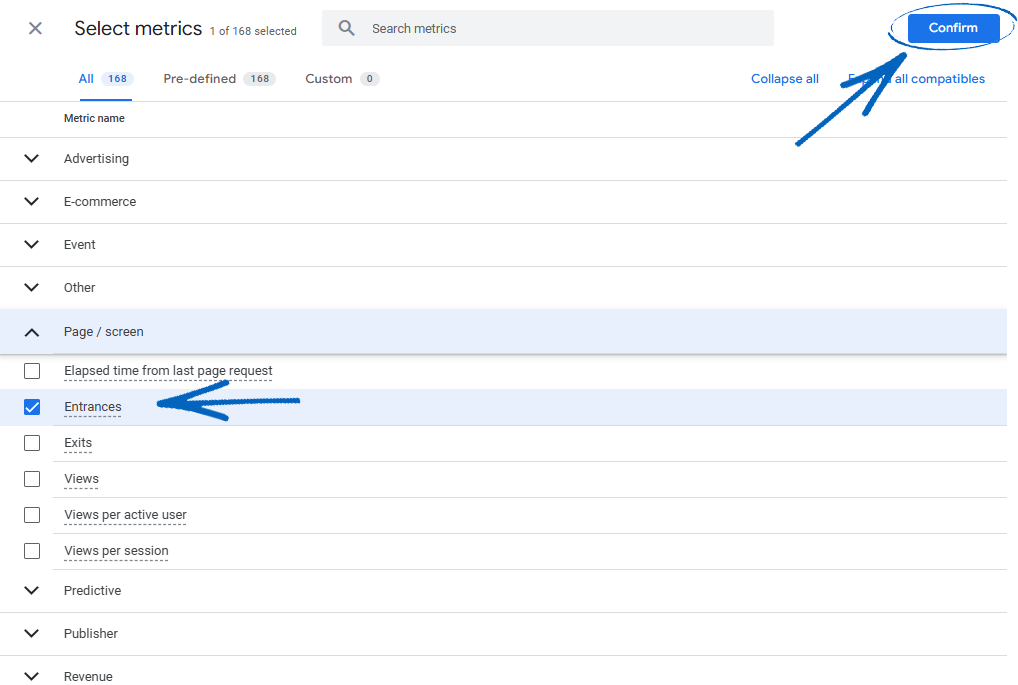
26. You then need to drag and drop your metric into the Values column: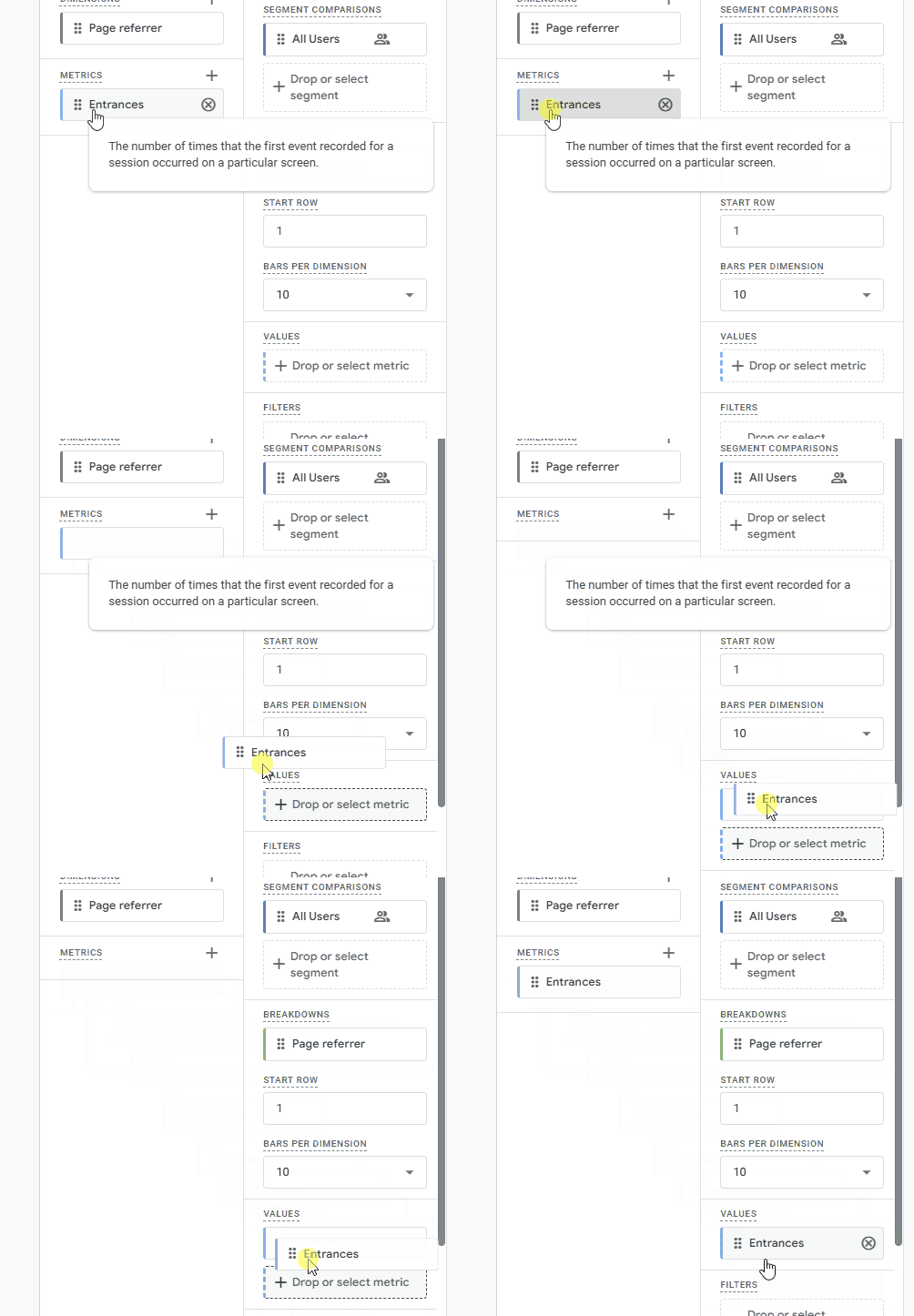
27. You can then click one of the symbols in the Visualisation element to select how you would like this data to be displayed: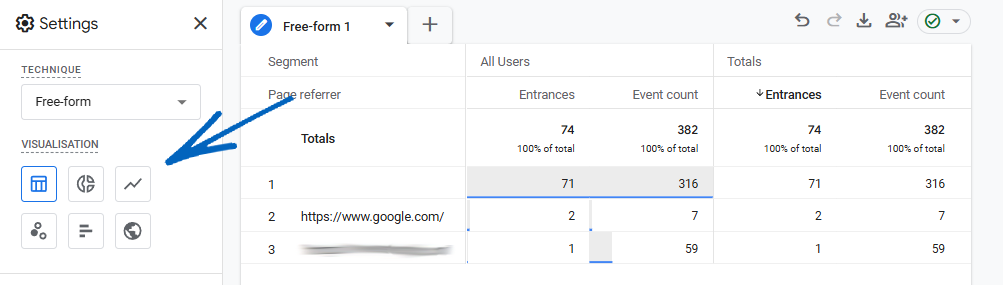
You can then return to your GA4 dashboard.
[tips]Using the steps above, you can create custom exploration reports using different segments, metrics and dimensions, so you can monitor the success of specific promotions and advertising campaigns on your EKM online shop. You can read more about Explorations here. [/tips]
How to view your Custom Exploration Reports
1. From the Dashboard, click the Explore symbol on the left-hand menu: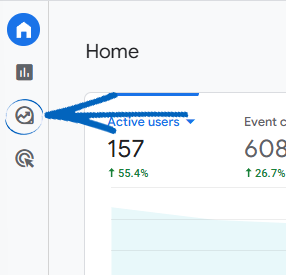
2. You’ll then see any explorations you have set up in your GA4 account. Click the report title: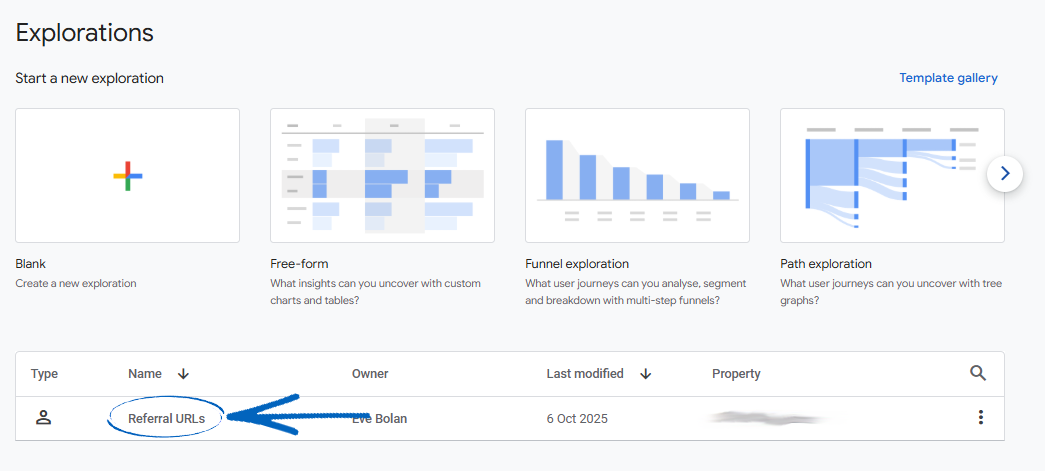
3. You can then view the report and if you need to, export it by clicking the symbol in the top right-hand corner: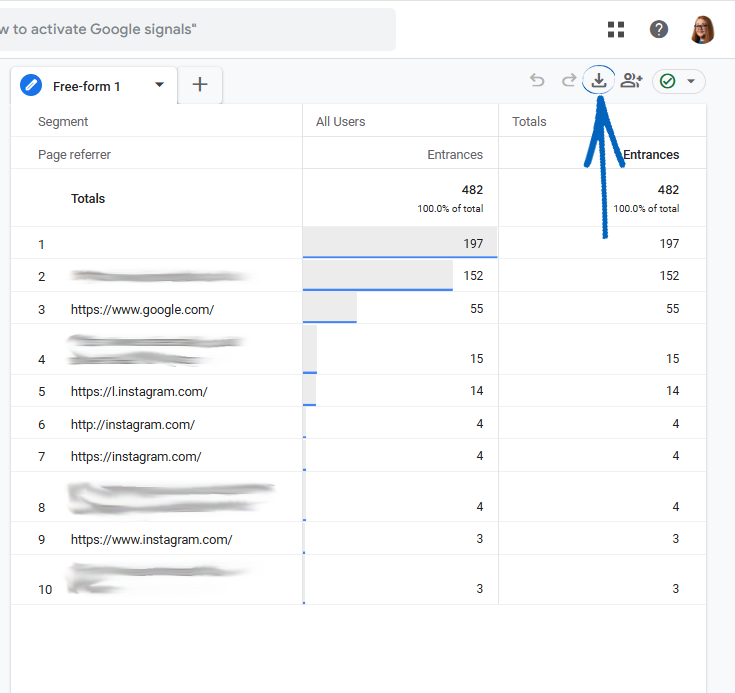
Creating Different Explorations
As GA4 is an analytics platform intended for use across many different kinds of websites, and your EKM online shop is on a hosted ecommerce platform, it is not possible to use all the dimensions and metrics listed when creating your explorations. However, if you use dimensions and metrics from the lists below that are compatible with the EKM online shop platform, you can create many different analyses to help you analyse the data recorded by GA4.
Dimensions
- Platform/Device > Device
- E-commerce > Currency
- E-commerce > Item Brand*
- E-commerce > Item Name*
- Page/Screen > Host Name
- Page/Screen > Page Location
- Page/Screen > Page Title
Metrics
- E-commerce > E-commerce Purchases
- E-commerce > Item Quantity
- E-commerce > Items Purchased
- E-commerce > Purchases
- E-commerce > Purchase Revenue
*These dimensions need to be selected if you wish to use the metrics Item Quantity and Items Purchased.
[tips]You can find in-depth resources for Explorations from Google Analytics by clicking here.[/tips]
[more]
[/more]
[contact]If you need our help with your EKM online shop, contact the Customer Support Team, who can point you in the right direction. Our opening hours are 9 am - 5.30 pm Monday to Friday, for telephone calls, live chats, and emails. Outside of these hours, you can leave a message for us in the live chat window or email support@ekm.com, and we will answer as soon as possible. If you'd like to suggest a feature or an upgrade on any of the EKM platforms, please let us know on the EKM Suggestions Board. [/contact]