
[warning] The Inventory Manager feature has been discontinued. Please use the Product & Category Manager, accessible using the Products tab on the left-hand side menu. [/warning]
[intro]In this guide, you’ll learn how to adjust the stock count of products using the Inventory Manager on your EKM online shop. [/intro]
Locating the Inventory Manager
1. From the Dashboard, click the Features tab: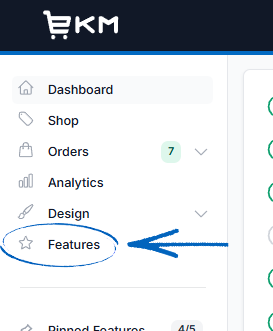
2. Within Installed Features, click on the Inventory Manager icon to open it: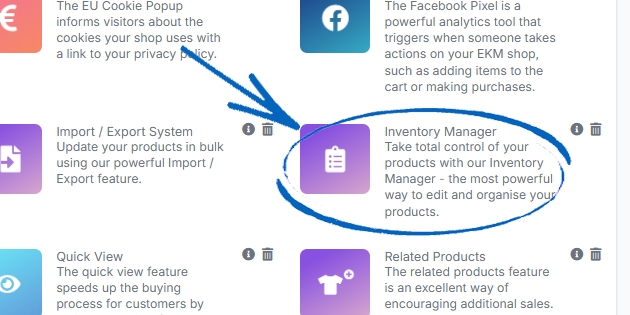
Searching for Products
3. Now you need to click the Stock Adjustment tab in the top right-hand corner: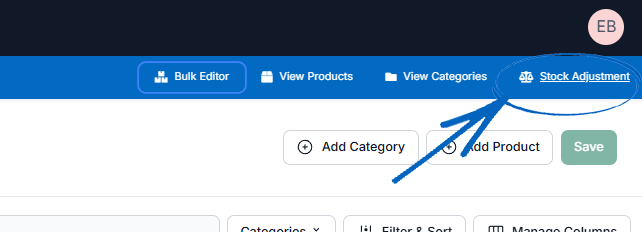
4. On this page, you’ll see all the products listed on your EKM online shop. This page will always load on the ‘All’ tab by default, and you can use the tabs on the top left-hand side to sort between products that are:
- Live - Products currently displayed on the front end of your EKM online shop;
- Hidden - Products currently hidden from view on the front end;
- In Stock - All products that are still in stock.
- Out of Stock - Products with zero units available;
- Best Selling - A list of your best-selling products over the last 30 days.
5. Beneath the tabs, you also have a search field you can use to locate specific products, or you can use the tabs to help you quickly locate specific products, and a Categories button with a drop-down menu to allow you to display the contents of a specific Category quickly: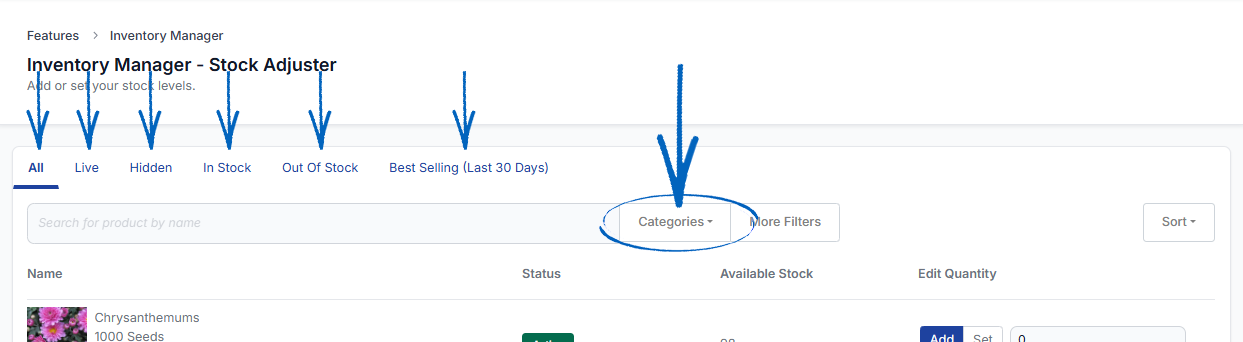
Using Filters
6. If you click the More Filters button: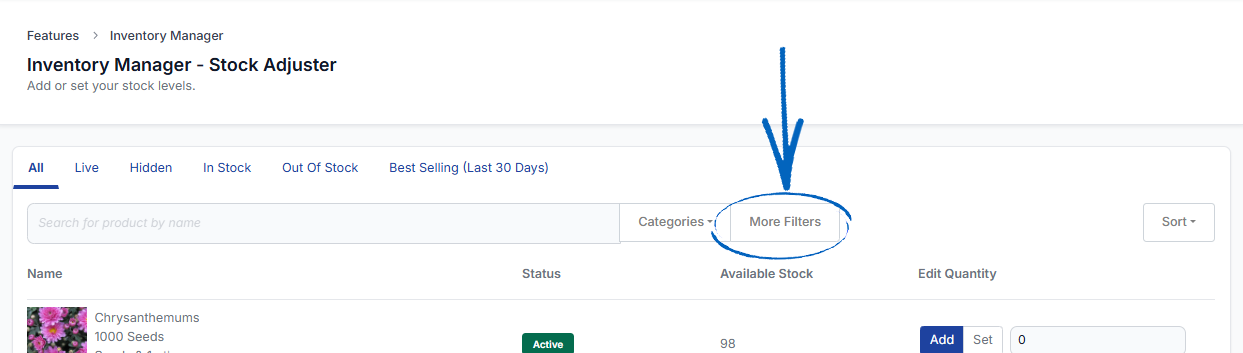
7. This will reveal a vertical menu on the right-hand side, where you can select filters to drill down and display a specific group of products. Click the down arrow symbols to reveal each of the different options and select your filters, before you click the green Apply button in the bottom right-hand corner: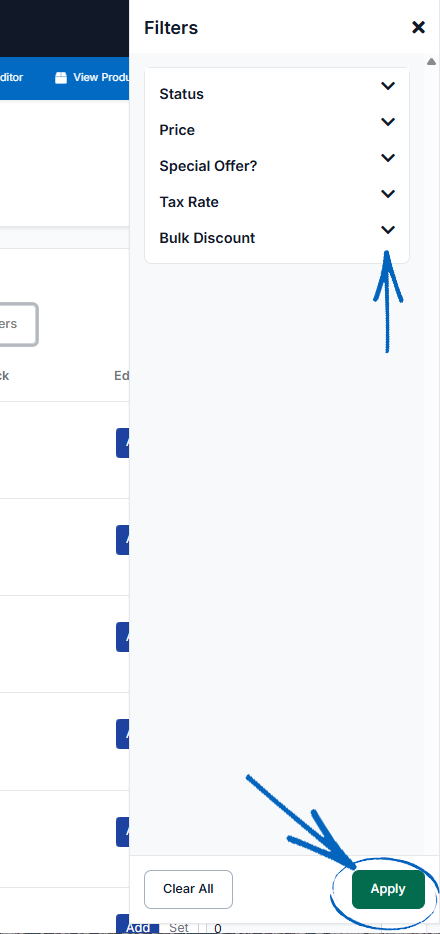
- Status - Choose between Live and Hidden products.
- Categories - Tick the relevant box to see all of the products listed within one particular category.
- Price - Use the fields provided to select products priced between two given values;
- Brand - If you have installed the Product Attributes feature and added Brand to some or all of your Products, you can tick the box next to each Brand name to view products tagged with that particular Brand attribute in your search results.
- Special Offer? - If you have created a number of Featured Products on your EKM online shop, you can tick the relevant box to decide whether you want to view products on special offer or products excluded from it.
- Condition - If you have installed the Product Attributes feature and added Condition to some or all of your Products, you can tick the relevant box to decide the condition of the products in your search results.
- Product Code - If you have installed the Product Attributes feature and added Product Code to some or all of your Products, you can use the field to add in the first few digits of a product code to locate all items whose Product Code begins with those given characters;
- Tax Rate - If the products on your EKM online shop have different tax rates applied to them, you can tick the relevant box to display items within a specific tax band.
- Weight - If you have installed the Product Attributes feature and added Weight to some or all of your Products, you can use the provided fields to search for items with a specific weight.
- Bulk Discount - Here, you can tick the relevant box to filter items eligible for Bulk Discounts.
- Custom Attribute - If you have installed the Product Attributes feature and added a Custom Attribute (such as Colour, EAN, GTIN, SKU, MPN or similar) to some or all of your Products.
When you have filtered your products down to display the items you would like to amend the stock of, you can then manage your stock.
Adjusting your Stock
8. You’ll notice on the right-hand side of each product, there’s a field with Edit and Set buttons, which you can click to highlight: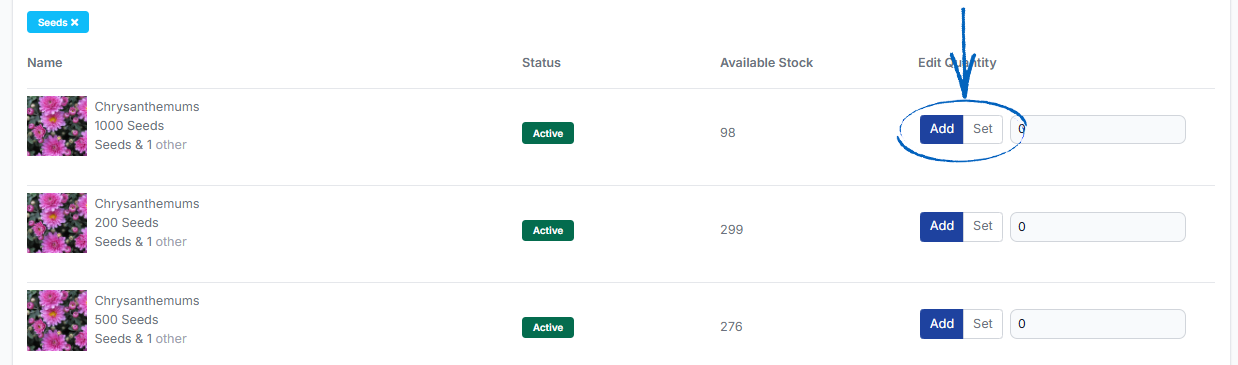
Adding Stock
9. Click the blue Add button to highlight it, enter the number of units in the field provided (by typing or using the arrows), If you want to add to your existing stock, you simply need to click the blue Add button to highlight it, add the number of units in the field provided (by typing into the field or using the arrows provided), and then click the green Save button in the bottom right-hand corner. The number you dictate in the field will be added to the number of existing units, as indicated in the Available Stock column: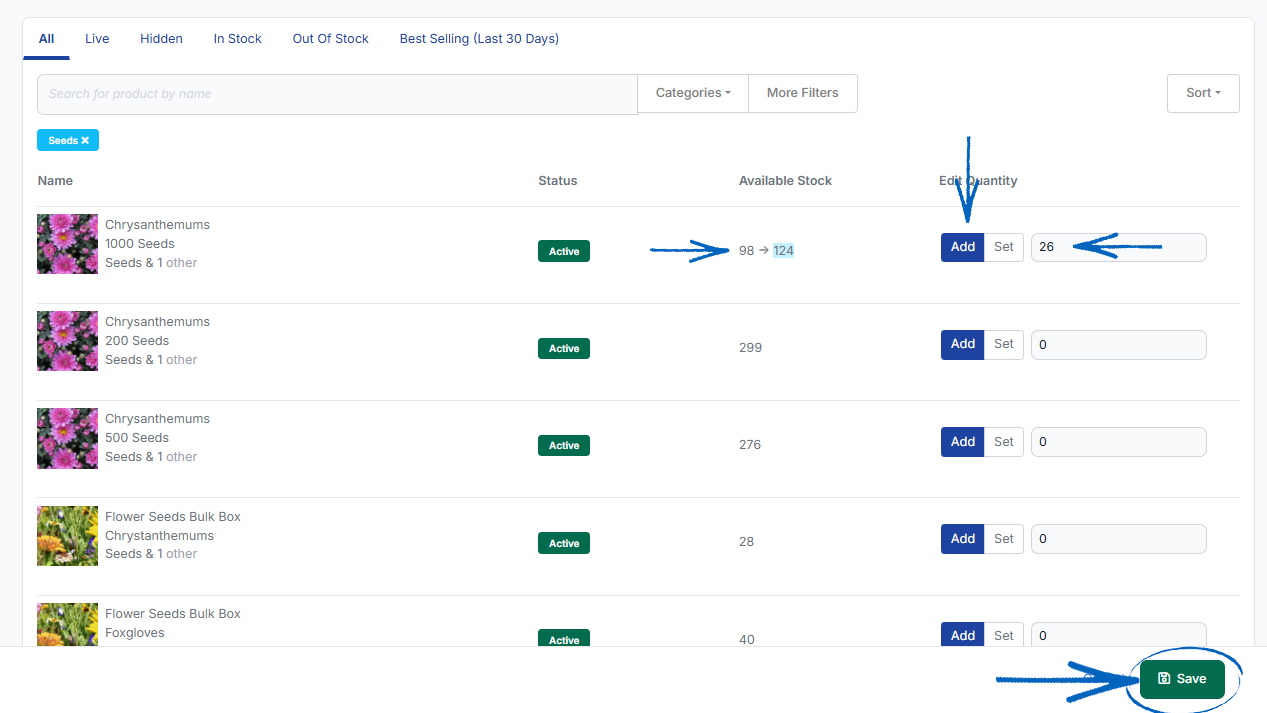
You can perform this action on multiple products at once.
Subtracting Stock
10. If you need to subtract stock, which can sometimes be the case after a stocktake of your physical products, you need to click the blue Set button, add the updated product count to the field provided and then the green Save button in the bottom right-hand corner: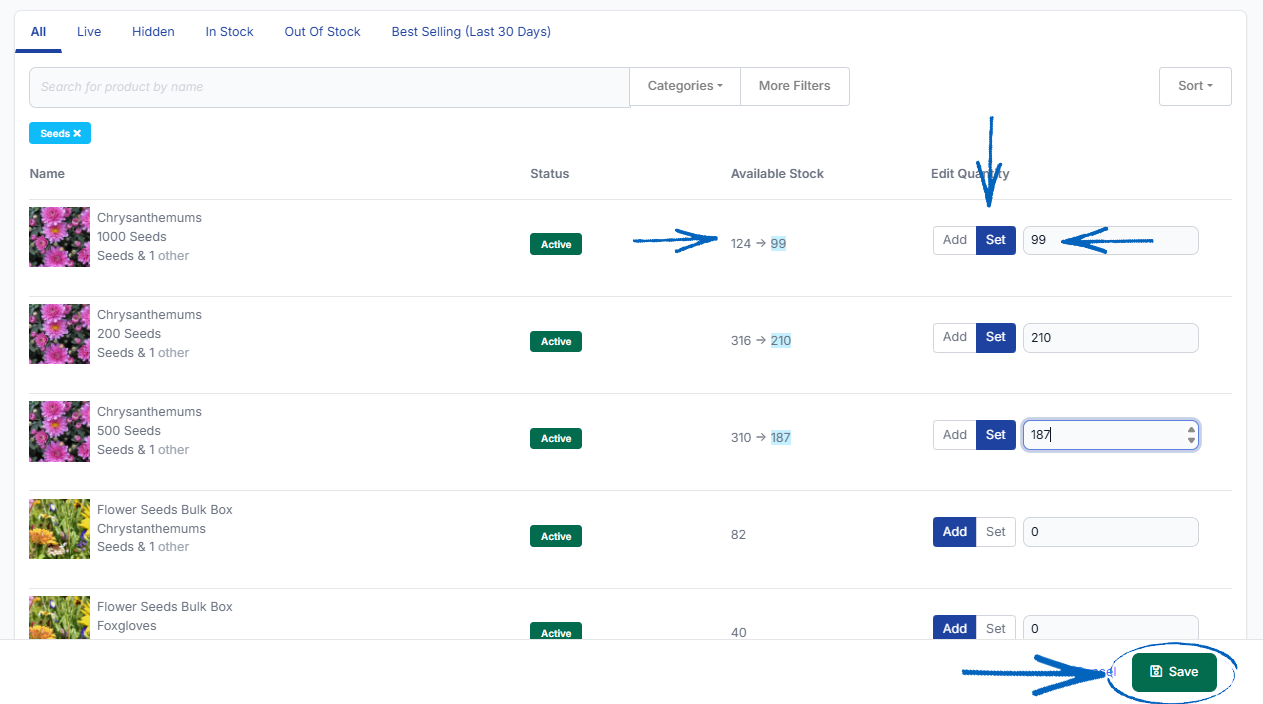
[remember]If you must amend the stock levels of lots of different product lines all at once, it may be quicker to use the Import/Export System feature and spreadsheets, by following the steps in this guide. [/remember]
[more]
- Inventory Manager
- Using the Bulk Editor in Inventory Manager
- Inventory Manager - Increase/Decrease Prices
- How to create a Product using Inventory Manager
- How to create Categories and Subcategories using Inventory Manager
- How to Delete Products using Inventory Manager
[/more]
[contact]If you need our help with your EKM online shop, contact your Ecommerce Expert, Account Manager, or the Customer Support Team, who can point you in the right direction. Our opening hours are 9 am - 5.30 pm Monday to Friday, for telephone calls, live chats, and emails. Outside of these hours, you can leave a message for us in the live chat window or email support@ekm.com, and we will answer as soon as possible. If you'd like to suggest a feature or an upgrade on any of the EKM platforms, please let us know on the EKM Suggestions Board. [/contact]