
[warning] The Inventory Manager feature has been discontinued. Please use the Product & Category Manager, accessible using the Products tab on the left-hand side menu. [/warning]
[intro]Here you can learn how to open the Add/Edit Product window in the Inventory Manager. Using the Add/Edit Product window here is most beneficial when you need to add multiple Products at once. [/intro]
[remember]Before you begin this Guide, you need to ensure that you have installed the Inventory Manager feature on your EKM online shop. [/remember]
1. From the Dashboard, click the Features tab: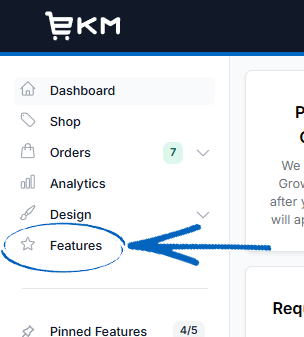
2. Within Installed Features, click on the Inventory Manager icon to open it: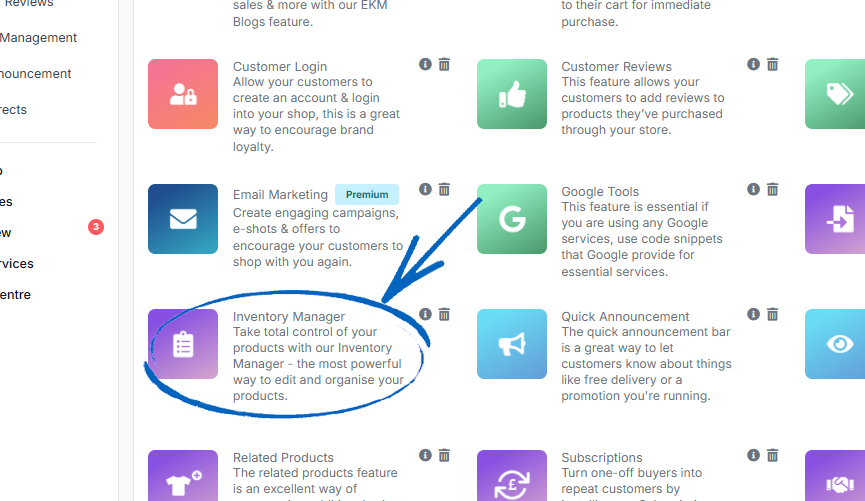
3. Click the Add Product button in the top right-hand corner: 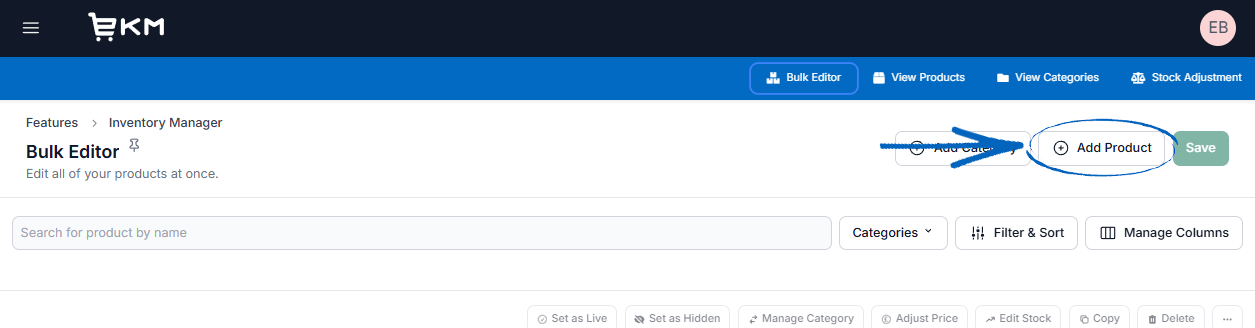
4. Now you need to add the Product Name and Description into the fields provided: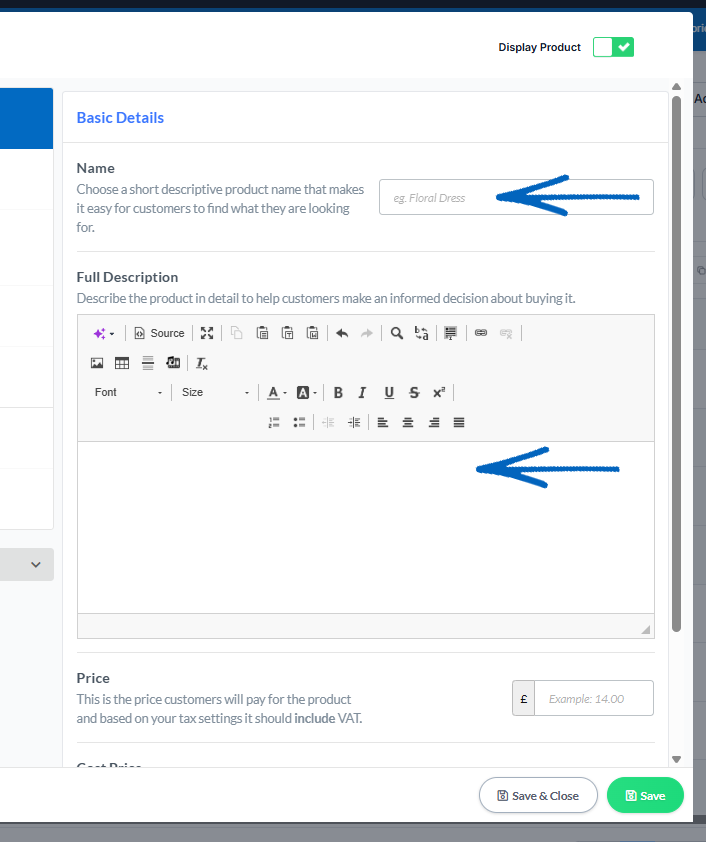
[tips]If your new product has Variants - so it is available in more than one size, colour or pattern, click below to learn how to build these onto your new product:
- Colour Variants - For items available in specific colours;
- Pattern Variants - For items available with different styles and designs;
- Size Variants - For items available in specific sizes;
- Drop-down Variants - for custom Variants for your Products.
[/tips]
5. Scroll down and give the new product a price before clicking the More Options tab on the left-hand side: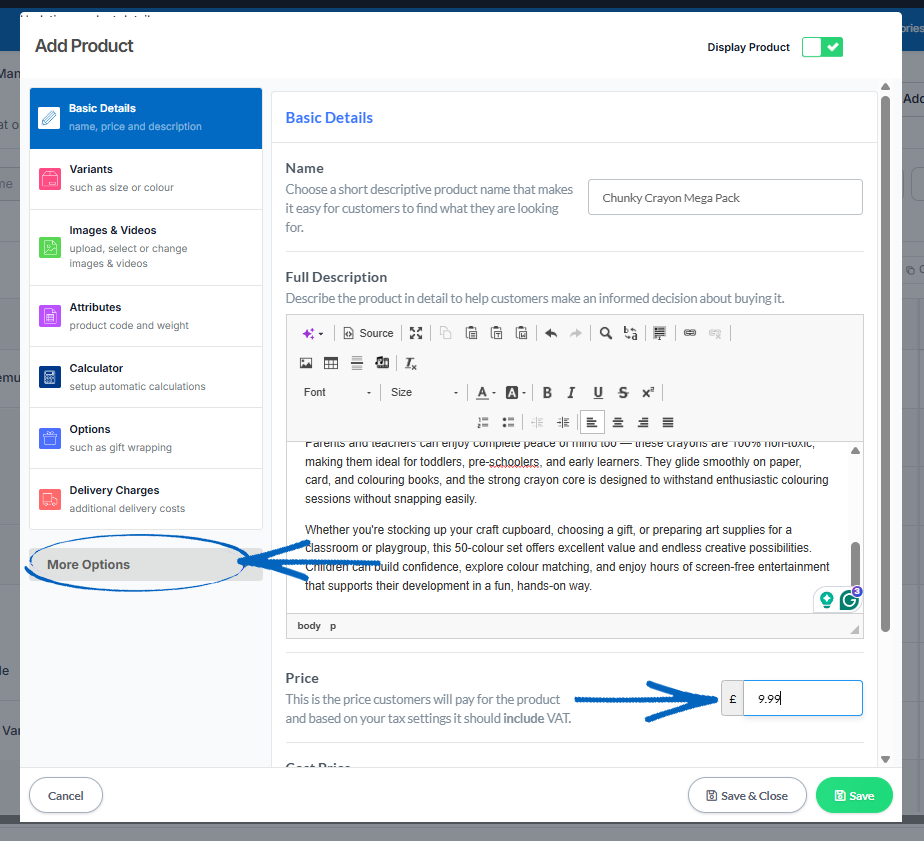
6. Click Category Management: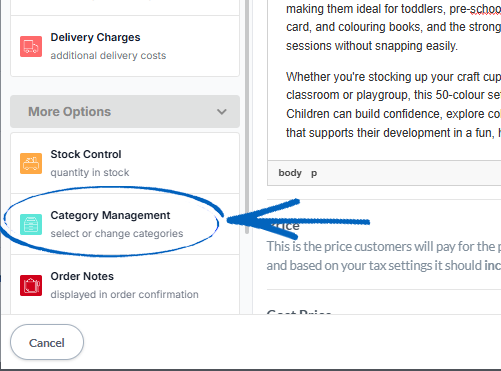
7. Click the Change button on the right-hand side: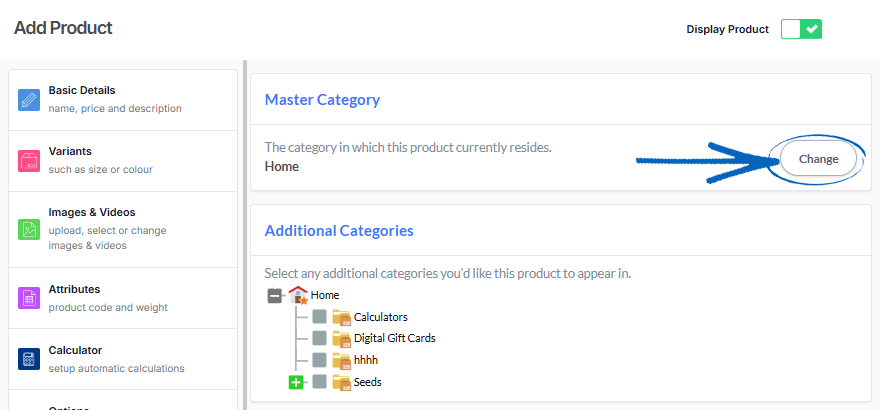
8. Select from the list of Categories on your EKM online shop where you would like this product to display by ticking the relevant folder symbol to highlight it. Remember, you can click the green cross symbols to reveal any Subcategories within a main Category: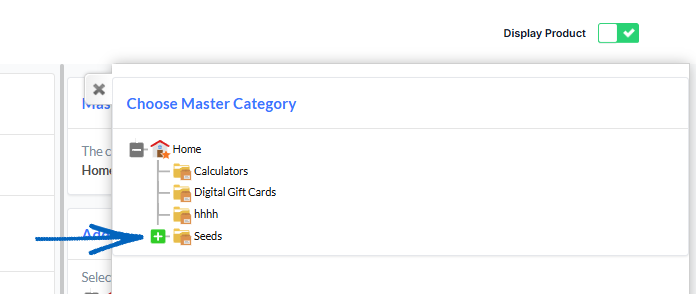
[tips]Remember, you can have a Product display in more than one Category at once, which will increase its exposure. To add your product to an additional Category, repeat this in the Additional Categories element. Click here to learn all about Category Management. [/tips]
9. Then you need to click the Save & Close button on the bottom right-hand side: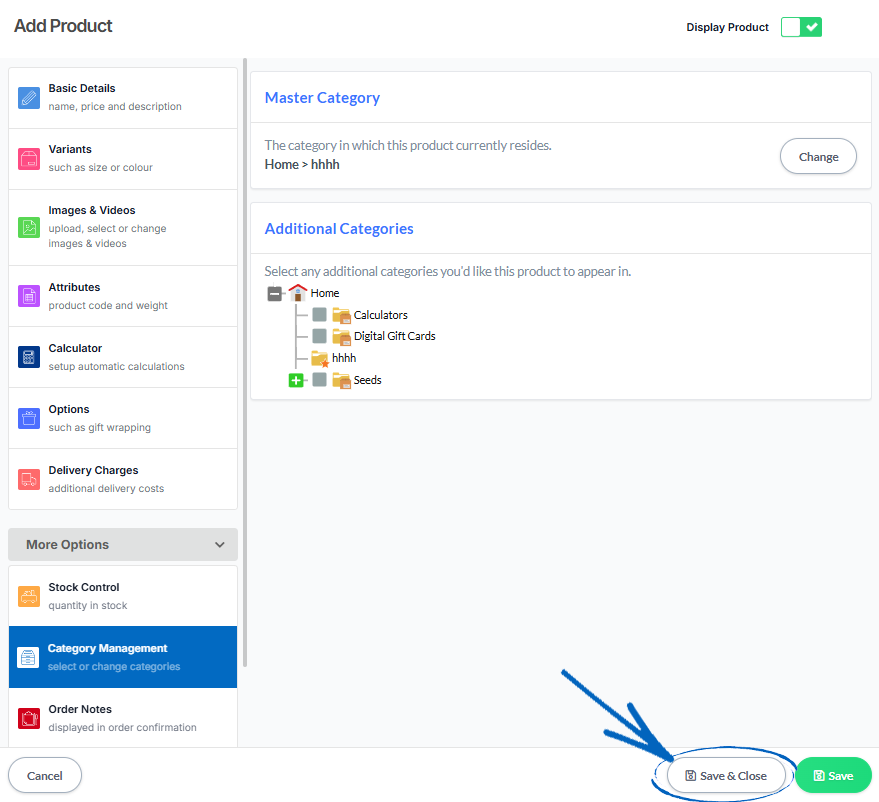
[tips]If you have already prepared some Product Images for your new product or need to learn about the Add/Edit Product window in more detail, you can do so by reading this guide. [/tips]
[remember]If you have even more Products that you want to add all at once, the quickest way to do this is by using the Import/Export System feature and spreadsheets, so you can add the details of each item and upload them to your EKM online shop in one go. To do this, follow the steps in this guide. [/remember]
[more]
- Inventory Manager
- Using the Bulk Editor in Inventory Manager
- Inventory Manager - Increase/Decrease Prices
- Adjusting your Stock using Inventory Manager
- How to create Categories and Subcategories using Inventory Manager
- How to Delete Products using Inventory Manager
[/more]
[contact]If you need our help with your EKM online shop, contact your Ecommerce Expert, Account Manager, or the Customer Support Team, who can point you in the right direction. Our opening hours are 9 am - 5.30 pm Monday to Friday, for telephone calls, live chats, and emails. Outside of these hours, you can leave a message for us in the live chat window or email support@ekm.com, and we will answer as soon as possible. If you'd like to suggest a feature or an upgrade on any of the EKM platforms, please let us know on the EKM Suggestions Board. [/contact]