
[intro] When you have completed this Guide, you will have opened a Google Tag Manager account linked to your EKM online shop on G4A. [/intro]
[caution]Before you begin this Guide, you must have completed the steps within this Guide first. [/caution]
For GA4 to monitor traffic on your EKM online shop, you will need to create, configure and add Google Tags. To do this, you’ll need to follow the steps below and open a Google Tag Manager account. If you already have a Google Tag Manager account, skip to step 3.
1. Click the name of your EKM online shop in the top left-hand corner: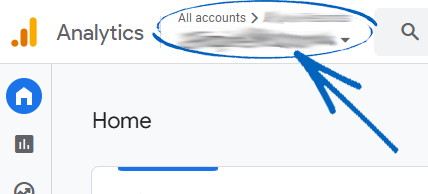
2. Click the square Google Tag icon: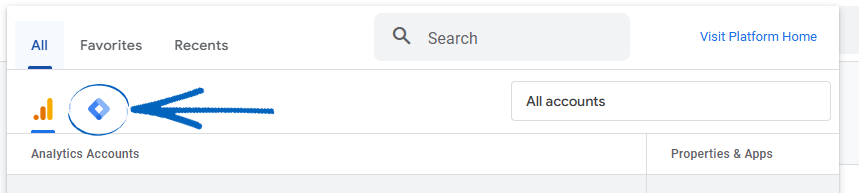
3. If you have previously opened a Google Tag account, click Visit Platform Home in the top right-hand corner. If you are entirely new to the Google Tag platform, click Get Started: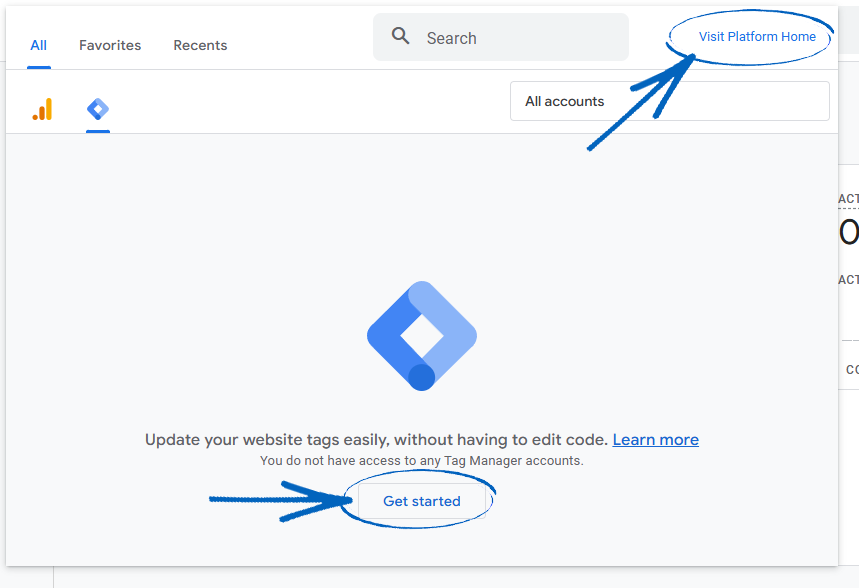
4. Within your Google Tag account, click Create Account: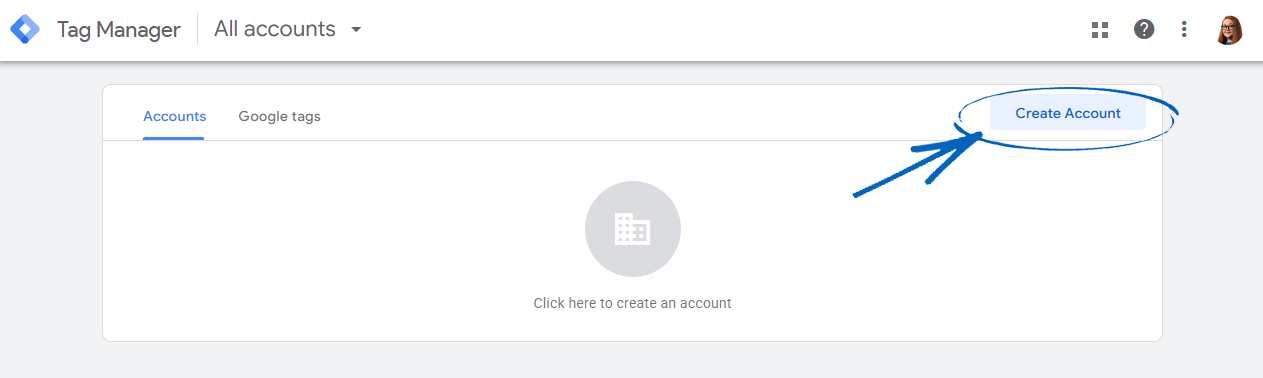
5. Now you need to complete the fields provided before clicking the Create button in the bottom left-hand corner: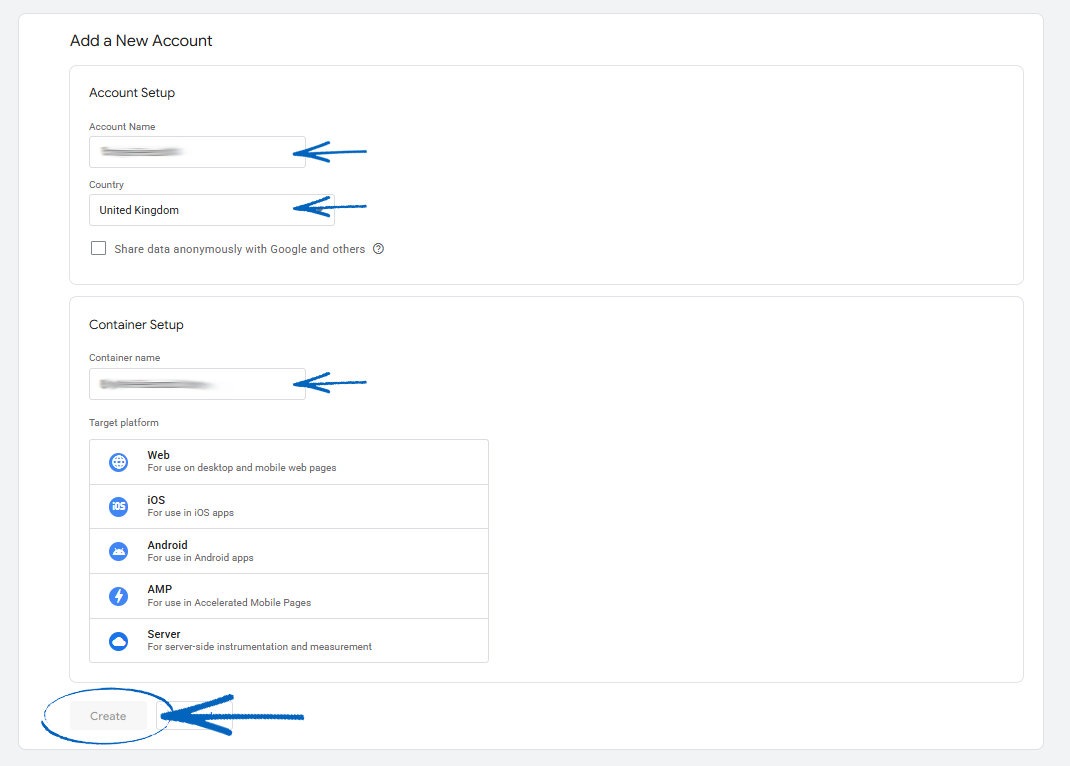
6. A menu of terms will appear. Tick the box at the bottom, and then the blue Yes button in the top right-hand corner: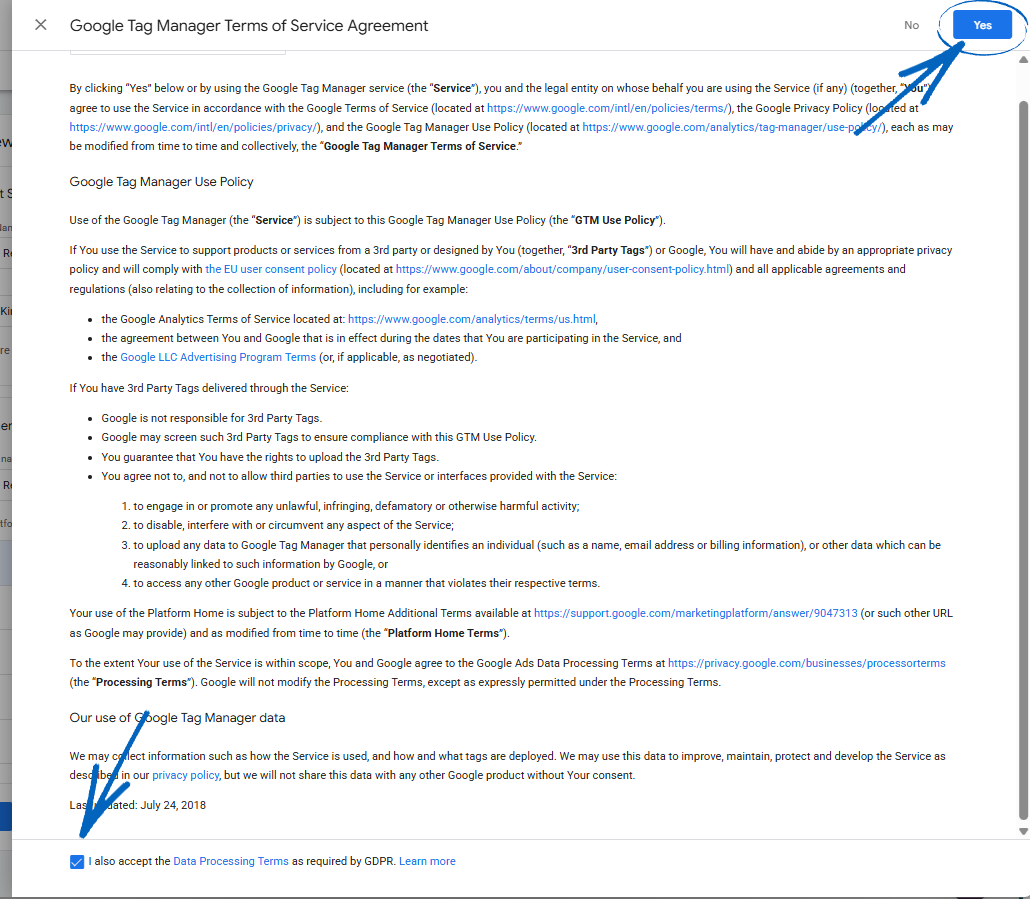
7. You’ll now see a window appear, holding two pieces of code. Copy these onto a Notepad (.txt) file, or if you’re using a Mac, use TextEditor: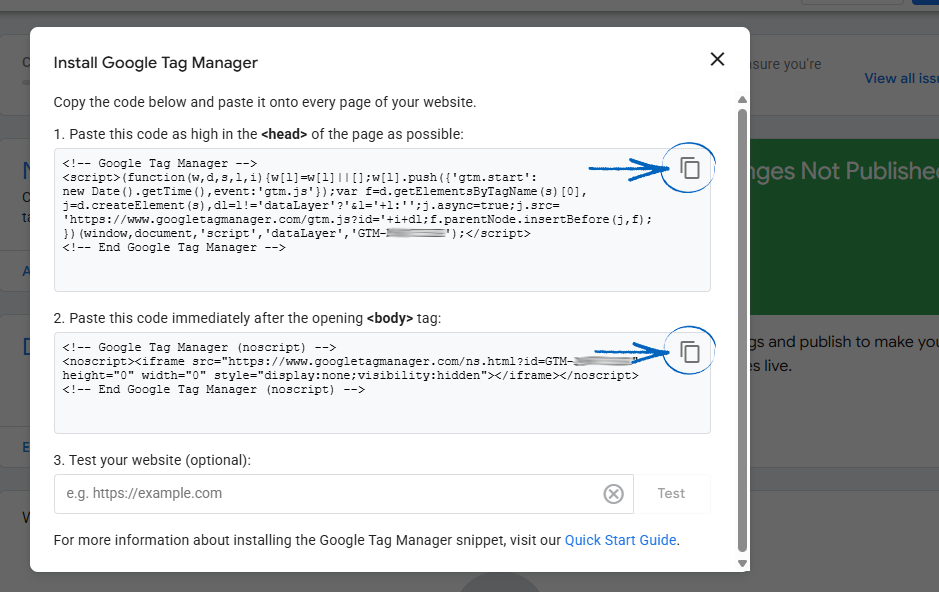
8. On a separate browser tab, log in to your EKM online shop. From the Dashboard, click Design on the left-hand menu: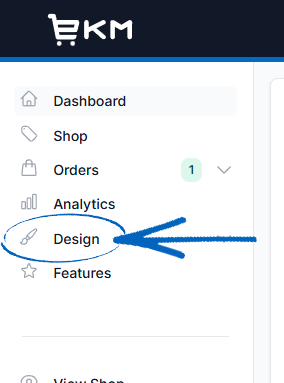
9. Then click Edit in the bottom left-hand corner: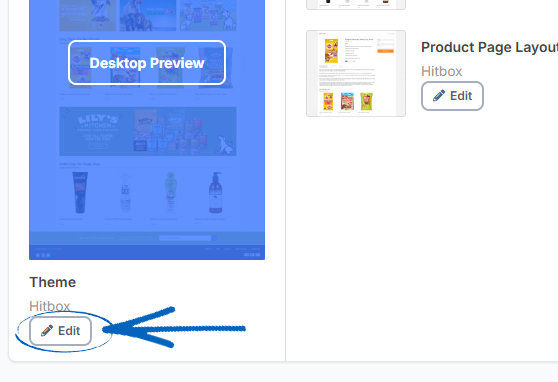
10. Click Inject Custom Code from the drop-down menu: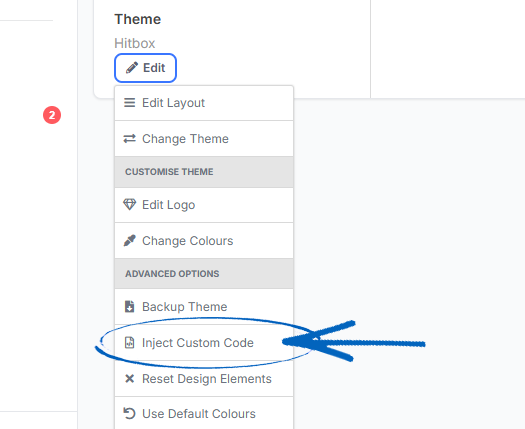
[remember]If you don't see a More Actions button on the left-hand side, click the Edit button that will be in that area instead, select Advanced Options and then Inject Custom Code. [/remember]
11. Scroll down to the After <body> Code field and paste in the smaller piece of code from your Google Tag account, before clicking the green Save button in the bottom right-hand corner: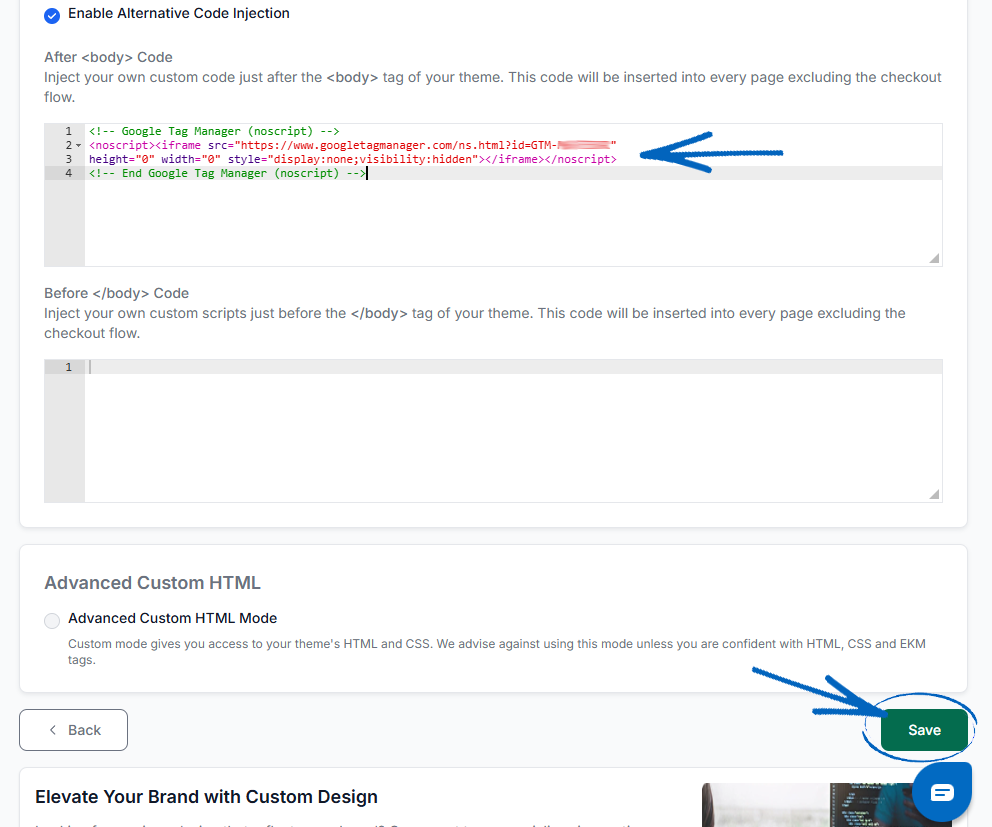
12. Now you need to open the Google Tools feature on your EKM online shop. Scroll to the top of the page and click Features on the left-hand side menu: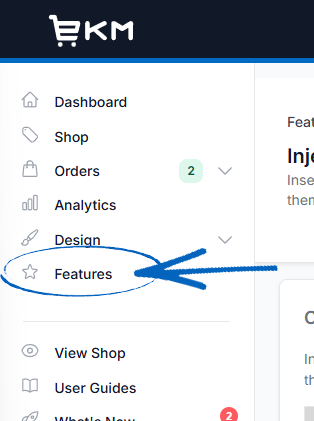
13. On the Features page, click Google tools: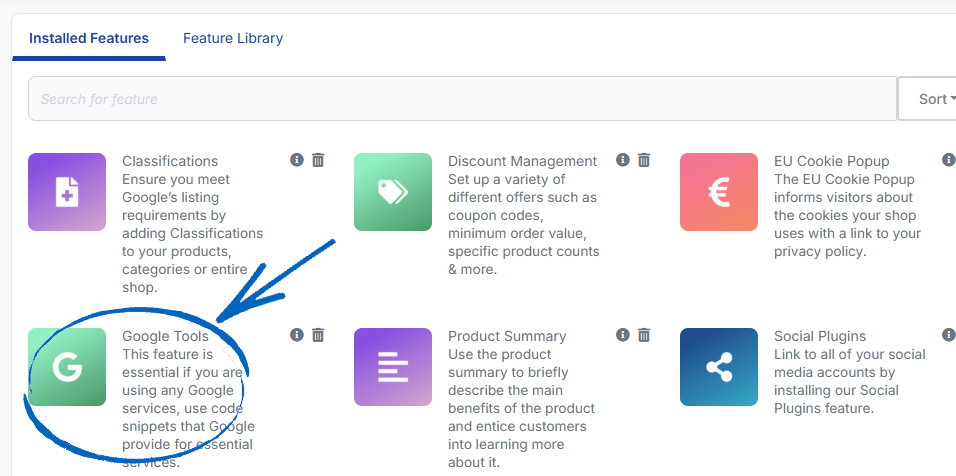
14. Now you need to paste the larger piece of code from your Google Tag account in the Google Analytics Tracking Code field, below any existing code, before clicking the green Save button in the bottom right-hand corner: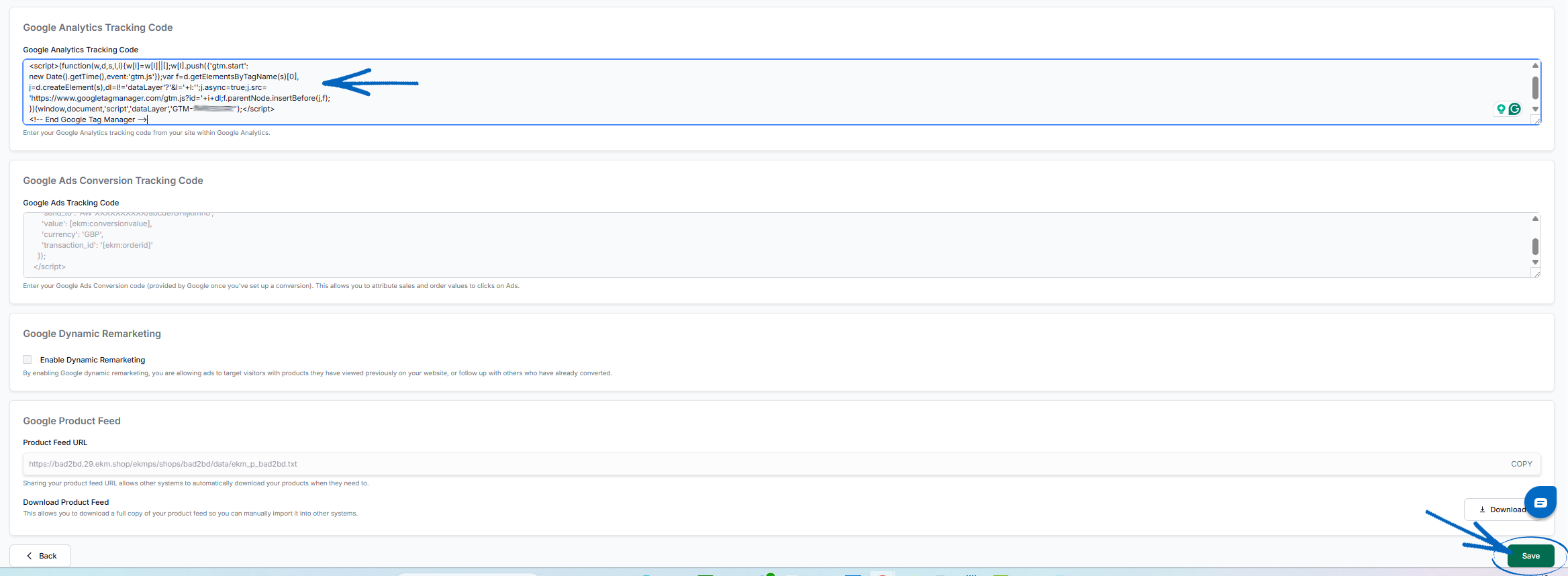
15. Return to the browser tab displaying Google Tag Manager and add your domain name to the Test Your Website field, before clicking the Test button: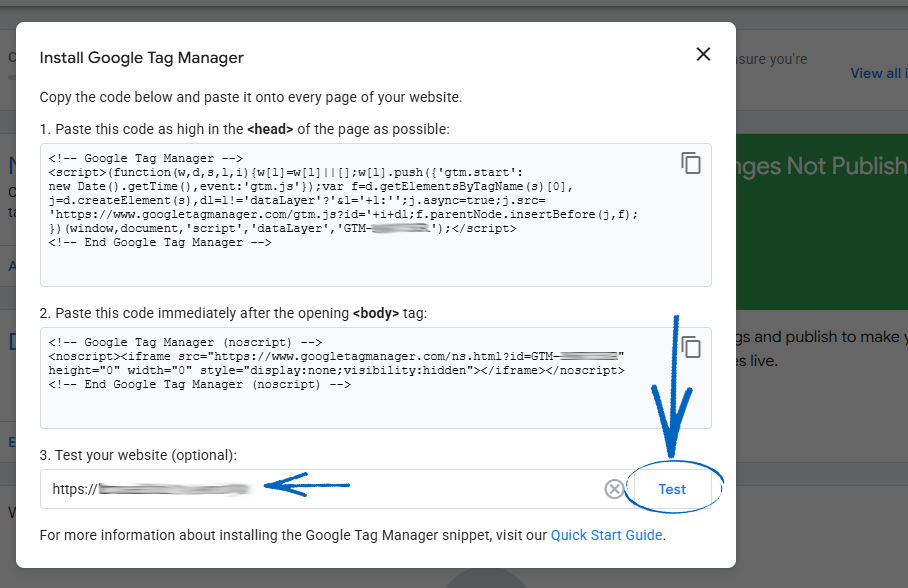
16. You should then see a green tick symbol on the left-hand side. Click the X in the top right-hand corner of this window to close it down: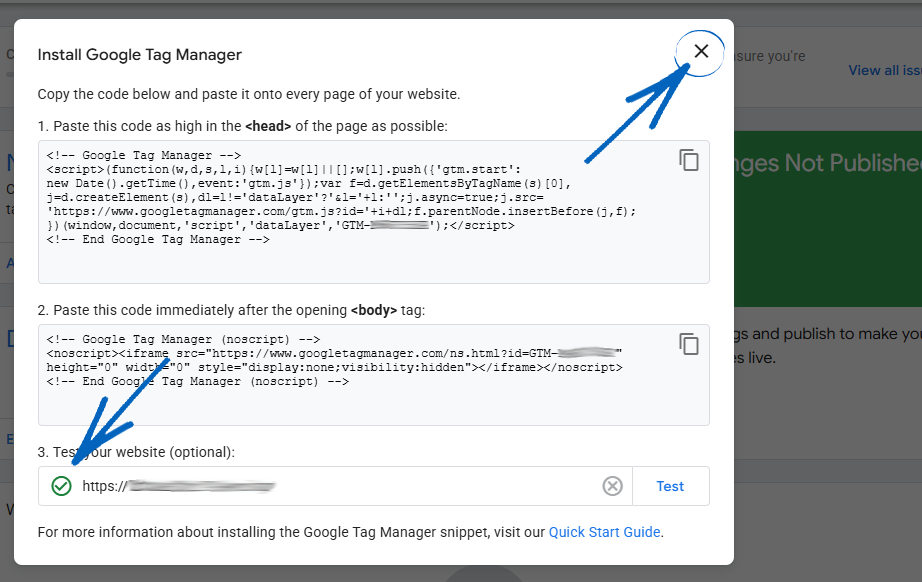
17. Now that you have created a Google Tag Manager account, your next step is to make the Google Tags required to submit data to GA4. To do this, follow the steps in this Guide.
[caution]When you install GA4 and GTM, you must use the EU Cookie Bar feature and amend the text on your Privacy Policy to advise that you are using tracking cookies on your EKM online shop, in accordance with GDPR legislation.[/caution]
[contact]If you need our help with your EKM online shop, contact the Customer Support Team, who can point you in the right direction. Our opening hours are 9 am - 5.30 pm Monday to Friday, for telephone calls, live chats, and emails. Outside of these hours, you can leave a message for us in the live chat window or email support@ekm.com, and we will answer as soon as possible. If you'd like to suggest a feature or an upgrade on any of the EKM platforms, please let us know on the EKM Suggestions Board. [/contact]