
[intro]In this Guide you can learn how to install and configure the EKMPay Payment Gateway onto your EKM online shop. Accept credit card payments easily and safely on your EKM online shop with EKMPay. [/intro]
[summary]
[/summary]
[caution]Before you begin this Guide, you need to ensure that you have pointed a domain name at your EKM online shop. You can get a free domain name from EKM Domains, or point an existing domain with another provider to your EKM online shop. [/caution]
[remember] If your EKM online shop sells:
- Weapons
- E-cigarettes and Vaping products
- Products containing CBD
- Products classed as 'legal highs'
You will be unable to use the EKMPay Payment Gateway and will need to use an alternative. If you speak to our Customer Support Team, they will be able to advise an alternative for you. [/remember]
Adding EKMPay
1. From the Dashboard, click Settings at the bottom of the left-hand menu:
2. On the Settings page, you need to click Payments on the left-hand side:
3. On the Payments page, click Learn More to begin the process of adding the EKMPay Payment Gateway to your EKM online shop: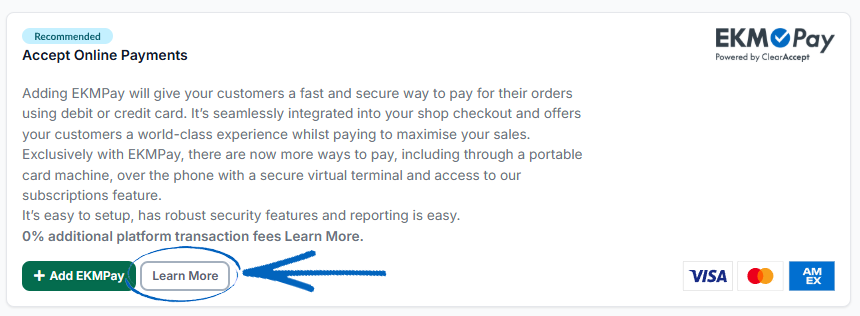
4. You’ll then be redirected to this page. Click the green Sign Up Now button: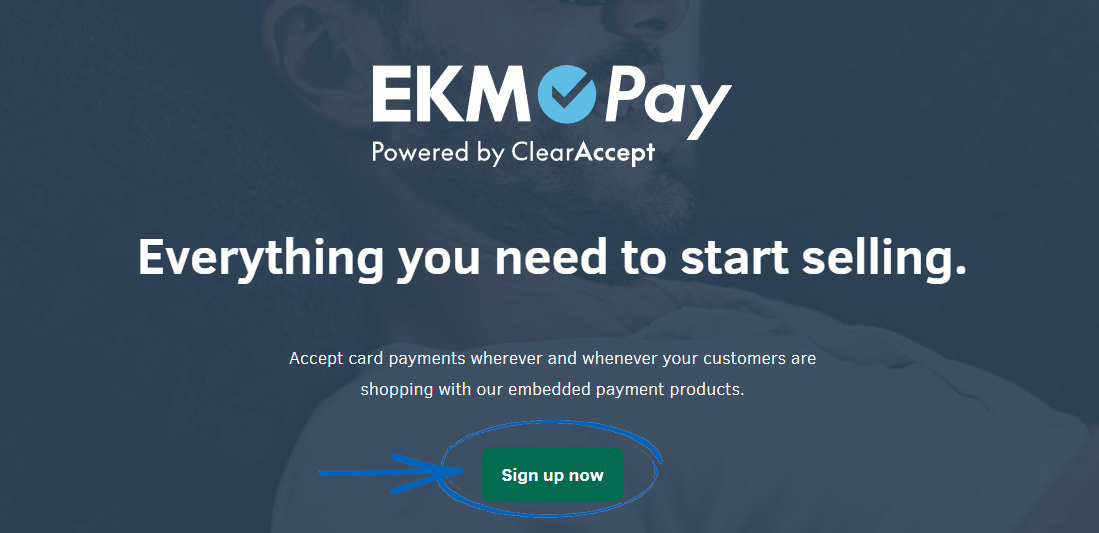
5. Complete the fields on this page before clicking the blue Sign Up button: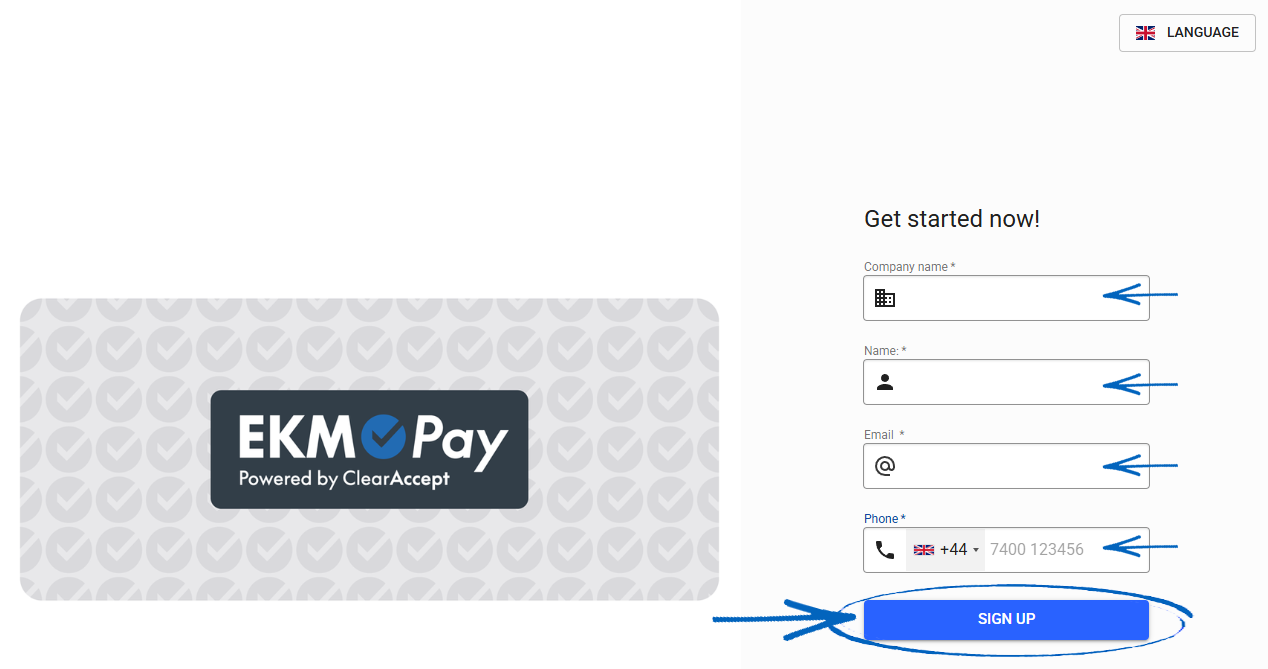
6. Your next step is to wait for contact from the Payments Team to contact you. They will take you through the application process and activate the EKMPay Payment Gateway on your EKM online shop. When your account has been created, you'll need to return to the Settings > Payments page of your EKM online shop and click Add EKMPay:
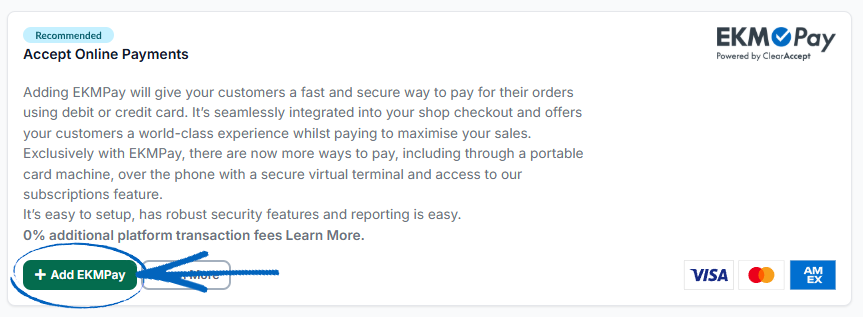
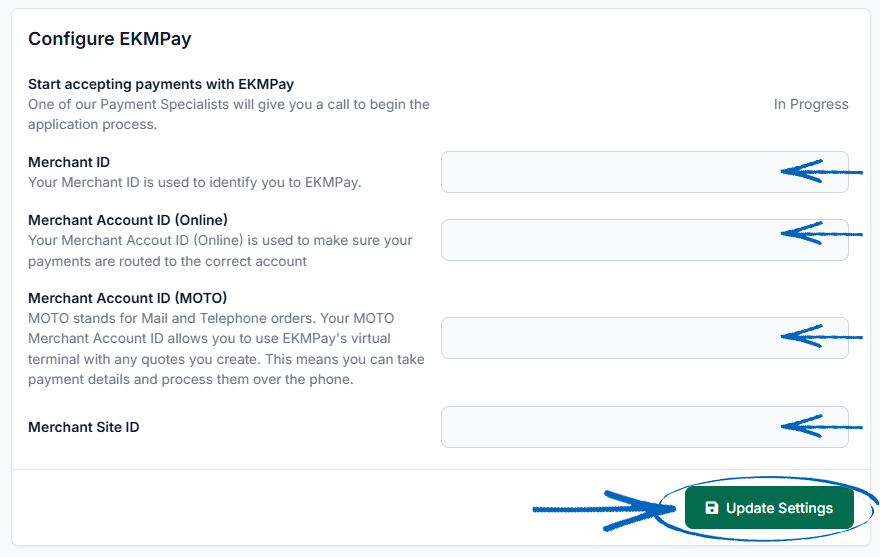
7. You'll then need to complete the fields here with the details for your new EKMPay/ClearAccept account, before clicking the green Update Settings button on the right-hand side:
The EKMPay/ClearAccept Portal
During onboarding, you will have received an email from ClearAccept with instructions for setting up your user account. This email includes a temporary password that expires within 72 hours. If you have forgotten your login details, use the ‘Forgotten password?’ option on the login screen. You will be emailed reset instructions will be emailed to them.
When your EKMPay account has been created, you'll use the ClearAccept Portal to manage your payments. The Portal allows you to run reports, perform reconciliation, monitor transactions in real time, view pay out batches, and export data in CSV format.
[remember] To log into the ClearAccept Portal, click here, and to view a guide for the ClearAccept Portal, you need to click here.
[/remember]
For security reasons your portal user account will lock after 45 days of inactivity. To avoid this, please ensure you log in regularly and within the 45 day timeframe. Please contact the ClearAccept Support team to have your user account unlocked.
Adding ApplePay
Apple Pay is a digital wallet that allows customers to securely store their payment cards on an Apple device. Customers can then pay in person or online using the cards stored in their wallet, authenticating payments quickly and securely using their device.
How Does Apple Pay Work?
When a card is added to an Apple Pay wallet, Apple tokenises the card. The real card number is not stored. Apple generates a Device Payment Account Number (DPAN), which is mapped to the real card number. When a customer chooses to pay with Apple Pay, Apple returns an encrypted token to the merchant. This token contains the DPAN and all information required to process the payment. The merchant passes this token to their Payment Service Provider. The payment is processed like any other card transaction. An authorisation request is sent to the card schemes (e.g. Visa), who route it to the card issuer (e.g. Barclays). The issuer decides whether to approve or decline the transaction.
How Does the Customer pay via Apple Pay?
Merchants who accept Apple Pay will have an Apple Pay button on their checkout page. Customers using an Apple device will see the Apple Pay button when visiting the page. When the customer selects the Apple Pay button, the Apple Pay Payment Sheet appears, showing the cards stored on their device. The customer selects a card and authenticates using Touch ID or Face ID.
[tips] Click here to read the ApplePay FAQs. [/tips]
1. When EKMPay has been added to your EKM online shop, you can add ApplePay so your customers can complete their orders using their Apple devices. To do this, return to the EKMPay settings page and scroll halfway down to find the ApplePay toggle switch:
2. Click the switch to turn on the ApplePay functionality, and then click the Update Settings button on the right-hand side to save your changes:
Frequently Asked Questions
How are my EKMPay/ClearAccept transaction fees charged?
EKMPay/ClearAccept offers Net settlement as standard. Net settlement means transaction fees are deducted before funds are paid out to you. You will receive a monthly invoice for your records showing these fees.
Net settlement provides simpler and more efficient reconciliation. The funds received in your bank account always reflect your available cashflow, and detailed reporting of sales, fees, and pay outs is available in the EKMPay/ClearAccept Portal. Gross settlement means transaction funds are paid to you in full, with no fees deducted in advance. You will receive a monthly invoice for the fees, which you will need to pay separately. To request gross settlement, contact support@clearaccept.com. Your request will be reviewed and the outcome communicated to you. The request must be submitted by the main contact on your merchant account.
How do I process a refund for a payment received via EKMPay/ClearAccept?
You can process refunds through your EKM online shop, by following the steps in this guide. Refunds cannot be processed via the EKMPay/ClearAccept Portal, as the Portal is for reporting purposes only. If you are unable to process a refund through your software platform, contact EKM's Customer Support Team for your issue to be investigated further. Refunds will appear in the Transactions tab of the EKMPay/ClearAccept Portal. When a refund is processed, the amount is deducted from the balance of funds due to be settled to you. If you refund more than the balance available, no further settlements will be paid until the balance becomes positive again. This can be achieved either by processing additional transactions or by making a bank transfer to EKMPay/ClearAccept to clear the negative balance.
When can I expect to receive funds for payments received via ClearAccept?
When you joined EKMPay/ClearAccept, your settlement schedule was set to either T+3 or T+1.
T+3 is the standard settlement schedule and means you will receive your transaction funds 3 working days after the transaction is processed.
T+1 means you will receive your transaction funds 1 working day after the transaction is processed. There is a £3.99 + VAT monthly fee for T+1 settlement. To apply for T+1, email support@clearaccept.com. This request must be submitted by the named contact on the merchant account.
EKMPay/ClearAccept settles funds on the agreed dates; however, due to internal and external factors, we cannot commit to a specific settlement time. Settlements are always sent as early as possible each day. Please note that EKMPay/ClearAccept does not pay out on weekends or bank holidays.
Will ClearAccept send me invoices?
Invoices for ClearAccept fees are emailed monthly before the 10th, covering the previous month’s transaction fees. Any additional charges are listed in the invoice description. If your fees are taken via net settlement, the invoice is for your records only and no action is required. If you receive gross settlement, the invoice must be paid by the due date shown. To set up a direct debit for these payments, contact support@clearaccept.com.
Each invoice represents a full calendar month. For example, an invoice sent in early February covers fees from 1–31 January. To update the email address used for invoice delivery, email support@clearaccept.com. The request must come from the main contact on the merchant account. If you transact in Euros, your fees and settlements are handled by Worldline. Full reporting is available via the Worldline Portal, and assistance is available at aquiringsupport@worldline.com.
How do I identify why a transaction was declined?
If a transaction has been declined, further information can be found in the ClearAccept Portal. Locate and open the relevant transaction or refund to view the details. In the ‘Declined By’ field, you will see either Processor or Gateway:
- Processor indicates the cardholder’s bank has declined the transaction. The cardholder will need to contact their bank for more information.
- Gateway indicates ClearAccept has declined the transaction.
The ‘Decline Reason’ field will provide clarification, and you can contact the ClearAccept Support team if you need further guidance. Common bank issued reasons include insufficient funds, an expired card, or a security concern. A decline reason of ‘3DSecure authentication failed’ means the cardholder did not successfully complete 3DSecure authentication. All ecommerce transactions processed via ClearAccept must pass 3DSecure to be successful. A decline reason of ‘AVS Mismatch’ indicates that the billing address provided does not match the address registered to the card. Cardholders may enter an alternative address for reasons such as delivery to work, university, or a family member. If you have concerns about a transaction, you can carry out further due diligence by contacting the customer, confirming the reason for the address difference, verifying that billing and shipping addresses match, or requesting ID. For additional guidance on fraud prevention, click here.
[remember]You will need your Merchant ID when contacting the ClearAccept team to help them quickly locate your account details. [/remember]
What to do When a Chargeback or Dispute is Raised
When a cardholder disputes a transaction, ClearAccept receives notification from the issuing bank via our acquiring partner, Worldline, including the reason for the chargeback. The funds are then debited from the merchant account and returned to the issuing bank, who refunds the cardholder.
If you disagree with the chargeback, ClearAccept can dispute it on your behalf. You must provide supporting documentation, which will be submitted to the acquirer and the issuing bank for review. If the issuing bank accepts the supporting evidence as sufficient, the funds will be returned to the merchant account and will appear in their processing funds.
How to Update the Bank Account Details on Your ClearAccept Account
To update the bank account used for ClearAccept settlements, email support@clearaccept.com with a copy of a recent bank letter or bank statement. The document must:
- Be dated within the last 3 months.
- Show the full bank account name, sort code, and account number.
- Belong to the account you want ClearAccept to use for settlements.
You may redact any transaction information. ClearAccept only uses the document to verify that the nominated bank account belongs to you.
Euro Settlement Accounts
If you receive settlements in Euros, your bank details are managed by ClearAccept’s acquiring partner, Worldline. To update these details, you need to download and complete the Worldline account change form, before emailing it to support@bambora.com.
How to Update the Contact Details on Your ClearAccept Account
To request changes to contact details on your merchant account (eg, named contact, email address, registered address) send the request to support@clearaccept.com. The request should be submitted by the named contact on the account. The request will be reviewed and the outcome will be communicated to you.
How to Cancel Your ClearAccept Account
To cancel your merchant account, email your request to support@clearaccept.com and include the following information:
- Merchant ID
- Main contact name on the account
- Trading address
- Your contact number
- Preferred time for us to call you
- Reason for cancellation
The request must be submitted by the named contact on the merchant account.
How to Submit a Complaint to ClearAccept
To submit a complaint, please contact the Support team at support@clearaccept.com or call 0207 1862 186. Our Support team will arrange for your complaint to be handled by our Customer Success Team. When submitting a complaint, please provide as much detail as possible and let us know your expected outcome. Click here to read the ClearAccept Complaints Policy.
Contacting EKMPay/ClearAccept
You can easily contact the EKMPay/ClearAccept team directly, via email: support@clearaccept.com, and you can call them on 020 7186 2186. The EKMPay/ClearAccept team are available:
- Monday-Friday: 8am - 6pm
- Saturdays: 9am - 6pm
- Sundays: 10am - 5pm
- Bank Holidays: 10am - 5pm
You can find the EKMPay/ClearAccept Resource Centre here.
[tips]
How to Suggest A New Feature for EKMPay/ClearAccept
You can suggest a new feature or functionality for EKMPay/ClearAccept, including ideas relating to how your customers pay, how you are paid, reporting and reconciliation improvements, or wider business and operational enhancements, by clicking here. [/tips]
[more]
[/more]
[contact]If you need our help with your EKM online shop, contact the Customer Support Team, who can point you in the right direction. Our opening hours are 9 am - 5.30 pm Monday to Friday, for telephone calls, live chats, and emails. Outside of these hours, you can leave a message for us in the live chat window or email support@ekm.com, and we will answer as soon as possible. If you'd like to suggest a feature or an upgrade on any of the EKM platforms, please let us know on the EKM Suggestions Board. [/contact]