
[intro]The settings on your Cart page govern the quality of your customer’s experience using the Cart on your EKM online shop. In this Guide, you can find out what these settings correspond to and how to set them up effectively.[/intro]
Locating the Cart page
1. From the Dashboard, click the Settings tab:
2. You then need to click Cart on the left-hand side, beneath Shop Settings:
3. This will reveal the Cart page: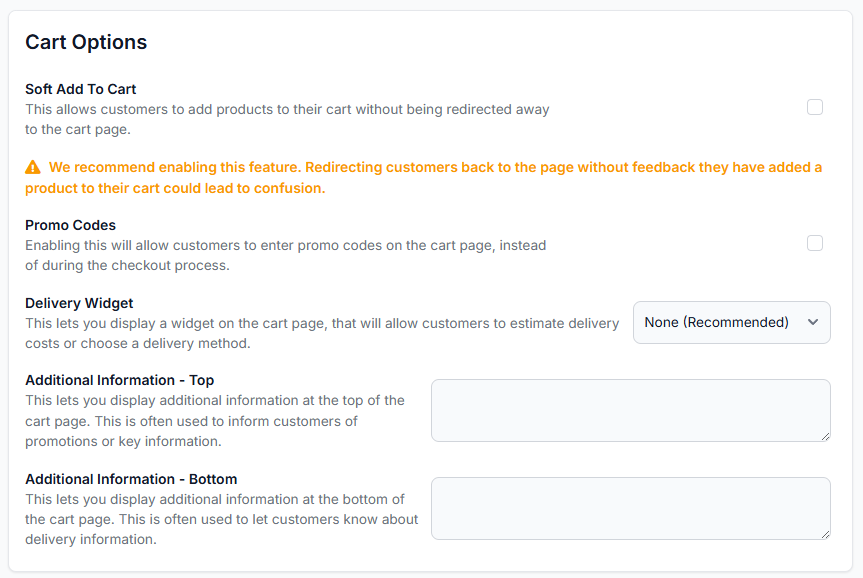
Soft Add to Cart
By ticking this box, it ensures that customers can add Products to their Cart directly from the Category Pages of your EKM online shop, without them being redirected to the Product Page instead. This encourages customers to add several items to the Cart at once directly from the Category, making their shopping experience faster and easier for them. However, if you leave this box unticked, you can decide where to redirect users to, using the Redirect Settings further down the page.
Promo Codes
If you regularly offer discounts triggered by coupon codes on your EKM online shop, you may want to tick this box to ensure that customers can add them on the Cart page so they can see the savings they will make, further encouraging them to enter the Checkout Flow and complete their purchase. If this box it not ticket, customers will be able to add their promo codes in on the Order Summary page of the Checkout Flow instead.
Delivery Widget
Depending on how you have set up the Delivery Methods on your EKM online shop, you may want to use the Delivery Widget on the Cart page too, by following the steps within this Guide.
Additional Information - Top and Bottom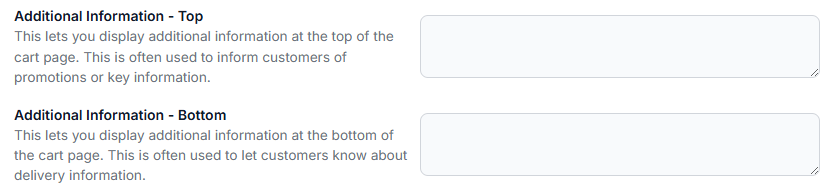
These fields allow you to add messages to the top and bottom of the Cart page, like this: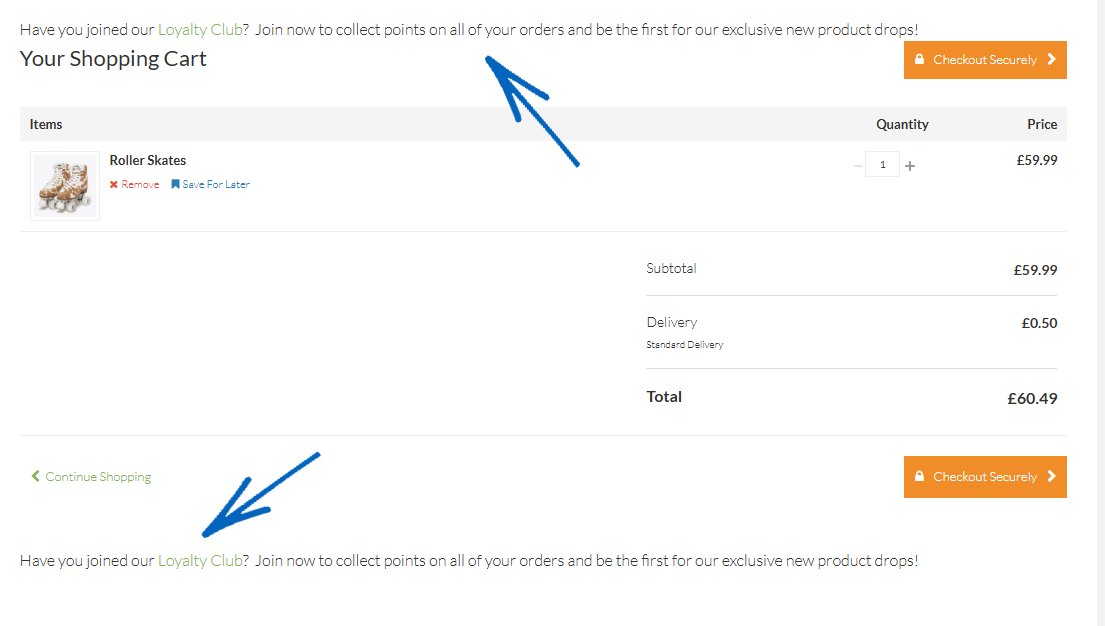
You don't have to use both fields, and both fields don't have to be identical, They are, however, a very useful way to highlight information for your customers. You can add HTML to these fields too, so you can link to specific URLs. It's best practice to keep any text in these fields to a minimum of one or two short sentences to ensure it displays well on different devices.
[tips]If you're not sure how to write HTML - use an unpublished Webpage on your EKM online shop to generate it for you. Write the text for your message as if you were going to publish it on the Webpage, and add in any links. Then click the Source button on the top left-hand side of the grey buttons within the Edit Webpage modal. Copy this HTML to a plain text Notepad (.txt) file (or TextEditor if you're a Mac user). You can then copy the text into the relevant field on the Cart page before click Save on the bottom right-hand corner of the page.[/tips]
Redirect Settings
If you did not tick the Sort Add To Cart box at the top of the page, you'll see the Redirect Settings, where you can choose where users of your EKM online shop are directed to after they have added a product to the cart, by selecting from the drop-down menu:
You can choose from:
- Send them to the Shopping Cart page (recommended)
- Send them to the Category page
- Send them to the Checkout page
- Send them back to the Product page
The option you select depends on the type of products you sell on your EKM online shop and how your customers purchase these items. If you're not sure, select the recommended option and monitor the results.
Abandoned Cart Saver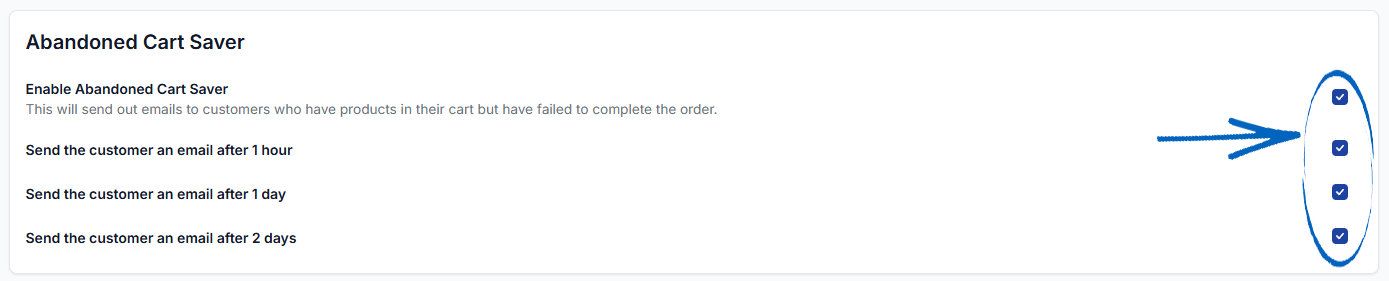
The settings in this area are used if you wish for customers who have abandoned their orders before payment to receive an email notification to remind them to complete their transaction. You can find out how to set this functionality up by following the steps within this Guide.
4. When you have ticked the relevant boxes on this page, you need to scroll down and click the green button on the bottom right-hand side of the page to save your changes: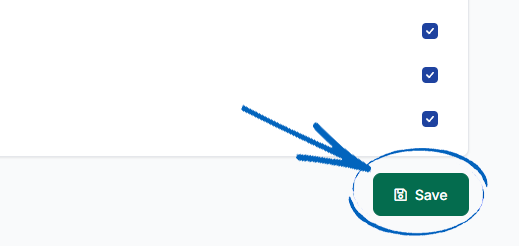
[more]
[/more]
[contact]If you need our help with your EKM online shop, contact the Customer Support Team, who can point you in the right direction. Our opening hours are 9 am - 5.30 pm Monday to Friday, for telephone calls, live chats, and emails. Outside of these hours, you can leave a message for us in the live chat window or email support@ekm.com, and we will answer as soon as possible. If you'd like to suggest a feature or an upgrade on any of the EKM platforms, please let us know on the EKM Suggestions Board. [/contact]