
[intro] When you have completed this Guide, you will know where to find the various outgoing emails that customers can receive from your EKM online shop. Before you begin, it’s a good idea to make sure your shop has a domain name and an email address set up, especially to handle customer queries. [/intro]
1. From the Dashboard, click the Settings cog in the bottom left-hand corner: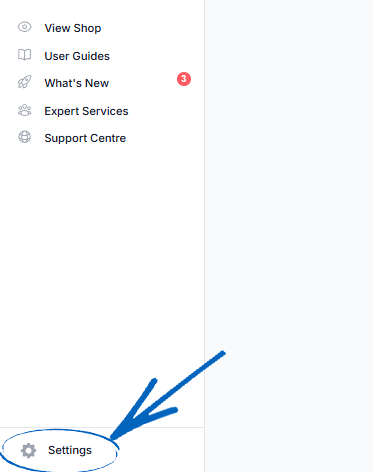
2. Now you need to click Outgoing Emails on the bottom left of the page: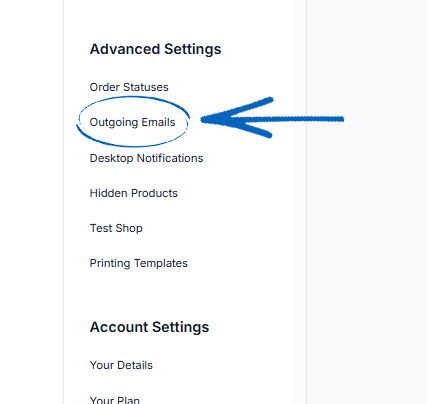
Email Settings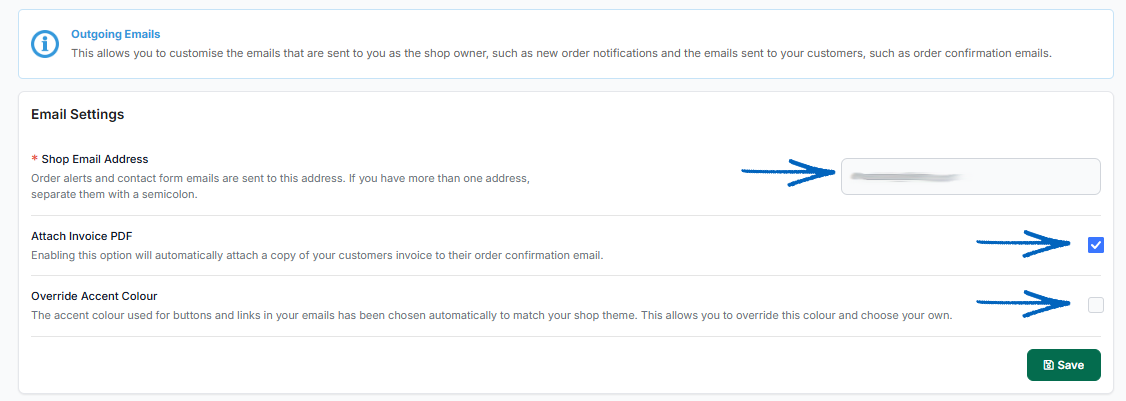
Shop Email Address
Here, you need to add an email address which matches your domain name- such as sales@[yourdomainname] or similar. This ensures customers receive emails from your shop sent from the correct address.
[warning]Do not add an email address from a free provider, such as an email that ends in @Gmail.com, @Yahoo.com, @BTInternet.com or similar. Not only does this look very unprofessional, but using a free email address in this field can, on occasion, prevent customers from receiving emails from your EKM online shop.
The reason is that each free email provider - and there are many - has different settings for what it considers spam. When customers place an order in your EKM online shop, the system sends them a confirmation email from the address specified in the Shop Email Settings field, using a method called ‘spoofing’. What this means is that the email appears to come from your email address, but it’s sent on your behalf by your EKM online shop.
This is a perfectly normal procedure that many platforms use; however, some email providers may mistakenly classify these emails as spam or, worse, block them from reaching your customers. To avoid this, ensure you have a dedicated email address set up that ends in your domain name, so your emails are always delivered to your customers and not classed as potential spam by their email providers. [/warning]
Attach Invoice PDF
If you expect your EKM online shop to have a lot of business customers, tick this box to ensure that a PDF version of the order invoices is attached to the email for your customers
Override Accent Colour
Here you can tick the box to override the Accent Colour of your outgoing emails from the Theme defaults in your EKM online shop.
3. Ticking the box reveals a Colour Picker window. Click it: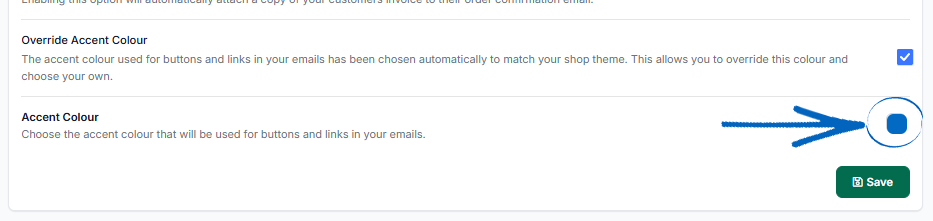
4. You can drag the circle in the larger window to select your shade, use the slider below that to select the colour, click one of the primary colours below to use one of those, or if you have a hex code for a specific colour, paste it into the field and press Enter on your keyboard: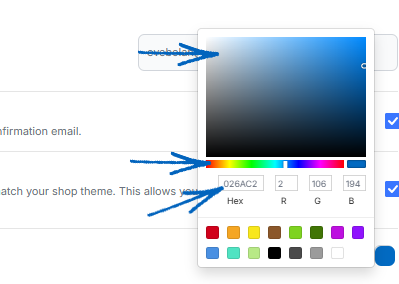
5. When you have finished amending the settings here, click the green Save button on the right-hand side: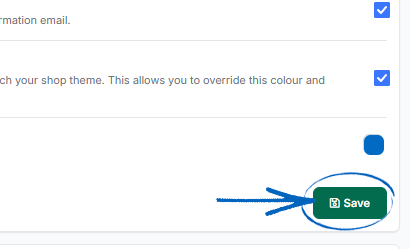
Email Templates
Further down the page, you have the Email Templates. This is where you can view and edit the actual content of the automatic emails which are generated by your EKM online shop.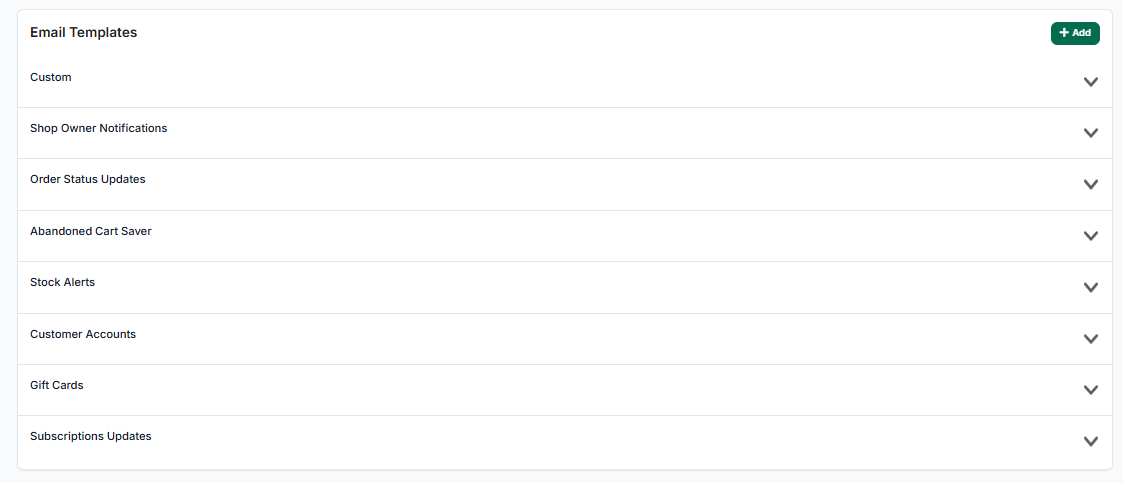
[tips] This Guide takes you through the different steps you need to take to edit your Outgoing Email templates. [/tips]
Custom
Here, you’ll see any Custom Emails you have created for your EKM online shop. Click the header to reveal these emails, and you’ll also see two default ones we have created for you: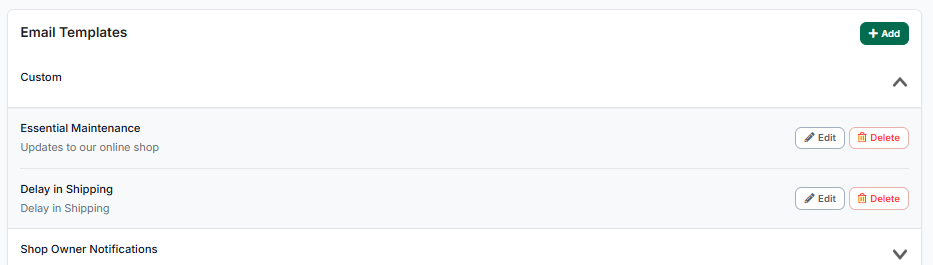
[tips] You can create Custom Emails for your EKM online shop by following the steps in this guide. [/tips]
Shop Owner Notifications
Click this Header to reveal the Email Templates: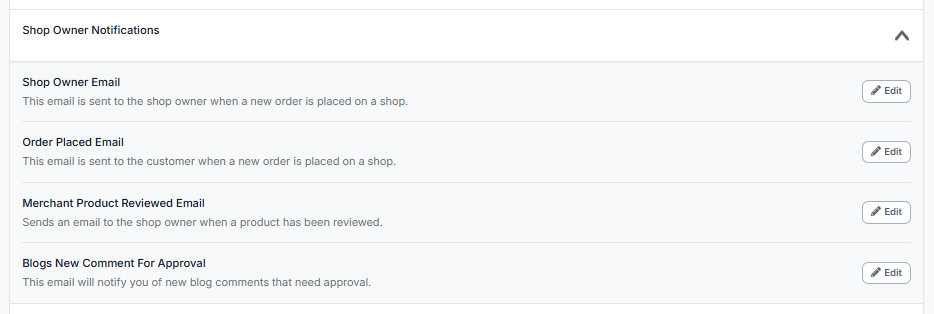
Shop Owner Email
This is the email sent to you, the shop owner, when an order is placed on your EKM online shop. The email will be sent to the address that you added in the Shop Email Address field above, on this same page. You shouldn't need to edit the content of this email as it’s simply a correspondence between you and your EKM online shop, but it is possible.
[tip]This guide takes you through the different steps you need to take to edit your Outgoing Email templates. [/tips]
Order Placed Email
This email is the first the customer will receive from your EKM online shop after placing their order. It’s a good idea to revise this email's content to make it more personal to your brand.
[tip]This guide takes you through the different steps you need to take to edit your Outgoing Email templates. [/tips]
Merchant Product Reviewed Email
If you have installed the Customer Reviews feature on your EKM online shop, when a customer has left a review for a product, you will receive this notification email:
Blogs New Comment For Approval
If you have installed the EKM Blogs feature, you’ll see this email. You’ll receive it as the shop owner whenever a new comment has been made on your blog.
Order Status Updates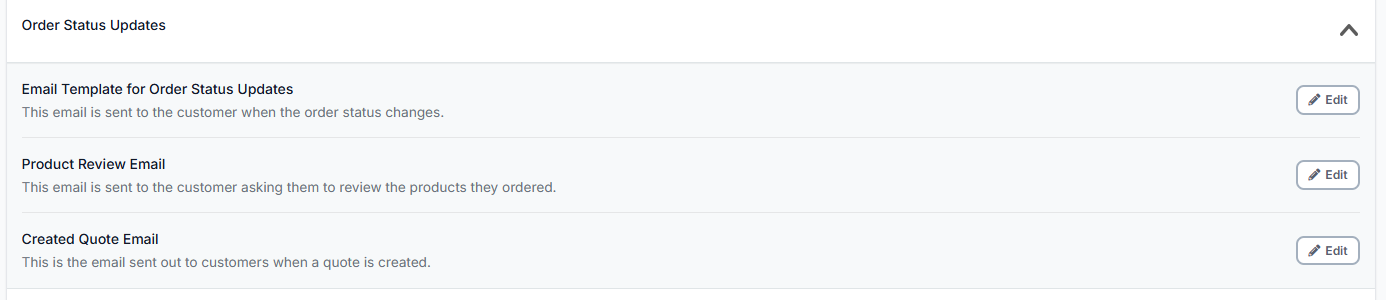
Email Template for Order Status Updates
These are the emails your customers receive whenever you change an order's status. It’s advisable to edit the content of these to match the voice of your brand, but as always, don’t delete any of the EKM Tags, as this will prevent the emails from working properly and displaying the correct information:
[tip]This guide takes you through the different steps you need to take to edit your Outgoing Email templates. [/tips]
Product Review Email
If you have installed the Customer Reviews feature on your EKM online shop, when a customer purchases from you, they will receive this email encouraging them to leave reviews for the products they have bought.
Abandoned Cart Saver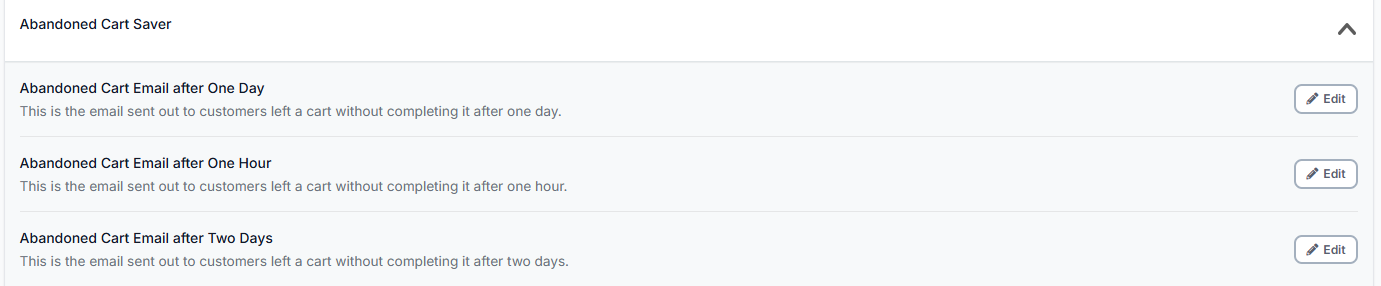
If you have installed the Abandoned Cart Statistics feature on your EKM online shop, you’ll know that you can select how often and how many Abandoned Cart emails a customer may receive after abandoning an order.
Abandoned Cart Email after One Day/One Hour/Two Days
These are the individual emails the customer will receive after abandoning a cart on your EKM online shop.
[tip]This guide takes you through the different steps you need to take to edit your Outgoing Email templates. [/tips]
Stock Alerts
If you have installed the Back In Stock Statistics feature and enabled Back In Stock Alerts, so customers can enter their email address on the Product Page to receive a notification when that Product is back in stock, this is where you can amend the email notification the customer will receive.
Email Template for Back In Stock
If you have allowed this functionality on your EKM online shop, it would be a good idea to amend the text in this email to better fit the branding of your EKM online shop.
[tip]This guide takes you through the different steps you need to take to edit your Outgoing Email templates. [/tips]
Customer Accounts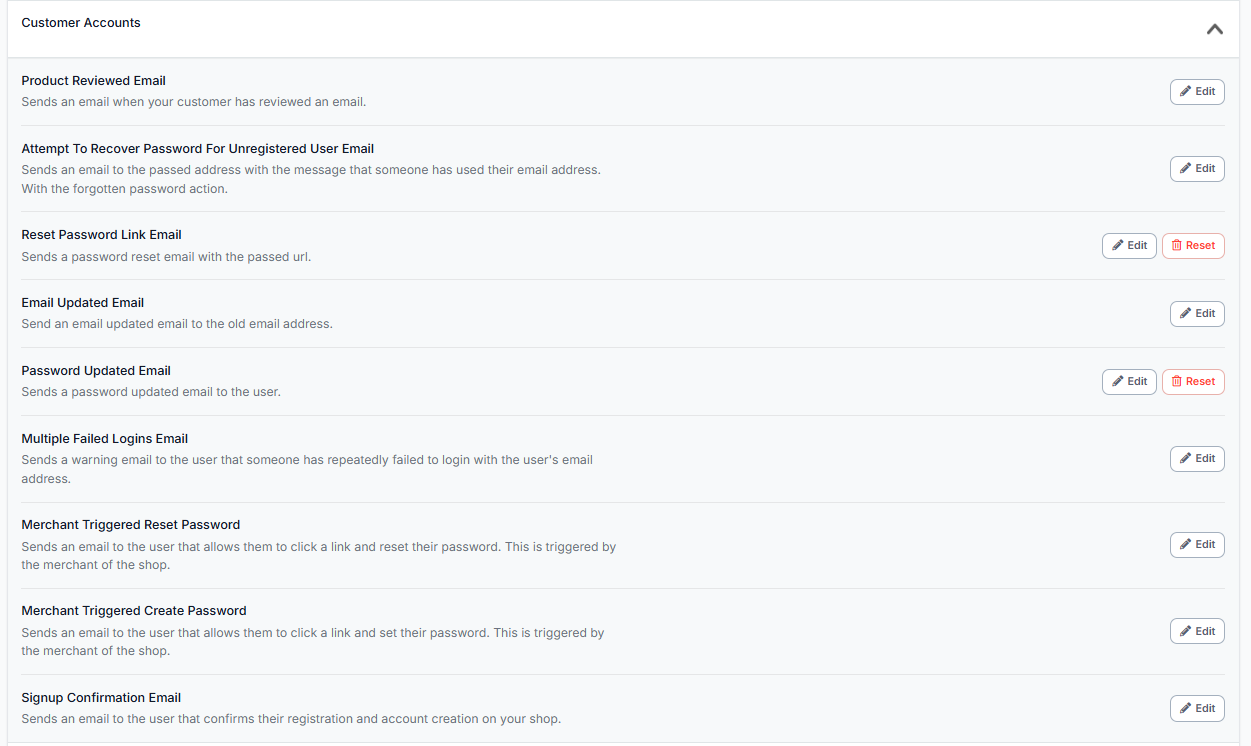
If you have installed the Customer Login feature on your EKM online shop to allow customers to make accounts, save Products to a Wish List and earn Loyalty Points, this is the area where you can edit all of the emails a customer could potentially receive from your EKM online shop:
Product Reviewed Email
This is what your customer will receive after leaving a review for a product on your EKM online shop.
Attempt to Recover Password for Unregistered User Email
If the customer has attempted to log in to their account on your EKM online shop but used the wrong email address, not the one they registered with, they receive this email. As with all customer-facing email templates, it’s a good idea to reword these to suit your brand.
[tip]This guide takes you through the different steps you need to take to edit your Outgoing Email templates. [/tips]
Reset Password Link Email
If the customer clicks the ‘Forgotten Password?’ link when they try to log in to their account, this is the email they receive.
Email Updated Email
If the customer changes the email address registered to their account on your EKM online shop, this email is automatically sent to their old email address.
Password Updated Email
When the customer successfully resets their account password, they will automatically receive this email.
Multiple Failed Logins Email
If the customer has attempted to log into their account on your EKM online shop with the wrong details too many times, they will automatically receive this email.
Merchant Triggered Reset Password
If the customer contacts you, the shop owner, to change their password, you need to explain that they must do so themselves via email, as doing so otherwise is not GDPR-compliant. This is the email the customer receives when you have clicked within their account to reset their password on your EKM online shop.
Merchant Triggered Create Password
When you have created an account for a customer on your EKM online shop, they will, of course, have to set their own password to adhere to GDPR compliance. This is the email the customer receives to create their password.
Signup Confirmation Email
This is the email your customer will receive after successfully creating an account on your EKM online shop.
Subscriptions Updates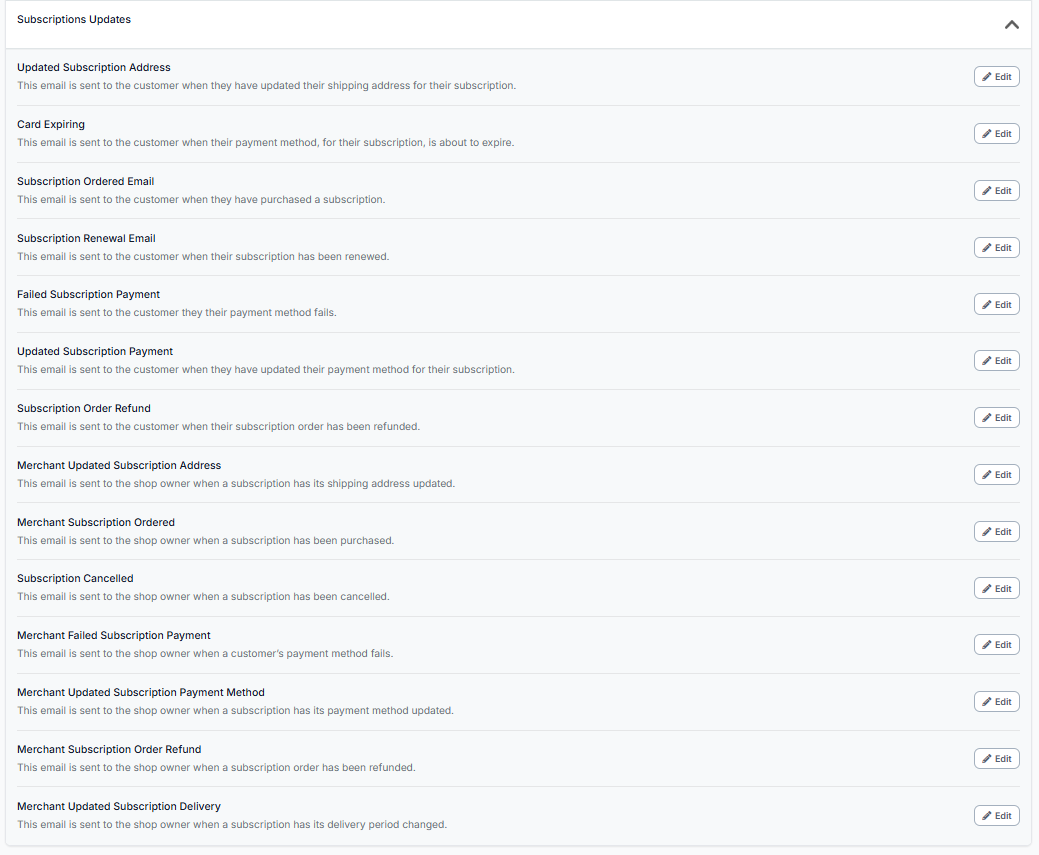
All of the email templates here refer to the Subscriptions feature.
Updated Subscription Address
This email is sent to the customer when they have updated their shipping address for their subscription.
Card Expiring
This email is sent to the customer when their subscription payment method is about to expire.
Subscription Ordered Email
This email is sent to customers who have purchased a subscription.
Subscription Renewal Email
This email is sent to the customer when their subscription has been renewed.
Failed Subscription Payment
This email is sent to the customer if their payment method fails.
Updated Subscription Payment
This email is sent to the customer when they update their subscription payment method.
Subscription Order Refund
This email is sent to the customer when their subscription order has been refunded.
Merchant Updated Subscription Address
This email is sent to the shop owner when a subscription updates its shipping address.
Merchant Subscription Ordered
This email is sent to the shop owner when a subscription has been purchased.
Subscription Cancelled
This email is sent to the shop owner when a subscription has been cancelled.
Merchant Failed Subscription Payment
This email is sent to the shop owner when a customer’s payment method fails.
Merchant Updated Subscription Payment Method
This email is sent to the shop owner when a subscription's payment method is updated.
Merchant Subscription Order Refund
This email is sent to the shop owner when a subscription order has been refunded.
Merchant Updated Subscription Delivery
This email is sent to the shop owner when a subscription's delivery period is changed.
[caution]Some email templates have an Edit button, whilst some have an Edit and a Delete button. Templates with only an Edit button are essential and cannot be removed from your EKM online shop, but optional templates can be deleted. [/caution]
[more]
[/more]
[contact]If you need our help with your EKM online shop, contact the Customer Support Team, who can point you in the right direction. Our opening hours are 9 am - 5.30 pm Monday to Friday, for telephone calls, live chats, and emails. Outside of these hours, you can leave a message for us in the live chat window or email support@ekm.com, and we will answer as soon as possible. If you'd like to suggest a feature or an upgrade on any of the EKM platforms, please let us know on the EKM Suggestions Board. [/contact]